

 unexpectedpanda
Broken GUI if screen scaling is 150% or more on Windows 10 (tested on 4K and FHD res)
Hi, I'm currently using a 4K monitor with the recommended 150% scaling, otherwise windows, texts, etc. are too small, but Retool GUI doesn't scale accordingly:
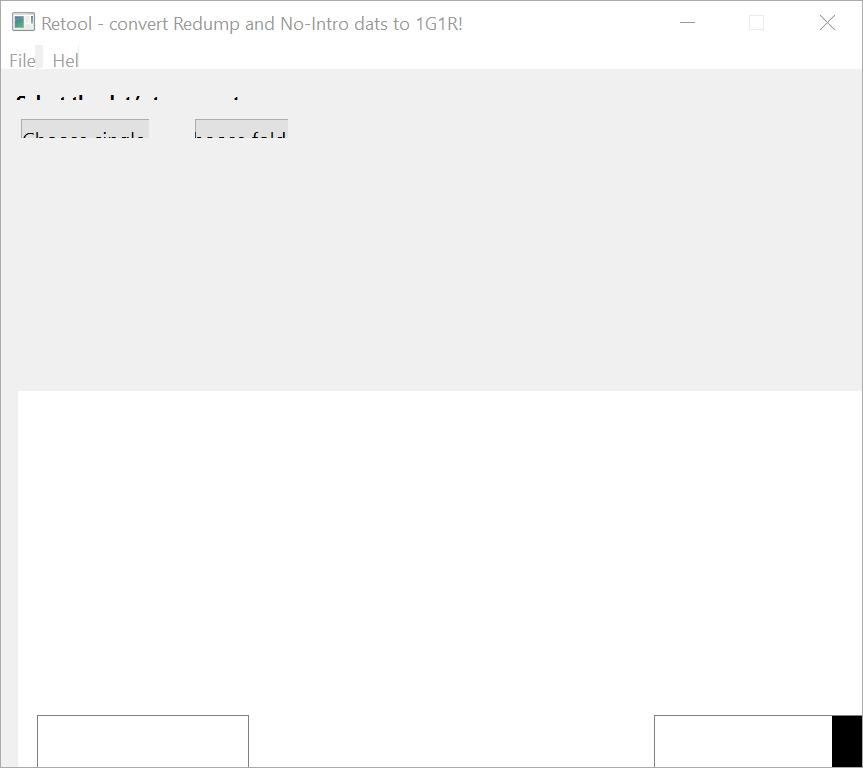

Youch, that's not fun. There is custom code in there to deal with scaling levels, but it looks like that's not working for you.
I don't have a 4k monitor to test with, which is going to really slow things down on addressing the issue. In the meantime, you might be able to work around the problem by fiddling with per-application scaling in Windows 10:
- Right click the .exe file.
- Click Properties.
- Click Compatibility.
- Click Change high DPI settings.
From this point I'm not sure exactly what settings will fix the layout, as I can't test it myself -- but I suspect you might end up with either a blurry app or a tiny one. Certainly not ideal, but perhaps can get things functional until I have access to a 4k screen and can dig deeper.

~~Ok, so this issue is specific to 4K resolution, it seems.~~ [EDIT: it isn't, tested on 4K w/125% scaling on 2022/01/14 and it works.] I thought it was a scaling issue for all resolutions because I tried opening Retool on my other monitor (FHD with 125% scaling) while my 4K monitor was connected but I had the same issue. Just now I tried disconnecting the 4K monitor and starting Retool while I use only the FHD monitor, and it scales correctly. Thanks for pointing me to a possible workaround, I'll try using compatibility settings and I'll let you know how it goes :)
Unfortunately overriding DPI scaling via the Compatibility tab in Properties gives a slightly better result, but the app is still unusable:
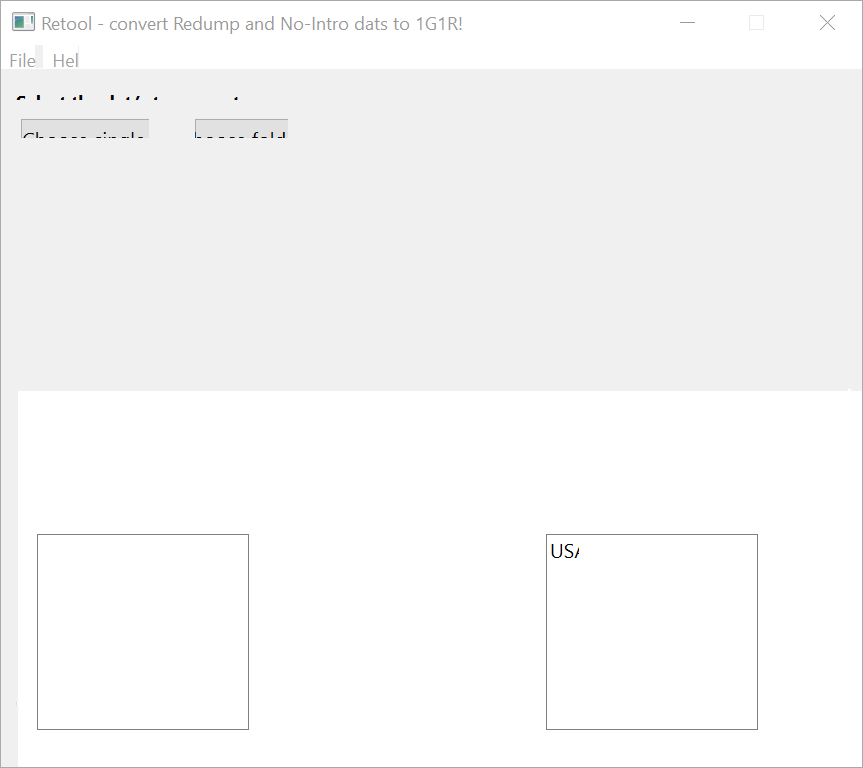
It's worth noting too that Retool won't gracefully rescale the interface if you leave it open while you change Windows scaling settings. A relaunch is required.
As to what happens if you drag it between multiple monitors of multiple scaling factors... well, I'd imagine it wouldn't be pretty. All things I might be able to test one day should a 4k monitor enter my orbit.
Unfortunately overriding DPI scaling via the Compatibility tab in Properties gives a slightly better result, but the app is still unusable:
Ah not great, thanks for checking that out for me. I'll keep this bug open, one day I'll have the hardware to check it out.
@unexpectedpanda ok so I tried reducing DPI scaling to 125%, and now I can use Retool without issues on my 4K monitor (even if I disable DPI override on the Compatibility settings for Retool). Likewise, I tried increasing DPI scaling to 150% on my FHD monitor, and the GUI breaks like the screenshot I posted yesterday. So it seems it's a DPI scaling issue when you set to 150% or more, instead of a 4K resolution issue.
Interesting. It looks like there's more going on here than at first glance.
Can confirm that Retool works fine here when both monitors (QHD, FHD) are set to 150%. The same is true of 175%. However, the monitor Retool is launched from seems to count. If it's launched on the QHD, it works fine when dragged from the QHD to the FHD. If it's launched from the FHD, everything goes wonky at 125%, and at 150% the UI seems to be positioned entirely off-screen (and is blank, judging by the taskbar thumbnail).
I'm also seeing the UI break when both of the following conditions are met:
- Retool is launched on a QHD monitor with scaling set to 150% or higher.
- Retool is moved to an FHD monitor with scaling set to <150%.
If I were to take a guess, I would say it's using one monitor's resolution/scaling for all calculations, which is messing things up.
This will take some digging. I can't promise anything at this stage other than I'll take a look.
Of course. Let me know if you need any more tests done on my 4K display! Anyway tyvm for helping me find a workaround 😁
Thanks :)
I've spent most of the day tinkering here, and have found a few things. This is mostly a laundry list for myself when I'm able to come back to this, sorry if it gets a bit technical.
- Retool is indeed currently returning the scaling percentage of only the first monitor.
- I can get the scaling percentage of the screen Retool is launched from, but not where the Retool GUI loads. This bit is likely solvable with a bit more tinkering.
- PySimpleGUIQT (the middleware I'm using to make QT layouts easier) doesn't treat a window move from the titlebar as an event, so I'm not able to update the GUI on the fly based on which monitor it's on as part of the event loop.
- QT itself does have an autoscale setting (
os.environ['QT_ENABLE_HIGHDPI_SCALING'] = '1'), which is mostly okay. It oversizes things too much for my tastes. If I were able to detect where a user had moved the window, I might be able to adjust things manually withQT_SCALE_FACTOR... but it certainly doesn't work if I call it asos.environ['QT_SCALE_FACTOR']on an event, so... I'm not familiar enough with QT to know where to go from here. - As an absolute last option I can set
os.environ['QT_FONT_DPI'] = '100'which keeps the layout and fonts the same size regardless of scaling setting, titlebar aside. This would likely make things too small on a 4k screen.
There are a few options from here, none of which involve a small amount of work. The easiest seems to be to rely on QT_ENABLE_HIGHDPI_SCALING, toss out any custom code based on individual monitor scaling, and redesign the UI to be more horizontal/scrollable. Unfortunately this one will have to hit the back burner for a while due to the amount of effort involved.

Okay, v2 has ditched PySimpleGUIQT and moved directly to QT6. In theory the changes I've made should work for displays with higher scaling factors, and across displays of different scaling factors. I'm curious to know if this one has been resolved.
I managed to temporarily borrow a 4k screen. Confirming this is no longer an issue.
Confirming this works for me as well, Windows 11 running 4K @ 150% scaling.