
dotfiles
 dotfiles copied to clipboard
 Evangelospro
Collection of all my configuration files for utilities & tools I use. Oh and did I mention I use Arch btw!
【 Evangelospro's dotfiles 】


ELARCH ((E)vangelos (L)ioudakis (ARCH))
Showcase (may be outdated)
Hyprland


Breakdown
There are a few main components to this project:
-
chezmoi - Chezmoi takes cares of the dotfiles and the configuration of the system. It is a tool that helps you manage your personal configuration files across multiple machines. Chezmoi is needed to apply the dotfiles and this repo follows chezmois structure
-
rebos - Rebos (Re)(B)uild(Os) is a neat command line tool that essentially adds nix-like reproduction to arch-based systems. It is a tool that helps you manage your system and install packages. To see the full list of packages that are installed and managed by rebos, you can check the packages
How to apply
[!WARNING] I highly recommend that you use it as template and edit the files to your liking before applying them (using your own GitHub username). Don't forget to come back here and star the project if you liked it!
Cloning
GITHUB_USERNAME=Evangelospro # preferably change this to your own template and github username
git clone https://github.com/$GITHUB_USERNAME/dotfiles ~/.local/share/chezmoi
Basic configuration
[!IMPORTANT] Open up your local .chezmoi.jsonc.tmpl and edit all aplicable fields:
[!WARNING] The below are a must to change, if you don't change them, you will probably not get what you want and have to spend a lot of time troubleshooting!
- isPersonal: This is kind of a setting you have to change or else you will receive some configurations that I deemed too personal, if I deemed that, then they will probably install some personal packages or configurations that you might not want
- isHeadless: This is whether the machine is running headless(No GUI) or not(e.g. a server), this is used to determine whether to install GUI packages or not
- isLaptop: This is whether the machine is a laptop or not, this is used to determine whether to install laptop specific packages or not
- isHacking: Personally, I like to play a lot of CTFs(capture the flag competitions), so I have A LOT of hacking tools installed for all the occasions, if you are not into that, you can set this to false, or at least check the hacking setup section to see if you want to install those tools or not.
- isAsus: This is whether the machine has Asus hardware or not, this is used to determine whether to install Asus specific packages or not(e.g. asusctl, rog-control-center ...)
Graphics (If hybrid graphics, set both to true)
- isNvidiaGPU: This is whether the machine has Nvidia hardware or not, this is used to determine whether to install Nvidia specific packages or not(e.g. nvidia drivers, cuda...)
- isAmdGPU: This is whether the machine has AMD gpu or not, this is used to determine whether to install AMD specific packages or not(e.g. amdgpu drivers...)
- isIntelGPU: This is whether the machine has Intel gpu or not, this is used to determine whether to install Intel specific packages or not(e.g. intel gpu drivers...)
Applying
bash install.sh
Keybindings
Modifiers
$MOD = SUPER
Hyprland
| Keybinding | Action |
|---|---|
| $MOD + M | Exit Hyprland |
| $MOD + Shift + R | Reload the window manager(hyprland) |
Launch / Reload Applications
| Keybinding | Action |
|---|---|
| $MOD + T | Launch Terminal |
| $MOD + L | Lock Screen (swaylock) |
| $MOD + Space | Launch launcher (walker) |
| $MOD + V | Open clipboard manager (clipse) |
| $MOD + C | Select color from screen (hyprpicker) and copy it |
| $MOD + E | Open file manager (Nemo) |
| $MOD + R | Resize window with slurp |
Close / Fullscreen / Kill Applications / Arrange monitors
| Keybinding | Action |
|---|---|
| ALT + F4 | Close focused window |
| CTRL + SHIFT + ESC | Kill window clicked on (xkill or windows taskmanager like functionality) |
| $MOD + F | Toggle fullscreen on focused window |
| $MOD + Shift + F | Toggle floating on focused window |
| $MOD + P | Arrange monitors (extend / duplicate) |
Screenshot / OCR
| Keybinding | Action |
|---|---|
| prtsc | Take screenshot interactively (flameshot) |
| $MOD + O | Copy text from screen with OCR (tesseract) |
Move focus between windows in the current workspace
| Keybinding | Action |
|---|---|
| $MOD + AWSD | Move focus to the direction of the AWSD keys |
Rearrange windows in the current workspace
| Keybinding | Action |
|---|---|
| $MOD + Arrow keys | Move focused window to the direction of the arrow keys |
Move Windows Between Monitors
| Keybinding | Action |
|---|---|
| $MOD + SHIFT + Arrow keys | Move focused window to the monitor in the direction of the arrow key |
Move Windows Between Workspaces
| Keybinding | Action |
|---|---|
| $MOD + SHIFT + 1-9 | Move focused window to the workspace with the number pressed |
| $MOD + 1-9 | Move to the workspace with the number pressed |
Cycle through workspaces
| Keybinding | Action |
|---|---|
| $MOD + TAB | Cycle through workspaces forward |
| $MOD + SHIFT + TAB | Cycle through workspaces backward |
Move window with mouse
| Keybinding | Action |
|---|---|
| $MOD + Click and drag | Move window with mouse(you can even move across monitors) |
Linux Setup
System:
OS: Arch Linux
Kernel: Linux-g14 and fallback to Linux
Display Server: Wayland
GUI:
Color Scheme: Dracula
Notification Center: SwayNotificationCenter
- configuration


Window Manager: Hyprland
Bar: Waybar
- configuration

Application Launcher: Walker
- configuration

Clipboard Managegment: wl-clipboard
- clipboard manager - A dmenu based clipboard manager that uses wl-clipboard and fuzzy finding to paste from clipboard history

Color Picker: Hyprpicker
OSD: swayosd - An on-screen display for capslock, numlock, volume, brightness and more
 !
!
Terminal and Shell:
Terminal: Wezterm
Shell ZSH
Theme: Powerlevel10k
Font: FiraCode Nerd Font
Bindings: binds.zsh
Aliases: aliases.sh
Functions: functions.zsh
Plugins:
manager
config
zsh-smartcache - Caches the output of commands such as $(eval program init) to speed up shell startup
thefuck - a magnificent app, that corrects errors in previous console commands.
direnv - It can load and unload environment variables depending on the current directory. (usually loads an adjacent .env from your local directory)
atuin - Stores shell history and allows you to search it with fuzzy finding and very quick shortcuts, significantly speeding up the proccess of you finding that one command that you typed a year ago.
highlighter - Essentially it allows you to highlight output of commands in the terminal (e.g echo "evangelospro" | h "pro")
dirhistory - Navigate directory history using ALT-LEFT and ALT-RIGHT
zoxide - A smarter cd command that remember and adjusts to your habbits allowing you to navigate directories faster
zsh-mask - Masks secrets in your zsh history, so you don't accidentally leak them
zsh-autopair - A zsh plugin that automatically inserts closing brackets, parens, quotes, etc.
zsh-navi - A zsh plugin for navi - An interactive cheatsheet tool for the command-line
zsh-you-should-use - Simple zsh plugin that reminds you that you should use one of your existing aliases for a command you just typed.
zsh-auto-notify - ⏰ ZSH plugin that automatically sends out a notification when a long running task has completed.
zsh-autosuggestions - Suggests commands as you type based on history and completions
fast-syntax-highlighting - Highlights commands as you type based on syntax
zsh-completions - Additional completion definitions for zsh
zsh-autocomplete - A fast, asynchronous autocomplete plugin for Zsh
zsh-autosuggestions - Fish-like autosuggestions for zsh
modern-unix-commands - Essentially replaces many well known unix commands and utilities with better or superior alternatives
- lsd - This project is a rewrite of GNU ls with lots of added features like colors, icons, tree-view, more formatting options etc...
- bat - A cat(1) clone with wings. With syntax highlighting and many more features while being a cat(1) drop in replacement
- format - A collection of additional utilities for bat(1) like prettyprinting / formatting with
format - rigprep - ripgrep recursively searches directories for a regex pattern while respecting your gitignore (aliased to
rgand boosted bybatgrepfor syntax highlighting) - fd - A simple, fast and user-friendly alternative to 'find'
- procs - A modern replacement for ps written in Rust
- hyperfine - A command-line benchmarking tool.
- btm - A cross-platform graphical process/system monitor with a customizable interface and a multitude of features (aliased to
top) - tealdeer - A collection of simplified, example based and community-driven man pages. (aliased to
tldrorhelp) - dust - A more intuitive version of du written in Rust (aliased to
du) - delta - A viewer for git and diff output (aliased to
diff)
Theme: Powerlevel10k
- configuration
Development Setup
Docker-rootless
Visual-Studio-Code-Insiders
- configuration
Windows Setup (Mostly manual)
On windows I use GlazeWM with the Win key remapped using PowerToys
winget install Microsoft.PowerToys --source winget
SO WIN -> ALT ALT -> WIN
Hacking Utilities and Setup
Shell functions
| Function | Action |
|---|---|
| update-burp | Update burp to the latest version |
| angr | Run angr in a docker container |
| extract-base64 | Extract base64 encoded strings from a file |
| extract-urls | Extract urls from a file |
| frida-init | Initialize frida server on android device |
| frida-kill | Kill frida server on android device |
| pwnenv | Create a pwn environment in a docker container |
| pwnsetup | Setup a pwn template in the current directory |
| scan | Use rustscan to scan a host |
| curl | Normal curl but uses the burp proxy if it's running |
| ferox-* | Feroxbust a host with a specific wordlist |
| ffuf-* | Fuzz a host with a specific wordlist |
| get-wordlist | Return a wordlist of either dns or dir according to the argument passed |
Burp
Installation and updates
Burp is setup to auto update with the update zsh function above. As I like to use the jar file with my own loaders for obvious reasons, the latest jar file is fetched and placed in $HOME/.config/Burp/Burp-Loader and symlinked to burpsuite_pro.jar
Config
- project-options.json
- user-options.json
Android Emulator
An already setup android emulator can be started from the launcher using the android_emulator desktop file
Contributing
Bug Reports, Feature Requests and questions
- Please use the issue tracker to report any bugs, file feature requests or ask questions.
Pull Requests
- Feel free to fork and contribute to this project. If you feel like you can add something to it or fix a bug, go for it.
- If you want to contribute to the project, please open a pull request.
- If you want to add a new feature, please create an issue first to discuss if it is a good idea or not.
- If you want to fix a bug, please also create an issue first.
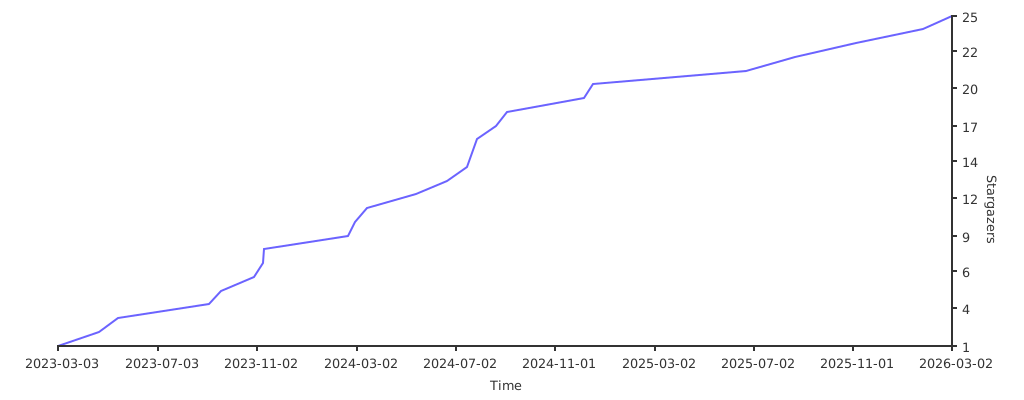
🌟 Stars 🌟
- Consider leaving a star if you liked the project! Thanks!
Thanks to these awesome projects and many more!!!
Metadata
Owner
 Evangelospro
Metadata
Collection of all my configuration files for utilities & tools I use. Oh and did I mention I use Arch btw!