
glass-presentation-remote
 glass-presentation-remote copied to clipboard
 yeldarby
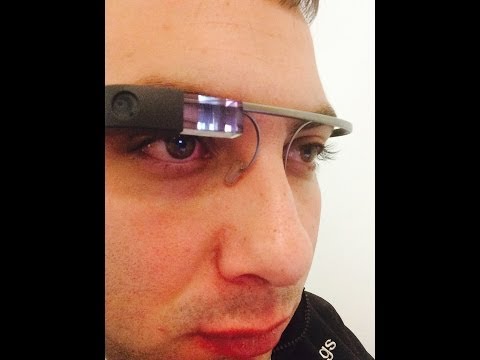
A Google Glass app that lets you control a presentation and provides a heads up display for the presenter.
Presentation Remote for Google Glass
- Control a Prezi with your Google Glass while on stage.
- Navigate your Prezi by swiping forward or backward on the Glass touchpad.
- Mirror your display on Glass to eliminate the need for a separate screen for the presenter.
- Resetable on-display timer to keep track of how long your presentation has gone.
Video Demo
System Requirements
- Google Glass for the Presentation Remote
- A Mac OS X machine to run the presentation (currently, the
local.jsserver uses some shell commands to send a screencast to your Glass display that may only be available on OS X)
Installation and Setup
Presentation Remote for Google Glass uses wearscript to access the Glass' native features. You will need to follow their instructions to setup a server; I recommend following their instructions to install the Virtual Machine on an Amazon EC2 instance.
Once you have the server running and your Glass paired with the server (follow the instructions on the wearscript site),
paste the code from client.html into the wearscript web interface and click "Wear this Script".
Now replace the Prezi ID inside of presentation.html.
To run the local server you will need node.js and npm installed on your machine.
Once you have those installed, navigate to the project directory in a terminal window and type npm install to install the
dependencies. Then run sudo node local.js. This will start a web server on http://localhost with your presentation.
Note: you will need to add your AWS client ID and secret into a config.json file so that the script can upload.
Format documentation available from Amazon
Extra Bonus Features
If you want to show someone what it looks like on your Glass display, navigate to http://localhost/mirror
This shows a (nearly) live view of what you see on Glass.
To see only the latest screenshot that was uploaded to S3, navigate to http://localhost/screenshot
Controlling Your Presentation
Control your presentation by using the following gestures on your Glass touchpad:
- Swipe Forward - Go to next slide
- Swipe Backwards - Go to previous slide
- Two Finger Swipe Forward - Jump to end
- Two Finger Swipe Backwards - Jump to beginning
- Single Tap - Force refresh of screen mirrored image
- Long Press - Reset Timer
Feature Backlog
- Suggestions? Send me a tweet @braddwyer.
About this Project
This project was created for Mhacks Winter 2014 by Brad Dwyer.
 yeldarby