
MeasureThat.net
 MeasureThat.net copied to clipboard
 thecoderok
Source code of MeasureThat.net, web application to measure performance of JavaScript code snippets
MeasureThat.net
MeasureThat.net is the website to create and run JavaScript benchmarks. It uses BenchmarkJS (v.2.1.1) as a test runner.
Running at: https://www.measurethat.net/
How to run MeasureThat on Linux using PostgreSQL:
This blog post explains how to build and run the app on Linux using PostgreSQL: http://the-coderok.azurewebsites.net/2016/10/11/Run-MeasureThat-net-application-on-Linux-building-and-running-the-application/
get started.
Check out the application's source code:
Open the terminal window. Create folder source for the application and check out the code:
$ mkdir source
$ cd source/
$ git clone https://github.com/thecoderok/MeasureThat.net.git
Cloning into 'MeasureThat.net'...
remote: Counting objects: 2324, done.
remote: Compressing objects: 100% (17/17), done.
remote: Total 2324 (delta 2), reused 0 (delta 0), pack-reused 2305
Receiving objects: 100% (2324/2324), 1.16 MiB | 650.00 KiB/s, done.
Resolving deltas: 100% (1478/1478), done.
Checking connectivity... done.
vitalii@vitalii-vm:~/source$
Build the application
Now everything is ready to build the application. Step into the folder with source code (MeasureThat.net/src/BenchmarkLab$ ) and run restore dotnet, npm and bower packages (it will take couple of minutes):
dotnet restore
npm install
bower install
Build frontend:
gulp
Build the application:
dotnet build
Build should succeed:

Prepare the configuration file
Open appsettings.json file in the text editor and:
- Disable External authentication: set
UseFacebookAuthentication/UseGoogleAuthentication/UseTwitterAuthentication/UseMicrosoftAuthenticaitontofalse(Please let me know in the commens if you want to be able to use External authentication, I can explain how it can be done ) - Set
RequireEmailConfirmationto false - Disable reCaptcha: set
ReCaptchaEnabledtofalse. - Set database type to PostgreSQL.
Result should look like this:
{
  "ApplicationInsights": {
    "InstrumentationKey": "6fbb4f00-bf94-4fe8-a0e3-a5b4e1283fc2"
  },
  "Logging": {
    "IncludeScopes": false,
    "LogLevel": {
      "Default": "Debug",
      "System": "Information",
      "Microsoft": "Information"
    }
  },
  "UseFacebookAuthentication": false,
  "UseGoogleAuthentication": false,
  "UseTwitterAuthentication": false,
  "UseMicrosoftAuthenticaiton": false,
  "ResultsConfig": {
    "UploadResultsToDb": true,
    "UploadGuestUserResultsToDb": true
  },
  "GoogleAnalytics": {
    "Enabled": true,
    "Identifier": "UA-83528903-1"
  },
  "AllowGuestUsersToCreateBenchmarks": true,
  "SenderEmail": "[email protected]",
  "SenderName": "MeasureThat Admin",
  "DatabaseType": "PostgreSQL",
  "RequireEmailConfirmation": false,
  "ReCaptchaEnabled": false
}
Prepare the database
Now we need to prepare the database. Switch to postgres user and run the postgres client:
$ sudo -i -u postgres
$ psql
If you need to set the passowrd for the postgres user, enter command the password to do so. This may be needed right after PostgreSQL was installed.
postgres=# \password postgres
Enter new password:
Enter it again:
Create the database MeasureThat:
postgres=# create database MeasureThat;
CREATE DATABASE
You can exit from postgres cleint and switch back to the original user:
postgres=# \q
postgres@vitalii-vm:~$ exit
logout
vitalii@vitalii-vm:~/source/MeasureThat.net/src/BenchmarkLab$
Set the connection string (using Secret Manager tool):
$ dotnet user-secrets set ConnectionStrings:DefaultConnection 'User ID=postgres;Password=root;Host=localhost;Port=5432;Database=MeasureThat;
Pooling=true;'
Create the database schema:
$ dotnet ef migrations add testPg
Project BenchmarkLab (.NETCoreApp,Version=v1.0) was previously compiled. Skipping compilation.
Done. To undo this action, use 'dotnet ef migrations remove'

$ dotnet ef database update
Project BenchmarkLab (.NETCoreApp,Version=v1.0) will be compiled because Input items added from last build
Compiling BenchmarkLab for .NETCoreApp,Version=v1.0
Compilation succeeded.
    0 Warning(s)
    0 Error(s)
Time elapsed 00:00:04.6049020

Done.
Run the application
Set the ASPNETCORE_ENVIRONMENT variable to Development
$ export ASPNETCORE_ENVIRONMENT=Development
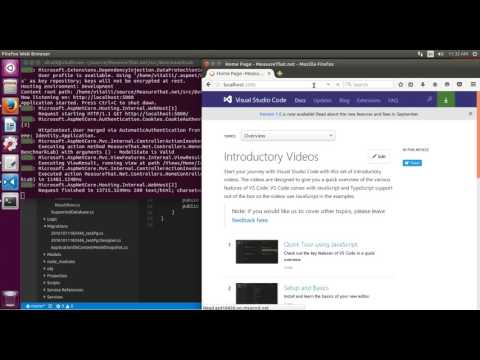
And (drum roll) run the application:
dotnet run
Metadata
Owner
 thecoderok
Metadata
Source code of MeasureThat.net, web application to measure performance of JavaScript code snippets