
MinecraftChromaMod
 MinecraftChromaMod copied to clipboard
 tgraupmann
A Minecraft Sample Mod that does Chroma RGB
Minecraft Chroma Mod
This Mod is built with MinecraftForge and displays Chroma RGB effects for various game events.
JChromaSDK.java exposes the C++ CChromaEditor library functions for Java.
JChromaSDK is able to play Razer Chroma animations from the Project Resources.
Latest
- GamingWave added support for (MinecraftForge 47.1.0 MInecraft: 1.20.1) on a fork.
Table of Contents
- See Also
- Quick Start
- Chroma Effects
- Videos
- Setup and Build
See Also
Docs:
-
Chroma Animation Guide - Visual examples of the Chroma Animation API methods
-
Java SDK - Chroma Animation Sample App - Java port of the effects from the Chroma Animation Guide
Mods:
-
MinecraftChromaMod - Minecraft Chroma RGB Mod
-
RobloxSampleChromaMod - Roblox Sample Chroma RGB Mod
-
Cpp_RustChromaModClient - Rust Chroma RGB Mod Client
Editors:
- Web Chroma Editor - Create Chroma RGB Animations
Quick Start
-
You may need to migrate your account to a Microsoft Account in order to update the launcher to install 1.17.1.
-
Use the Minecraft launcher to use the Minecraft Java Edition

-
Visit the Releases Section to run the installers.
-
Use the Minecraft Forge Universal Installer for client and server
-
Use the mod installer that matches the Minecraft Forge version
-
To run a local Minecraft server modify the
%APPDATA%\.minecraft\eula.txtto accept.
eula=true
- To run Minecraft as a dedicated server and use Chroma on the clients, install the server mod on the server.
The client mod with Chroma will be allowed because the modid matches on server and client.
- To run a dedicated server, run the following in the
command-prompt.
CD %appdata%\.minecraft
CALL java -Xmx4096M -jar libraries\net\minecraft\server\1.17.1\server-1.17.1.jar nogui
- Or put a batch file in your
.minecraftfolder to start the server.
run_minecraft_server.cmd
CALL java -Xmx4096M -jar libraries\net\minecraft\server\1.17.1\server-1.17.1.jar nogui
-
The server will not be able to run the client mod. So you'll want to uninstall the client mod on the server and install the server mod on the server.
-
Connect to Minecraft dedicated servers using port:
25565.

Chroma Effects
-
Base Effect
-
Main Menu Effect
-
In Water Effect
-
Place Block Effect
-
Craft Item Effect
-
Player Damage Effect
-
Fire Arrow Effect
-
Kill Pig Effect
-
Kill Chicken Effect
-
Open Chest Effect
-
Open Door Effect
-
Close Door Effect
-
Sword Attack Effect
-
Spawn Fish Effect
-
Potion Effect
-
Raining Effect
-
Snowing Effect
-
Ladder Effect
-
Riding Cart Effect
Videos
Setup Video
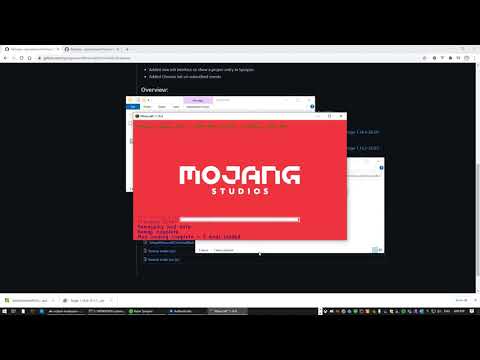
Intro Video
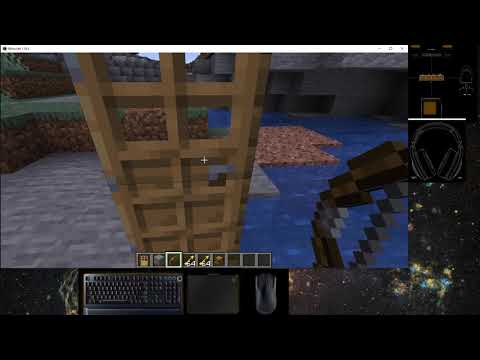
More Chroma Effects
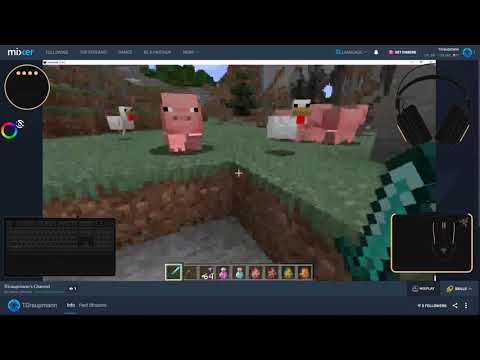
Weather
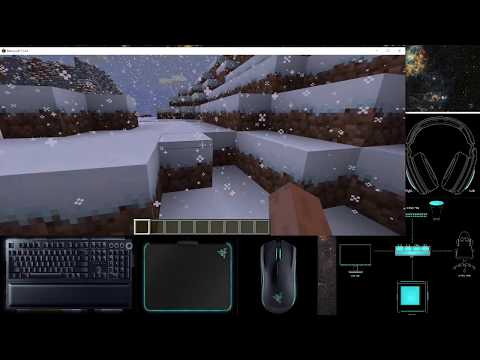
Setup and Build
This section is only needed to build a new mod installer or to make changes to the mod.
-
Install JDK 16 or better
-
You can also use OpenJDK. Use
Latest release jdk-16.2+7or better.

- The installer can set the JAVA_HOME for you.

- Set the
JAVA_HOMEenvironment variable to the path of the 64-bit version of the JDK. Gradle will report out of memory with the 32-bit JDK version which can be fixed in thegradle.propertiesfile if you have to.
The path will vary depending on the JAVA version that you install.
JAVA_HOME
C:\Program Files\Eclipse Foundation\jdk-16.0.2.7-hotspot\

-
Install the Eclipse IDE
-
Install the latest MinecraftForge
serverandclientusing the Windows Installer
Above: Install the Server and Client
-
Make sure you do both for the Minecraft Forge handshake to work.
-
That means double-click
forge-1.17.1-37.0.108-installer.jarand use the UI to install both.


Get the mod
- Download the Minecraft Forge MDK

- Extract the MDK to a folder like:
C:\Public\forge-1.17.1-37.0.108-mdk

- Make sure the path isn't too long to avoid compile errors.
Check that the MDK can build and run
- Use Start->Run, enter
cmd, and pressOK.
cmd

- CD to the extracted folder Ie.
CD "C:\Public\forge-1.17.1-37.0.108-mdk"

Generate Eclipse Project
gradlew genEclipseRuns

Start the mod (on the command-line)
gradlew runClient

Manually Merge Changes
-
With a properly setup developer environment that can compile MCF mods, now we need to make sure the Chroma Mod has the latest updates.
-
Compare the
MDKchanges with theMinecraftChromaMod -
Unfortunately, every minor .x release will have class name and package namespace changes that need manually merged.


-
Likely there will also be minor build changes that can be copied over.
-
Use Winmerge or your favorite diff tool to manually merge in those changes.

- With all the changes merged, you can continue to build the Chroma mod.
Now repeat the steps to run the Chroma MOD sample
-
Open a command-prompt and navigate to the project checkout folder for this repository. Wherever you cloned - https://github.com/tgraupmann/MinecraftChromaMod
-
Use Start->Run, enter
cmd, and pressOK.
cmd
- CD to the checkout folder Ie.
CD "C:\Public\MinecraftChromaMod"

Generate Eclipse Project
gradlew genEclipseRuns
Launch Eclipse
Use the File->Import menu item

Select Gradle\Existing Gradle Project and click Next

Browse to the MinecraftChromaMod folder and click Finish

If the import is successful, the project shouldn't have any compile errors.

Use the Run toolbar drop down

Select Run Configurations...

Start the mod (from Eclipse)
- Select the
Java Application->runClientand clickRun

Start the mod (on the command-line)
gradlew runClient
Build the build\libs\modid-1.0.jar
gradlew build
Build the installer with InnoSetup
Support
Support is available on Discord, you can reach me at tgraupmann.
 tgraupmann