
SynFacilCompletion
 SynFacilCompletion copied to clipboard
 t-edson
Scriptable Highlighter with code-completion for the SynEdit Component of Lazarus
SynFacilCompletion 1.22
Scriptable Highlighter with code-completion for the SynEdit Component of Lazarus.
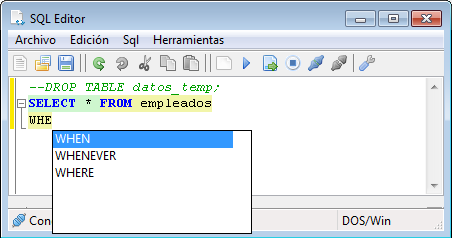
This highlighter is based on the highlighter https://github.com/t-edson/SynFacilSyn , and includes all his options, and others special for defining the code-completion feature.
This library works in the same way that the SynFacilSyn library works. It uses a XML file to define the syntax, and additionally, the words for the completion code.
In the XML file, it's added the label "COMPLETION" for defining a list of words for using when writing code on the editor.
Using in a program.
There are 3 units to include when using this library:
- SynFacilBasic.pas (version 1.18 or higher)
- SynFacilHighlighter.pas (version 1.18 or higher)
- SynFacilCompletion.pas
Only the unit 'SynFacilCompletion' is necessary to include in the section USES of the programs. 'SynFacilHighlighter' is used by 'SynCompletionFacil' and must be accessible.
For using the highlighter, we must create an TSynFacilCompletion object:
uses ... , SynFacilCompletion;

procedure TForm1.FormShow(Sender: TObject);
begin
 //configure highlighter
  hlt := TSynFacilComplet.Create(self);  //my highlighter
  SynEdit1.Highlighter := hlt;  //optional if we are going to use SelectEditor()
  hlt.LoadFromFile('ObjectPascal.xml');  //load syntax
  hlt.SelectEditor(SynEdit1);  //assign to editor
end;
The completion menu will open, when pressing Ctrl+Space, but if we want to auto-open the completion menu, when pressing a key, we must intercept the KeyUp() event, of the SynEdit:
procedure TForm1.edKeyUp(Sender: TObject; var Key: Word; Shift: TShiftState);
begin
  hlt.KeyUp(Sender, Key, Shift);
end;

procedure TForm1.ed1UTF8KeyPress(Sender: TObject; var UTF8Key: TUTF8Char);
begin
  hlt.UTF8KeyPress(Sender, UTF8Key);
end;
And the we must finalize correctly:
procedure TForm1.FormDestroy(Sender: TObject);
begin
  hlt.UnSelectEditor;   //release editor (only necessary if we are to call to SelectEditor(), again)
  hlt.Free;  //destroy the highlighter
end;
To close the window of the completion menu, we must to call to the method: CloseCompletionWindow().
In the XML file, we must include the list of word to use in the completion menu. This list must be included in the label COMPLETION.
Defining the list of words for completion
The list of words for completion, is defined in the same XML where the syntax is defined.
The next XML file, define three words for the completion menu:
<?xml version="1.0"?>
<Language name="Pascal" ext="pas">
  <completion>
    var
    procedure
    function
  </completion>

  ...

</Language>
This is the simpler way to define a list of words for the completion menu. It will be shown, when a key is pressed, if this option is enabled.
There is some parameters to include on the tag <Completion>. They are:
- CaseSensitive -> True or false. Define if the completion function use or not the case of the text to work.
- OpenOnKeyUp -> Enabled if the completion menu is shown when a Key is pressed (released). It's enabled by default.
- SelectOnEnter -> Let to select a word of the completion menu, using the <enter> key.
Including, directly, the words into the tags <completion>, is a simple way, but not the formal way. It's better to use the tag <OpenOn>:
<?xml version="1.0"?>
<Language name="Pascal" ext="pas">
  <completion>
    <OpenOn>
      var
      procedure
      function
    </OpenOn>
  </completion>

  ...

</Language>
Using all the Keywords for completion
It's possible to use too, the list of Keywords (or another group) like words for the completion menu:
<?xml version="1.0"?>
<Language name="Pascal" ext="pas">
  <Completion>
    <OpenOn >
      <Include Attribute="Keyword"></Include>
    </OpenOn>
  </Completion>

  <Identifiers>
    <Keyword>
    var     procedure     function
    </Keyword>
  </Identifiers>
</Language>
In this way, we avoid to repeat all the list of keywords again.
Using list of words for completion
The words for completion, can be grouped on list using the tag <LIST>, like in the following definition:
<Language>
  <Completion>

    <List Name="MyList"> foo bar foobar
    </List>

    <List Name="MyList2"> foo2 bar2 foobar2
    </List>

    <OpenOn>
       <Include list="MyList"></Include>
       <Include list="MyList2"></Include>
    </OpenOn>

  </Completion>
  ...

</Language>
Having lists in this way, make easy to classify the total words for completion, and can be reused when using several Opening Events.
Replacing a different word
When defining a list of items, it's possible to define a different word for completion, so the replacing would be done using another word instead of the item shown in the menu.
  <Completion>
    <OpenOn >
       foo|foo_to_show
       bar|bar_to_show
    </OpenOn>

    ...

  </Completion>
The char "|" is a separator of fields. The structure of fields for the items is:
<Caption>|<Text for replacing>|<Description>
The Description field is not implemented in this version.
Using Icons
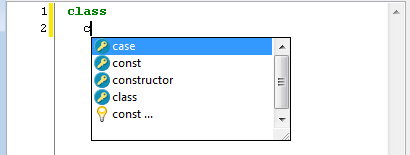
Icons can be shown in the completion menu. The icons to use must be first loaded in a TImageList control and assigned to the highlighter in the field "IconList":
hlt.IconList := ImageList1;
Then, we must use the icon index, to select the icon to show in the completion menu. It can be done using the parameter "IconIndex" in a list definition or :
    <List name='MiLista' IconIndex='2'>
	  ...
    </List>
The result would be like the following figure:
Defining Opening events
A more advanced definition of the completion functionality, can be implemented using Opening events.
An Opening event is defined using the tag <OpenOn>, like is shown in the following definition:
  <OpenOn AfterPattern='"choose",space' FilterBy="None" Action="Insert">
	foo
	bar
	foobar
  </OpenOn>
The parameter "IconIndex" can be used in the tag <<OpenOn>> too.
The definition of Opening events, can control:
- When opening the completion menu.
- How to filter the items.
- What action to take for replacing.
- Where to leave the cursor after the replace.
For more information, check the documentation.
Positioning the cursor
The cursor can be positioned, after selecting an item of the completion list.
To do this, we need to use the escape sequence "_".
The following code, shows how to leave the cursor between parentheses, after replacing the text:
  <Completion>
    <OpenOn>
       My_function(\_)
    </OpenOn>
    ...
For more information, check the documentation.
Configuring completion by code
In addition to the XML file, the highlighter can be configured in the program.
All the completion are defined using Openning-events. To implement a completion, it's needed, at least, one object Oppening-event. All the oppening-events are stored in the list OpenEvents[], in the highlighter.
By default, the highlighter creates an openning-event when laoding an XML syntax file. So to access to it, we can access to OpenEvents[0].
The next code, shows how a completion list is created, only using code:
procedure TForm1.FormCreate(Sender: TObject);
begin
  //configure highlighters
  hlt1 := TSynFacilComplet.Create(self);  //my highlighter
  //  ...
  //Here the syntax is defined
  // ...
  hlt1.Rebuild;
  hlt1.SelectEditor(ed1);
  //Create an Oppening-event
  opEve :=  hlt1.AddOpenEvent('Identifier', '', fil_LastTokPart);
  //Define the completion list
  opEve.AddItem('aaa',-1);
  opEve.AddItem('abb',-1);
  opEve.AddItem('acc',-1);
end;
The AddItem() method let us, to add new words to the completion list.
For more information, check the documentation.
Filling dinamically the completion List
It's possible to fill dynamically the completion list, before shown in the editor. To do that, it is necessary to use de event OnLoadItems from the TFaOpenEvent object:
opEve.OnLoadItems := @evoLoadItems;
One simple code to manage the event onLoadItems, could be:
procedure TForm1.opEveLoadItems(opEve: TFaOpenEvent; curEnv: TFaCursorEnviron; var Cancel: boolean);
begin
  //Fills the completion list
  opEve.ClearAvails;
  opEve.AddAvail('alfa');
  opEve.AddAvail('beta');
  ...
  Cancel := true;
end;
 t-edson