
mpv2anki
 mpv2anki copied to clipboard
 senneh
A simple and quick way to create Anki notes from audio and video
mvp2anki
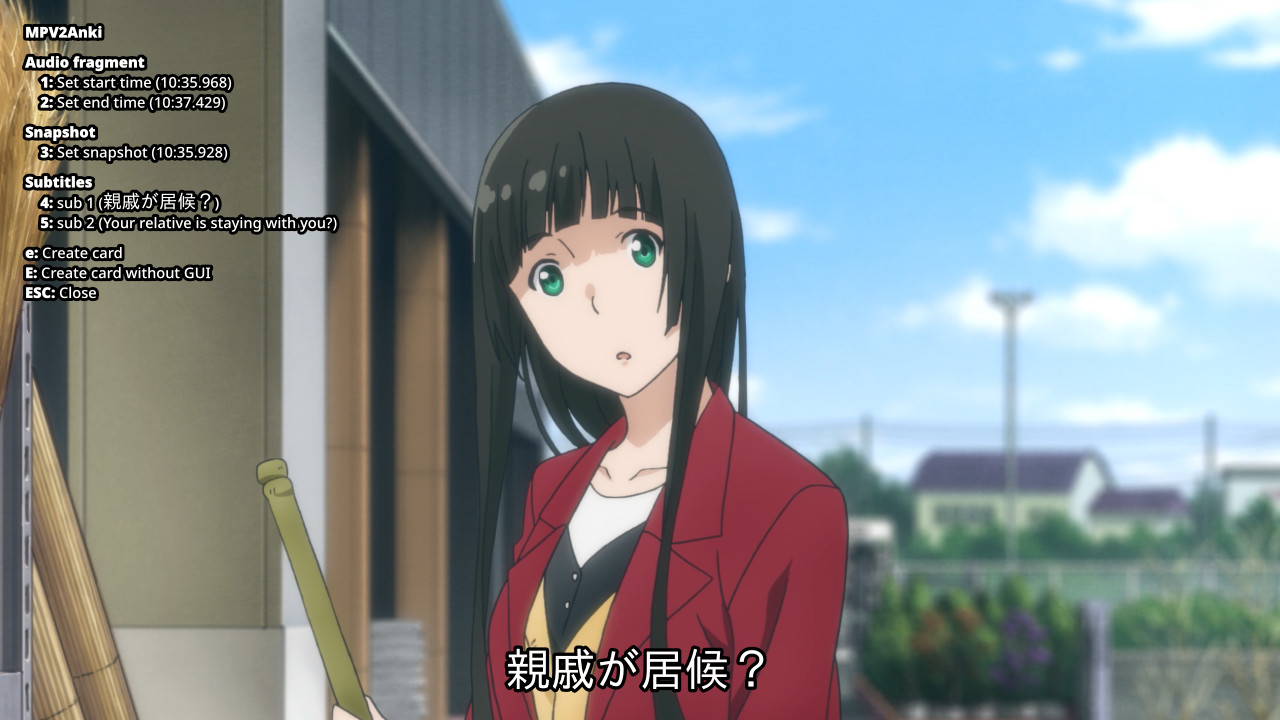
Overview
Inspired by subs2srs this script lets mpv users quickly creates notes for Anki from sound or video fragments with minimal dependencies.
Requirements
- Linux (Windows might work, but is not officially supported)
- Anki
- The AnkiConnect plugin
- curl (you should already have this)
Installation
- Save mpv2anki.lua in the mpv script folder (
~/.config/mpv/scripts/). - Set the path to where Anki saves its media files in the config file (See Options below).
Usage
- Open a file in mpv and press
shift+fto open the script menu. - Make sure Anki is also open.
- Follow the onscreen instructions.
- To disable audio/snapshots/subtitles simply do not enter a value.
- Double pressing removes the current value.
eto open the Anki add card dialog box with the entered values orshift+eto add directly.
Options
Save as mpv2anki.conf in your script-opts folder (usually ~/.config/mpv/script-opts/)
# This is the only required value. replace "user" and "profile" with your own.
# This must be an absolute path. '~' for home dir will NOT work
media_path=/home/user/.local/share/Anki2/profile/collection.media/

# These are the other options containing their default values.
deckname=mpv2anki
# The note type
modelName=mpv2anki

# You can use these options to remap the fields
field_audio=audio
field_snapshot=snapshot
field_subtitle1=subtitle1
field_subtitle2=subtitle2
field_start_time=start_time
field_end_time=end_time
field_snapshot_time=snapshot_time
field_title=title

# The url and port AnkiConnect uses. This should be the default
anki_url=localhost:8765

# The font size used in the menu.
font_size=20
shortcut=shift+f

# audio & snapshot options
audio_bitrate=128k
snapshot_height=480
 senneh