

 section83
Python - macOS 12.3 (Monterey)
It appears Apple have removed Python 2 from macOS with the recent release of 12.3.
Have found MacYTDL won't open, throwing an error "env: python: No such file or directory". I've spent the weekend trying a few tricks in an attempt to fix it but have gone nowhere. I can't find anything to show where the script is calling a Python from a specific path, which I think is where the problem is.
I did at first think it may be a youtube-dl issue, however I've been able to download videos normally using it directly via command line, so whatever the issue, it's MacYTDL.

Hello Andy, thank you for making the post and sorry you've had this problem.
At present, the best I can suggest is to download version 1.21 of MacYTDL. Another user today found that worked. It means using yt-dlp instead of youtube-dl. That is because yt-dlp has a Python runtime embedded and so users don't need to download their own Python install. That is what Apple recommended in their macOS 10.15 release notes. There has been some discussion about addressing this issue in youtube-dl but no decision. I suspect it will be low in their priorities.
It appears Apple have removed Python 2 from macOS with the recent release of 12.3.
Yes, for me it was a bit of a surprise. Apple said for over a year that Python2.7 would be removed and I thought that would be in macOS 11 then when it didn't happen I thought it would in macOS 12. Anyway, they did it in macOS 12.3 without advance notice. Nonetheless, I'm glad they've done it. Python2.7 was getting very old.
I can't find anything to show where the script is calling a Python from a specific path, which I think is where the problem is.
youtube-dl relies solely on there being an installed copy of Python. The Python call is:
/usr/bin/env python
MacYTDL adds these to the paths:
PATH=$PATH:/bin:/sbin:/usr/bin:/usr/local/bin:/usr/sbin:\~/opt/bin:\~/opt/sbin:/opt/local/bin:/opt/local/sbin:
But that might not work for all youtube-dl users who have installed Python themselves. What happens depends on the setup.
I've been able to download videos normally using it directly via command line
That suggests that you have Python installed. Perhaps you have the Xcode Command Line Tools installed. If so, you might have Python3.8. Part of the trouble is that MacYTDL uses osascript running in sh to call youtube-dl. But when you run youtube-dl from Terminal, you are using zsh. The paths and env might be different.
Anyway, version 1.21 of MacYTDL forces the issue and for users on macOS12.3+ can only use yt-dlp. I will be keeping an eye on youtube-dl in case they put out a new release which can be used without a separate Python install [BTW, the latest release is 2021.06.06 and it cannot DL from YouTube at full speed].
Cheers.

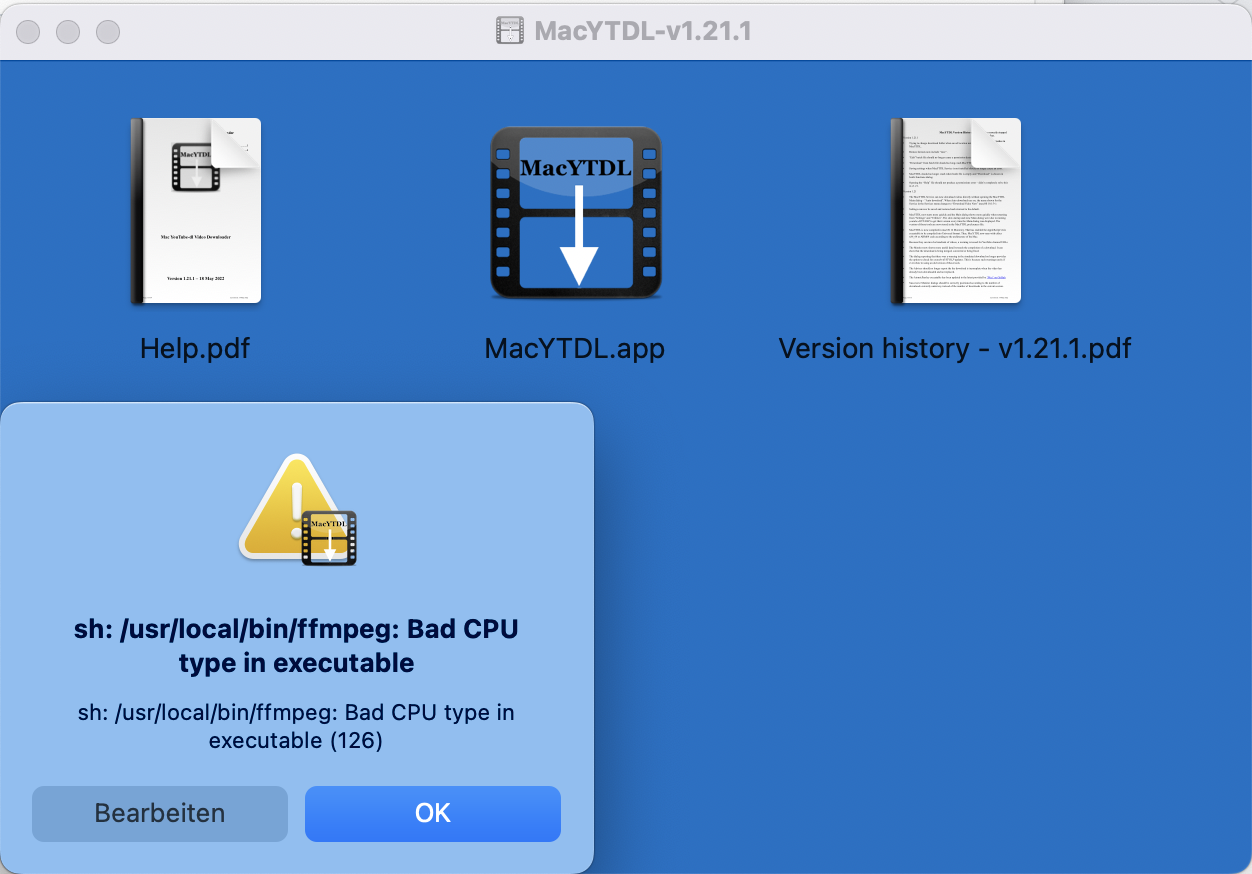
I ran an all-new installation of MacYTDL v1.21 on macOS 12.3.1 with Apple Silicon M1 chip and followed all installation requests. After all components were apparently successfully downloaded and permission to Desktop granted (I'd prefer the Downloads folder as the app's default location), I receive the following error:
sh: /usr/local/bin/ffmpeg: Bad CPU type in executable (126)
I can either "edit" or click "OK" which won't make it work of course. Any idea @section83 ?

MiMoHo, thank you for making contact.
I do not have an M1 Mac (yet). So, I can't test what happens. I believe that it does work.
I suspect the error means that Rosetta 2 is not installed. MacYTDL does assume that Rosetta 2 is available. So, maybe you need to install it. There is some background information here: https://support.apple.com/en-gb/HT211861.
If you are comfortable with using Terminal, install Rosetta 2:
- Open Terminal.
- At the prompt type: /usr/sbin/softwareupdate --install-rosetta
- Press Return.
There is a description of the procedure here: https://hearnofficial.medium.com/how-to-install-rosetta-2-on-apple-silicon-macs-2df991505c4e.
If you are not comfortable doing that, try to find and start an "Intel" application. If you can't find one, download this copy of VLC, the video player: https://get.videolan.org/vlc/3.0.16/macosx/vlc-3.0.16-intel64.dmg.
Start VLC, or the application you found, and macOS should then ask if you want to install Rosetta 2. Click on "Install".
Post back here what happens.
Thanks.
M1 Mac Mini, Monterey 12.3.1. Installed 1.2.1 over 1.2.0, same "env: python: No such file or directory" error. I definitely have Python installed, because other Python apps work. I also definitely have Rosetta2 installed. Are there settings elsewhere I need to delete?

Are there settings elsewhere I need to delete?
Ah, got it. com.apple.script.id.MacYTDL.plist in /Users/blahblah/Library/Preferences and the entire MacYTDL directory in the same location. All good now.
That plist file is not part of MacYTDL. It is created by macOS to store the Open dialog window position etc. If you delete it, it will be recreated.
MacYTDL preferences are in "MacYTDL.plist" inside /Users/blahblah/Library/Preferences/MacYTDL/.
If you delete MacYTDL.plist, it will be recreated when you next open MacYTDL. But, deleting it probably won't enable you to use youtube-dl as your downloader. In v1.21, MacYTDL hides youtube-dl and only enables YT-DLP.
other Python apps work
I should do something about that in v1.22. Those other apps probably do the work of looking for Python3. Unfortunately, youtube-dl does not especially when called from "sh". So, I need to do some research on how to use youtube-dl from within MacYTDL – probably involves adding more paths.

Yes, there were also bugs in macOS 12.3. One bug in particular affected MacYTDL:
https://developer.apple.com/forums/thread/702315
Best option is to update to macOS 12.3.1. That will also apply fixes to a couple of security flaws Apple believed were being exploited.
There may still be bugs caused by permissions errors. I'm continuing my research on those. I'm also researching how to enable youtube-dl for users on macOS 12.3+.
I do not have an M1 Mac (yet). So, I can't test what happens. I believe that it does work.
I suspect the error means that Rosetta 2 is not installed. MacYTDL does assume that Rosetta 2 is available. So, maybe you need to install it. There is some background information here: https://support.apple.com/en-gb/HT211861.
If you are comfortable with using Terminal, install Rosetta 2:
* Open Terminal.

* At the prompt type: /usr/sbin/softwareupdate --install-rosetta

* Press Return.
There is a description of the procedure here: https://hearnofficial.medium.com/how-to-install-rosetta-2-on-apple-silicon-macs-2df991505c4e.
If you are not comfortable doing that, try to find and start an "Intel" application. If you can't find one, download this copy of VLC, the video player: https://get.videolan.org/vlc/3.0.16/macosx/vlc-3.0.16-intel64.dmg.
Start VLC, or the application you found, and macOS should then ask if you want to install Rosetta 2. Click on "Install".
Post back here what happens.
Hello @section83,
yes, Rosetta 2 is not installed by purpose. I wish to use native Apple apps only and most developers have transitioned to Apple Silicon versions already or will do so in the near future. Thus, I do not want to install a heavy Intel emulation kit and hope you will make your software run on M1 chips as well.
Thanks for this. I understand why you want to run only M1 code.
MacYTDL itself is AppleScript and so, runs as is on Intel and M1 Macs. All AppleScript applets run using a small Unix executable called "applet". The "applet" executable packaged with MacYTDL is in Universal format which contains code for running on both Intel and M1 Macs. I plan to publish Intel-only and ARM-only versions of MacYTDL later today/tomorrow. They might be only a very small amount smaller than the current Universal release as the only change will be to remove code from the "applet" executable. They will run at the same speed as the current MacYTDL release.
In MacYTDL, I use the only officially recognised builds of FFmpeg/FFprobe. They are published here https://ffmpeg.org/download.html. However, those builds are Intel-only and the maintainer has stated they will never provide M1 versions. So, I have been looking for alternatives. Other people have been working on ARM builds but, none seem entirely satisfactory to me at present. The best build I've seen is here: http://osxexperts.net [NB: that site is http only]. However, they do not prepare a build for FFprobe.
I will continue working on this issue. If you decide to acquire your own M1 builds of FFmpeg & FFprobe, please be sure to store them in /usr/local/bin/. Note also, that you will not be able to use the "Timestamps" and youtube-dl embed thumbnail features because, at present, they also use Intel-only code.
I will post here if I have any news.
I have found/built ARM64 versions of FFmpeg, FFprobe, ets and AtomicParsley. The existing version of Alerter is Universal.
So, I will be able to publish an entirely ARM64 version of MacYTDL. I hope to have it all ready tomorrow (AEST).
I have found/built ARM64 versions of FFmpeg, FFprobe, ets and AtomicParsley. The existing version of Alerter is Universal.
So, I will be able to publish an entirely ARM64 version of MacYTDL. I hope to have it all ready tomorrow (AEST).
Thanks @section83 for working on a native Apple Silicon app. However, the same CPU error message I posted before also pops up when launching v1.21.2 on macOS 12.5 with M1 chip.
MiHoHo, thank you for reaching out. As soon as I saw your message I knew what I had forgotten. All executables inside the MacYTDL bundle are in Universal 2 format. However, you might still have the Intel version of FFmpeg.
Check which version of FFmpeg you have. Start MacYTDL and go to Utilities. If the FFmpeg version is not 5.1, you can update it with MacYTDL. That will install the ARM64 version of FFmpeg and FFprobe.
If you already have v5.1 of FFmpeg, the quickest procedure is to delete it and let MacYTDL install a fresh (ARM64) copy. to delete FFmpeg:
-
In Finder, press command-shift-g.
-
In the text box, type: /usr/local/bin
-
Delete FFmpeg and FFprobe.
- You will need to provide Admin credentials.
-
Start MacYTDL.
- You should see this dialog:
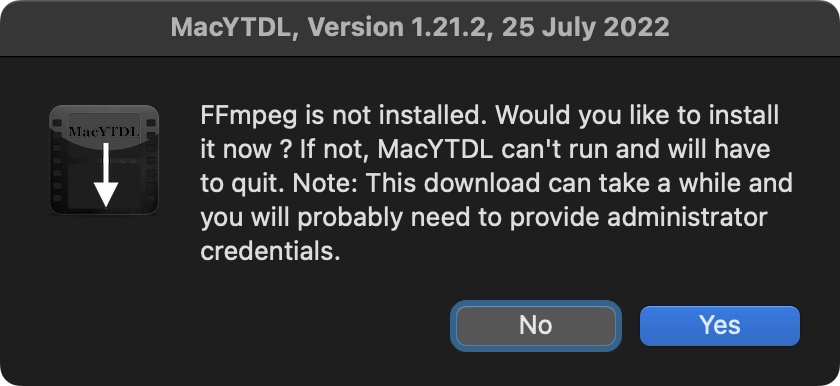
- You should see this dialog:
-
Click on "Yes".
- You should see this dialog:
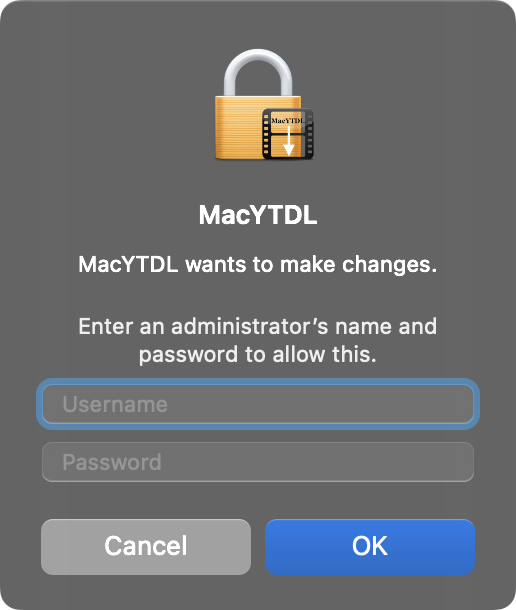
- You should see this dialog:
-
Enter your Admin credentials and click "OK".
-
MacYTDL will download and install the ARM64 versions of FFmpeg and FFprobe.
Post again here if you have any troubles.
Thanks.
MacYTDL can now install ARM64 version of FFmpeg/FFprobe and the user can switch to the Intel version if they wish. So, closing this issue.