

 pyenv-win
bug: pyenv is messing with my wsl environment and pipx ins't working right in powershell
Describe the bug i installed pyenv, installed python 3.9.0 set it to global, then installed my pip packages and tried to install brownie with pipx after ensuring the path,
PS C:\Users\mattj> python -m pipx ensurepath                                                                                         C:\Users\mattj\.local\bin is already in PATH.
C:\Users\mattj\AppData\Roaming\Python\Python39\Scripts is already in PATH.

⚠️  All pipx binary directories have been added to PATH. If you are sure you want to proceed, try again with the '--force' flag.

Otherwise pipx is ready to go! ✨ 🌟 ✨
PS C:\Users\mattj> pipx install eth-brownie
No Python at '"C:\Python311\python.exe'
Fatal error from pip prevented installation. Full pip output in file:
    C:\Users\mattj\.local\pipx\logs\cmd_2022-12-05_21.25.35_pip_errors.log

Error installing eth-brownie.
So i installed eth-brownie with pip and it worked fine, cool, i uninstalled it and been trying to figure out why it didn't work with pipx...
I then wanted to make sure my wsl environment didn't get rear ended by pyenv and now its throwing:
bash: /mnt/c/Users/mattj/.pyenv/pyenv-win/shims/python: /bin/sh^M: bad interpreter: No such file or directory
when I tried to invoke python --version in my wsl environment
Expected behavior i expected this to work like NVM for node and work really smoothly, now im almost regretting installing it
Desktop (please complete the following information):
- OS: window 11
- Tools used: wsl 2 and powershell
- Version: latest
Additional context please help

I deleted the pipx folder located in C:\Users\mattj\.local and it installed fine. My wsl is still acting up... it natively came with python 3.10 and now its trying to connect to pyenv

Hmm... maybe we should use #!env sh?
@kirankotari thought? I am able to reproduce this on my Ubuntu WSL.

@Darsstar if we planning to use env we need to double check about passing parameters are not a problem.

sudo apt -y update && sudo apt -y upgrade && sudo apt -y install python-is-python3 python3-pip
seemed to have fixed it
This might be helpful,
it looks like it searches for the package and when it doesn't find it tries to invoke it through pyenv
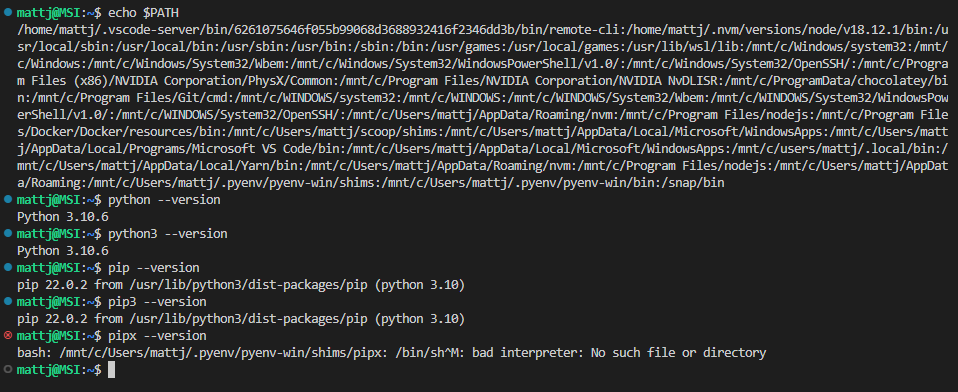
granted, I installed pyenv in my powershell environment, than installed pipx using pyenv with python 3.9
and haven't installed pipx in WSL yet
hmm, that's strange pyenv rehash was supposed to clean it. @mattjaf by any chance did you added pipx manually in shims directory, if yes then can you delete pipx file manually and try again.
@kirankotari After installing pipx in with powershell, I ran python -m pipx ensurepath which created a folder in this directory C:\Users\mattj\.local called pipx
WSL might of inherited the pyenv path where it doesn't seem like the python packages work.
is it because i installed my packages with python 3.9 in powershell and my WSL environment is using a python 3.10.6 interpreter?
trying to figure out how I should handle this.
I recently installed pyenv-win and got a similar problem.
To Reproduce Steps to reproduce the behavior:
- Install pyenv-win on a Windows 10 machine (probably behaves the same on Windows 11) as described here
- Install Ubuntu WSL from Windows store
- Install pyenv in the WSL instance
- Try to run
pyenvin WSL. Get this error:/mnt/c/Users/njeze/.pyenv/pyenv-win/bin/pyenv: 3: cygpath: not found /mnt/c/Users/njeze/.pyenv/pyenv-win/bin/pyenv: 3: exec: cmd: not found
Potential fix I did some research on this problem and figured out that WSL appends Windows PATH to Linux PATH. That's why bash finds the pyenv-win file.
You can disable this behavior by adding changing /etc/wsl.conf to:
[interop]
appendWindowsPath = false
as described here. But then you lose some nice features such as opening VS-Code directly from a WSL terminal.
The best solution I found so far is to remove/rename the pyenv file inside .pyenv/pyenv-win/bin folder. The comment in this file says it makes pyenv-win work with cygwin and git-bash, so removing the file will probably break those.

I'm running into the same issue as njezersek. Is there a way to uninstall pyenv-win completely? I only need it for python development and I'll do any python development using WSL anyway...
edit: I installed pyenv-win via powershell
edit: I've removed the .pyenv folder from the PATH variable in Windows and this fixed it for me. Only after that I saw issue #470 ^^°

pipx adds this to .bashrc:
# Created by `pipx` on 2023-04-06 14:46:39
export PATH="$PATH:/home/samuel/.local/bin"
Since WSL appends Windows PATH to Linux PATH, the pipx Linux path comes after the windows path as you may verify with
whereis pipx
Moving WSL pipx path up solves it:
# Created by `pipx` on 2023-04-06 14:46:39
export PATH="/home/samuel/.local/bin:$PATH"

The best solution I found so far is to remove/rename the
pyenvfile inside.pyenv/pyenv-win/binfolder. The comment in this file says it makes pyenv-win work with cygwin and git-bash, so removing the file will probably break those.
This worked great. I ran into this issue in Windows 11, WSL2 and Ubuntu installed with pyenv, then installed pyenv-win and hit this problem.
The /etc/wsl.conf did not work for me on the other hand. I still got the cypath/exec errors.

I had the same issue as @njezersek and for me the best solution seemed to replace (the suggested bash startup configuration)[https://github.com/pyenv/pyenv#set-up-your-shell-environment-for-pyenv] with the following snippet:
export PYENV_ROOT="$HOME/.pyenv"
export PATH="$PYENV_ROOT/bin:$PATH" # instead of `command -v pyenv >/dev/null || export PATH="$PYENV_ROOT/bin:$PATH"`
eval "$(pyenv init -)"
I described my solution on Stack Overflow.

I had the same issue as @njezersek and for me the best solution seemed to replace (the suggested bash startup configuration)[https://github.com/pyenv/pyenv#set-up-your-shell-environment-for-pyenv] with the following snippet:
export PYENV_ROOT="$HOME/.pyenv"
export PATH="$PYENV_ROOT/bin:$PATH" # instead of `command -v pyenv >/dev/null || export PATH="$PYENV_ROOT/bin:$PATH"`
eval "$(pyenv init -)"
I described my solution on Stack Overflow.
This solution worked for me. Thanks.

I had the same issue as @njezersek and for me the best solution seemed to replace (the suggested bash startup configuration)[https://github.com/pyenv/pyenv#set-up-your-shell-environment-for-pyenv] with the following snippet:
export PYENV_ROOT="$HOME/.pyenv"
export PATH="$PYENV_ROOT/bin:$PATH" # instead of `command -v pyenv >/dev/null || export PATH="$PYENV_ROOT/bin:$PATH"`
eval "$(pyenv init -)"
I described my solution on Stack Overflow.
I would like to let you guys know that maybe just in case if you need or want to run the windows version after setting this up you can do it by calling powershell to run the command so it become like this: powershell.exe pyenv or powershell.exe python
