

 psignoret
User cannot login
Hello,
I have configured the plugin and azure ad as explain.
I have created 5 groups under azure AD to match wordpress' groups. The user is member of Azure Group named "wp_admin" match with "Administrator" wp group.
But when "Enable Azure AD group to WP role association" is checked, user cannot login and this message is displayed : "ERROR: AAD user [email protected] is not a member of any group granting a role."
When this option is unchecked, user can login but its group is not got from azure ad group.
Thanks for your help.
Jocelyn

Were you able to get this issue fixed? I am also having issues with this. Thank you for your help!


Is the user a regular local user of the Azure AD tenant? Or is the user an external user (e.g. from another tenant or a personal Microsoft account)?

Local user for me. Have them in groups and have the Azure AD group object ID all connected too.
I think I'm a local user, too.
Actually, I'm working as a consult so I don't now precisely how my AD user is created. But I think it is the "normal" way.
I've reviewed this part of the code, and found that if the app registration in Azure AD is missing the required permissions, the plugin will report this as "user is not member of group", instead of "unable to check if user is member of group", which is misleading.
I further discovered that when I updated the documentation for the new Azure portal, I incorrectly made the statement that only the "Read all groups" delegated permission is needed for group membership checks. This permission is insufficient, and may be the root cause of your issues.
Both of these issues have been addressed in the most recent version of the plugin.
After upgrading the plugin (i.e. replace the folder with the latest version downloaded from GitHub), try the following:
-
Ensure the app registration for your site is requesting both "Sign in and read user profile" as well as "Read directory data":

-
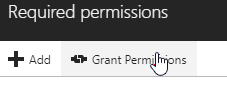
Use the "Grant permissions" button to force the permissions to apply in the Azure AD tenant. (You need to be tenant administrator to do this.)
-
Sign out of your blog/site and of Azure AD, and try signing in again.
Let me know if this addresses the issue.