

 projectblacklight
clicking image in exhibit goes to catalog show page and includes search buttons
Description
In Spotlight 3.3.0, when clicking on an image in an exhibit, the catalog show page includes search buttons. It does not include the pagination links.
Expected behavior
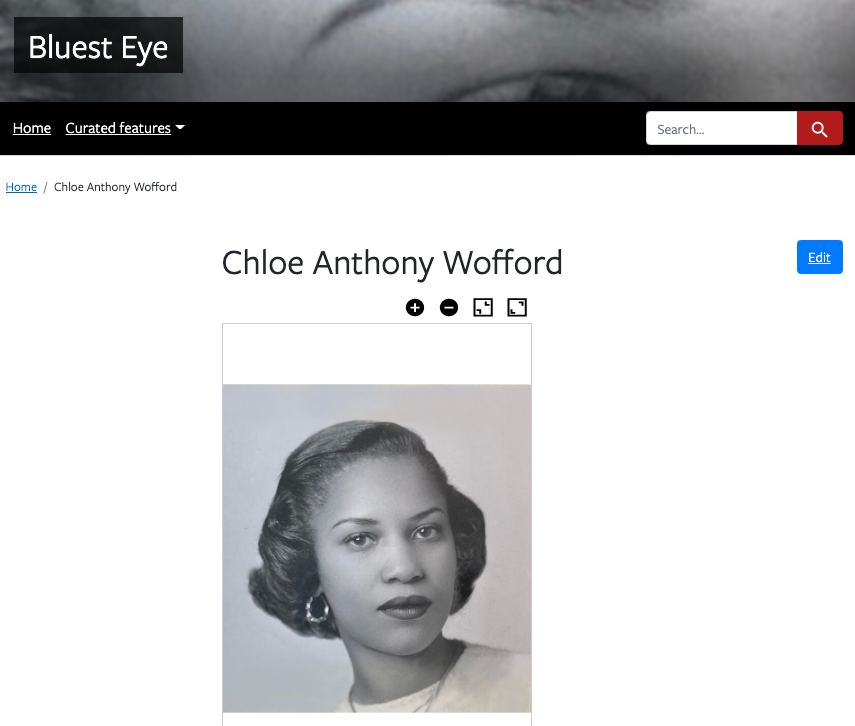
From exhibit image
When clicking an image in an exhibit, it should navigate to the catalog show page.
- The page should NOT include the Start Over and Back to Search buttons.
- The page should NOT include the pagination navigation area.
From search
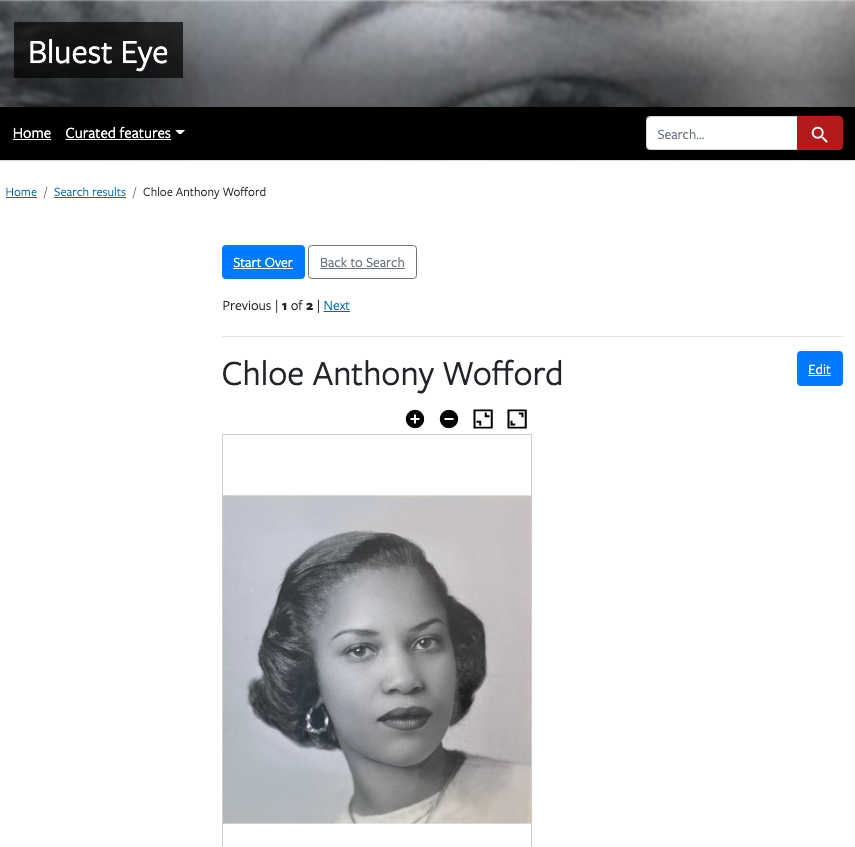
When searching within an exhibit and clicking one of the search results, it should navigate to the catalog show page.
- The page should include the Start Over and Back to Search buttons.
- The page should include the pagination navigation area.
Actual behavior
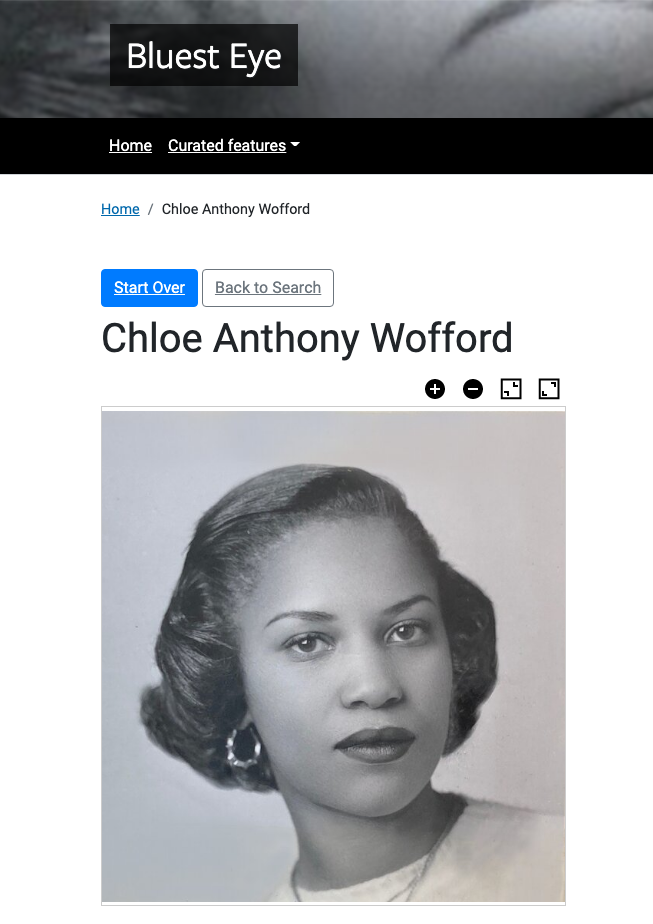
From exhibit image
When clicking an image in an exhibit, it should navigate to the catalog show page.
- The page includes the Start Over and Back to Search buttons. (wrong behavior)
- The page does not include the pagination navigation area. (correct behavior)
NOTE: This image shows the Start Over and Back to Search buttons included when they shouldn't be. NOTE: The size difference is due to the images being captured at different times.
From search
When searching within an exhibit and clicking one of the search results, it should navigate to the catalog show page.
- The page includes the Start Over and Back to Search buttons. (correct behavior)
- The page includes the pagination navigation area. (correct behavior)
NOTE: This image is the same as that shown in expected.
Steps to reproduce
From an exhibit image:
- navigate to an exhibit that has an image that can be clicked to see its show page
- click the image from the exhibit
Page should not have Start Over and Back to Search buttons. Page should not have pagination area.
From exhibit search:
- navigate to an exhibit that supports search
- type a query in the search box (preferably one that will have at least 2 results)
- click on one of the results
Page should have Start Over and Back to Search buttons. Page should have pagination area.
