

 obsproject
OBS UI issues on dual monitor setup with different resolutions
Operating System Info
Windows 11
Other OS
No response
OBS Studio Version
27.2.3
OBS Studio Version (Other)
No response
OBS Studio Log URL
https://obsproject.com/logs/RIJ-odpJvXqV83gn
OBS Studio Crash Log URL
No response
Expected Behavior
OBS's UI should display properly on both monitors
Current Behavior
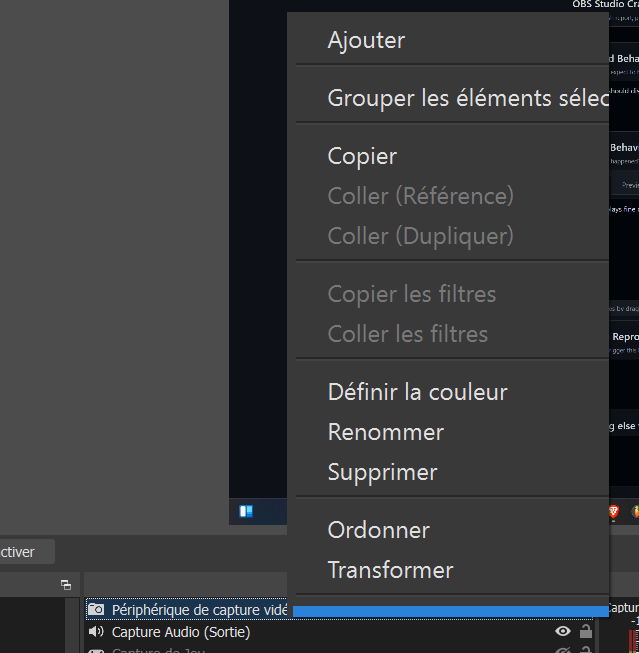
OBS displays fine on my 2560x1080 monitor, but the menus when we right click for instance are too big and don't display all the options (the menu stops at transform but we can see that there are options below that are cut off
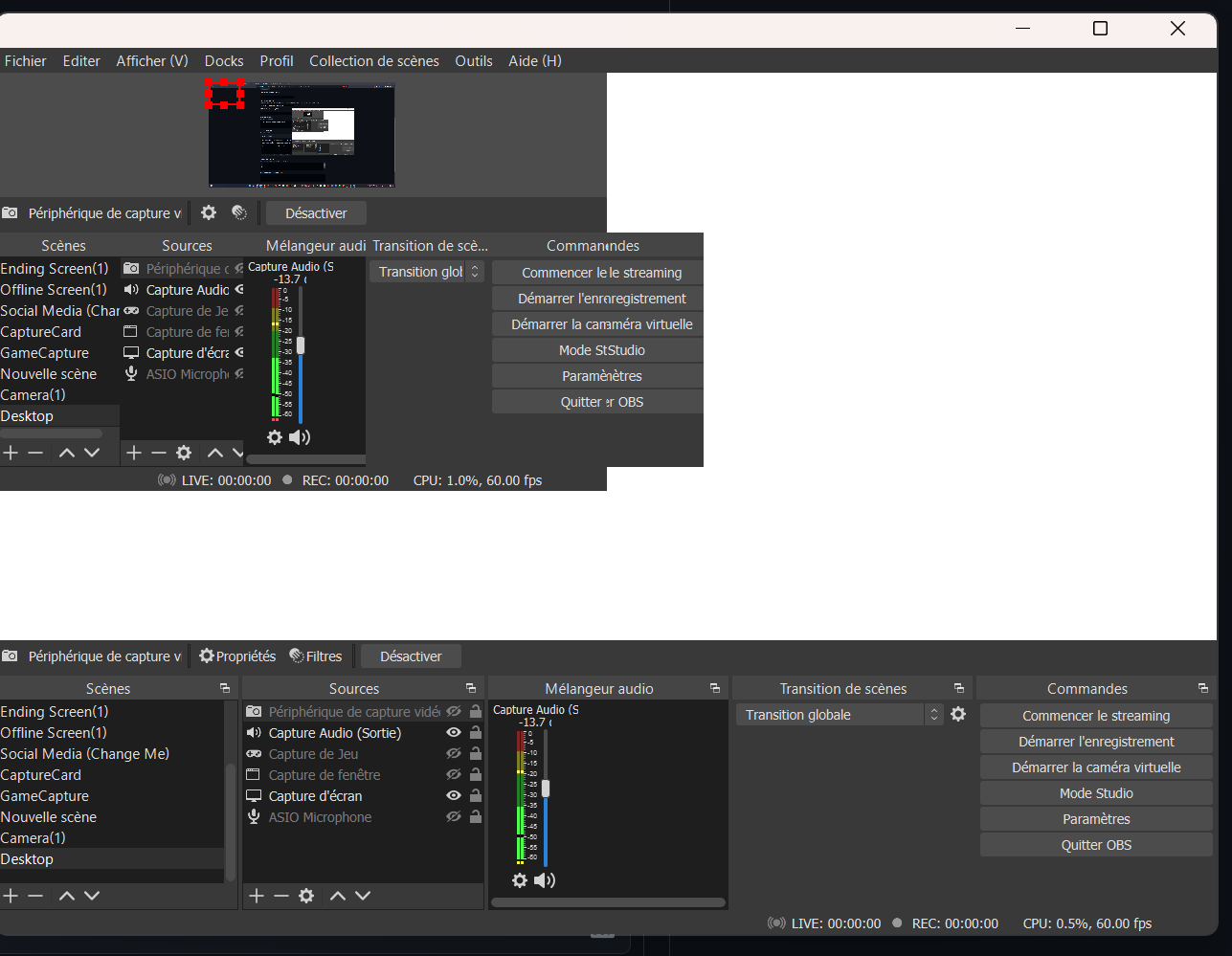
OBS is completely unusable when I drag the OBS window to the 4k monitor, the UI is completely broken
Steps to Reproduce
- Use Windows 11 on a pc with both a 4k monitor and a 2560x1080 monitor
- Obs starts on the secondary monitor (can't tell the cause)
- The issue occurs
Anything else we should know?
No response


Currently happening on 28.1.2 on Windows 10, fyi. Only occurs on the monitor with anything other than 100% UI scaling in Windows.


Most, if not all, of these are actually Qt issues. Some of these should have been fixed in 28.1.2 or 29. The white canvas issue is not unique to either Qt or OBS, and is likely a result of moving the application between displays with largely different resolution/scaling. What happens if you resize the OBS window after dragging it between displays?
Lastly, I do not want this Issue to grow in scope. If there are other issues not described here, please open a new GitHub Issue.
Resizing the window after dragging does not fix the issue in my instance.
I would not expect it to. I should have separated the text in my reply more clearly, but it was these two sentences that were related.
The white canvas issue is not unique to either Qt or OBS, and is likely a result of moving the application between displays with largely different resolution/scaling. What happens if you resize the OBS window after dragging it between displays?
I want to know if the white canvases are cleared up by a redraw/repaint of the OBS window of some kind, which is usually triggered by a resize event.
As an FYI, I just updated to 29.0.0 and the menu scaling issue still exists.
As an FYI, I just updated to 29.0.0 and the menu scaling issue still exists.
We had to rollback the Qt update for 29 at the last minute, so it uses the exact same version as 28.1.
Want to contribute to this issue. This is still an active issue in the latest release.
My setup:
- Dual monitors, Primary (1) 2560x1440, Secondary (2) 3840x2160
- OBS lives in the secondary 4k monitor. Games run on the primary 2k monitor.
- Windows 10 scale and layout set to recommended default of 150% on the secondary 4k monitor. Primary monitor is set to 100% scaling.
Ever since updating from the last v27 release, this issue has happened.
Certain UI elements in OBS are out of place and scaled incorrectly. See screenshot from 4k monitor set to 150% scaling in display settings.
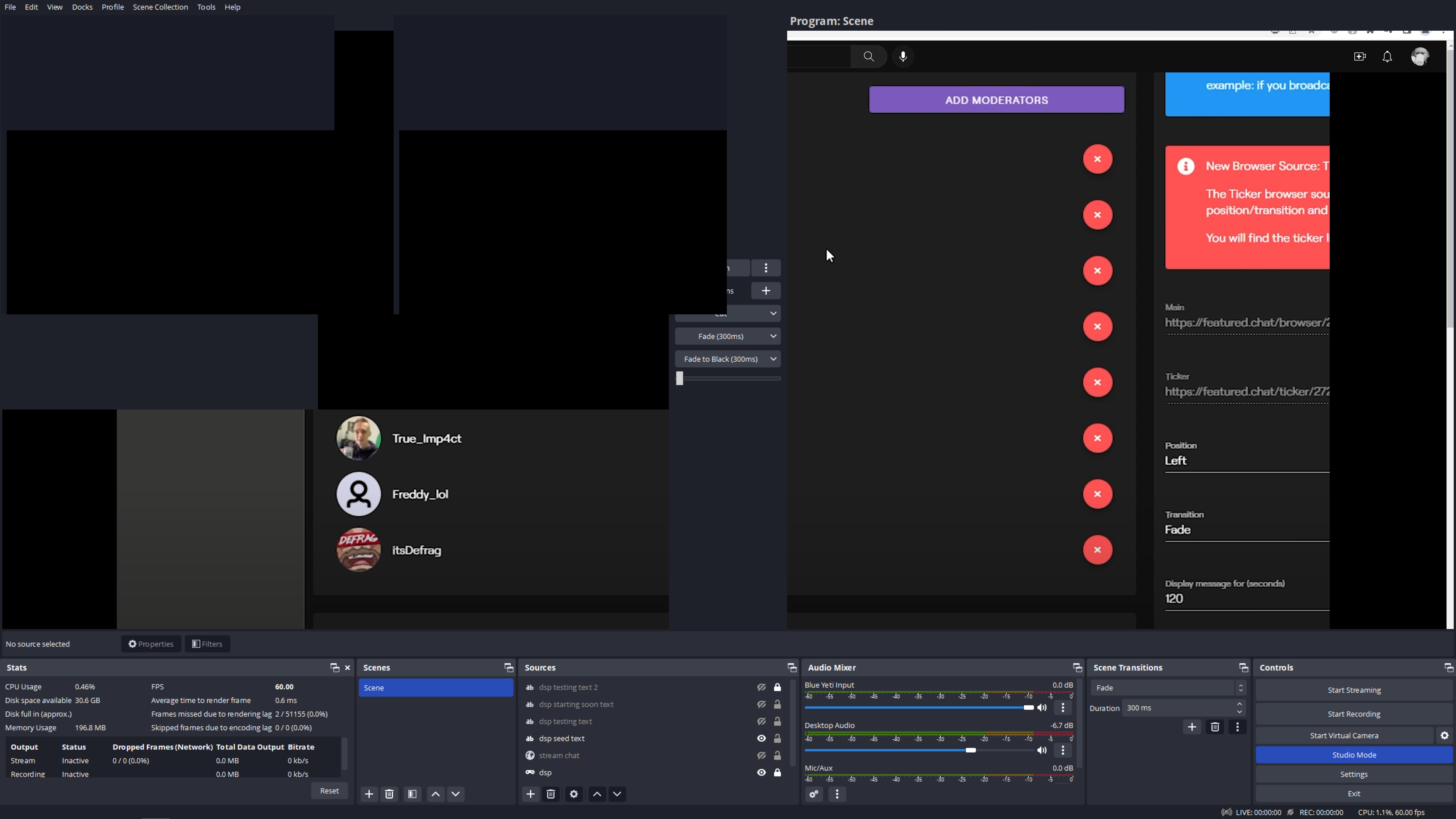
OBS behavior seems to be taking its internal scaling from the primary display. Cannot confirm if this is the underlying cause.
3 resolutions I've currently found to work:
- Downgrade to v27
- In the Windows display settings for the 4k monitor, set scaling to 100%. This "fixes" the layout issues in OBS, but all the text, menus, etc are super tiny and hard to read.
- In the Windows display settings for the 4k monitor, set Display Resolution to match the primary 2k monitor. This allows OBS to conform to the same display settings of the primary. Although this is the simplest fix I've found so far, its not ideal.
Happy to contribute any other information if requested.
