

 nteract
Hydrogen Package Not Executing Properly Once Installed ("No such file or directory")
Prerequisites
- Have you checked the solutions in our troubleshooting guide for common problems? (Yes)
- Have you checked that your issue isn't already filed? (Yes)
Description
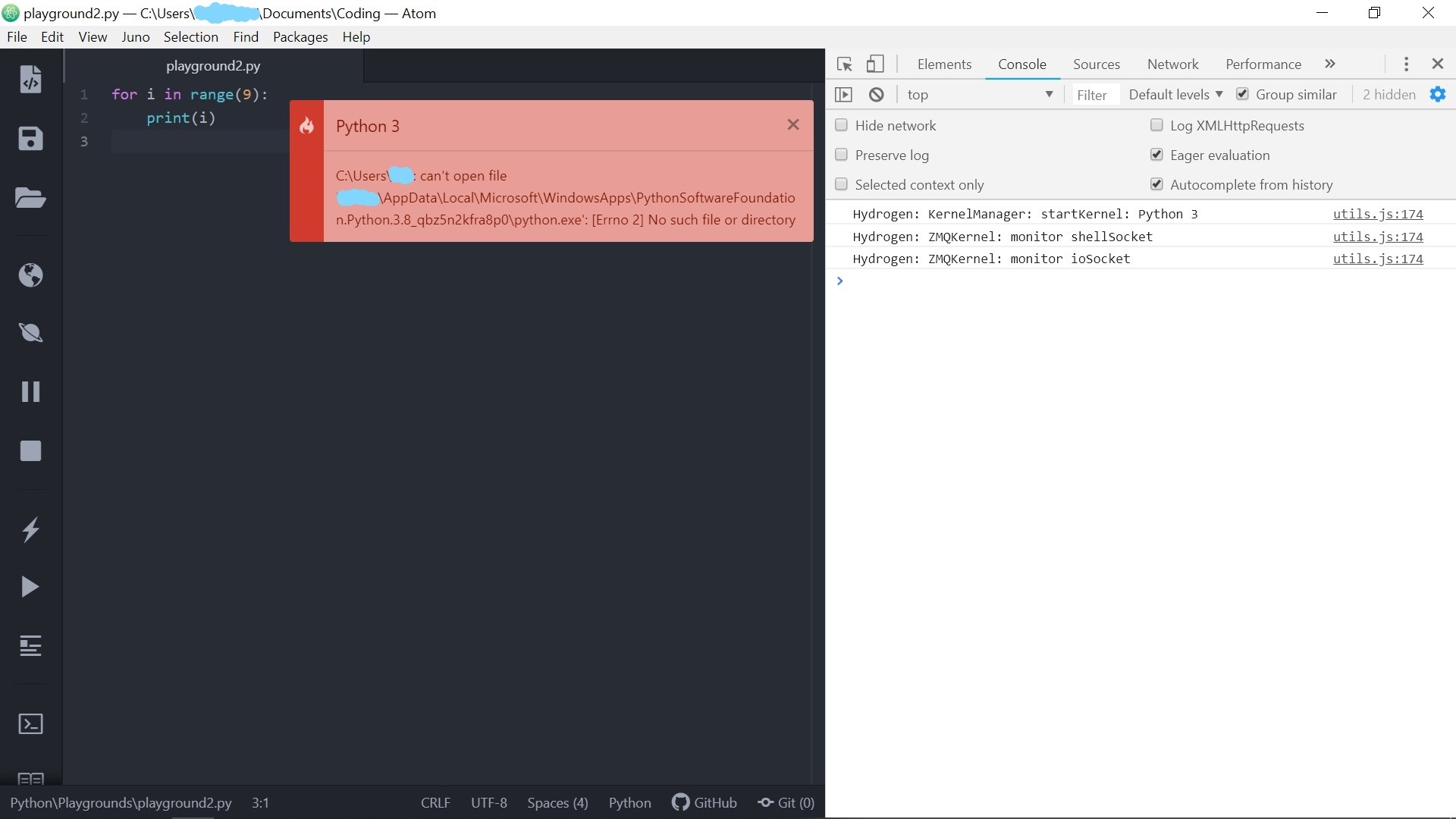
Whenever I try to run a python script, using Hydrogen, while in Atom, a red error pops up on the screen with an error to the tune of:
C:\Users\FIRSTNAME: can't open file 'LASTNAME\AppData\Local\Microsoft\WindowsApps\PythonSoftwareFoundation.Python.3.8_qbz5n2kfra8p0\python.exe': [Errno 2] No such file or directory
Steps to Reproduce
I wouldn't know exactly how to reproduce this. The issue simply occurs when I try to run code. See the additional context section below for more... context.
Versions
OS version: 1903 (Windows 10 Home)
atom --version
1.45.0
apm --version
2.4.3
Hydrogen version:
[2.14.1]
Plugins
Have you installed and activated any of the Hydrogen plugins below ?
- hydrogen-python (Yes)
- Hydrogen Launcher (Yes)
- Data Explorer (Yes)
Expected behavior
I'd expect whatever small piece of code to print something like "Hello World" to run and print "Hello World".
Screenshots
Additional context
I was gifted my dad's "old" computer and it wasn't completely wiped (including that information in case directories and paths may have already been taken up by his old files and such). I've spent the afternoon trying to get Hydrogen to work by installing Python (which I did from python.org, anaconda and the Microsoft store which may have led to issues I don't know about), IPython, Jupyter and whatever else Hydrogen needed to run.

Are you able to get a kernel working with another front end? For example does jupyter notebook work? Did you launch atom in a terminal with atom .? This makes it easier to tell what path evironment you are in.
I think the root of the issue is the multiple python installations. I'm guessing your path is pointing python to the one in the error message (is it correct that the exe file listed is missing?). If you can get jupyter notebook or another front end to work, that would be a good step because we'd be able to tell if this is an issue on hydrogen's side.

Thank you for replying to my issue so quickly. I'll just go through and pick apart the portions of your reply where you're asking stuff:
Reply
Are you able to get a kernel working with another front end? For example does
jupyter notebookwork?
I tried running some simple Python code like printing strings, storing variables and such in a Jupyter notebook, using the Python kernel I was prompted to use when creating the file in Jupyter ("Python 3"). Outputs worked as expected. I also tried importing the Numpy, Matplotlib and time modules. The Numpy and Matplotlib modules failed to import (I talk more about that at the end of the reply) while the time module did import properly and worked as expected when using the time.sleep() function.
Did you launch atom in a terminal with
atom .? This makes it easier to tell what path evironment you are in.
I opened atom in the terminal using the atom . command and this didn't help. I tried opening and running the script I was trying to run previously as well as making a new script in the folder that was automatically opened in Atom once the terminal command was executed. Both resulted in the same issue as mentioned in the main post.
I think the root of the issue is the multiple python installations. I'm guessing your path is pointing
pythonto the one in the error message (is it correct that the exe file listed is missing?).
The python.exe file is in fact in the correct directory, strangely enough.
I'm not sure if it's the multiple Python installs doing this, but after Matplotlib and Numpy failed to import in Jupyter, I checked and made sure they were installed on my computer. Once they were installed, they still didn't work in Jupyter, my command line or the Python IDLE. Each time, I was met with the error message: ModuleNotFoundError: No module named 'MODULE', where MODULE is either Numpy or Matplotlib.
My immediate thought to fix these issues, given the problem with using downloaded modules, is to attempt to uninstall all versions of Python and then reinstall it through Anaconda alone, which will include the base files I need for Hydrogen. Your thoughts?
Exactly the same error. Exactly the same versions of everything. Have you managed to resolve this?

Exactly the same error. Exactly the same versions of everything. Have you managed to resolve this?
TL;DR: The Jupyter notebook is pretty sick. Might just switch over to it. You should give it a shot. Look up a tutorial.
Not quite yet. Still waiting on a response from someone to point me in a direction which proves fruitful. I have uninstalled Anaconda and anything with the word"Python" in its name from the uninstall menu (I didn't want to delete too many/any folders for Python manually as I'd imagine parts of this computer run on Python) and then reinstalled python through Anaconda (and then simply through python.org once I realised there were a few things I still needed from the official version).
Pip no longer seems to work in the same way. Now I have to type python -m pip install PACKAGE into the terminal rather than pip install PACKAGE. Other than that, stuff seems fine.
In the meantime, I've just been using the Jupyter Notebook which comes with Anaconda and I've actually really been enjoying it. It has a lot of great features and helps with the runtime of code sometimes as you can run little modules of code to update, say, a function and then run the bulk of the code rather than having to run every single line of code, including the defining of the function, every time I want to get an output (I understand you can do this in Hydrogen as well, it just feels more intuitive to me in Jupyter).
I have yet to encounter something I could do with Hydrogen in Atom that I can't in the Jupyter notebook. And I'm honestly beginning to like the Jupyter notebook better. If you're interested in trying it out, get Anaconda (if you go to ipython.org and click "install", they've got a link to the Anaconda download there).
To access the notebook after you've got Anaconda, simply type jupyter notebook into your command prompt. If you're met with an error (like I am when I do that), just do the same in the anaconda prompt. Make sure to keep the prompt open while you're doing stuff with the notebook. Once it's closed, you'll be booted out of the notebook.