
obsidian-jump-to-link
 obsidian-jump-to-link copied to clipboard
 mrjackphil
Quick jump between links using hotkeys
Obsidian Plugin: Jump to link
Quickly navigate between links, or jump to any word on the page using hotkeys.
Jump To Link
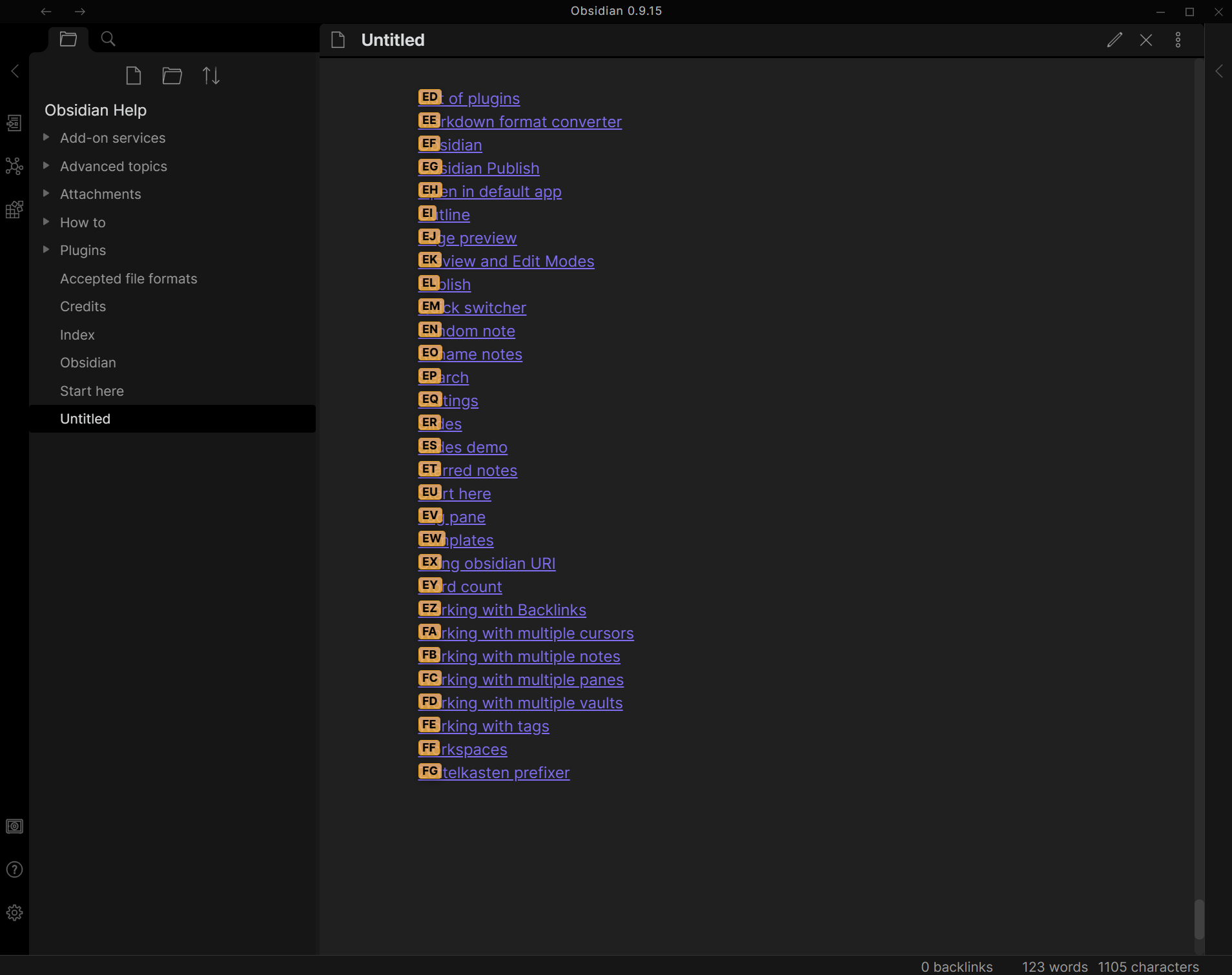
Jump to Anywhere (RegEx based navigation)
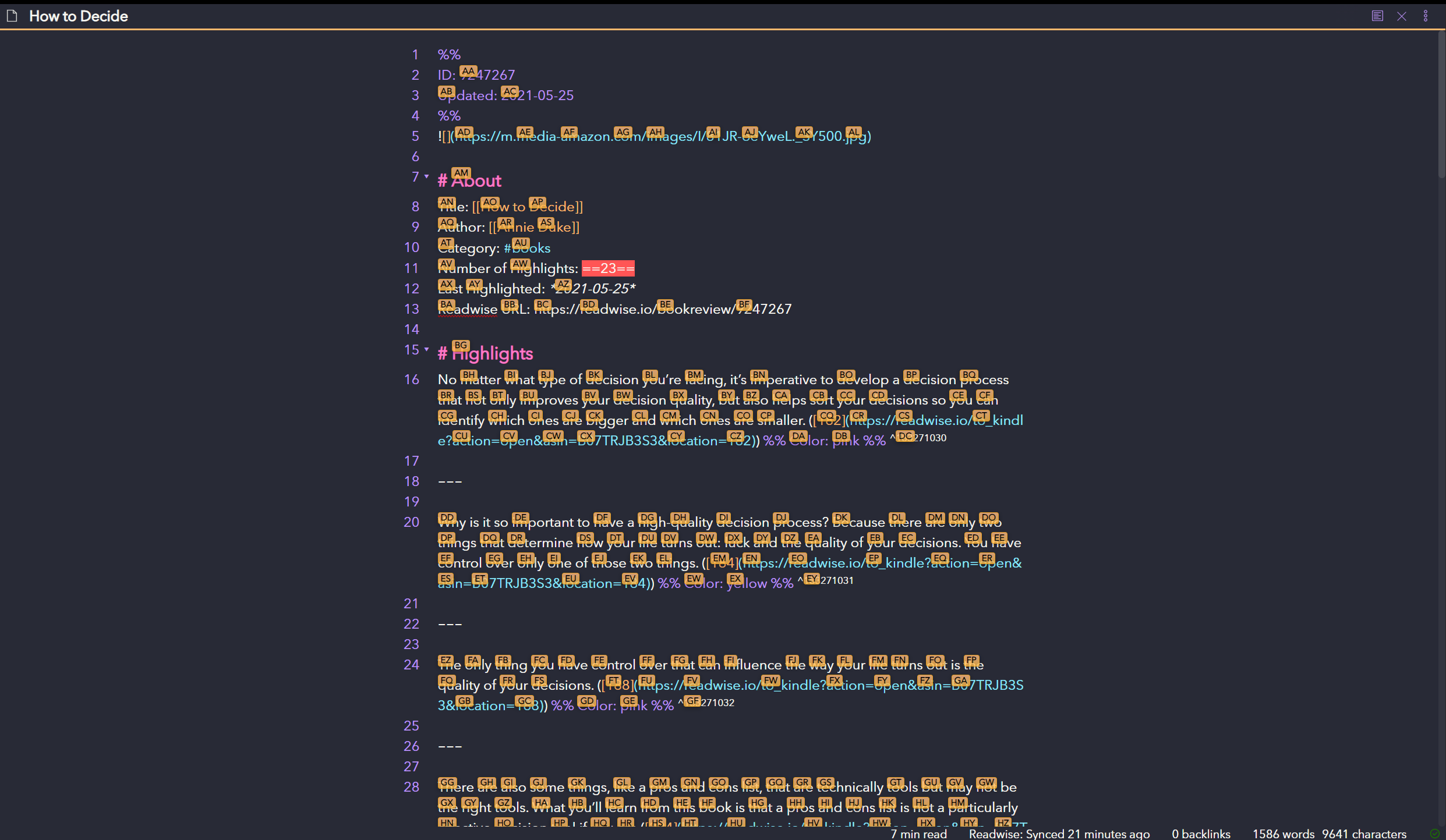
Lightspeed
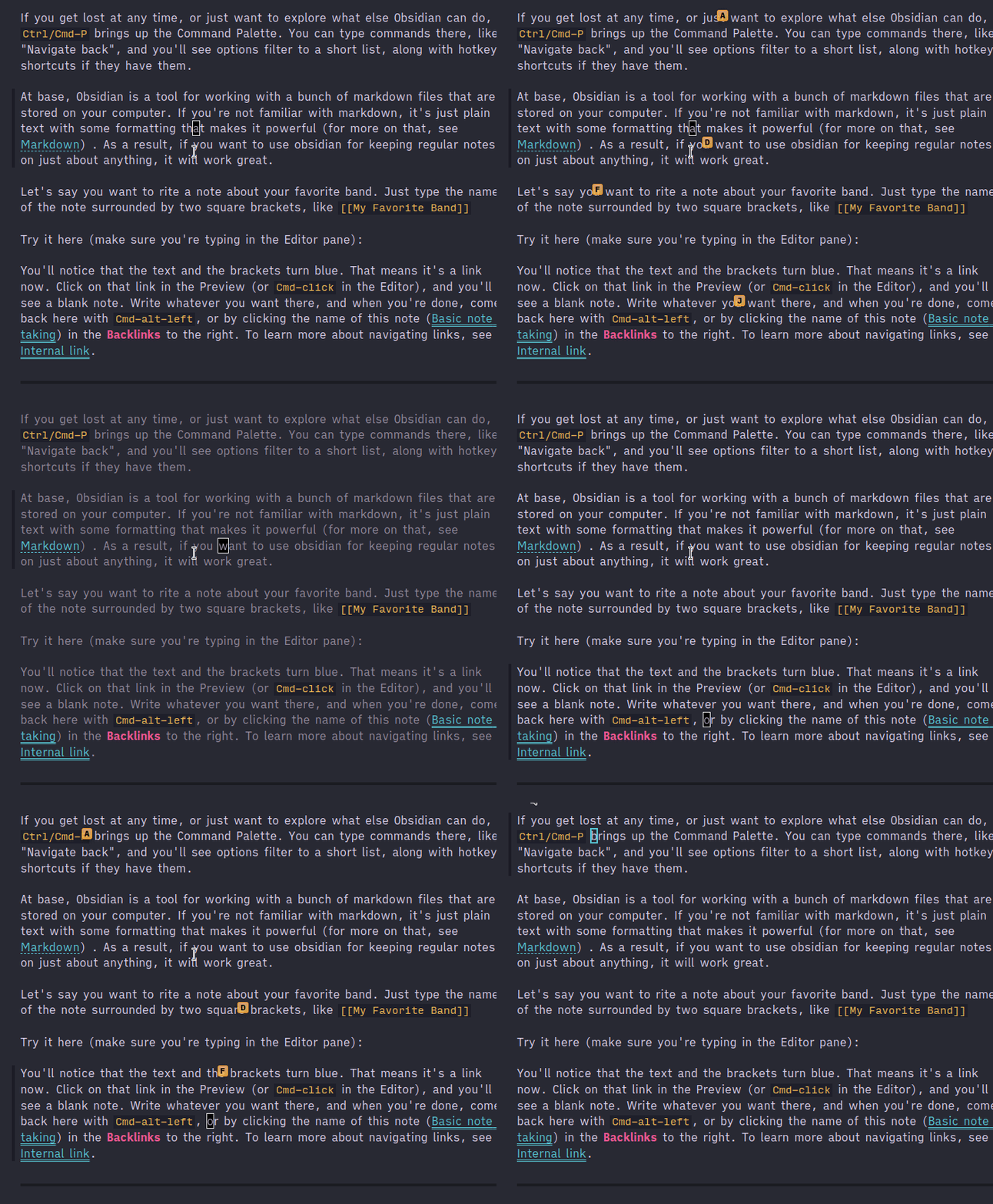
Settings

How to use (Link Navigation)
- Open command palette (
Ctrl+P), find and chooseJump to linkcommand - You can use hotkey (
Ctrl + 'by default) - If there are any links in opened file you should see letters over them which should be pressed to open the link
- Hold
Shiftwhile pressing link letters should open note in a new pane
How to use Jump to Anywhere (Editor Navigation)
- Use the command palette, or press the hotkey (
Ctrl + ;by default) to instantly jump to any word on the page! - Jump to Anywhere is a RegEx based navigation feature, similar to
vim-easymotion. - Jump to Anywhere works both in regular editor mode, and in VIM mode!
- Custom RegEx can be configured to user preference
- Default configuration adds a label on words 3 characters or greater: [Regex:
\b\w{3,}\b] - Suggested
Characters used for link hintssetting for Jump to Anywhere:asdfghhjklqwertyuiopzxcvbnm- These settings ensure that all 26 letters are available for jumping in documents with large amounts of text.
- If there are more matches than available letters, the label will show
undefinedand it will not be possible to jump there.
How to use Lightspeed
Lightspeed is originally a vim plugin similar to vim-sneak or easymotion. See this issue for videos.
You can either assign a hotkey, or use it in combination with the Obsidian vimrc plugin:
exmap jumpToLink obcommand mrj-jump-to-link:activate-lightspeed-jump
nmap gs :jumpToLink
The idea and original code is from @kohane27.
The look of it when invoked can be modified with CSS. By default, it is:
.theme-dark, .theme-light {
  --jump-to-link-lightspeed-color: var(--text-muted);
}
Lightspeed is only supported in the new Codemirror 6 editor.
How to install the plugin
Install plugin from the Community Plugins section.
 mrjackphil