
mercury
 mercury copied to clipboard
 mljar
mljar
Convert Jupyter Notebooks to Web Apps
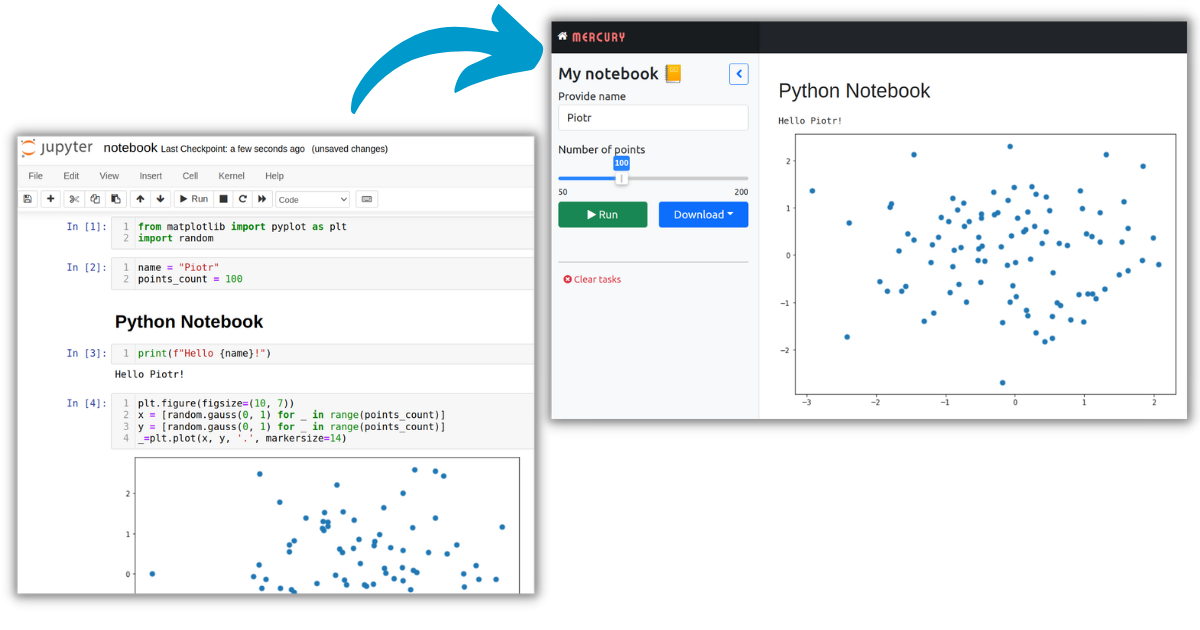




Share your Python notebook as web application
Mercury is a perfect tool to convert Python notebook to interactive web application and share with non-programmers.
- You define interactive widgets for your notebook with the YAML header.
- Your users can change the widgets values, execute the notebook and save result (as PDF or html file).
- You can hide your code to not scare your (non-coding) collaborators.
- Easily deploy to any server.
Mercury is dual-licensed. Looking for dedicated support, a commercial-friendly license, and more features? The Mercury Pro is for you. Please see the details at our website.
Documentation
📚 Mercury documentation :books:
Installation
Compatible with Python 3.7 and higher.
Install with pip:
pip install mljar-mercury
Or with conda:
conda install -c conda-forge mljar-mercury
Getting started
Demo notebook
To start with demo notebook please run:
mercury run demo
It will create for you demo.ipynb notebook and run it with Mercury. Please open 127.0.0.1:8000 to check the app running.
Your notebook
To run Mercury with your notebook please execute:
mercury watch my_notebook.ipynb
The watch command will monitor your notebook for changes and will automatically reload them in the Mercury web app.
YAML Example
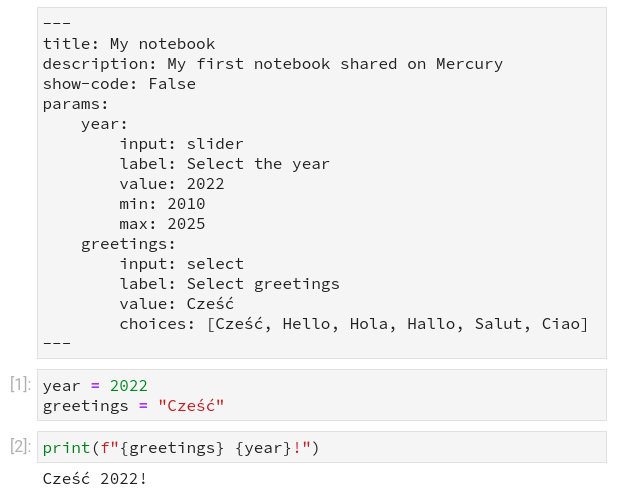
Notebook with YAML config
The YAML config is added as the first raw cell in the notebook.
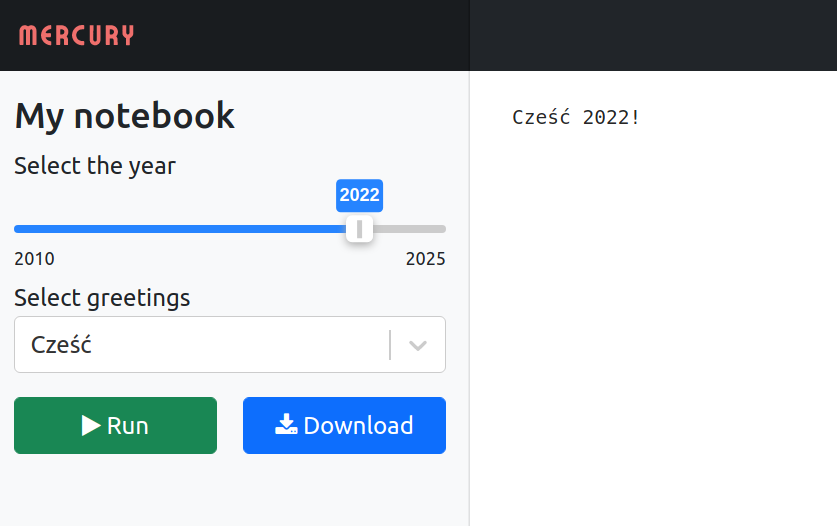
Web Application from Notebook
The web app is generated from the notebook. Code is hidden (optional). User can change parameters, execute notebook with the Run button, and save results with the Download button.
💻 Demo
The demos with several example notebooks are running at:
 http://mercury.mljar.com (running on AWS EC2 t3a.small instance)
- http://mercury-demo-1.herokuapp.com (running on Heroku, if dyno is sleeping and notebooks are not loaded, please refresh it and wait a little)
- https://sketch-app-mercury.herokuapp.com/ - sketch app for converting photos to sketches with code

Interactive slides
You can easily do interactive slides from the notebook and serve them with Mercury. Please check the docs. Below is example demo:

🛠️ Convert Notebook to web app with YAML
You need to add YAML at the beginning of the notebook to be able to run it as a web application in the Mercury. The YAML configuration should be added as a Raw cell in the notebook. It should start and end with a line containing "---". Below examples of how it should look like in the Jupyter Notebook and Jupyter Lab:
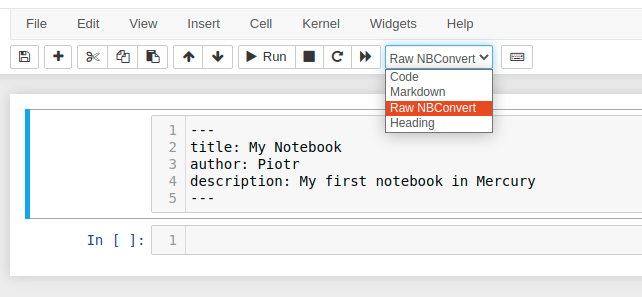
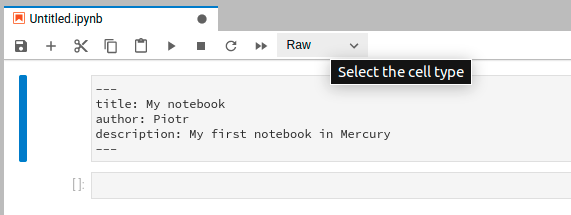
YAML configuration
Allowed parameters in YAML config:
title- string with a title of the notebook. It is used in the app sidebar and the gallery view.author- string with a author name (optional).description- string describing the content of the notebook. It is used in the gallery view.show-code- can beTrueorFalse. Default is set toTrue. It decides if the notebook's code will be displayed or not.show-prompt- can beTrueorFalse. Default is set toTrue. If set toTrueprompt information will be displayed for each cell in the notebook.share- the comma separated list of users that can see the notebook. Default is set topublicwhich means that all users can see the notebook. It can be set toprivatewhich means that only authenticated users can see the notebook. It can be set to the list of users, for exampleusername1, username2, username3, which means that only users with username on the list can see the notebook. The last option is list the groups of users that can see the notebook, for examplegroup1, group2- all users in thegroup1andgroup2will be able to see the notebook. You can mix group names and user names in theshareparameter. The users and groups should be created in the Admin Panel. The sharing feature is only available to commercial users.output- the type of the resulting notebook. It can beapporslides. The default is set toapp.params- the parameters that will be used in the notebook. They will be displayed as interactive widgets in the sidebar. Each parameter should have an unique name that corresponds to the variable name used in the code. Read more about available widgets inparamsin the documentation.
Define widget with YAML
Available widgets
Widgets in Mercury are text, slider, range, select, checkbox, numeric, file.
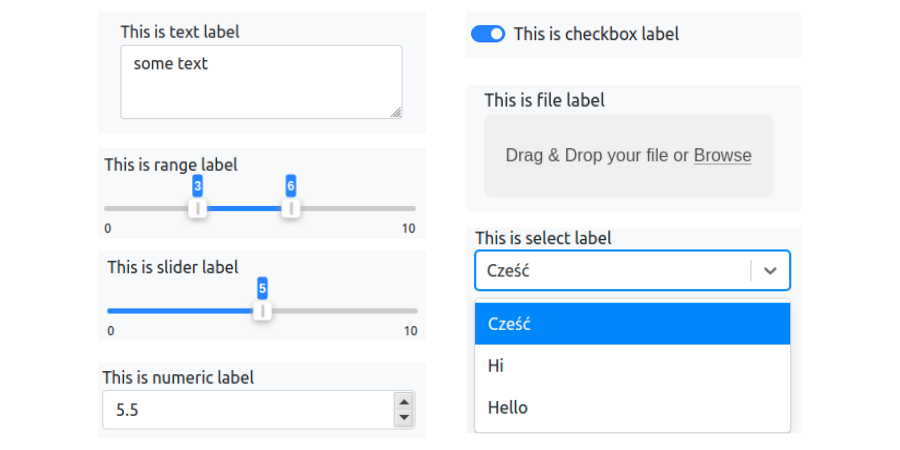
Widget name is a variable name
Definition of the widget (in params) starts with the widget name. It will correspond to the variable in the code. The name should be a valid Python variable.
Widget input type
To define the widget you need to select the input type. It can be: text, slider, range, select, checkbox, numeric, file.
Widget label
For each input we need to define a label. It will be a text displayed above (or near) the widget.
Widgets documentation 🧰
You can read more about widgets in our documentation.
Output files
You can easily create files in your notebook and allow your users to download them.
The example notebook:
- The first RAW cell.
title: My app
description: App with file download
params:
    output_dir:
        output: dir
- The next cell should have a variable containing the directory name. The variable should be exactly the same as in YAML. This variable will have assigned a new directory name that will be created for your user during notebook execution. Please remember to define all variables that are interactive in Mercury in one cell, just after the YAML header (that's the only requirement to make it work, but is very important).
output_dir = "example_output_directory"
- In the next cells, just produce files to the
output_dir:
import os
with open(os.path.join(output_dir, "my_file.txt"), "w") as fout:
    fout.write("This is a test")
In the Mercury application, there will be additional menu in the top with Output files button. Please click there to see your files. Each file in the directory can be downloaded.

Welcome message
There is an option to set a custom welcome message. Like in the example screenshot below.
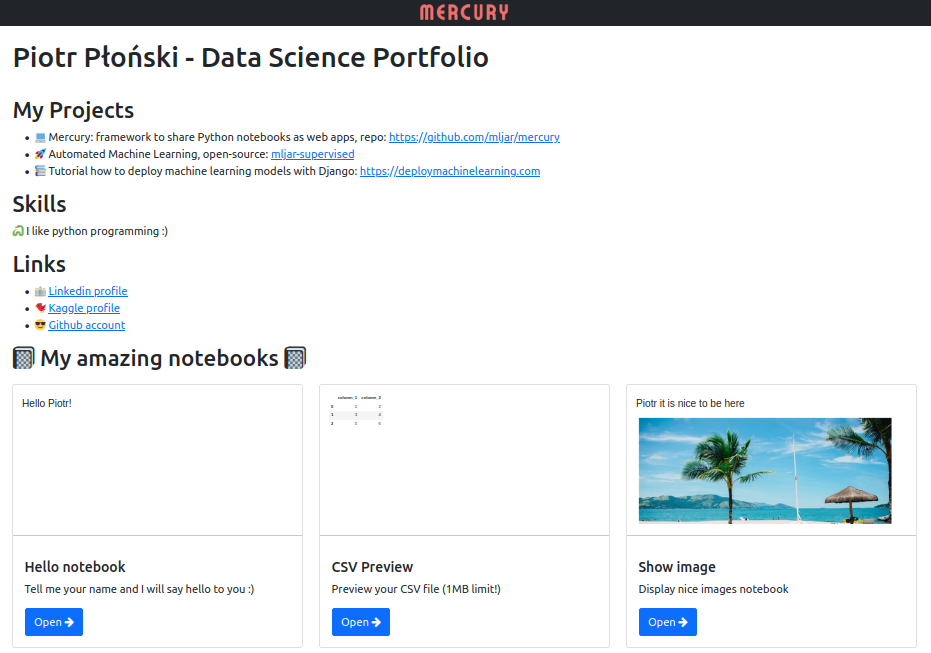
The custom welcome message can be set as Markdown text (with GitHub flavour). To set custom message please create a welcome.md file and include your Markdown text there. When deploying please set the WELCOME environment variable pointing to your file. For example, in Heroku it will be WELCOME=welcome.md. The example repository with welcome message is here. The example demo showing a Data Science Portfolio is here.
If you don't set the welcome message a simple Welcome! will be displayed. We belive that setting welcome message will give you a great opportunity for customization.
Running locally
Serve all notebooks (first option)
To run Mercury with all notebooks in the current directory please just run:
mercury run
It will serve Mercury website at http://127.0.0.1:8000 with all notebooks.
You can change the default 8000 PORT when running the mercury:
mercury run 127.0.0.1:<your-port-here>
Manually add notebooks (second option)
To run Mercury locally just run:
mercury runserver --runworker
The above command will run server and worker (without any notebooks). It will serve Mercury website at http://127.0.0.1:8000. It won't display any notebooks because we didn't add any. Please stop the Mercury server (and worker) for a moment with (Ctrl+C).
Execute the following command to add a notebook to the Mercury database:
mercury add <path_to_notebook>
Please start the Mercury server to see your apps (created from notebooks).
mercury runserver --runworker
Notebook development with automatic refresh
The Mercury watch command is perfect when you create a new notebook and want to see what it will look like as a web app with live changes.
Please run the following command:
mercury watch <path_to_your_notebook>
You can now open the web browser at http://127.0.0.1:8000 and find your notebook. When you change something in the notebook code, markdown, or YAML configuration and save the notebook, then it will be automatically refreshed in the web browser. You can track your changes without manual refreshing of the web app.
Mercury commands
Add
Please use add command to add a notebook to the Mercury. It needs a notebook paath as an argument.
Example:
mercury add notebook.ipynb
Delete
Please use delete command to remove notebook from the Mercury. It needs a notebook path as an argument.
Example:
mercury delete notebook.ipynb
List
Please use list command to display all notebooks in the Mercury.
Example:
mercury list
Running in production
Running in production is easy. There are two ways it can be done:
- deploy with
mercury runcommand, - deploy with
docker-compose
Please check our documentation for details.
Running with docker-compose
The docker-compose must be run from the Mercury main directory.
Please copy .env.example file and name it .env file. Please point the NOTEBOOKS_PATH to the directory with your notebooks. All notebooks from that path will be added to the Mercury before the server start. If the requirements.txt file is available in NOTEBOOKS_PATH all packages from there will be installed.
Please remember to change the DJANGO_SUPERUSER_USERNAME and DJANGO_SUPERUSER_PASSWORD.
To generate new SECRET_KEY (recommended), you can use:
python -c 'from django.core.management.utils import get_random_secret_key; \
            print(get_random_secret_key())'
Please leave SERVE_STATIC=False because in the docker-compose configuration static files are served with nginx.
The docker-compose will automatically read environment variables from .env file. To start the Mercury, please run:
docker-compose up --build
To run in detached mode (you can close the terminal) please run:
docker-compose up --build -d
To stop the containers:
docker-compose down
Mercury development
The Mercury project consists of three elements:
- Frontend is written in TypeScript with React+Redux
- Server is written in Python with Django
- Worker is written in Python with Celery
Each element needs a separate terminal during development.
Frontend
The user interface code is in the frontend directory. Run all commands from there. Install dependencies:
yarn install
Run frontend:
yarn start
The frontend is served at http://localhost:3000.
Server
The server code is in the mercury directory. Run all commands from there. Please set the virtual environment first:
virtualenv menv
source menv/bin/activate
pip install -r requirements.txt
Apply migrations:
python manage.py migrate
Run the server in development mode (DEBUG=True):
python manage.py runserver
The server is running at http://127.0.0.1:8000.
Worker
The worker code is in the mercury directory (in the apps/notebooks/tasks.py and apps/tasks/tasks.py files). Please activate first the virtual environment (it is using the same virtual environment as a server):
source menv/bin/activate
Run the worker:
celery -A server worker --loglevel=info -P gevent --concurrency 1 -E
Mercury Pro
Looking for dedicated support, a commercial-friendly license, and more features? The Mercury Pro is for you. Please see the details at our website.

 mljar
mljar