

 microsoft
Electron apps look pixelated at 200% resolution
Environment
Windows build number: 10.0.21343.1000 (Dev Channel)
Your Distribution version: Ubuntu 20.04
Your WSLg version: 0.2.14
Steps to reproduce
- Set display to 200% resolution. Repo via Windows VM and macOS Remote Desktop client (Optimize for Retina display).
- Install Node.js 15.x in WLS
-
git clone https://github.com/electron/simple-samples -
cd simple-samples/activity-monitor -
npm install -
npx electron .
WSL logs: @craigloewen-msft
Expected behavior
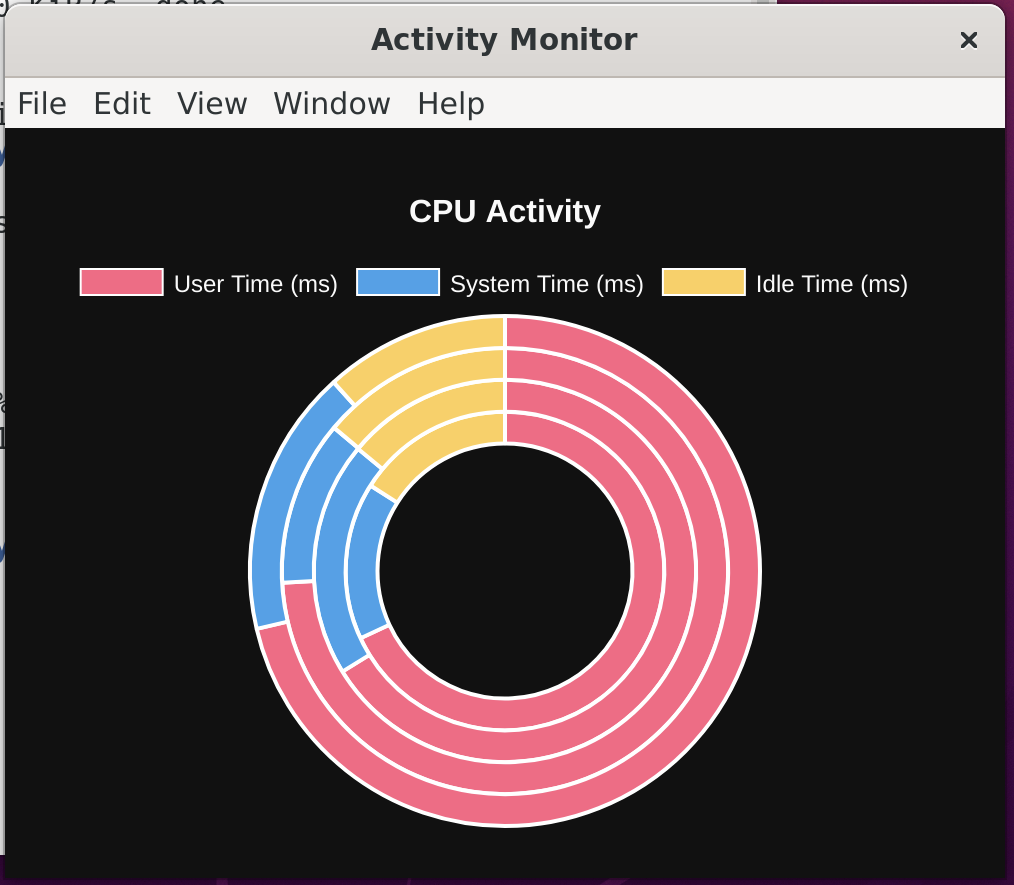
App renders in high resolution:
Actual behavior
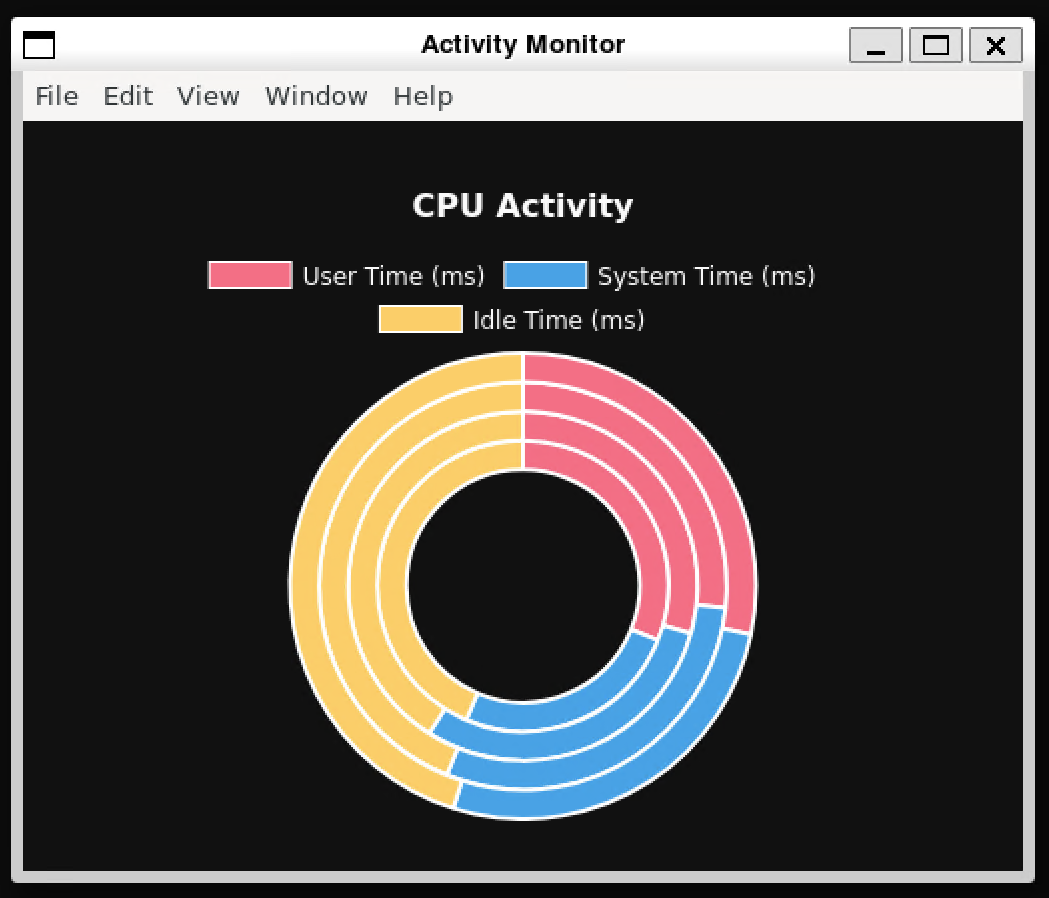
App renders pixelated with different chrome:

Also confirmed in Windows 21364 and WSL distro is Ubuntu Community Preview. My display is 3840*2160 with 250% scaling.
It looks pixelated on almost every application , not only Electron apps.

I'm in a Surface Pro 6 with Ubuntu 20.04. Testing a bit with this, gedit works perfectly. Emacs, however, look pixelated.
What is it about gedit that makes it work?

@baracunatana gedit uses wayland while Emacs probably uses XWayland/X11. You can try both with any program like this:
GDK_BACKEND=x11 gedit
GDK_BACKEND=wayland gedit

Hi all, I am experiencing the same problem in my wsl2+wslg install on the last 22478 build.
A synthesis of the situation can be this:
- looks at the above images by @lutzroeder: in the second one the window has borders that are not "drawn" as in gtk3 apps, while some (few) apps have correct borders and graphics.
- The issue, as the discussion here and in other issues is trying to gather, is that those apps based on more modern frameworks gets correct hidpi scaling and proper font smoothing, while the majority of "older" apps, gets different borders and looks pixelated. It is easy to see with glxgears...
So first question: why there is not uniform "windowing"? I understand that may be a packaging issue, i.e. a distro package missing, but then why do you not drive us to what packages to install?
Second question: I need some apps (for instance texstudio) that uses both qt and "old" (I don't know how to explain this) x interfaces. They looks pixelated, as already raised several times. From within this app, the resolution is thought as half of the actual one, look at the following lines from weston.log
rdpMonitor[0]: x:0, y:0, width:3840, height:2400, is_primary:1 [15:22:46.604] rdpMonitor[0]: physicalWidth:336, physicalHeight:210, orientation:0 [15:22:46.604] rdpMonitor[0]: desktopScaleFactor:200, deviceScaleFactor:180 [15:22:46.604] AudioIn source_thread: Listening for audio in connection. [15:22:46.604] rdpMonitor[0]: scale:2, client scale :2.00 [15:22:46.604] Client desktop upper left coordinate (0,0) [15:22:46.604] disp_monitor_validate_and_compute_layout:---OUTPUT--- [15:22:46.604] rdpMonitor[0]: x:0, y:0, width:3840, height:2400, is_primary:1 [15:22:46.604] rdpMonitor[0]: weston x:0, y:0, width:1920, height:1200
So that glxgears, texstudio, vlc, lxappearance, etc, thinks the monitor is 1920x1200 and simply does not know it is a 3840x2400 scaled by 2x.
So the question is, why some apps (or frameworks) are able to obtain the "real" resolution, thus being able to scale correctly, while others only access the already scaled one?
Finally: if I put WSL2_WESTON_SHELL_OVERRIDE=desktop-shell in .wslconfig, the problem is somehow reversed... no more pixelation, but actually no more hidpi. That is scaling is disabled. This is the same as if we disable scaling in .wslconfig with WESTON_RDP_DISABLE_HI_DPI_SCALING=true
Is there a way to programmatically configure the wslg.rdp file to tell the current resolution and the scaling to use?
Thank you for your support BR
Federico

Launching Google chrome with --enable-features=UseOzonePlatform --ozone-platform=wayland flag to force it to use Wayland will give a non-pixelated window, but it freezes after trying to resize the window.
Launching VSCode with the same flag would also give a cleaner look, but no windows border is shown, thus there is no way to scale or maximize the window.
Don't know the freezing problem is related to Chrome's Wayland or WSLg side.

@leoleoasd Resizing gpu accelerated windows in wayland should be fixed with latest mesa in latest WSL from the store. What's your output for wsl.exe --status and glxinfo -B ?
C:\Users\Leo>wsl --status
Default Distribution: Distrod
Default Version: 2

Windows Subsystem for Linux was last updated on 2/13/2022
The Windows Subsystem for Linux kernel can be manually updated with 'wsl --update', but automatic updates cannot occur due to your system settings.
To receive automatic kernel updates, please enable the Windows Update setting: 'Receive updates for other Microsoft products when you update Windows'.
For more information please visit https://aka.ms/wsl2kernel.

Kernel version: 5.10.60.1
(base) [leo@Leo-PC Leo]$ glxinfo -B
name of display: :0
display: :0  screen: 0
direct rendering: Yes
Extended renderer info (GLX_MESA_query_renderer):
    Vendor: Microsoft Corporation (0xffffffff)
    Device: D3D12 (NVIDIA GeForce RTX 3090) (0xffffffff)
    Version: 21.3.5
    Accelerated: yes
    Video memory: 57070MB
    Unified memory: no
    Preferred profile: core (0x1)
    Max core profile version: 3.3
    Max compat profile version: 3.1
    Max GLES1 profile version: 1.1
    Max GLES[23] profile version: 3.0
OpenGL vendor string: Microsoft Corporation
OpenGL renderer string: D3D12 (NVIDIA GeForce RTX 3090)
OpenGL core profile version string: 3.3 (Core Profile) Mesa 21.3.5
OpenGL core profile shading language version string: 3.30
OpenGL core profile context flags: (none)
OpenGL core profile profile mask: core profile

OpenGL version string: 3.1 Mesa 21.3.5
OpenGL shading language version string: 1.40
OpenGL context flags: (none)

OpenGL ES profile version string: OpenGL ES 3.0 Mesa 21.3.5
OpenGL ES profile shading language version string: OpenGL ES GLSL ES 3.00
Changed update settings,
(base) [leo@Leo-PC Leo]$ wsl.exe --update
Checking for updates...
No updates are available.
Kernel version: 5.10.60.1
@leoleoasd Your Mesa is new enough but you are not running latest WSL version from the store.
Also you can try disabling gpu in Chrome with the argument --disable-gpu. If it still freezes your issue could be same as https://github.com/microsoft/wslg/issues/643.
@onomatopellan
C:\Users\Leo>wsl --status
默认分发: Distrod
默认版本: 2
WSL version: 0.51.3.0
kernel version: 5.10.93.2
WSLg version: 1.0.30
Windows version: 10.0.22000.493
Tried open chrome with wayland and --disable-gpu. It still freezes after resizing.


In the current preview version of WSL, the option WESTON_RDP_DISABLE_HI_DPI_SCALING=false is no longer working. This makes the issue even worse as one can no longer configure the scaling within each program separately.


I have the same problem running IntelliJ IDEA (which is not an Electron app) with WSLg.
I don't have this problem using VcXsrv which I set up following this guide.

New laptop, first time with Windows 11. I'm on a 16" with a 3k display and usually run it at 150 to 175%. The Linux GUI apps are pretty difficult to use without scaling but when it's enabled it looks awful. I've just tried "gik", "git gui", and "hexchat".
I've used all 4 combinations of true and false for the two options below.
[system-distro-env]
WESTON_RDP_HI_DPI_SCALING=true
WESTON_RDP_FRACTIONAL_HI_DPI_SCALING=true
;100 to 500
WESTON_RDP_DEBUG_DESKTOP_SCALING_FACTOR=175
Happy that the stuff "just works", now it needs to just work better ;-)


I just find out a workaround. In your Windows setting, use Custom scaling, to a nearby number instead. For example, if you are using "200%" scale, try set the Custom scaling to "199%". Be aware that this setting might make display not perfect for Windows sometimes. Then in your WSL machine, set GDK_DPI_SCALE to a reaonable number, e.g. 2 for the example above. Then, you can enjoy a high-resolution linux app.

I just find out a workaround. In your Windows setting, use
Custom scaling, to a nearby number instead. For example, if you are using "200%" scale, try set theCustom scalingto "199%". Be aware that this setting might make display not perfect for Windows sometimes. Then in your WSL machine, setGDK_DPI_SCALEto a reaonable number, e.g. 2 for the example above. Then, you can enjoy a high-resolution linux app.
But the mouse and the title has become very small, I would like to ask the next what is the solution @ytliu74

I just find out a workaround. In your Windows setting, use
Custom scaling, to a nearby number instead. For example, if you are using "200%" scale, try set theCustom scalingto "199%". Be aware that this setting might make display not perfect for Windows sometimes. Then in your WSL machine, setGDK_DPI_SCALEto a reaonable number, e.g. 2 for the example above. Then, you can enjoy a high-resolution linux app.But the mouse and the title has become very small, I would like to ask the next what is the solution @ytliu74
Yeah, the same thing happens for me too. But at least other stuff look clear. I just found out this workaround for me, and have no idea why this works... So for this little imperfection, I just live with it.
Unfortunately neither any options in wslconfig nor custom scaling settings change anything

I'm getting the same issue. I installed Chrome, Edge, Firefox & VLC and all of them look pixelated.
I'm running Windows 10 with WSL2 on a 32 inch 4k monitor with 200% scaling. Updated wsl using wsl --update
For Chrome I've tested, as @leoleoasd has mentioned, running it with --enable-features=UseOzonePlatform --ozone-platform=wayland fixes the blurring issue, but this feels more like a hack.
Commenting to keep the interest alive in hopes that this would eventually get fixed.

I'm using WSL2 on Windows 10 with a 4K display at 200% scaling. My main goal is to use PyCharm in WSL.
After trying many WSLg-based solutions that didn't work, I decided to disable WSLg and switch to other X11 servers. As mentioned above by others, VcXsrv works, and MobaXterm's built-in X11 server can also achieve similar high-resolution results. However, both make PyCharm's text extremely small. So I'd like to share my solution, hoping it helps others with similar needs.
First, we need to disable WSLg by adding guiApplications=false to the last line of C:\Users\{USERNAME}\.wslconfig on Windows. (You will need to restart the wsl to make this configure take effect. That is, type wsl --shutdown wsl in Windows powershell)
Then, enable the X11 server in MobaXterm's settings-x11 (it should be enabled by default). Here we can adjust the DPI (I use auto ),and make sure the display offset is set to the default value of 0. Next, add the environment variable export DISPLAY=$(grep -m 1 nameserver /etc/resolv.conf | awk '{print $2}'):0.0 in Linux to connect to the X11 server. Now you can open PyCharm with high resolution but small fonts.
Finally, go to PyCharm's file-settings-appearance & behavior-Appearance-Accessibility-Zoom and set it to 200% (matching your Windows scaling ratio). After restart your pycharm, anything should be fine.
Here are my results after adjusting (the left side shows PyCharm in Windows, the right side shows PyCharm opened in WSL)

My main goal is to use PyCharm in WSL
FYIW, If you use PyCharm professional on Windows it's able is able to work against WSL (in a similar way to how VSCode does).
I'm a heavy WSL and Python/PyCharm user. Your tip is extremely helpful for those without access to the professional PyCharm. I only have access to PyCharm professional at work, so I'll give this a try next time I need to use PyCharm on my personal Windows machine.
Personally, once I'm running an IDE inside of WSL I might as well run a full desktop like Xfce. I do use graphical apps in WSL but it's mainly gitk, git gui, and tkdiff (yes I'm old, been using tkdiff for over 20 years).
FYIW, If you use PyCharm professional on Windows it's able is able to work against WSL (in a similar way to how VSCode does).
Thank you for your suggestion. I'm also a PyCharm Professional user. Previously, I was directly using WSL-created conda environments within Windows PyCharm. However, I recently discovered this approach would causes performance losses (I work on deep learning, so training efficiency is crucial). This manifests in two ways:
- Using WSL-created conda environments in Windows consumes excessive RAM (not GPU memory), potentially causing
Segmentation faultswhen RAM is insufficient (this was my main reason for switching to Linux PyCharm). - Training speed is reduced.