

 meganz
Accessing local directories on Windows
Hi, I am trying to use MEGAcmd to upload local files to my cloud account. I have started the MegaCMD window and tried using:
put H:\ /8TB
However I am getting an error stating:
[API:err: 14:42:50] Unable to open local path: H: /8TB
Your documentation also does not seem to contain any examples of how to upload files under Windows operating system. Please advise.

Note: \ is an escaping character. In this case, it escapes the subsequent space.
That is telling MEGAcmd that the first parameter of put is a single word. Something named H: /8TB. i.e. you are telling MEGAcmd to update a file/folder named 8TB within a folder named H: , into the current working (remote) directory MEGAcmd is at (pwd).
You can surround local paths between quotes, in order to not escape them:
put "LOCAL PATH" /8TB
In your case, both H: or "H:\" should be valid.

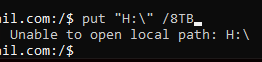
Hi @polmr , I've tried typing:
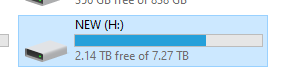
Here's the drive itself:
I am running the commands in the MegaCMD terminal:
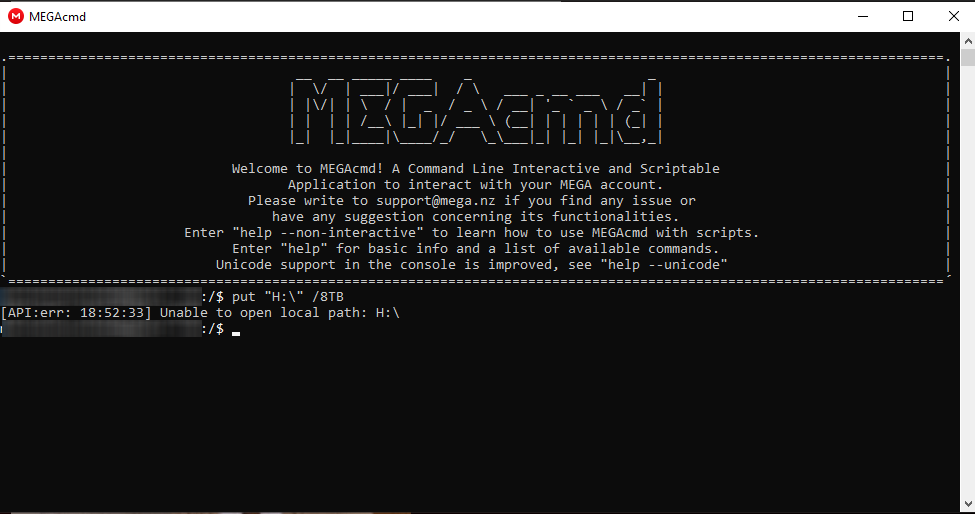
It looks like MegaCMD is not able to find any local drive or path.
For a test I have also tried by navigating to H:\ drive in PowerShell and trying to run it via the mega-put command, however with the same result (with a little bit different error):

Hi @mariamatthews
I was wrong: MEGAcmd does not support using drive units as local parameters. Apologies for that.
You can however upload elements individually. And even do this in powershell:
Get-ChildItem H:\ | Foreach-Object { mega-put "$_" /8TB/ }
to loop for all the files/folders within
Hello, I think my issue is very closely related so I'm taking the liberty of asking here.
I'm wrote I simple service (script if you will) that only syncs some files based on some complex criteria across devices using MegaCloud.
Until now I've only needed to run it on UNIX-based systems which worked fine. Now that I'm porting it to Windows though I'm hitting many issues regarding path handling. One I haven't been able to fix yet is that when I run mega-put \\?\C:\Users\this_user\Desktop\nephele\_nephele_testing_liciel\* I get Unable to open local path. Why is that ?

The reason is that it is not MEGAcmd who is expanding wildcards, but the shell you are using.
In bash (asuming bash) will expand /path/to/some/local/folder/* to all files/folders that match that pattern.
MEGAcmd will receive those as arguments.
In PowerShell, unfortunately, wildcard expansion won't work the same way. i.e. MEGAcmd will receive \\?\C:\Users\this_user\Desktop\nephele\_nephele_testing_liciel\*, and it actually does not support wildcards in local paths.
I hadn't had time to work on my project again since my last message so my follow-up is this late. I was wondering if there was a better way to upload all the files in a folder to a remote destination than to pass all individual files as arguments to MegaCMD?
As previously discussed bash expands the * wildcard so on Linux I can simply pass mega-put /some/path/* /some/remote/folder/. But I can't do this with powershell. Instead I collect all the files in /some/path and pass these as arguments to mega-put. A -r recursive option or such could be great too.
Still no ability to back up partitions, right?
However, I created a small script to back up my D: partition on Windows to my Mega folder:
# Set the source directory (D: drive)
$sourceDir = "D:\"

# Set the destination directory in MEGA
$megaDestDir = "/D-Partation-backups"

# Function to upload a file or directory
function Upload-ToMega {
    param (
        [string]$source,
        [string]$destination
    )

    if (Test-Path -Path $source -PathType Container) {
        # If it's a directory, use mega-cmd with -c flag for creating the folder structure
        & "C:\Users\Admin\AppData\Local\MEGAcmd\MEGAclient.exe" put -c $source $destination
    } else {
        # If it's a file, use mega-cmd
        & "C:\Users\Admin\AppData\Local\MEGAcmd\MEGAclient.exe" put $source $destination
    }
}

# Create the root backup folder in MEGA
& "C:\Users\Admin\AppData\Local\MEGAcmd\MEGAclient.exe" mkdir $megaDestDir

# Get all items in the D: drive and upload them
Get-ChildItem -Path $sourceDir | ForEach-Object {
    $relativePath = $_.FullName.Substring($sourceDir.Length)
    $megaPath = ($megaDestDir + "/" + $relativePath).Replace('\', '/')

    Upload-ToMega -source $_.FullName -destination $megaPath
}
