
obsidian-text-expander
 obsidian-text-expander copied to clipboard
 konodyuk
Text Expander plugin for Obsidian
⚠️ UPDATE (NOV 2023): This plugin is not maintained. Do not install it, use supported alternatives.
⚠️ CM6-based editor (default option in Obsidian >= v13.0.0) is not supported. Consider using Legacy editor.
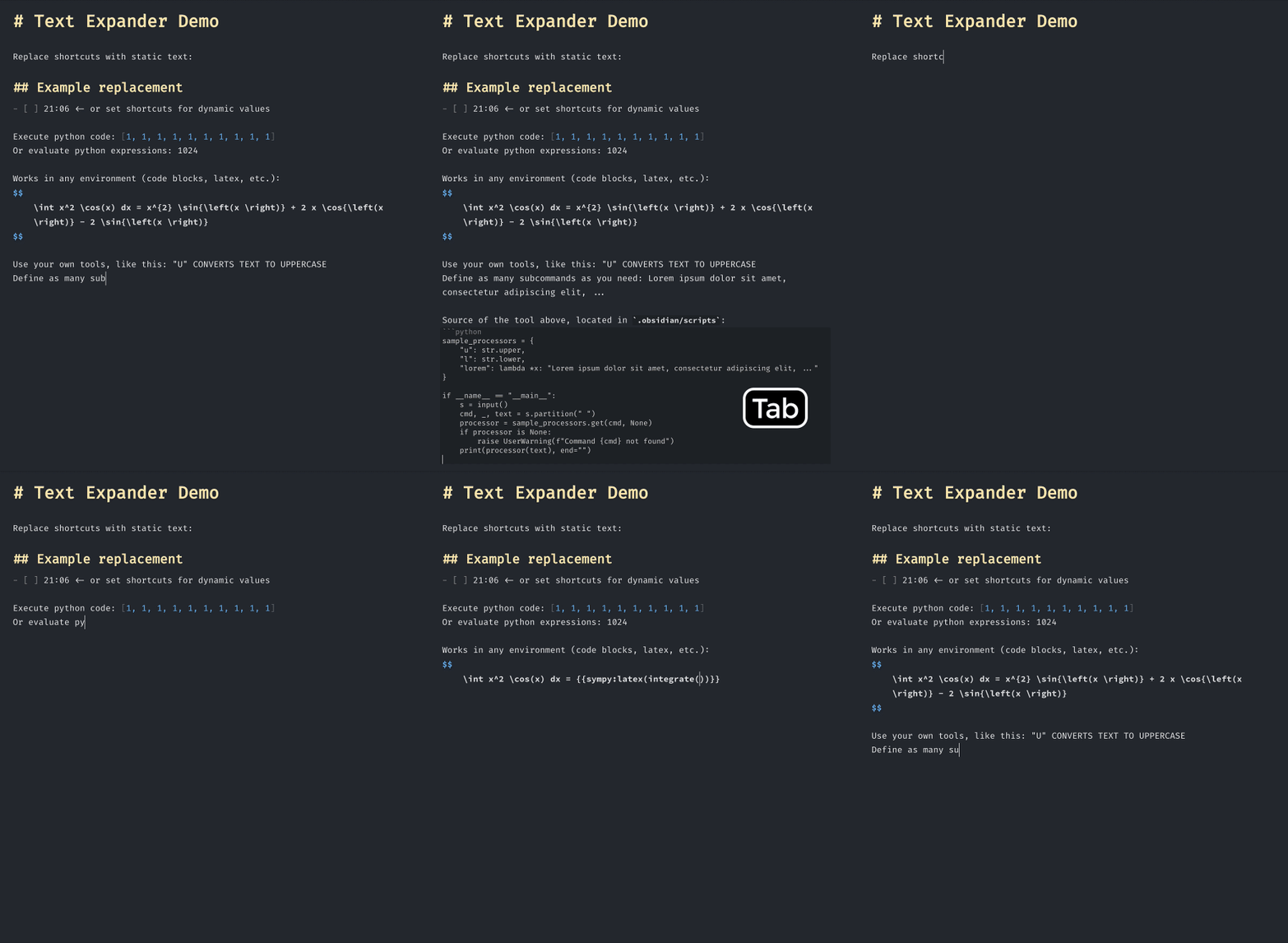
Text Expander Plugin
The plugin replaces shortcuts of format {{<text>}} on Tab press. The replacement can be either static text or the result of execution of arbitrary commands.
⚠️ Currently, the plugin supports Windows only partially. See the Known Issues section.
Use Cases
- Shortcuts for static text templates:
{{trigger}}->Some template text - For dynamic values:
{{now}}->14:23,{{date}}->2021-01-15 - For python expressions:
{{eval:2**10}}->1024,{{eval:len(open("<note_path>").readlines())}},{{py:from numpy import*;print(linalg.inv(triu([1,2,3,4])))}}, ... - For shell commands:
{{shell:ls <vault_path>/attachments}} - For custom tools:
{{mytool:extract_all_lines_starting_with_(#tag)}}->#tag Text\n#tag ...
Installation
Open Settings > Third-party plugins > Community Plugins > Browse, then search for Text Expander and click Install.
Settings
The shortcuts are defined as a JSON-list of entries, each containing three fields: regex (required), replacement (optional) and command (optional).
regexfield defines the trigger pattern. The entries are tried sequentially, untilregexmatches the input.replacementsimply replaces the shortcut, if provided.commandcontains the command which is run in shell. The shortcut is replaced with its output.
Default Shortcuts
Below is the default configuration that can be changed in Settings > Plugin Options > Text Expander > Shortcuts:
[
    {
        "regex": "^trigger$",
        "replacement": "## Example replacement\n- [ ] ",
    },
    {
        "regex": "^now$",
        "command": "printf `date +%H:%M`",
    },
    {
        "regex": "^py:",
        "command": "echo <text> | cut -c 4- | python3"
    },
    {
        "regex": "^eval:",
        "command": "echo <text> | cut -c 6- | python3 -c 'print(eval(input()), end=\"\")'"
    },
    {
        "regex": "^shell:",
        "command": "echo <text> | cut -c 7- | sh"
    },
    {
        "regex": "^tool:",
        "command": "echo <text> | cut -c 6- | python3 <scripts_path>/tool.py"
    },
    {
        "regex": "^sympy:",
        "command": "echo <text> | cut -c 7- | python3 <scripts_path>/sympy_tool.py"
    }
]
Variables
With <variable_name> you can insert the value of a variable into the command field before it is executed. The following variables can be used:
<text>The contents of brackets, with escaped single-quotes. Recommended in most cases.<text_raw>Same as<text>, but nothing is escaped.<vault_path>The absolute path of current vault.<inner_path>The directory of the current note in obsidian file explorer. E.g. inside<vault_path>/folder/folder2/note.mdits value will befolder/folder2.<note_name>The filename of the current note, i.e.note.mdin the example above.<note_path>The shortcut for<inner_path>/<note_name>.<scripts_path>The shortcut for<vault_path>/.obsidian/scripts.
Example flows
Example #1
{{trigger}}Tab is entered^trigger$matchestrigger-> the first shortcut is usedreplacementfield of the first shortcut replaces{{trigger}}
Example #2
{{now}}Tab^trigger$doesn't matchnow-> proceeding to the second shortcut^now$matchesnow-> the second shortcut is usedcommandfield is executed in the specified shell, then the output is used to replace{{now}}
Example #3
{{sympy:latex(integrate(x, x))}}Tab- Only the last shortcut's
regexmatches the input - Variables are processed:
echo <text> | cut -c 7- | python3 <scripts_path>/sympy_tool.py->echo 'sympy:latex(integrate(x, x))' | cut -c 7- | python3 /path/to/vault/.obsidian/scripts/sympy_tool.py - The command is executed:
cutcuts thesympy:prefix andlatex(integrate(x, x))is passed as input tosympy_tool.py sympy_tool.pyoutputs\frac{x^{2}}{2}, which replaces the{{sympy:latex(integrate(x, x))}}
Custom Scripts
You can place any scripts to <vault_path>/.obsidian/scripts to use them in commands. The examples folder contains two sample scripts, enabling {{tool: and {{sympy: shortcuts.
Security
As the plugin is shell-powered, one can easily run destructive commands just by typing {{shell:rm -rf ...}}Tab. Think twice before pressing Tab when your cursor is on something like {{shell:...}}. I also strongly discourage using the {{shell:...}} pattern, which was added mostly for demonstration purposes, and recommend writing python scripts instead.
Future Work
<cursor>placeholder, defining the cursor position after replacement. Example usage:{{texenv:cases}}->\begin{cases}\n\t<cursor>\n\end{cases}. In case if multiple<cursor>placeholders are used in single shortcut, then Tab will switch the cursor position between them until all are visited.- Special syntax (something like
{*{<text>}}) for preview-time rendering instead of instant replacement. - Static-only support for Windows.
Known Issues
- Long-running commands can cause issues. E.g. if you type
{{shell:sleep 10 && echo 1}}Tab and before it finishes type{{now}}Tab, then{{now}}will be replaced with1. - Windows support is currently limited:
- Shortcuts with
replacementfield are processed correctly - To use
commandfield on Windows you need to have a WSL Subsystem installed and setSettings > Plugin Options > Text Expander > Shell executableto<your os name>.exe(ubuntu.exefor Ubuntu), also make sure any python packages you use are installed - or set
Settings > Plugin Options > Text Expander > Shell executabletopowershelland use Powershell syntax in your commands.
- Shortcuts with
Credits
The project was inspired by the PoC text expander implementation. I also used certain ideas from the Run Snippets plugin.
Release Notes
1.1.0
- Added support for
:nowsyntax. Use{{py: long command}}syntax for triggers containing whitespace characters and:triggerfor short triggers without whitespace - Shell executable is now automatically respawned on "Shell executable" value change
1.0.1
- Fixed errors caused by incorrect "Shell executable" value
 konodyuk