

 kciter
Button positioned off-screen until first scroll.
When added to a UITableView with actionButton.sticky = true Floaty is positioned off-screen on the bottom. When scrolling is performed button is positioned where it should be in the first place.
Example:
let actionButton = Floaty()
actionButton.relativeToSafeArea = true
actionButton.sticky = true

tableView.addSubview(actionButton)
Button position is initially the same whether sticky property is set to true or false. It looks like property is not taken into account until scrolling.

Hi there, I have the same problem.
Screenshot 1 shows the button after app start and the second screen shows the button after scrolling

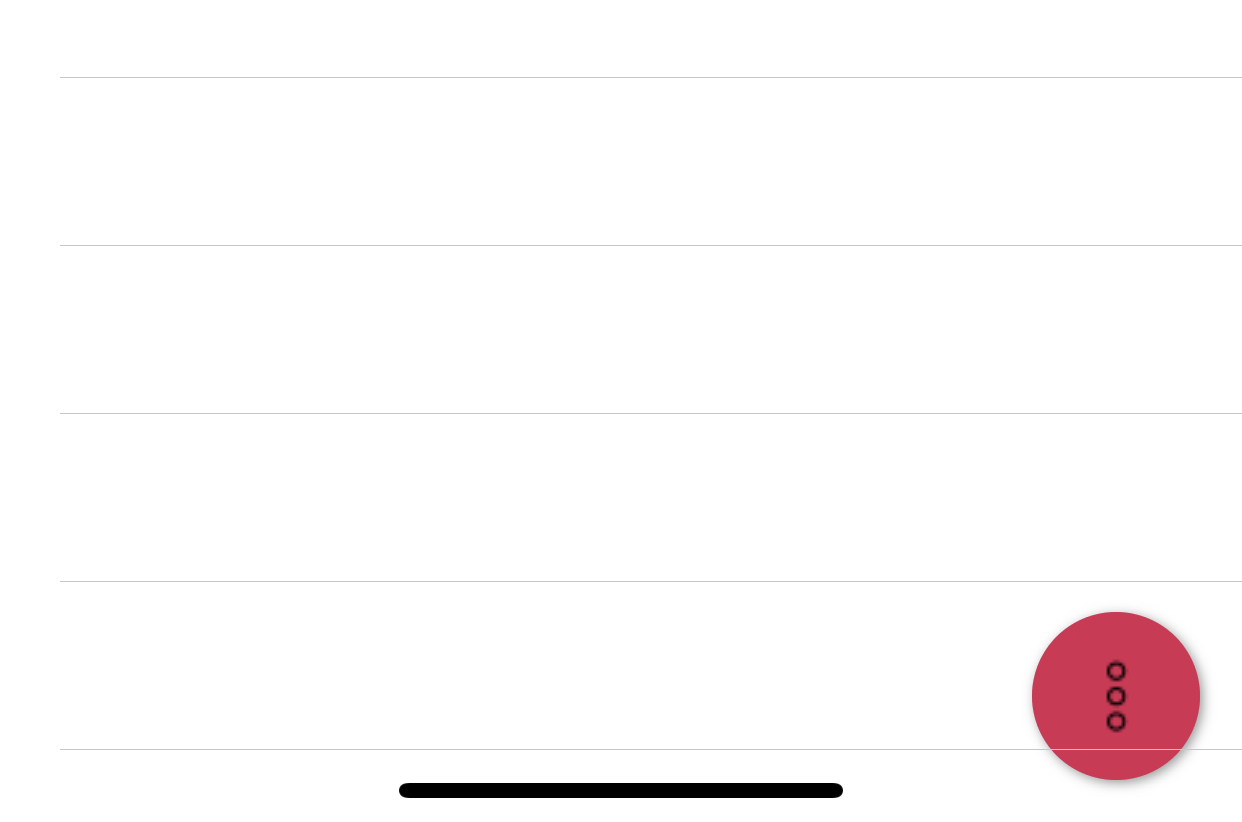

@renatokorez I fixed it for me by setting
fab.paddingY = 100
you have to try out the number of the paddingY value
😎
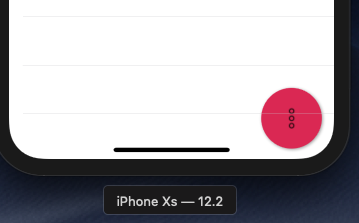
@renatokorez I fixed it for me by setting
fab.paddingY = 100you have to try out the number of the paddingY value
😎
sorry for the spam but it seems as if you replace your tableView.addSubview(actionButton) with self.navigationController?.view.addSubview(actionButton)
you don't need my answer above 😎
let me know if its working!
@leafarenuk thank you for your response.
I did try paddingY property but it does not work as it should. Starting position is ok, but when you scroll it jumps up for the amount specified.
self.navigationController?.view.addSubview(actionButton) works but this is only workaround and not actual solution. If I want to design tableView with floating button which can be embedded in any container, then it shouldn't be a requirement for it to have parent navigationController. That is why navigationController in UIViewController is optional by design.