hluk
hluk
Copyq flatpak does not open GUI and tray icon in Pop OS 20.04
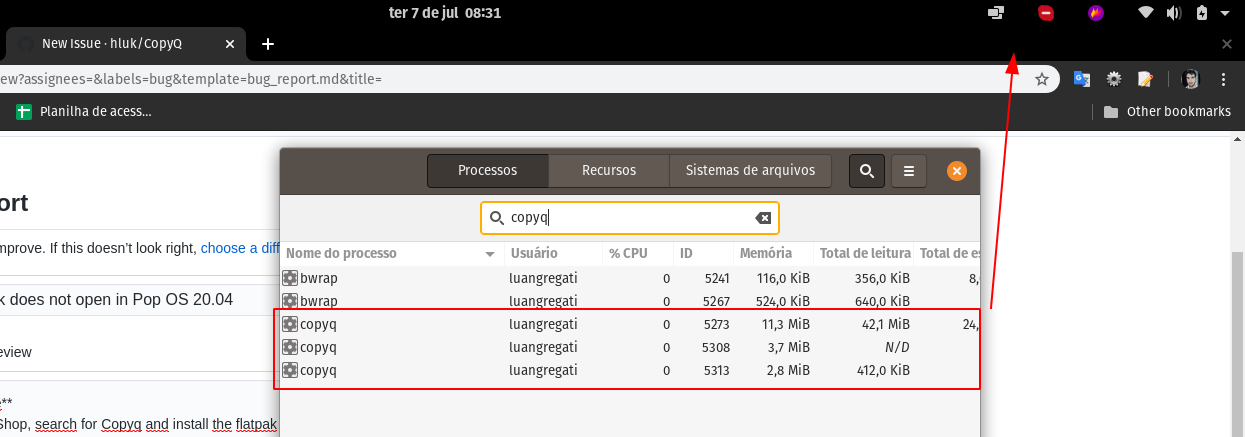
Describe the bug After installing flatpak version of copyq in Pop OS 20.04 and start, it stays running in background but it does not open the GUI and does not show the tray icon.
To Reproduce Go to Pop OS Shop, search for Copyq and install the flatpak version. Then try to start it, it will not open the GUI and wil not load the tray icon, but it will run in background.
Expected behavior Start Copyq with the GUI and the tray icon, so I can select my copied content.
Screenshots

Version, OS and Environment
- Operating System: Pop OS 20.04
- Copyq version: flatpak 3.11.1 (installed from Pop OS Shop)
PS: english is not my mother language =)

Can you show the main window with copyq show or flatpak run com.github.hluk.copyq show command?
Not sure if the notification area in Pop OS supports Qt tray icons (you may need to install an additional plugin or some libraries).

Hello, hluk! I will try to run these commands and give you an answer with the results, as soon as I can.
Thanks!

RHEL 8 + Flatpak = same issue.
Running flatpak run com.github.hluk.copyq show shows the window, but there is no tray icon.
Installing RPM for openSUSE Leap (in assets of latest release here) = works fine with RHEL 8.

fwiw; this happened to me on Pop!_OS 20.04 when using flatpak install (that is what is in the README).
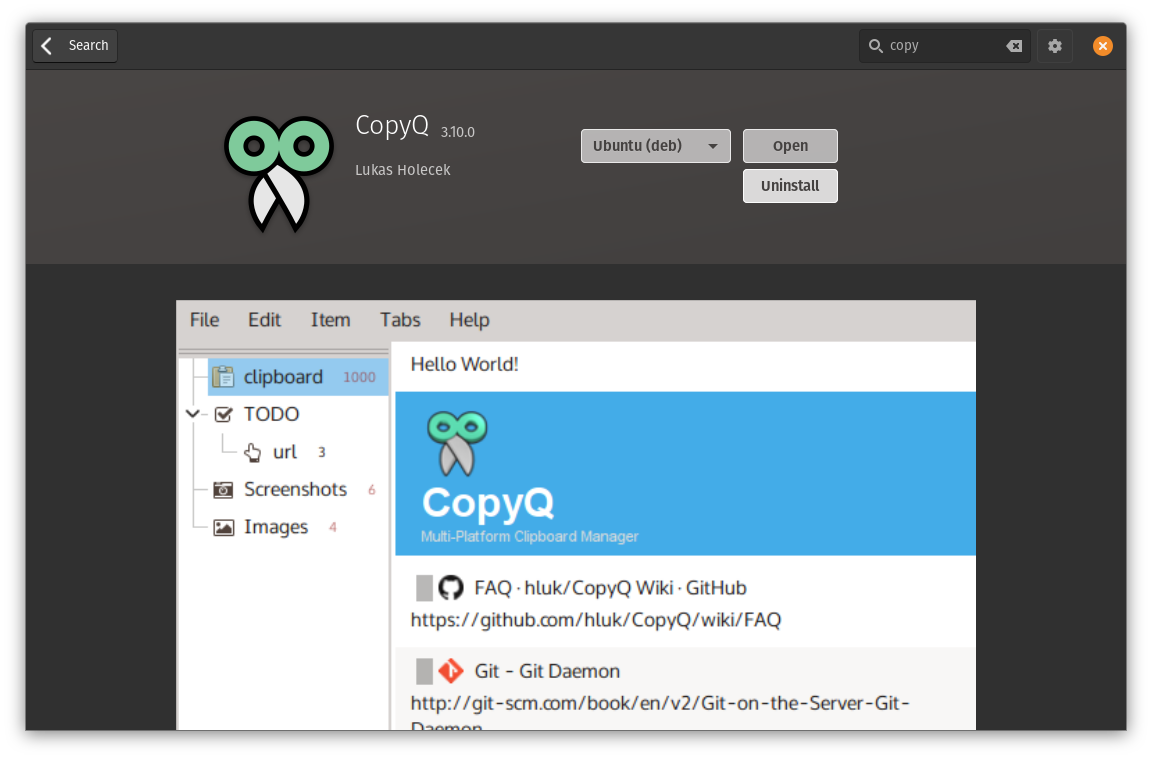
Uninstalling and installing via Pop Shop using the .deb worked fine.

If the tray doesn't work, you can check the "Disable tray" option in Tray configuration tab and the window will minimize instead (if "Hide main window" in Layout config tab in not enabled).
As another user mentioned above, the same issue also occurs on Linux Mint 20 Cinnamon. Since the tray icon doesn't work, there's no way to access the GUI, hence no way to access the configuration options.
EDIT: my bad; in fact, running the application from the terminal with the parameter "show" does bring up the GUI. From there, I can disable the tray as a workaround for this bug.
That said, I'll just go ahead and install the app from PPA now, cos I kinda want to have it in my notification tray. :-)

I'm running into this issue too, but copyq menu does work to show its menu. From there, I went into the settings, and tried disabling and re-enabling the tray to no avail. Also, the global shortcut is defined as Ctrl+Meta(Alt)+C, but it doesn't work.
What I've done as a workaround is to add to Pop OS' custom keyboard shortcuts (in Settings->Keyboard->Customize Shortcuts->Custom Shortcuts) for Ctrl+Alt+C to run the command copyq menu.

Similar issue on my configuration, now on Ubuntu 20.10 and previously on 18.04.
When the Hide Top Bar GNOME Extension is running, CopyQ doesn't shows up in the tray. Once I disable it and refresh (alt+f2 > r) the desktop, CopyQ shows up and works as it should.

I found that it works after installing this Gnome extension:
https://extensions.gnome.org/extension/2890/tray-icons-reloaded/
What I've done as a workaround is to add to Pop OS' custom keyboard shortcuts (in Settings->Keyboard->Customize Shortcuts->Custom Shortcuts) for Ctrl+Alt+C to run the command
copyq menu.
For me on Bluefin-dx (Fedora 41) I needed:
/usr/bin/flatpak run --branch=stable --arch=x86_64 --command=copyq com.github.hluk.copyq menu