
picon
 picon copied to clipboard
 gokcehan
Run your code in python interactive console from the command line
Picon
picon runs your code in python interactive console from the command line.
Besides other purposes, it can be easily integrated to your editor to create a live worksheet environment.
This is useful to evaluate your code on the fly and show you the result right below the code within your editor:
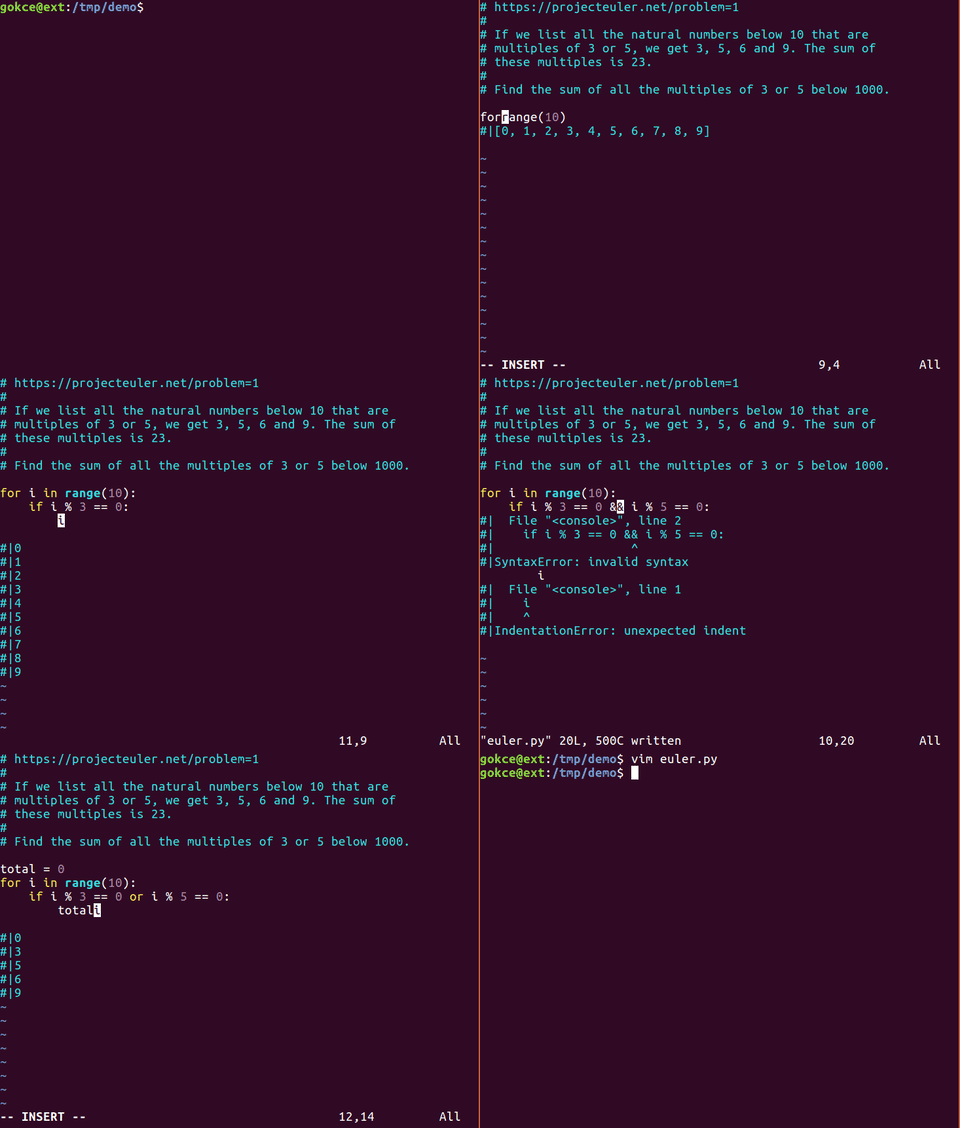
Installation
You can install picon as a python package using pip:
pip install picon
Or you can download it from github and put it somewhere in $PATH:
curl https://raw.githubusercontent.com/gokcehan/picon/master/picon/picon.py -o picon
chmod +x picon
mkdir -p ~/.local/bin
mv picon ~/.local/bin
Usage
picon is implemented as a thin wrapper around code module to be used as a command line application.
There are three running modes available in picon.
Following example code is used for demonstration:
$ cat demo.py
'hello world'

x = 42
x
print(x)

y

total = 0
for i in range(1000):
    if i % 3 == 0 or i % 5 == 0:
        total += i

total
Default mode evaluates the code and only shows the output.
This is similar to running your code with python but it uses interactive console semantics (see syntax section below):
$ picon demo.py
'hello world'
42
42
Traceback (most recent call last):
  File "<console>", line 1, in <module>
NameError: name 'y' is not defined
233168
Live mode shows the code and the output as in a live session. This can be used to prepare programming notes or documentation:
$ picon demo.py -l
>>> 'hello world'
'hello world'
>>>
>>> x = 42
>>> x
42
>>> print(x)
42
>>>
>>> y
Traceback (most recent call last):
  File "<console>", line 1, in <module>
NameError: name 'y' is not defined
>>>
>>> total = 0
>>> for i in range(1000):
...     if i % 3 == 0 or i % 5 == 0:
...         total += i
...
>>> total
233168
Append mode appends the output as comments below the code.
A pipe character (|) is added to differentiate these comments from regular ones and strip them in consequent executions.
This mode is designed to be integrated to editors to create a live worksheet environment:
$ picon demo.py -a
'hello world'
#|'hello world'

x = 42
x
#|42
print(x)
#|42

y
#|Traceback (most recent call last):
#|  File "<console>", line 1, in <module>
#|NameError: name 'y' is not defined

total = 0
for i in range(1000):
    if i % 3 == 0 or i % 5 == 0:
        total += i

total
#|233168
Syntax
Syntax of python interactive console differs from regular python in two main aspects.
First, return values are automatically shown without a print statement:
$ cat return.py
x = 42
x
print(x)
$ python return.py
42
$ picon return.py
42
42
Second, blocks are separated with blank newlines in addition to indentation:
$ cat block.py
if True:
    print('one')

    print('two')
$ python block.py
one
two
$ picon block.py
one
  File "<console>", line 1
    print('two')
    ^
IndentationError: unexpected indent
Having blank trailing spaces equal to the indentation works in interactive console but not in picon.
Vim Integration
Simply running :%!picon -a evaluates the buffer content and puts the output as comments below the code.
In order to keep the cursor position fixed and join undo operations to a single step you can use a command similar to the following:
command! Picon exe 'normal m`' | silent! undojoin | exe '%!picon -a' | exe 'normal ``'
You may want to assign this command to either BufWritePre event to run on save and/or CursorHold event to run on idle as follows (see also :h updatetime):
autocmd Filetype python autocmd BufWritePre <buffer> Picon
autocmd Filetype python autocmd CursorHold  <buffer> Picon
 gokcehan