
vscode-macros
 vscode-macros copied to clipboard
 exceedsystem
This extension gives the macro features to your vscode.
VSCode Macros
Add a scripting macro feature to your VSCode
Improves work efficiency and productivity by automating inefficient text editing operations.
Features
- You can write your macro in JavaScript.
- You can use the VSCode extension API in your macros. (There are some limitations due to API specifications.)
- You can use the Node.js modules in your macros.
- You can run your macros from the command pallette and shortcut keys.
- You can manage your macros by units of files.
- You can debug your macro on the debugger of the VSCode.
Demos
-
Write your macro and run it instantly.
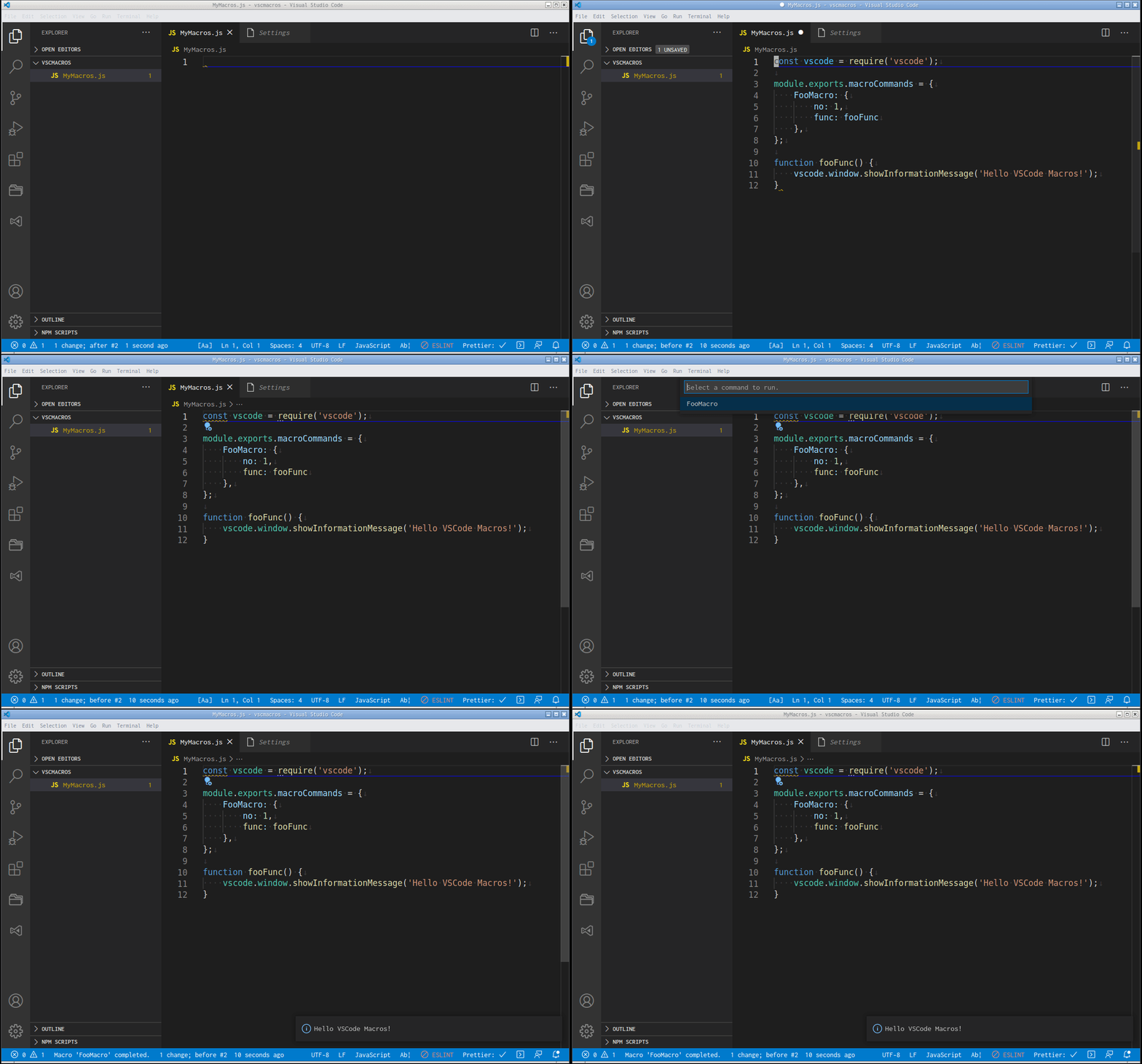
-
Switch your macro file and apply some macros in combination.
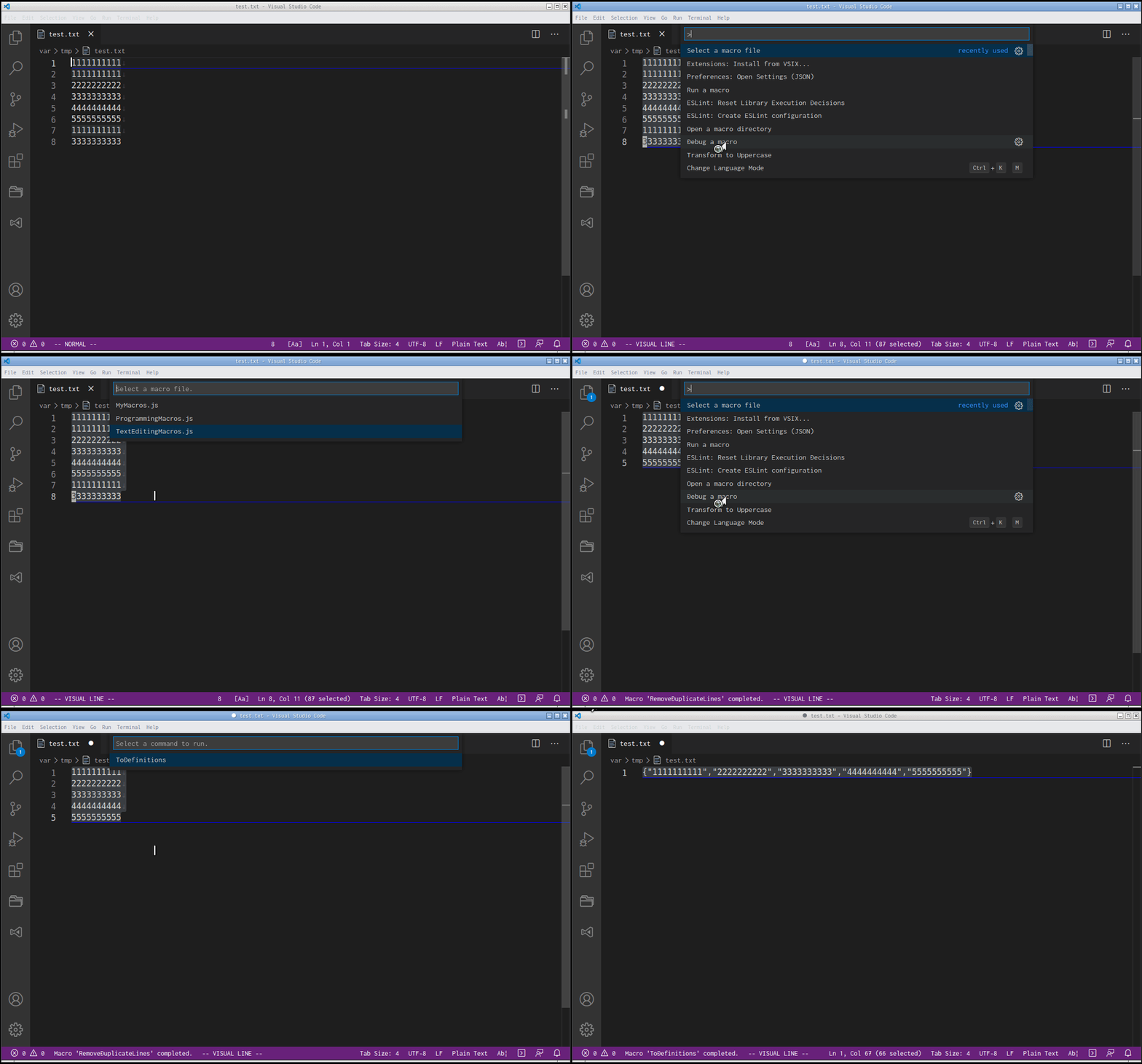
-
Debug your macro with VSCode debugger.
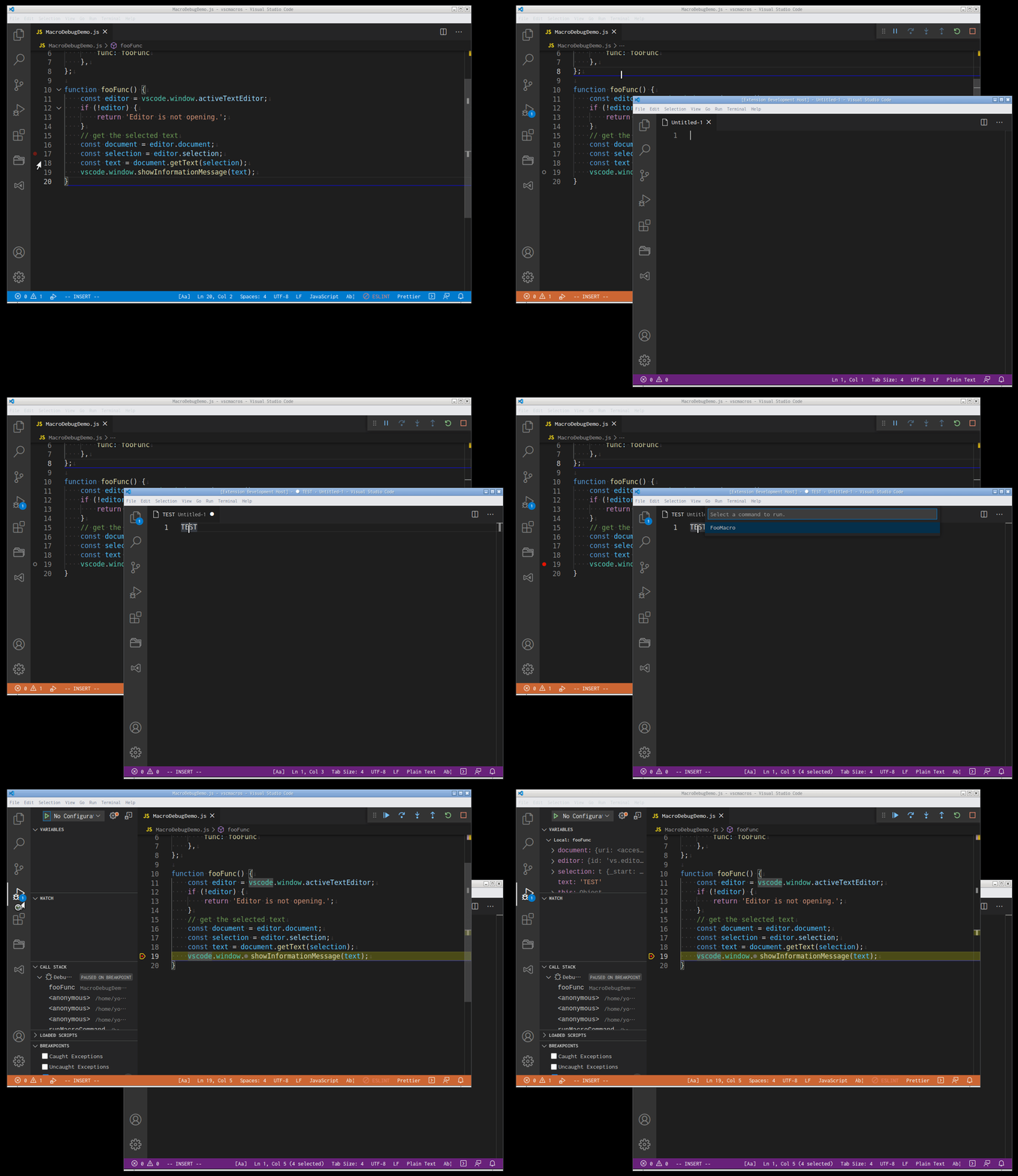
How to setup the extension
-
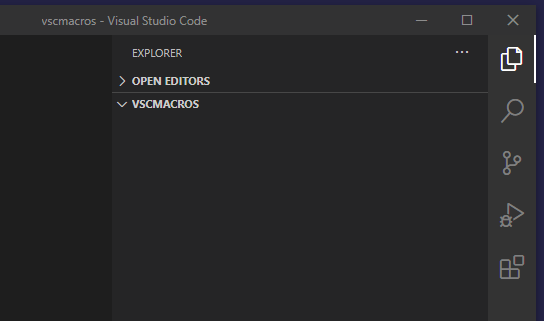
Create a folder in a specific directory to save your macro files.
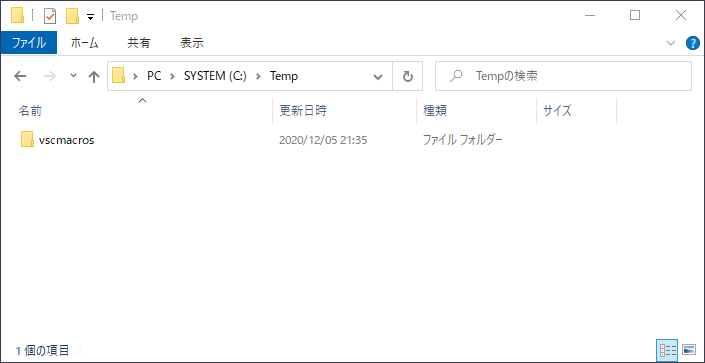
-
Open the folder with VSCode.
-
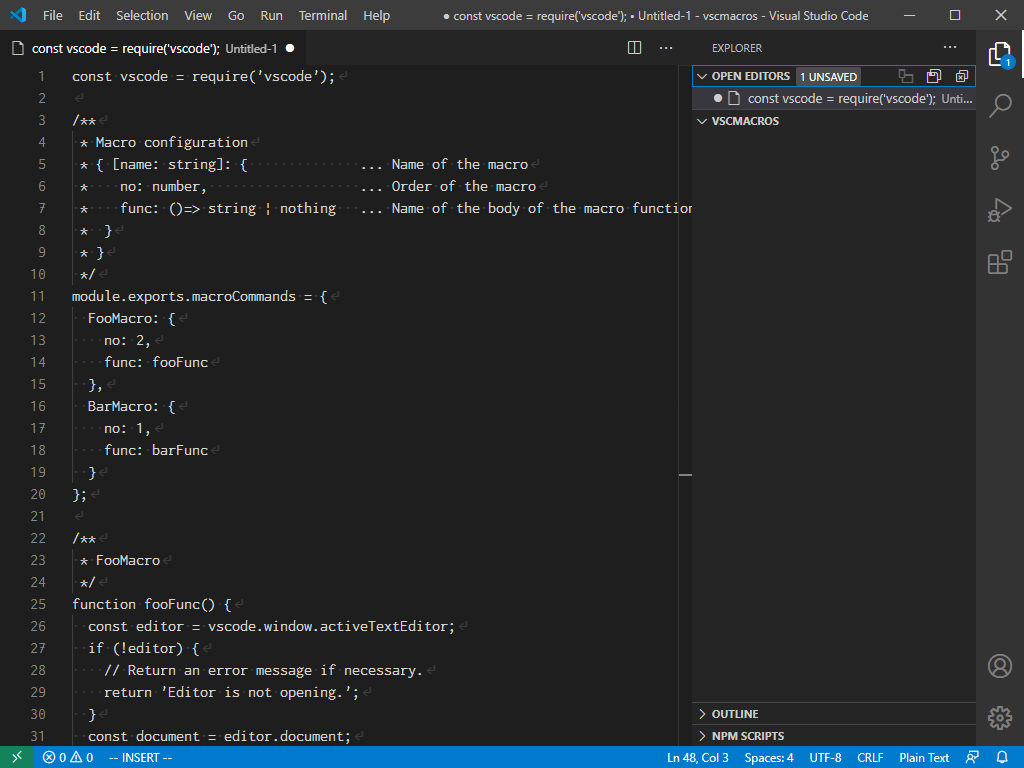
Create a new file and paste an example code for macro below.
You can write an macro in JavaScript.
const vscode = require('vscode');

/**
 * Macro configuration settings
 * { [name: string]: {              ... Name of the macro
 *    no: number,                   ... Order of the macro
 *    func: ()=> string | undefined ... Name of the body of the macro function
 *  }
 * }
 */
module.exports.macroCommands = {
   FooMacro: {
      no: 2,
      func: fooFunc
   },
   BarMacro: {
      no: 1,
      func: barFunc
   }
};

/**
 * FooMacro
 */
function fooFunc() {
   const editor = vscode.window.activeTextEditor;
   if (!editor) {
      // Return an error message if necessary.
      return 'Editor is not opening.';
   }
   const document = editor.document;
   const selection = editor.selection;
   const text = document.getText(selection);
   if (text.length > 0) {
      editor.edit(editBuilder => {
         // To surround a selected text in double quotes(Multi selection is not supported).
         editBuilder.replace(selection, `"${text}"`);
      });
   }
}

/**
 * BarMacro(asynchronous)
 */
async function barFunc() {
   await vscode.window.showInformationMessage('Hello VSCode Macros!');
   // Returns nothing when successful.
}
If you would like to create a new macro quickly, you can use the snippet features of VSCode to create a snippet like the following.
{ "Create new VSCode macro": { "prefix": "vscmacro", "body": [ "const vscode = require('vscode');", "", "/**", " * Macro configuration settings", " * { [name: string]: { ... Name of the macro", " * no: number, ... Order of the macro", " * func: ()=> string | undefined ... Name of the body of the macro function", " * }", " * }", " */", "module.exports.macroCommands = {", " $1: {", " no: 1,", " func: $2,", " },", "};", "", "/**", " * Hello world", " */", "async function $2() {", " const editor = vscode.window.activeTextEditor;", " if (!editor) {", " // Return an error message if necessary.", " return 'Active text editor not found.';", " }", " const document = editor.document;", " const selection = editor.selection;", " const text = document.getText(selection);", "", " editor.edit((editBuilder) => {", " editBuilder.replace(selection, `Hello world! \\${text}`);", " });", "}" ], "description": "VSCode Macros Template" } } -
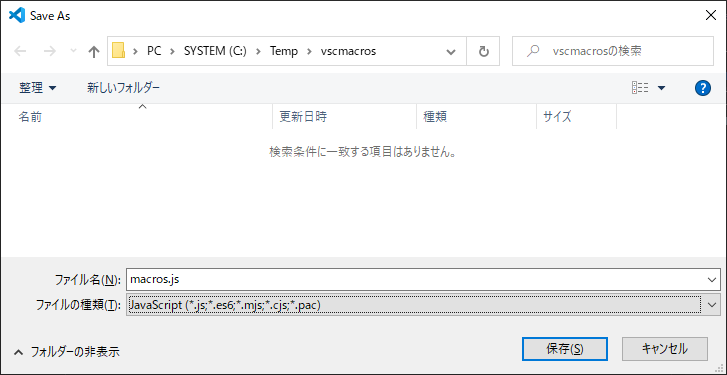
Give an arbitrary file name(*.js) and save it in the macro folder.
-
Open the preference setting of the VSCode and enter
vscode macrosin the search text box, and then enter the macro file path in the 'Macro File Path' text box.NOTE: Version 1.3.0 and above support multi-root, workspace and workspace folders.
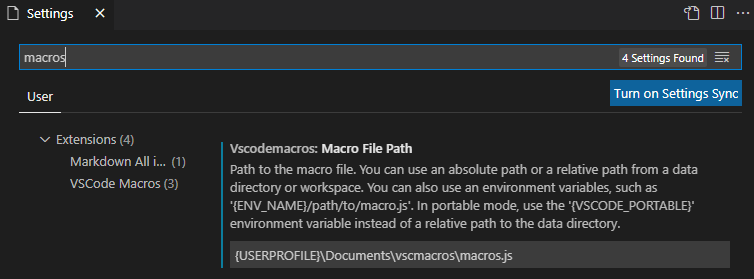
- You can use an environment variables in macro file path, such as
{ENV_NAME}/path/to/macro.js. - If you are using vscode portable mode version 1.3.0 and later, use the
{VSCODE_PORTABLE}environment variable.
NOTE: When using this extension in portable mode, set the relative path to the data directory up to version 1.2.0, but in version 1.3.0 and later, uses the environment variable instead of the relative path.
- You can use an environment variables in macro file path, such as
How to assign your frequently used macros to user commands
-
Open the preference setting of the VSCode and enter
vscode macrosin the search text box, and then click{Edit in settings.json}in theUser Macro Commandsfields.NOTE: Version 1.3.0 and above support multi-root, workspace and workspace folders.

-
Register the macro path and macro name in the json file as below. (Up to 10 commands)
"vscodemacros.userMacroCommands": [
{
   "path": "C:\\Temp\\macros\\FooMacro.js",
   "name": "FooMacro"
},
{
   "path": "C:\\Temp\\macros\\BarMacro.js",
   "name": "BarMacro"
},
{
   "path": "",
   "name": ""
},
{
   "path": "",
   "name": ""
},
{
   "path": "",
   "name": ""
},
],
How to use
You can run your macro from the command palette.
-
Press the
{F1}key to open the command palette, and then typerun a macroin the command palette and after press{Enter}key.
-
Select the macro name from the macro list.

If you would like to change to another macro file, you can use the "select a macro file" command.

You can assign your macros from User Macro 01 to User Macro 10.
-
Press the
{F1}key to open the command palette, and then typevscmacrosin the command palette.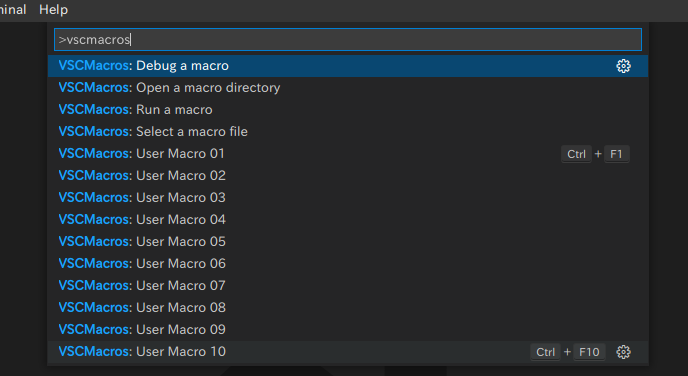
-
Click the
{⚙}icon of the user command which you would like to assign a shortcut key.
-
You can also run a
User Macrofrom theRun a User Macrocommand. (This function would be helpful when you forget the settings of user macros.)
NOTE: Version 1.4.0 and above.
How to debug my macros
You can debug your macros on the extension development host on VSCode as below.
-
Open the macro folder with the VSCode.
-
Open the macro file and set the breakpoint at the arbitrary point.
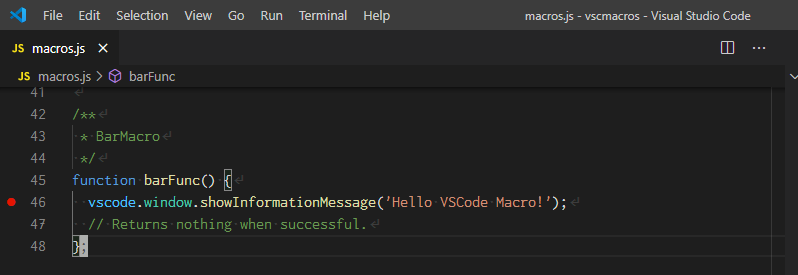
-
Press
{F5}and select theVS Code Extension Development (preview)from the environment list.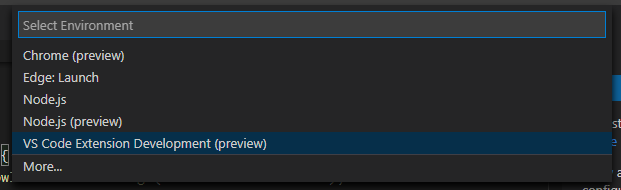
When you are running an old version of VSCode, you can run the Extension Development Host from the command palette as below.

-
Select the Extension Development Host window and press the
{F1}key to open the command palette, and then type 'run a macro' in the command palette.
-
Select the macro name to debugging from the macro list.
-
When the program stops at the breakpoint, and you can debug it.
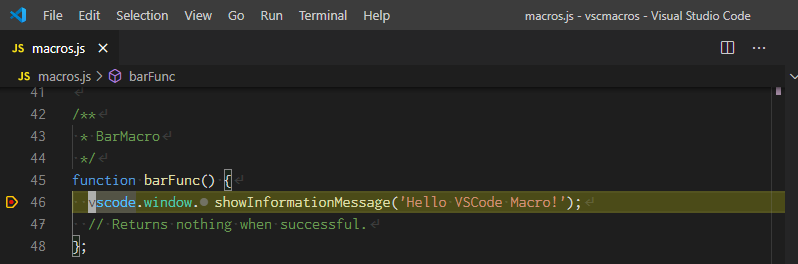
Macro examples
You can find some examples of vscode macros on the GitHub gist.
Metadata
Owner
 exceedsystem
Metadata
This extension gives the macro features to your vscode.