
BIGTREETECH-TouchScreenFirmware
 BIGTREETECH-TouchScreenFirmware copied to clipboard
 delwinbest
Fork supports MKS TFT 28 v4.0, major contributions from https://github.com/darkspr1te/MKSTFT_Marlin_Touch 's UI, but linked to BTT's repo.
BigTreeTech Touchscreen Firmware




Firmware for BigTreeTech's dual-mode touchscreen 3D printer controllers

Table of Contents
- Menus and Themes
- Update TFT Firmware
- Configuration
- Customization
- Bootscreen and Icons
- Firmware
- Troubleshooting
- Version History
Menus and Themes
| Classic Menu & Icon Theme | Unified Menu & Material Icon Theme | ||
|---|---|---|---|
 |
 |
||
Use firmware, icons, and fonts from the Copy to SD Card root directory to update folder |
Use firmware, icons, and fonts from the Copy to SD Card root directory to update - Unified Menu Material theme folder |
Update TFT Firmware
TFT firmware updates are comprised of three elements:
- The firmware binary (
BIGTREE_TFT*_V*.*.*.bin). Example:BIGTREE_TFT35_V3.0.26.1.bin:BIGTREE_TFT_35: modelV3.0: hardware version26.1: software version
- Fonts and Icons (
TFT*folder):TFT*/font: fontsTFT*/bmp: icons
- The config.ini file
Copy the BIGTREE_TFT*_V*.*.*.bin,the TFT*` folder and the config.ini to the root of a blank SD card that is <8GB and formatted as FAT32:

Place SD card with the BIGTREE_TFT*_V*.*.*.bin, theTFT* folder and the config.ini into the TFT's SD card reader and power cycle your printer to start the update process.
⚠️ Failing to update your icons & fonts will result in missing icons and/or unreadable text ⚠️
Update Process shown on TFT Screen
A successful update looks like this on the screen:
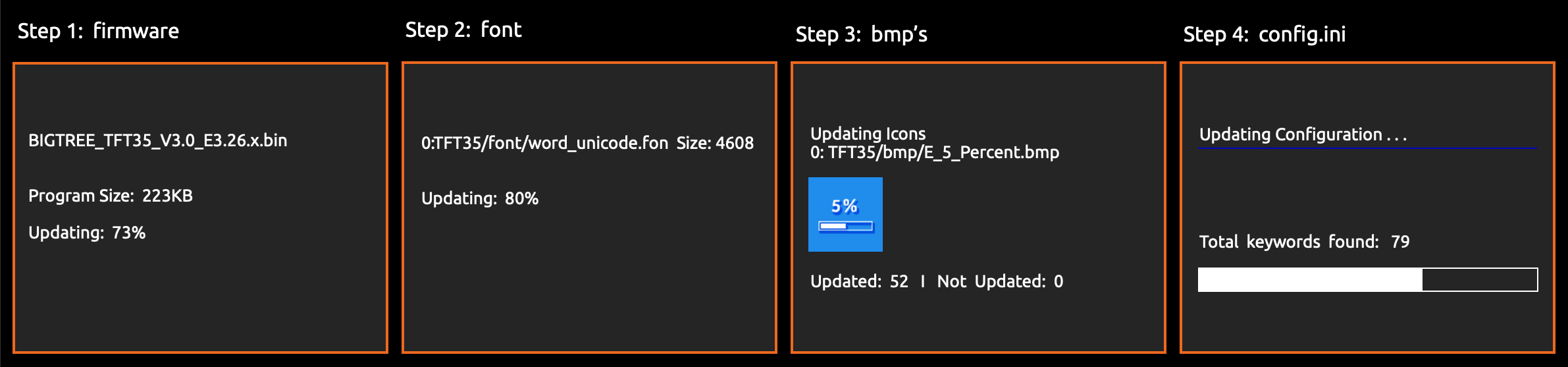
... and the name of the elements on the SD card changes to this:
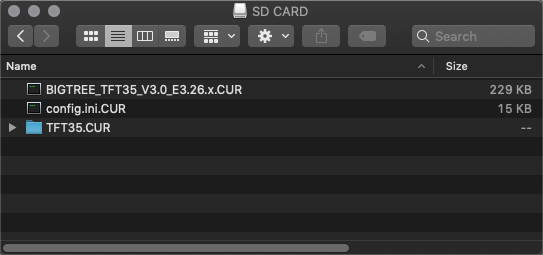
⚠️ Errors during the update can not be ignored and must be solved before using the TFT ⚠️
After the update is done and the files are renamed, it is possible to reuse them again. To do so, change the name of the element(s) to the pre-update name and start the update process again.
Configuration
The Firmware can be configured using the config.ini file from from one of these folders:
Copy to SD Card root directory to update or
Copy to SD Card root directory to update - Unified Menu Material theme
Editing configuration (config.ini) file
To edit the config.ini file follow the instruction here: Detailed Instructions here
Updating Firmware Configuration
To update the Firmware configuration:
- Edit the settings in config.ini.
- Copy the config.ini file to the root of the SD card. (The SD card capacity should be less than or equal to 8GB and formatted as FAT32)
- Insert the SD card in the TFT's SD card slot and restart the TFT by pressing the reset buttion or disconnecting and connecting the power cable.
- The TFT will update and store the configuration form config.ini file.
The config.ini can be edited using a simple text editor (make sure to use UTF encoding) and uploaded again - without the need to upload the firmware or the TFT folder - as long as the firmware is the same version number.
Customization
Bootscreen and Icons
See Customization guides for detailed information.
Firmware
View full instructions
- Setup Visual Studio Code with PlatformIO instructions
- Click on the PlatformIO icon (①) and then click on Open Project (②):
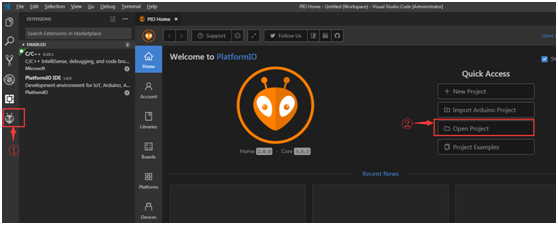
- Find the BIGTREETECH firmware source directory , then click Open:

- After opening the project, edit
platformio.iniand change thedefault_envsto one that matches your TFT model and version:;BIGTREE_TFT35_V1_0 ;BIGTREE_TFT35_V1_1 ;BIGTREE_TFT35_V1_2 ;BIGTREE_TFT35_V2_0 ;BIGTREE_TFT35_V3_0 ;BIGTREE_TFT35_E3_V3_0 ;BIGTREE_TFT28_V1_0 ;BIGTREE_TFT28_V3_0 ;BIGTREE_TFT24_V1_1 ;MKS_32_V1_4 ;MKS_32_V1_4_NOBL ;MKS_28_V1_0
[platformio] src_dir = TFT boards_dir = buildroot/boards default_envs = BIGTREE_TFT35_V3_0
- Click the check mark (✓) at the bottom of VSCode or press
Ctrl+Alt+B(Windows) /Ctrl+Option+B(macOS) to compile.
- A
BIGTREE_TFT*_V*.*.*.binfile will be generated in the hidden.pio\build\BIGTREE_TFT*_V*_*folder. Follow the update process outlined in the About TFT Firmware section above to update your TFT to the latest version.
Troubleshooting
To reset the TFT's touch screen calibration, create a blank file named reset.txt and place in root folder of the sd card. Insert the SD card into the TFT's SD card reader and power cycle your printer to start the reset process.
Version History
See BIGTREETECH-TouchScreenFirmware/releases for a complete version history.
Metadata
Owner
 delwinbest
Metadata
Fork supports MKS TFT 28 v4.0, major contributions from https://github.com/darkspr1te/MKSTFT_Marlin_Touch 's UI, but linked to BTT's repo.