

 cookpete
Cant track size of underlying video
Hi.
What I'm trying to do:
I want to create a transparent div that exactly overlays the underlying ReactPlayer video imagery. This overlay div should exactly overlay the video imagery, and should not include any border that comes from the preservation of the aspect ratio.
I am not sure how to do this.
Questions I have that relate to this:
- How can I create a control area (div) that exactly overlays the video portion of the instantiated ReactPlayer?
- How can I have that control area resize with the react player and to always follow the actual rendered video?
- Does ReactPlayer include a position and size callback property that allows for the calling code to be informed of the actual position and size of the video content?
- Assuming that ReactPlayer does not have such callbacks, would they be easy to add if I cloned the project (which I'd hate to do)?
Further Details:
Because ReactPlayer preserves aspect ratio (as it should in my case), the instantiated player might have a border portion (either horizontally or vertically) that is not the actual video imagery.
The code I am currently working with looks like this:
return (
    <>
    {
        video_url != "" &&
        <>
            <div ref={playerContainerRef} className={classes1.outerWrapper} onMouseMove={handleMouseMove}>
              <div className={classes1.innerWrapper}>
                <div className={classes1.playerOverlay}>
                  <ReactPlayer
                    className={classes1.player}
                    ref = {playerRef}
                    width={sizes.videoWidth}
                    height={sizes.videoHeight}
                    url={video_url}
                    muted={muted}
                    playing={playing}
                    volume={volume}
                    playbackRate={playbackRate}
                    onProgress={handleProgressChange}
                    config={
                      {
                        file:
                        {
                          attributes:
                          {
                            crossorigin: 'anonymous'
                          }
                        }
                      }
                    }
                  />
                </div>
                <PlayerControls
                  onAddBookmark={handleAddBookmark}
                  onPlaybackRateChange={handlePlaybackRateChange}
                  onSeek={handleSeek}
                  onSeekAccept={handleSeekAccept}
                  onSeekBegin={handleSeekBegin}
                  onStepBackward={handleStepBackward}
                  onStepForward={handleStepForward}
                  onTimeDisplayFormatChange={handleTimeDisplayFormatChange}
                  onToggleFullscreen={handleToggleFullscreen}
                  onToggleMute={handleToggleMute}
                  onTogglePause={handleTogglePause}
                  onVolumeChange={handleVolumeChange}
                  onVolumeAccept={handleVolumeAccept}
                  elapsedTime={elapsedTime}
                  muted={muted}
                  playbackRate={playbackRate}
                  playing={playing}
                  played={played}
                  ref={controlsRef}
                  totalDuration={totalDuration}
                  volume={volume}
                  />
              </div>
            </div>
            <BookmarkPanel
              onAddBookmark={handleAddBookmark}
              onGotoBookmark={handleGoToBookmark}
              bookmarks={bookmarks}
            />
            <canvas ref={canvasRef} />
      </>
    }
    </>
  );
In the following picture the portion in orange is part of the styling used for the ReactPlayer.
const useStyles = makeStyles({
  outerWrapper: {
    width: props => props.outerWrapperWidth,
    height: props => props.outerWrapperHeight,
    backgroundColor: "blue",
    position: "relative"
  },
  innerWrapper: {
    width: props => props.innerWrapperWidth,
    height: props => props.innerWrapperHeight,
    backgroundColor: "green",
    position: "absolute",
    margin: "0 auto"
  },
  playerOverlay: {
    width: props => props.overlayWidth,
    height: props => props.overlayHeight,
    backgroundColor: "red",
    position: "absolute"
  },
  player: {
    backgroundColor: "orange",
    position: "absolute"
  }
})
  const sizes = {
    outerWrapperWidth: "1000px", outerWrapperHeight: "400px",
    innerWrapperWidth: "90%", innerWrapperHeight: "100%",
    videoWidth: "100%", videoHeight: "100%",
    overlayWidth: "100%", overlayHeight: "100%", };
You'll notice in the element hierarchy I've clicked on the video that ReactPlayer creates. This is 900px by 400px.
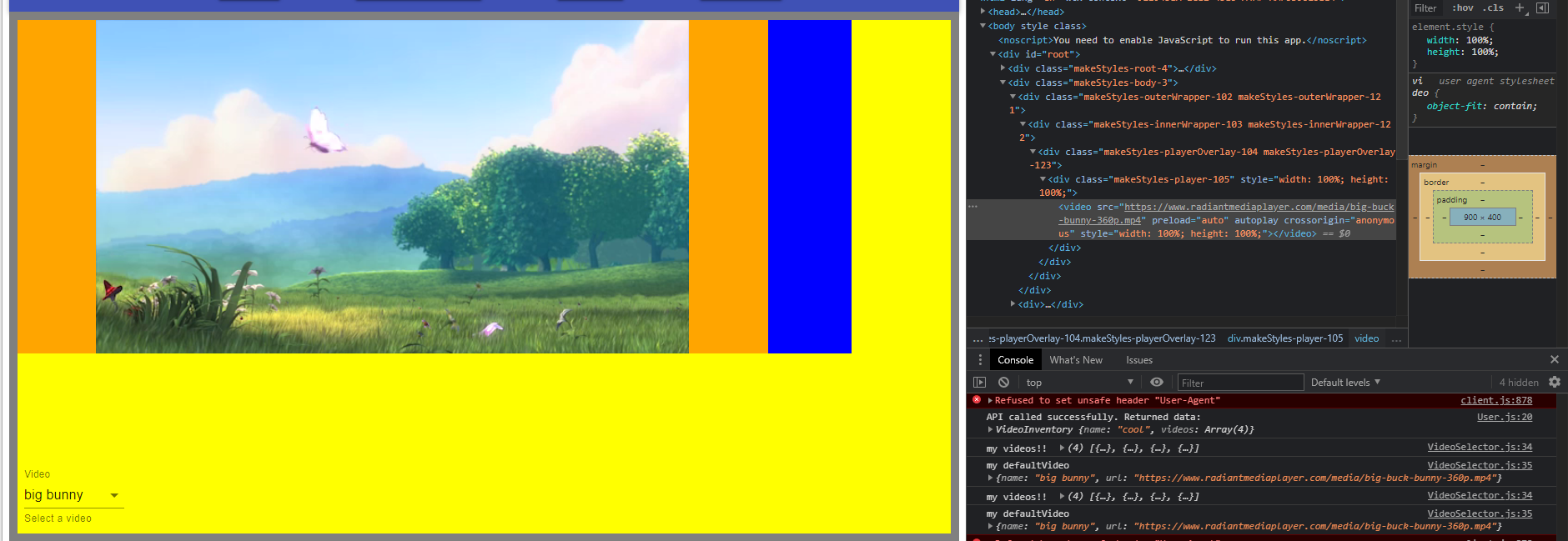
But the actual image is less than 900 pixel wide as seen by the orange border (part of the div that ReactPlayer wraps around the video).
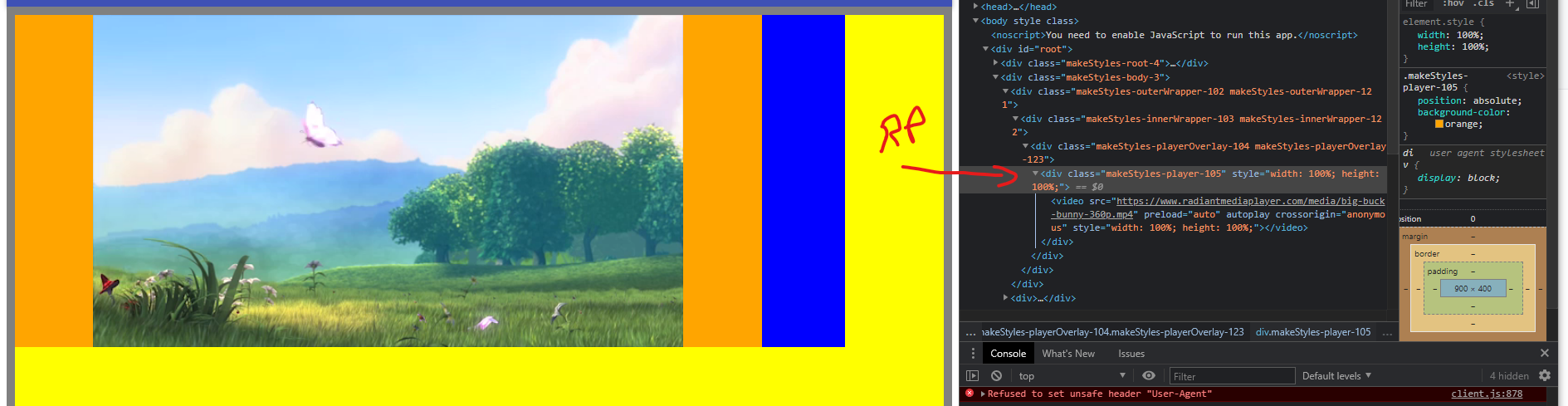
You'll also see in the element hierarchy the outerWrapper (which is blue), and an innerWrapper (which happens to be green and exactly wraps the RP div (whereas I want it to wrap the actual imagery that RP displays).
This becomes even more clear once I further tweak the sizes:
const sizes = {
    outerWrapperWidth: "1000px", outerWrapperHeight: "400px",
    innerWrapperWidth: "90%", innerWrapperHeight: "100%",
    videoWidth: "80%", videoHeight: "80%",
    overlayWidth: "98%", overlayHeight: "98%", };
Now we see that the overlay div does exactly track the ReactPlayer div, however I want it t overlay the actual video imagery.

The first method I tried was to track the size of the player.. however I think this was overly complicated, and I dont believe that I was on the right track since I haven't seen that ReactPlayer exposes the X, Y position of the video imagery, nor its width/height.
The second method I tried is close, and has led to the code you see above.
Even More Details Follow (but I'm not sure they add any more clarity to my questions above).
I've kept Method 1 for reference. However Method 2 seems close (except for the red border you will see in the image at the very bottom of Method 2.
Method 1 (Original Attempt was to use use-resize-observer, however this I've given up on)
I've begun to experiment with a mechanism that allows me to use use-resize-observer to track the width and the height of the underlying video. I was then going to figure out how to constrain the upper left hand corner of that video to a known pixel location, then I would be able to create a div that floats properly over the video. With this approach, as long as I can track the exact width and height of the video in pixels then I would be able to create that overlay. There may be a simpler approach.
I am trying to use use-resize-observer to keep track of the size of the underlying video div (the parent div of the video tag highlighted in the image at the bottom of this question). That div is specified to have a width and height of 80% in the following code snippet. I need to specify this as a percentage, however I need access to the actual width and height in pixels.
I am able to track the size of the ReactPlayer container div (ref={playerContainerRef}) as in the following:
  const playerRef = useRef(null)
  const playerContainerRef = useRef(null)
  const { width=1, height=1} = useResizeObserver({ref: playerContainerRef});
  <div ref={playerContainerRef} className={classes1.playerWrapper} onMouseMove={handleMouseMove}>
              <ReactPlayer
                className={classes1.player}
                ref = {playerRef}
                width={"80%"}
                height={"80%"}
                url={video_url}
                muted={muted}
                playing={playing}
                volume={volume}
                playbackRate={playbackRate}
                onProgress={handleProgressChange}
                config={
                  {
                    file:
                    {
                      attributes:
                      {
                        crossorigin: 'anonymous'
                      }
                    }
                  }
                }
              />
However if I try to use the resize observer
const { width=1, height=1} = useResizeObserver({ref: playerRef});
on the ref passed into ReactPlayer, rather than on the playerContainerRef I see the following problem
How can I get access to the actual width and height of the "video" frame?
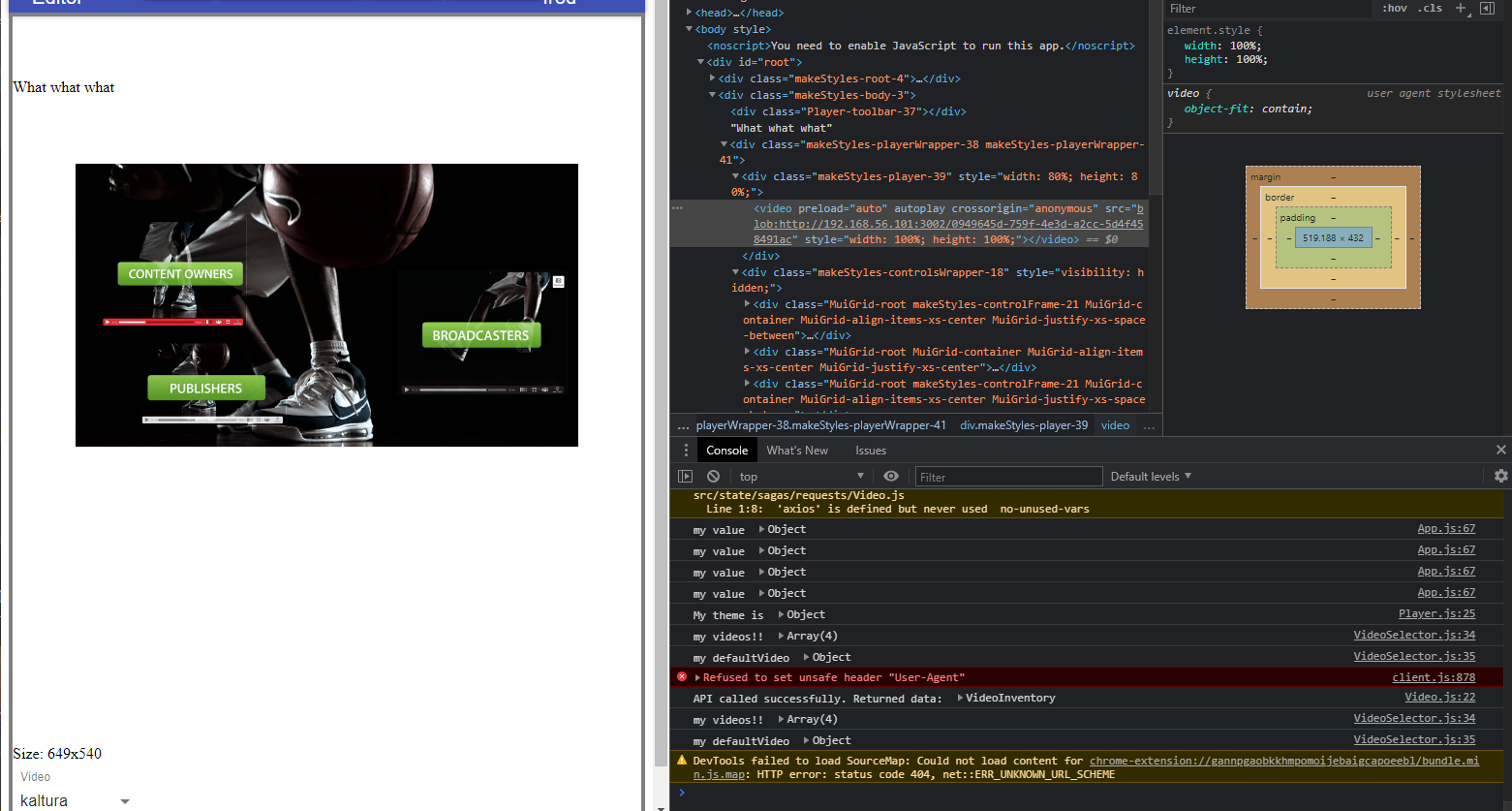
In the following image I have highlighted the "video" tag that I am trying to get the exact size of. We see that it is about 519 x 432 in size. You can also see the size of the div that I've referenced as playerContainerRef. As you see its size is tracked as 649 x 540
Method 2 (This was my second attempt at creating a video overlay and led to the code I presented above)
In the following I have an overlay with a red background. It was relatively simple to achieve this. The overlay exactly overlays the ReactPlayer div and video tags. However the red border on the sides is not really part of the underlying video stream. I think its there because ReactPlayer preserves the aspect ratio of the video (which I want).
Is it possible to create an overlay that only overlays the actual content of the video?
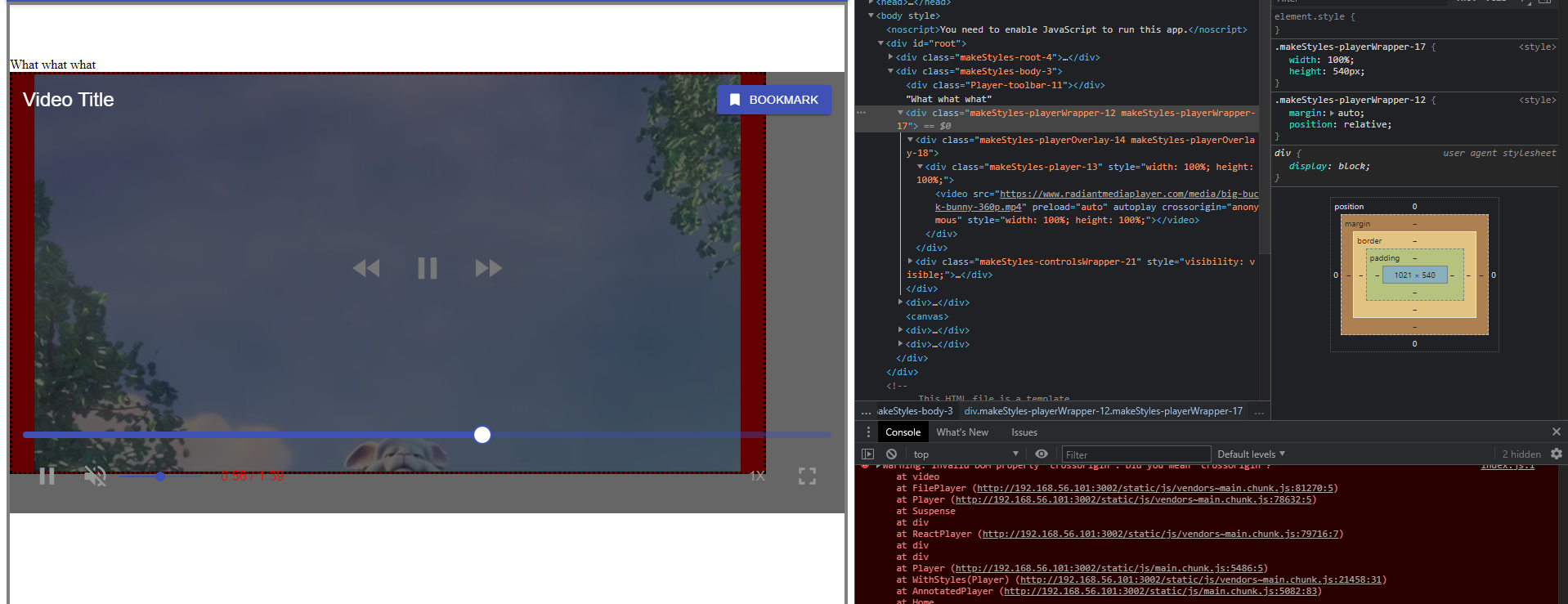
The code I have so far is like this:
<div className={classes1.playerOverlay}>
                <ReactPlayer
                  className={classes1.player}
                  ref = {playerRef}
                  width={sizes.videoWidth}
                  height={sizes.videoHeight}
                  url={video_url}
                  muted={muted}
                  playing={playing}
                  volume={volume}
                  playbackRate={playbackRate}
                  onProgress={handleProgressChange}
                  config={
                    {
                      file:
                      {
                        attributes:
                        {
                          crossorigin: 'anonymous'
                        }
                      }
                    }
                  }
                />
              </div>
where
const sizes = {
    width: "100%", height: "540px",
    videoWidth: "100%", videoHeight: "100%",
    overlayWidth: "90%", overlayHeight: "90%", };
  const classes1 = useStyles(sizes)
and
const useStyles = makeStyles({
  playerWrapper: {
    width: props => props.width,
    height: props => props.height,
    position: "relative",
    margin: "auto"
  },
  player: {
    position: "absolute"
  },
  playerOverlay: {
    width: props => props.overlayWidth,
    height: props => props.overlayHeight,
    backgroundColor: "red",
    borderStyle: "dotted",
    position: "absolute"
  }
})

Maybe quite late, but I don't think this is the right way to go at it. Personally I would try making a responsive div with a fixed ratio of e.g. 16:9 around the player and let the video adapt to it. Meaning if it is a 4:3 video the height will be filled and leave you with blank space to the right and left (if centered) and with 0 spacing if it is an actual 16:9 video.
Btw. you can enable syntax highlighting for code-blocks, makes it just way easier to read code snippets.

Did you find any solution for this? I need to do this exact same thing to overlay a drawing canvass over the video and to automatically resize on different screens size.

@franciscojs12 I do have a solution that works for me. I actually effectively do the kind of thing that @Yasamato mentioned. I do indeed wrap the reactplayer with a responsive div. Further I control the size of the responsive div very carefully, ensuring that at each window resolution where a change occurs I properly size the wrapping div. This seems to work well.
I can try to follow up with additional details on how I did this.
