

 cengage
New component: Image
Purpose: Create Image component used to display images, easily control sizing and fit, and with support for fallback.
Figma: https://www.figma.com/file/z2H2qv9iYQX942LqToCuQE/Components---Data-Display?node-id=40%3A7721
Resources/Inspiration:
- https://mantine.dev/core/image/
- https://design-system.w3.org/components/image.html
- https://www.w3.org/WAI/tutorials/images/complex/#example-1-description-containing-structured-information
AC
1.0 Component accepts image "src" -- 1.1 Image is rendered inside a "figure" tag
2.0 Verify you can easily add alt text
3.0 Sizing
-- 3.1 By default, the image should take up 100% of the container it is inside of, and the height is calculated dynamically based on image proportion.
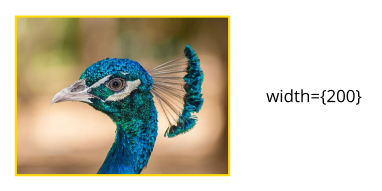
-- 3.2 You can easily set a width and height on the image
-- 3.3 Create prop for "fit". By default, this uses "object-fit: cover"
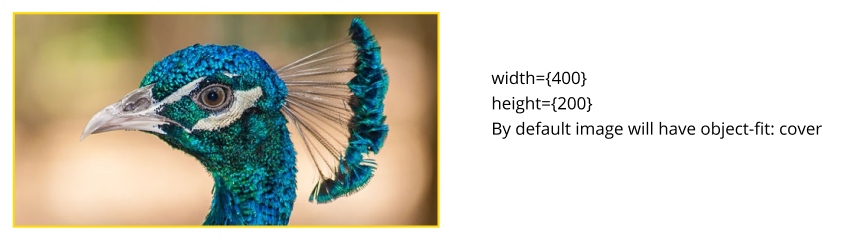
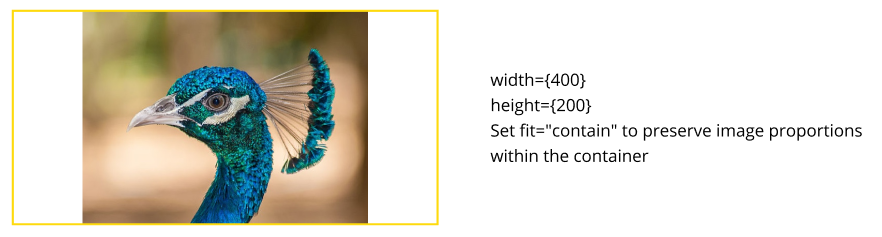
---- 3.3.1 You can change "fit" prop to "contain", and this uses "object-fit: contain"
4.0 Placeholder (based on Mantine) -- 4.1 By default, image placeholders are disabled. Image placeholder is displayed in these cases:
- "withPlaceholder" prop is set to true
- Image is currently loading
- Error occurred during image loading (e.g. broken link)
- Image did not receive src prop
-- 4.2 No placeholder shows default browser broken image with alt text
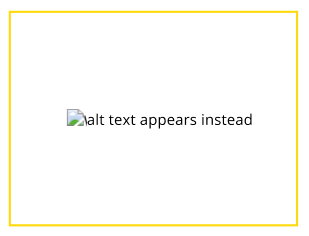
-- 4.3 Default placeholder displays image icon, 40px size, centered horizontally and vertically within the container.

-- 4.4 Custom placeholder allows consumer to add a textual placeholder, in case they want it to be different from the alt text.
5.0 Radius
-- 5.1 You can add 4 levels of radius to the image
---- 5.1.1 No radius
---- 5.1.2 Default - Uses global setting of 8px. Changing the global variable would therefore affect the image
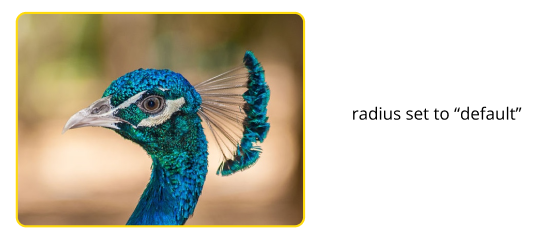
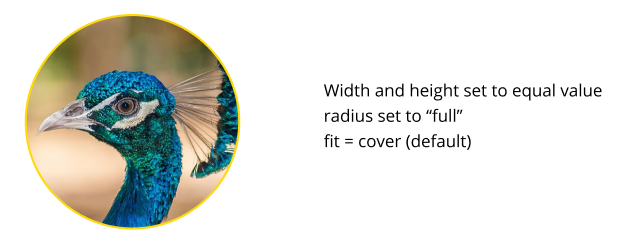
---- 5.1.3 Full - Sets radius to 100%, typically used on square images to turn them into a circle.
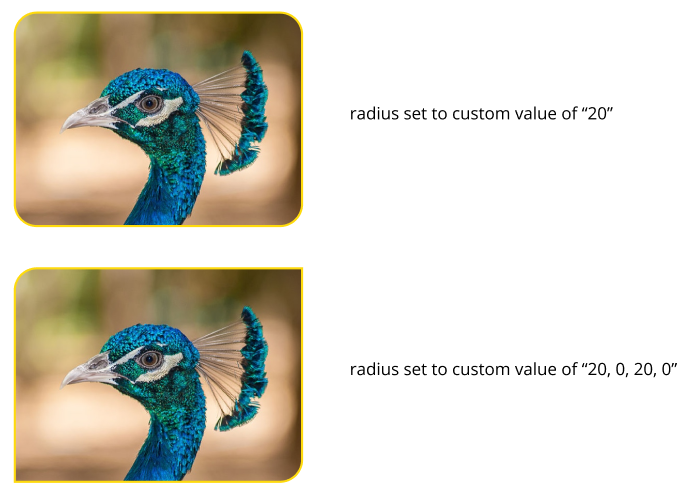
---- 5.1.4 Custom - You can set a specific amount of radius on each corner.
6.0 Caption and Long Description
-- 6.1 Verify you can easily add a caption to the image

-- 6.2 Verify you can also add a Long Description
---- 6.2.1 There are many ways to do this, presented on https://www.w3.org/WAI/tutorials/images/complex/. I think we want to go with the strategy near the bottom of the page using a paragraph of text following the figure, but connected using "aria-describedby".

