
lognote
 lognote copied to clipboard
 cdcsgit
Log viewer, Android logcat viewer for Windows, Linux, Mac
LogNote
Log viewer, Android logcat viewer for Windows, Linux, Mac
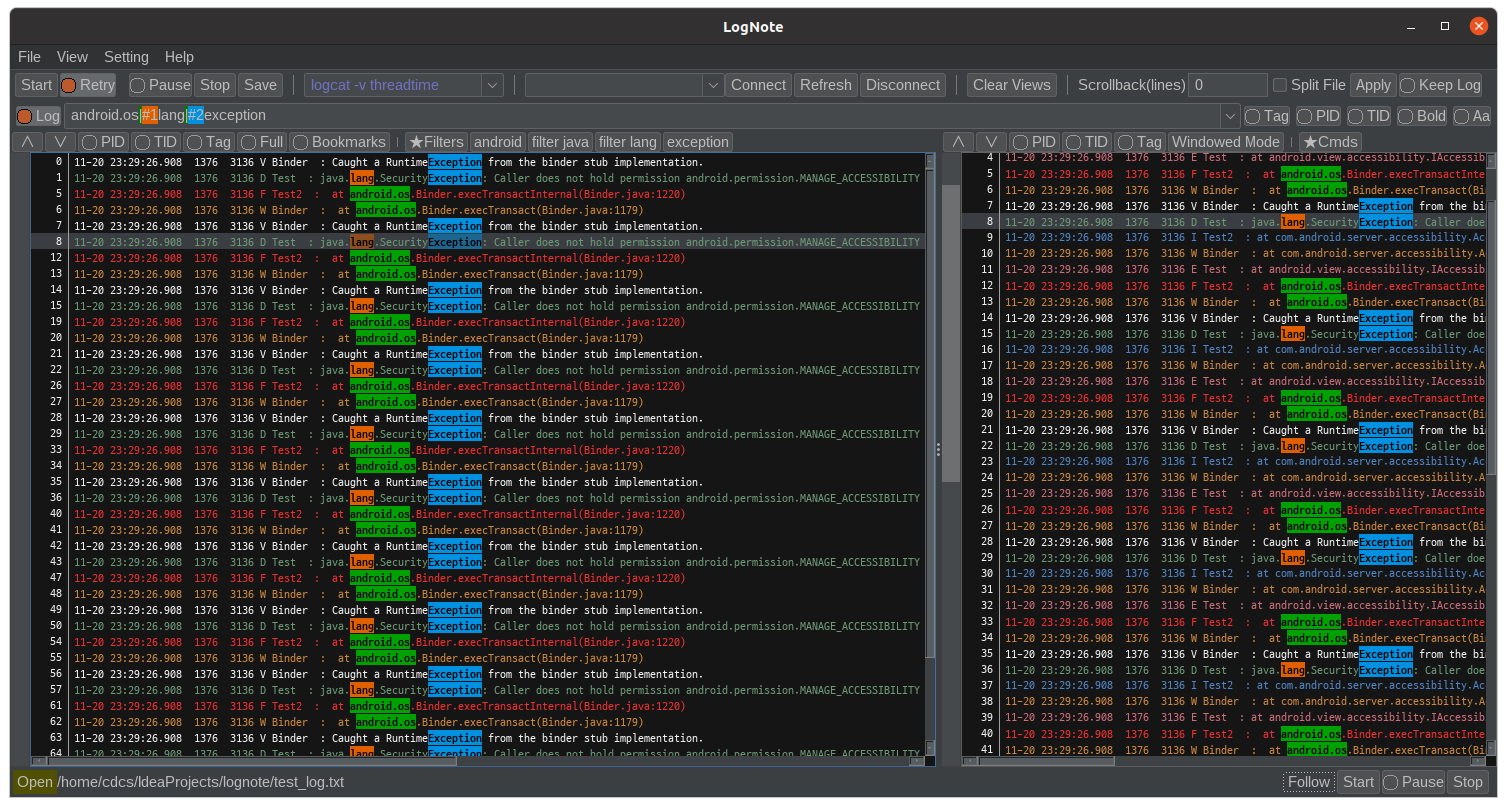
Filtered log viewer
Online / offline logcat view
Regular expression filter
Aging Test : Save split file by lines
Kotlin + swing
Config path
Save to the path set in the environment variable "LOGNOTE_HOME"
Default current path
EX) After creating the directory
Windows : set LOGNOTE_HOME=D:\lognote
Linux : export LOGNOTE_HOME=~/lognote
Mac : export LOGNOTE_HOME=~/lognote
Run
Windows : start javaw -Dfile.encoding=utf8 -Xmx1024m -jar LogNote.jar
Linux : java -Dfile.encoding=utf8 -Xmx2048m -jar LogNote.jar
Mac : java -Dfile.encoding=utf8 -Xmx2048m -jar LogNote.jar
Mode
- Read Cmd: Read the result after executing the command (ex: adb logcat)
You must set the Scrollback value.- If the value is not set, logs pile up and occur hang.
- Recommended - Scrollback: 100000 (approximately 10 Mbytes), enable “Split File” option
- Read File: Read a file (File > Open, read multiple files continuously)
- Multiple files : Drag & drop or File > Open files
- Append files : Ctrl + drag & drop or File > append files
- Save recent file view config on exit(filters, bookmarks)
- Open recent files: set to saved view config
- Follow File: Continue reading logs added to the file (ex: adb logcat > a.log, File > Follow - a.log)
- Used when you want to read the log of processing results of commands other than adb
Log view mode
- "Not adb mode(file open...)" or "View > Show process name > None"
- "Not adb mode(file open...)" or "View > Show process name > None" + "View > Show divided by column"
- "Adb mode" and "View > Show process name > Show with color bg"
- "Adb mode" and "View > Show process name > Show with color bg" + "View > Show divided by column"
Shortcut keys
- Ctrl + B: Toggle Bookmarks, multiple selected lines can be set at the same time
- Enter: View log dialog (Show long log(with the ends cut off), select string and add to log combo(filter))
- Ctrl+F: Show find toolbar
- F3: Move to previous item
- F4: Move to next item
- Ctrl + Page Down: Go to end of the log
- Ctrl + Page Up: Go to the beginning of the log
- Ctrl + R : stop cmd - connect device - clear log view - start cmd
- Ctrl + G : Go to line
- Ctrl + ` : Focus to log combo
- Ctrl + Del : Clear log view
- Ctrl + T : Show trigger list panel(aging test util)
How to use(tips)
Filter combobox color tag
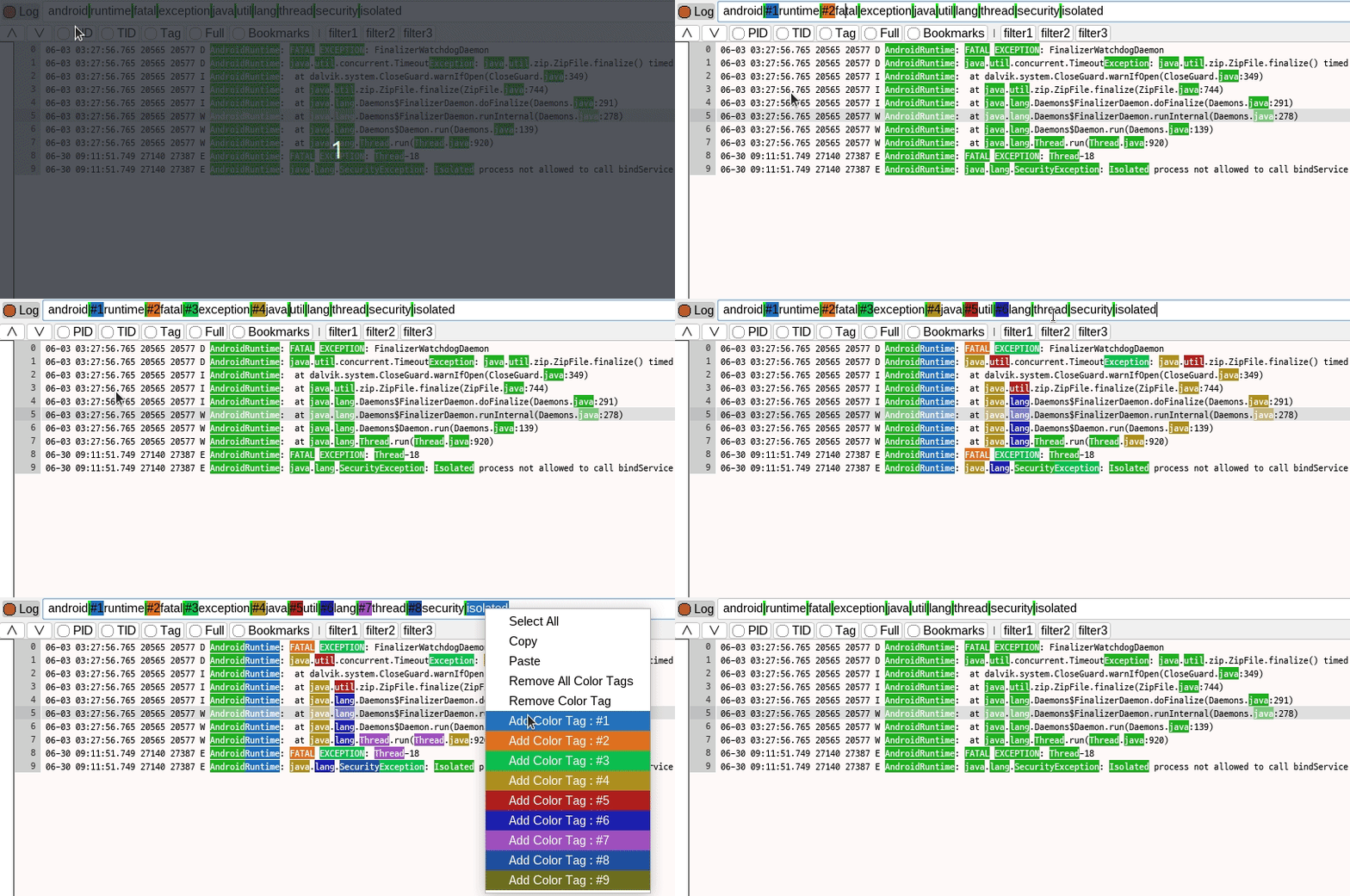
If enter '#' in the filter combo box, the color tag list is displayed
Filter combobox style
Setting > Filter Style : set style, color
- Single line
- Single line - highlight

- Multi line
- Multi line - highlight

Highlight color : Include text, Exclude text, Separator
Filter combobox size

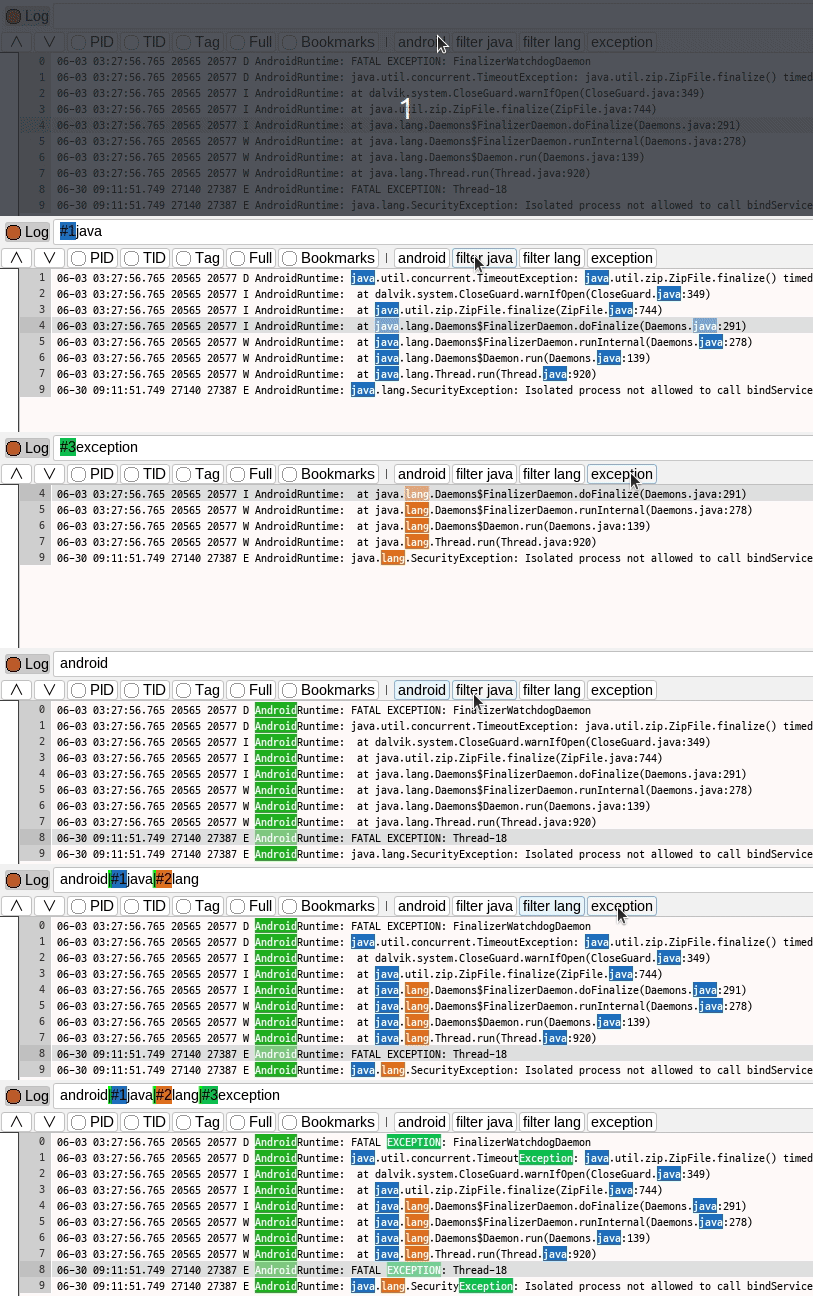
Filter manager
Click : replace
Ctrl + Click : append
Search
Ctrl + F : show search bar
ESC : hide search bar
F3 : move to previous
F4 : move to next
Click Filter or Full View : Set search target view

Show process info
When mode is logcat receiving, process info is shown as a tooltip
Right click > Popup menu > Process info => Show all process list
Log format setting
In addition to logcat logs, you can also use other logs by setting the format
Log trigger - Aging test util(Ctrl-T)
When a specific log occurs, a command is executed or a dialog is displayed
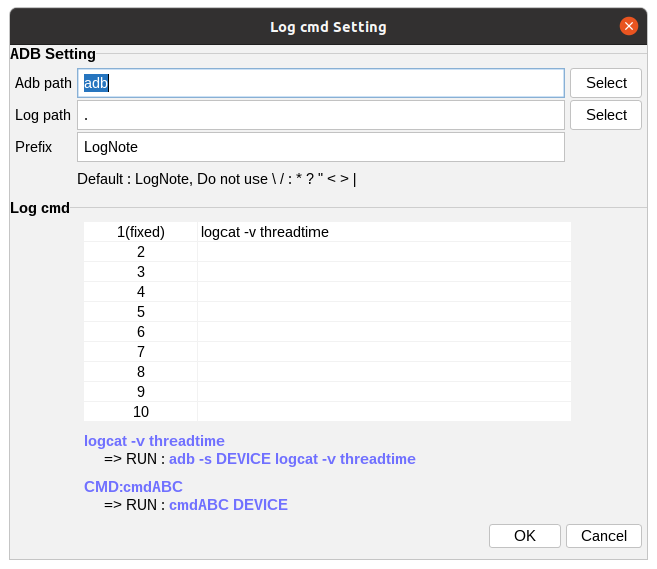
Log cmd setting
Set the adb path(to view online log) and Add log cmds
Color settings
Light(default)
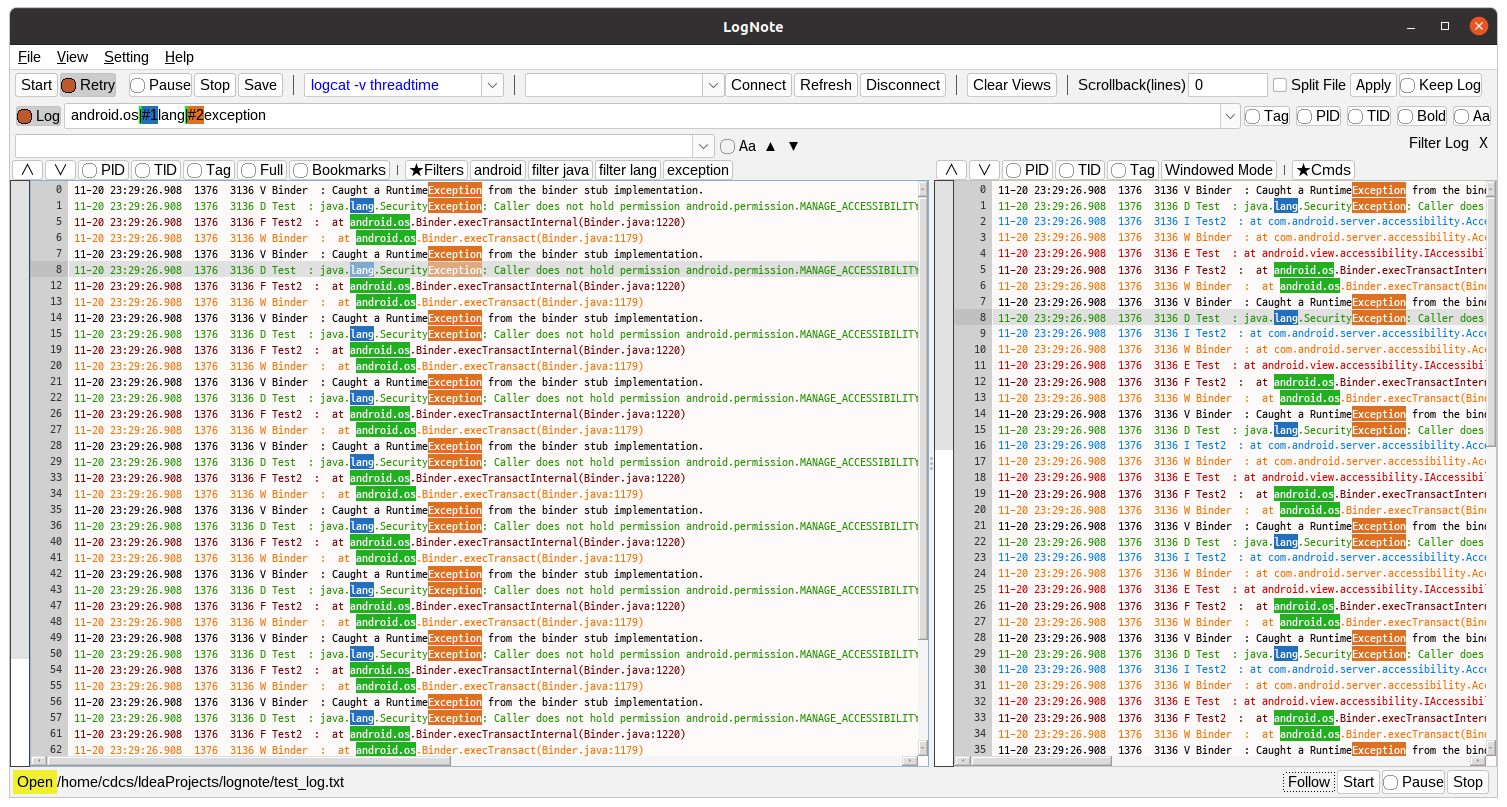
Dark
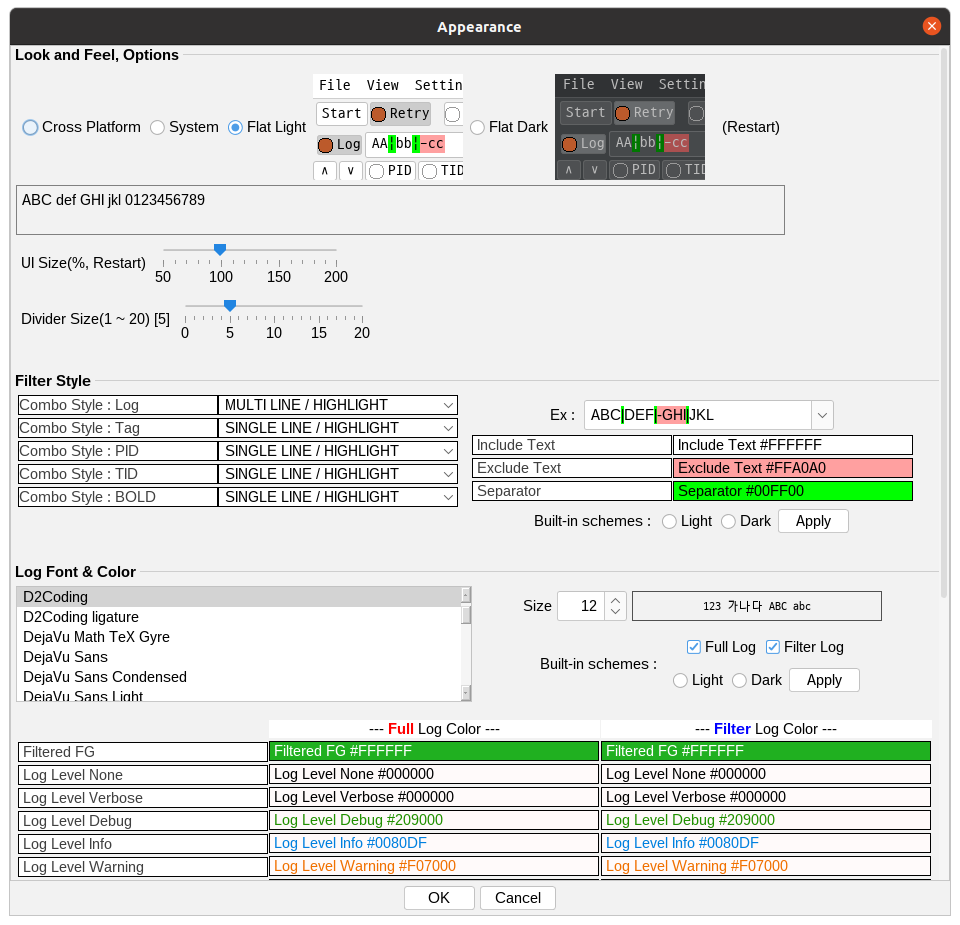
Setting > Appearance
Fixed-width fonts are recommended : The columns for logcat entries(time, pid, tag...) are aligned
View Control
View > Rotation - Rotate 90 degrees clockwise
View > Full Logs - Toggle show/hide full log view
Full log view > Windowed Mode - Move the view to new window
Button Icons

Save split file by lines for aging test

Each time 100000 lines are saved, it is changed to a new file
 cdcsgit