

 brimdata
Offer updates/guidance on "PATH" to bundled Zed tools
tl;dr
The Zed/related binaries (zed, zq, brimcap) are bundled with Zui, but live in an opaque zdeps directory below the Application Binaries path. Since users may benefit from invoking these CLI tools in some use cases, it would be helpful for Zui to enable easy access to them, such as by adding the zdeps location to their PATH or copying/updating the binaries in a location already in their PATH.
Details
Many CLI-based tools or GUI-driven that have supplemental CLI tools offer to update a user's PATH. Sometimes this is offered as an optional step by an installer, e.g., with the gcloud CLI on Linux.
$ ./google-cloud-sdk/install.sh
Welcome to the Google Cloud CLI!

...

Modify profile to update your $PATH and enable shell command completion?

Do you want to continue (Y/n)?  y

The Google Cloud SDK installer will now prompt you to update an rc file to bring
 the Google Cloud CLIs into your environment.

Enter a path to an rc file to update, or leave blank to use
[/home/ubuntu/.bashrc]:
Backing up [/home/ubuntu/.bashrc] to [/home/ubuntu/.bashrc.backup].
[/home/ubuntu/.bashrc] has been updated.

==> Start a new shell for the changes to take effect.
...
Sometimes it's done automatically by an installer. For instance, when installing Node.js on Windows I've not noticed any kind of prompt asking about it, but once the installer completes the system/user %PATH% environment variables both have the additional entries.
We're also aware of some GUI-driven tools that provide menu options. @mattnibs spotted that the unfortunately-named Zed editor has an Install CLI option, and based on his testing it just copies their binary into /usr/local/bin.
@mattnibs also studied the Docker app and reported that it just throws binaries into /usr/local/bin and he also verified that when you update the app it also updates those binaries.
It doesn't seem like there's firm standards in this area, so we may just want to take a survey of these and other behaviors and pick some to mimic in Zui.
In whatever approach we choose, maintaining compatibility seems important, since running a zed binary that's out of sync with the Zed lake service API running behind Zui could result in confusing behaviors for the user. This is largely why to date we've just disclosed the zdeps path in the Zui docs and let it be an exercise for the user to add that to their PATH if they choose, since that way they'll always be pointing at the Zed binaries that shipped with whatever version of Zui they're currently running (as opposed to if we, for example, advised them to download a ZIP from the Zed releases page and unpack it into a location already in their PATH).

Hello, Is there a detailed installation document that explains which packages are required for Brim to function correctly, and how to handle PATH, Preferences, and permissions? Brim isn't working for me but before I open an issue I'd like to make sure I installed the app correctly, and I suspect my problem has something to do with either PATH for zq or permissions.
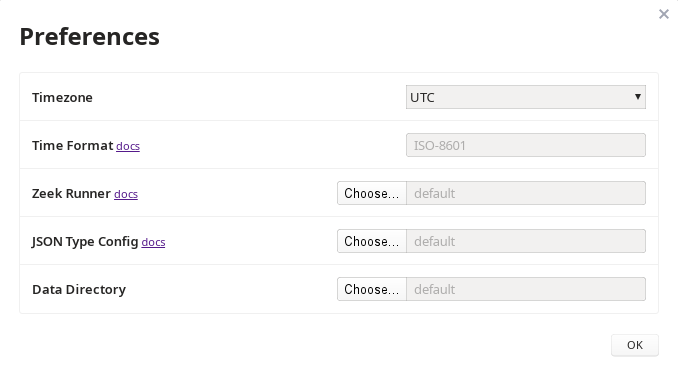
The Downloads page includes links for both Brim and zq, but no other tips on how to properly install and configure the application. The Wiki in this repo includes a Troubleshooting section, which I read, but no installation document. In my case I am using an RPM-based Linux distro, so I did the following:
- Installed Brim v0.17.0 via rpm
- Downloaded zq v0.21.0 Zip file for Linux
- Unzipped zq to a directory and added the zq directory to PATH
- Launch Brim > The app seems to start without error however the app will not parse any PCAP files
Thank you

@cshanahan: Sorry to hear you're having trouble. For starters, I'll suggest that if you're up for it, it might make sense to join our public Slack via https://www.brimsecurity.com/join-slack/ , as I expect back & forth debug might be easier via that medium. If for some reason that's not feasible for you we can certainly keep debugging via GitHub Issues or email at [email protected].
To get things started, though, I'll respond to your initial inquiries here. There's not a detailed installation document because users have traditionally not needed one. The fact it didn't work seamlessly for you out-of-the-box is definitely something we'll want to dig into, then. While the items in that Preferences menu are there for advanced users seeking to customize certain functionality, it's by no means necessary for the initial use case of importing pcaps and seeing Zeek logs for them. Also, while zq is available as a separate/standalone set of CLI tools, you don't need to install it or put it in the $PATH like you described. There's a zdeps/ within the hierarchy of what gets installed with Brim, and that includes the zqd binary that acts as the local backend for the query language/engine, and also the Zeek executable & "runner" script for invoking it with pcaps. The app is hard-wired by default to find those tools in that directory and invoke them as necessary.
In conclusion, since you say the app launched but "will not parse any PCAP files", the next step will be to understand more about that. Does it pop up any kind of error message? Does it just show a blank screen with "No result data"? If so, is there perhaps a red exclamation point in the lower-right corner of the window after the attempted pcap import? That might reveal more detail on what might have gone wrong. And if not, I have other ideas of places we can look for debug. So, once again, if you can join Slack via https://www.brimsecurity.com/join-slack/ , feel free to speak up in the #brim channel or message me directly @phil, or we can continue to work through it here or in a new issue if you'd like to open one.