

 aonez
aonez
[BUG] DMG default handling
Configuration
- Keka version: Version 1.2.56 (5023)
- macOS version: macOS Monterey Version 12.6 MacBook Pro (14-inch, 2021) Chip Apple M1 Pro Memory 16 GB
Describe the bug
Double click the dmg file will not uncompress it. When I move it onto Keka, it will be uncompressed. However, zip files are okay.
To Reproduce
- Double click the dmg file.
- Nothing happens
- Open Keka
- Move the dmg file onto the Keka
- It will be uncompressed.
Expected behavior
Just like zip file, dmg files should be uncompressed.
Additional context
Keka_2022-10-04-174353267.log If needed, I can send the test dmg file.

Keka does not handle DMG files by default, macOS mounts them. Have you set Keka as the default handler for DMG files? Also Keka compresses DMG files by default (instead of extracting them). Maybe this should be changed since DMG usually are already compressed and extracting them makes more sense.
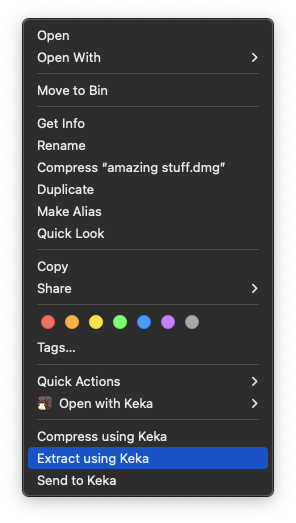
You can always use the Finder Extension and extract them using the contextual menu, as shown below:
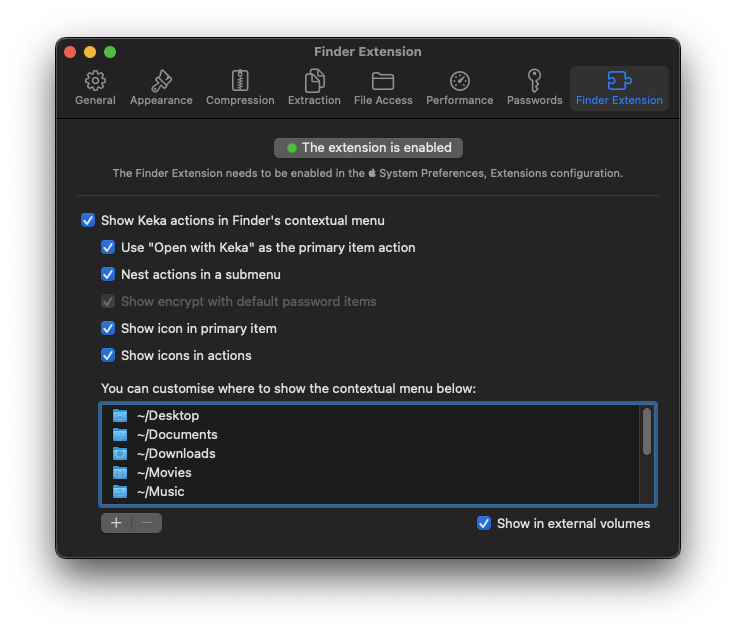
Just be sure you have the Finder Extension enabled in the Keka preferences:

Thank you very much for the clarification.
I did not know that the MacOS mounts them. Since I used it as one of the compressed files, I didn’t check what DMG is for. Now I learned it. As you said, it will be nice to uncompress DMG file as default when I double click it. But I should also have used the keyboard shortcut to extract the file. It was much easier.
File extension is slightly different since I don’t see “Extract using Keka” there, but I can see it “Open with Keka” like below.
Anyway, Thank you very much.
On Oct 4, 2022, at 20:01, aONe @.***> wrote:
Keka does not handle DMG files by default, macOS mounts them. Have you set Keka as the default handler for DMG files? Also Keka compresses DMG files by default (instead of extracting them). Maybe this should be changed since DMG usually are already compressed and extracting them makes more sense.
You can always use the Finder Extension and extract them using the contextual menu, as shown below:
https://user-images.githubusercontent.com/480163/193802459-e0dcdcab-43bc-483b-b605-52d6220137f6.png Just be sure you have the Finder Extension enabled in the Keka preferences:
https://user-images.githubusercontent.com/480163/193802693-c0500a8f-b2a3-4a4a-a333-1ce8c2b02fd9.png — Reply to this email directly, view it on GitHub https://github.com/aonez/Keka/issues/1168#issuecomment-1266775518, or unsubscribe https://github.com/notifications/unsubscribe-auth/AJJFY3QSBQYHXKBSS755UDLWBQFCFANCNFSM6AAAAAAQ4MRRHI. You are receiving this because you authored the thread.
I happen to use Keka again and found out that the "Extract using Keka” selection is available. I have no idea why I couldn’t see it before. I will watch out this from now on.
Thank you, Sadao
On Oct 5, 2022, at 6:01, Sadao Fukatsu @.***> wrote:
Thank you very much for the clarification.
I did not know that the MacOS mounts them. Since I used it as one of the compressed files, I didn’t check what DMG is for. Now I learned it. As you said, it will be nice to uncompress DMG file as default when I double click it. But I should also have used the keyboard shortcut to extract the file. It was much easier.
File extension is slightly different since I don’t see “Extract using Keka” there, but I can see it “Open with Keka” like below. <PastedGraphic-1.png>
Anyway, Thank you very much.
On Oct 4, 2022, at 20:01, aONe @.*** @.***>> wrote:
Keka does not handle DMG files by default, macOS mounts them. Have you set Keka as the default handler for DMG files? Also Keka compresses DMG files by default (instead of extracting them). Maybe this should be changed since DMG usually are already compressed and extracting them makes more sense.
You can always use the Finder Extension and extract them using the contextual menu, as shown below:
https://user-images.githubusercontent.com/480163/193802459-e0dcdcab-43bc-483b-b605-52d6220137f6.png Just be sure you have the Finder Extension enabled in the Keka preferences:
https://user-images.githubusercontent.com/480163/193802693-c0500a8f-b2a3-4a4a-a333-1ce8c2b02fd9.png — Reply to this email directly, view it on GitHub https://github.com/aonez/Keka/issues/1168#issuecomment-1266775518, or unsubscribe https://github.com/notifications/unsubscribe-auth/AJJFY3QSBQYHXKBSS755UDLWBQFCFANCNFSM6AAAAAAQ4MRRHI. You are receiving this because you authored the thread.
Sorry @DaddyF I was taking about the Finder Extension (shown in the Preferences) but pointed you to the Services (those you can call with a keyboard shortcut).
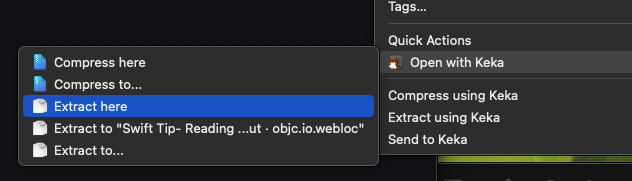
Those are the Finder Extension options, that you can enable and customize in the Keka preferences. They will appear in all the folder you choose.
The Services sometimes are hidden under a "Services" menu, if there're a lot of them. They're also always available in in the Finder -> Services menu:
