
django-maintenancemode-2
 django-maintenancemode-2 copied to clipboard
 alsoicode
Database-driven way to put your Django site into maintenance mode.
django-maintenancemode-2

Current Version: 1.3.1
This project makes it easy to put your Django site into "maintenance mode", or more technically, return an HTTP 503 response.
This project differs slightly from other implementations in that the maintenance mode flag is stored in your database versus settings or an environment variable. If your site is deployed to multiple servers, the centralized database-based maintenance flag makes it a snap to bring them all up or down at once.
Requirements
Pre-Requisites
You must have at least one Site entry in your database before installing django-maintenancemode-2.
Supported Python Versions
- 2.7, 3.x
Supported Django Versions
- 3.x use the latest version
- 2.x < 3, please use version 1.1.11
- < 2, please use version 1.1.9
Installation
pip install django-maintenancemode-2
-- or --
- Download django-maintenancemode-2 from source
- *optional: Enable a virtualenv
- Run
python setup.py installor addmaintenancemodeto your PYTHONPATH
Settings and Required Values
- Ensure the Sites Framework is enabled, and you have at least one entry in the Sites table.
- Add
maintenancemode.middleware.MaintenanceModeMiddlewareto yourMIDDLEWARE_CLASSES - Add
maintenancemodeto yourINSTALLED_APPS - Run
python manage.py migrateto create themaintenancemodetables. - Run your project to automatically add the
maintenancemodedatabase records. - Add a 503.html template to the root of your templates directory, or optionally add a
MAINTENANCE_503_TEMPLATEpath to your 503.html file's location in settings. maintenancemodewill ignore any patterns beginning with the default Django Admin url:^adminso you can turn it off. If you use a custom url for admin, you may override the ignored admin patterns by adding theMAINTENANCE_ADMIN_IGNORED_URLSlist in settings. Example:['^my-custom-admin', '^my-other-custom-admin']- You can also block staff users, who by default are ignored by maintenance mode, by setting
MAINTENANCE_BLOCK_STAFFtoTrue
Usage
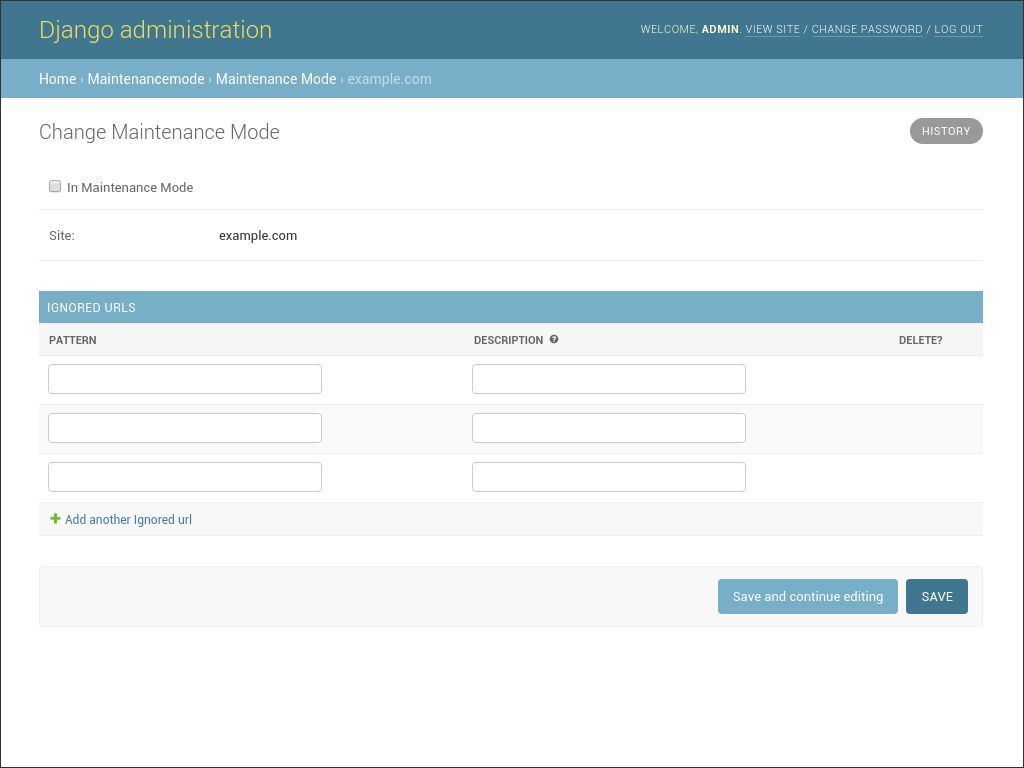
Turning Maintenance Mode On
To put a site into "Maintenance Mode", check the "In Maintenance Mode" checkbox and save in Django Admin under the "Maintenancemode" section. The next time you visit the public side of the site, it will return a 503 if:
- You are not logged in as a superuser or staff user
- You are not viewing a URL in the ignored patterns list
- Your
REMOTE_ADDRdoes not appear in theINTERNAL_IPSsetting
Or you can alternatively use the setmaintenance management command:
    # sets maintenance on for the current settings.SITE_ID
    ./manage.py setmaintenance on

    # sets maintenance on for sites 2 and 3
    ./manage.py setmaintenance on 2 3
which can be useful for fabric deployment scripts etc.
Turning Maintenance Mode Off
Log in, un-check the "In Maintenance Mode" checkbox and save.
Or you can alternatively use the setmaintenance management command:
    # sets maintenance off for the current settings.SITE_ID
    $ ./manage.py setmaintenance off

    # sets maintenance off for sites 2 and 3
    $ ./manage.py setmaintenance off 2 3
Testing and Sample Application
A "testproject" application is included, which also contains unit and functional tests you can run via python manage.py test from the testproject directory.
You will need to run manage.py migrate to create the test project database.
There are only two views in the testproject:
- /
- /ignored-page
To see maintenancemode in action, log into Django admin, and set the maintenance mode to true. Log out, then visit the home page, and instead, you'll be greeted with the maintenance page.
To have maintenancemode ignore the "ignored-page" view, simply add it's url pattern to the Ignored URLs as:
^ignored-page/$
Now you should be able to visit the ignored-page view regardless of the maintenancemode status. This is useful for contact or help pages you still want people to be able to access while you're working on other parts of the site.
Database migrations
./manage.py migrate should add the necessary tables.
 alsoicode