

 White-Tiger
Clock doesn't respect dark/light modes
I use Auto Dark Mode from another developer and the clock gets left on white when the system automatically switches to light mode

@White-Tiger - I believe that this article will provide you with information how to extract current theme status from Windows registry to implement asked functionality.
Kind regards, Friendly contributor to this issue madness


I solved the issue by creating this python script and associating it to a task into the task scheduler. Inside the task I setted it to run the script two times, one at morning and one at night. At each execution the clock color gets changed and t-clock is closed and opened again to update the color. This is the code:
import os, subprocess, winreg
from time import sleep
import logging.config


TCLOCK_PATH = "Path\\to\\tclock\\executable.exe"


# Logging Configuration
logging.basicConfig(
    level=logging.INFO,
    format="[%(asctime)s] [PID %(process)d] [Thread %(thread)d] [%(levelname)s] %(message)s",
    handlers=[
        logging.StreamHandler()
    ]
)
LOGGER = logging.getLogger()


# accessing the registry
registry = winreg.ConnectRegistry(None, winreg.HKEY_CURRENT_USER)
text_color_key = winreg.OpenKey(registry, "SOFTWARE\\Stoic Joker's\\T-Clock 2010\\Clock", 0, winreg.KEY_ALL_ACCESS | winreg.KEY_WOW64_64KEY)


# changing registry value associated with clock text color
cur_value = winreg.QueryValueEx(text_color_key, "ForeColor")
if int(cur_value[0]) == 0:
    winreg.SetValueEx(text_color_key, "ForeColor", 0, winreg.REG_DWORD, 16777215)
    LOGGER.info("switched to dark mode")
elif int(cur_value[0]) == 16777215:
    winreg.SetValueEx(text_color_key, "ForeColor", 0, winreg.REG_DWORD, 0)
    LOGGER.info("switched to light mode")


# restarting t-clock
os.system(TCLOCK_PATH + " /exit")
sleep(0.2)
try:
    subprocess.Popen(TCLOCK_PATH, creationflags=subprocess.DETACHED_PROCESS, close_fds=True)
except E:
    LOGGER.exception(E)
quit()

@plt-francesco how do i do that?
 Do I just do what I did in the picture above? I pasted the code that you provided in a notepad file and linked that in task scheduler
Edit: I followed this guide and there is no effect upon running the task in task scheduler. Can you explain in detail how you got it to work?

@plt-francesco how do i do that?
Edit: I followed this guide and there is no effect upon running the task in task scheduler. Can you explain in detail how you got it to work?
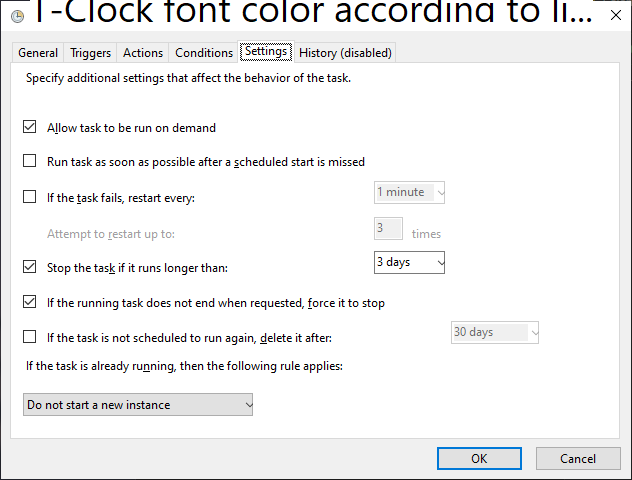
Since this is a python script, you need to install python to get this working.It is quite easy, since it is like installing any other program. You can download it from here. After that you have to setup task scheduler to get it working. Import this task, by first changing the path to the path in which you have saved your script (remember to give it a .py extension: in the screenshot I see .txt):
<?xml version="1.0" encoding="UTF-16"?>
<Task version="1.2" xmlns="http://schemas.microsoft.com/windows/2004/02/mit/task">
  <RegistrationInfo>
    <Date>2021-01-01T20:00:11.3402576</Date>
    <Author>DESKTOP-APOHRK4\frapa</Author>
    <URI>\tclock dark mode</URI>
  </RegistrationInfo>
  <Triggers>
    <CalendarTrigger>
      <StartBoundary>2021-01-02T18:00:00</StartBoundary>
      <Enabled>true</Enabled>
      <ScheduleByDay>
        <DaysInterval>1</DaysInterval>
      </ScheduleByDay>
    </CalendarTrigger>
    <CalendarTrigger>
      <StartBoundary>2021-01-02T07:00:00</StartBoundary>
      <Enabled>true</Enabled>
      <ScheduleByDay>
        <DaysInterval>1</DaysInterval>
      </ScheduleByDay>
    </CalendarTrigger>
  </Triggers>
  <Principals>
    <Principal id="Author">
      <UserId></UserId>
      <LogonType>InteractiveToken</LogonType>
      <RunLevel>LeastPrivilege</RunLevel>
    </Principal>
  </Principals>
  <Settings>
    <MultipleInstancesPolicy>StopExisting</MultipleInstancesPolicy>
    <DisallowStartIfOnBatteries>false</DisallowStartIfOnBatteries>
    <StopIfGoingOnBatteries>true</StopIfGoingOnBatteries>
    <AllowHardTerminate>true</AllowHardTerminate>
    <StartWhenAvailable>false</StartWhenAvailable>
    <RunOnlyIfNetworkAvailable>false</RunOnlyIfNetworkAvailable>
    <IdleSettings>
      <StopOnIdleEnd>true</StopOnIdleEnd>
      <RestartOnIdle>false</RestartOnIdle>
    </IdleSettings>
    <AllowStartOnDemand>true</AllowStartOnDemand>
    <Enabled>true</Enabled>
    <Hidden>false</Hidden>
    <RunOnlyIfIdle>false</RunOnlyIfIdle>
    <WakeToRun>false</WakeToRun>
    <ExecutionTimeLimit>PT1H</ExecutionTimeLimit>
    <Priority>7</Priority>
  </Settings>
  <Actions Context="Author">
    <Exec>
      <Command>cmd</Command>
      <Arguments>"/c python PATH_TO_SCRIPT_IN_YOUR_SYSTEM_GOES_HERE"</Arguments>
    </Exec>
  </Actions>
</Task>
And it should work.
@plt-francesco, I made some changes to the python script that you sent, can you please help me check if it's valid in the code below? Also, I did everything as you said, but I am getting this prompt everytime the script runs:

Is there anyway to get rid of the prompt upon execution of the script? I have already made sure the file extension is .py. Also, after selecting Python to run the program, a command prompt opens and then closes briefly later but no changes were made to T-clock's font.
<?xml version="1.0" encoding="UTF-16"?> <Task version="1.2" xmlns="http://schemas.microsoft.com/windows/2004/02/mit/task"> <RegistrationInfo> <Date>2021-01-01T20:00:11.3402576</Date> <Author>DESKTOP-APOHRK4\frapa</Author> <URI>\tclock dark mode</URI> </RegistrationInfo> <Triggers> <CalendarTrigger> <StartBoundary>2021-01-02T19:00:00</StartBoundary> <Enabled>true</Enabled> <ScheduleByDay> <DaysInterval>1</DaysInterval> </ScheduleByDay> </CalendarTrigger> <CalendarTrigger> <StartBoundary>2021-01-02T07:15:00</StartBoundary> <Enabled>true</Enabled> <ScheduleByDay> <DaysInterval>1</DaysInterval> </ScheduleByDay> </CalendarTrigger> </Triggers> <Principals> <Principal id="Author"> <UserId></UserId> <LogonType>InteractiveToken</LogonType> <RunLevel>LeastPrivilege</RunLevel> </Principal> </Principals> <Settings> <MultipleInstancesPolicy>StopExisting</MultipleInstancesPolicy> <DisallowStartIfOnBatteries>false</DisallowStartIfOnBatteries> <StopIfGoingOnBatteries>true</StopIfGoingOnBatteries> <AllowHardTerminate>true</AllowHardTerminate> <StartWhenAvailable>false</StartWhenAvailable> <RunOnlyIfNetworkAvailable>false</RunOnlyIfNetworkAvailable> <IdleSettings> <StopOnIdleEnd>true</StopOnIdleEnd> <RestartOnIdle>false</RestartOnIdle> </IdleSettings> <AllowStartOnDemand>true</AllowStartOnDemand> <Enabled>true</Enabled> <Hidden>false</Hidden> <RunOnlyIfIdle>false</RunOnlyIfIdle> <WakeToRun>false</WakeToRun> <ExecutionTimeLimit>PT1H</ExecutionTimeLimit> <Priority>7</Priority> </Settings> <Actions Context="Author"> <Exec> <Command>cmd</Command> <Arguments>"/c python C:\Tweaks\T-Clock font color according to lightdark mode\T-Clock font color according to lightdark mode.py"</Arguments> </Exec> </Actions> </Task>
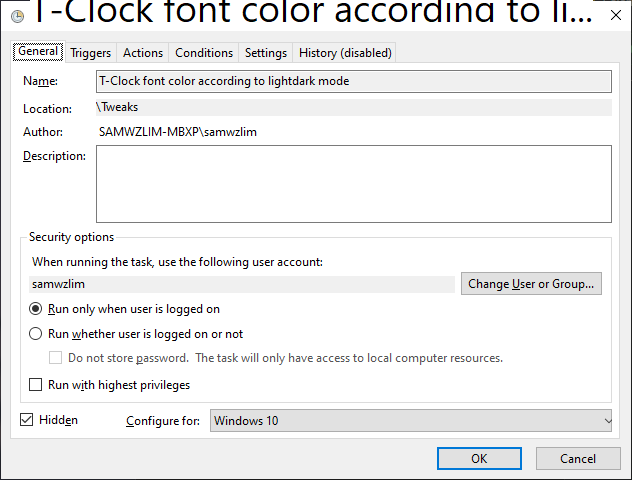
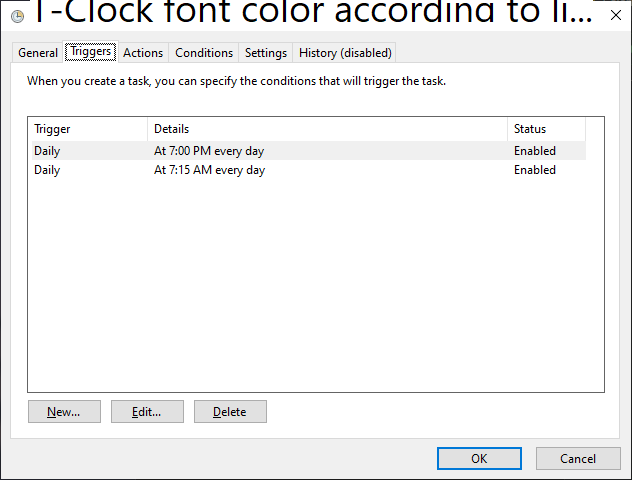
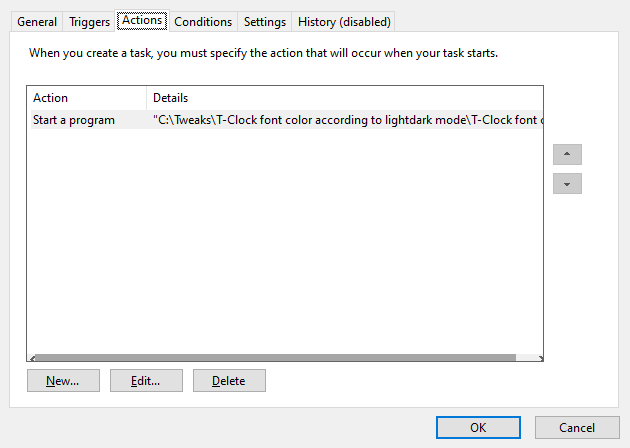 fyi, i chose the python script above for start program
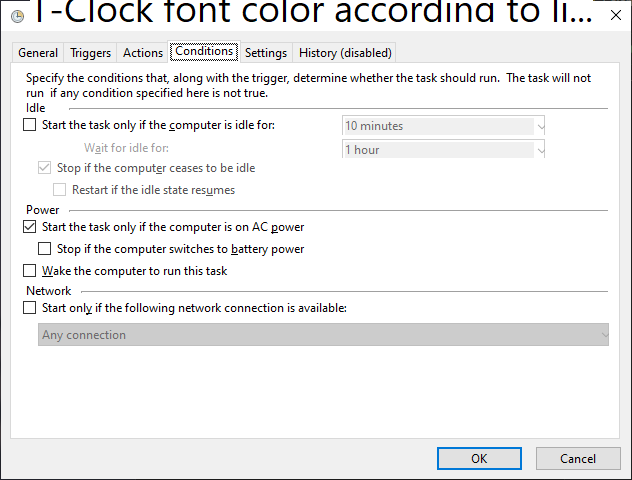
In case it helps anybody, I did the same thing as @plt-francesco on AutoHotkey:
#F3::
  RegWrite, REG_DWORD, HKEY_CURRENT_USER\Software\Microsoft\Windows\CurrentVersion\Themes\Personalize, SystemUsesLightTheme, 0
  RegWrite, REG_DWORD, HKEY_CURRENT_USER\Software\Microsoft\Windows\CurrentVersion\Themes\Personalize, AppsUseLightTheme, 0
  RegWrite, REG_DWORD, HKEY_CURRENT_USER\SOFTWARE\Stoic Joker's\T-Clock 2010\Clock, ForeColor, 16777215
  return
#F4::
  RegWrite, REG_DWORD, HKEY_CURRENT_USER\Software\Microsoft\Windows\CurrentVersion\Themes\Personalize, SystemUsesLightTheme, 1
  RegWrite, REG_DWORD, HKEY_CURRENT_USER\Software\Microsoft\Windows\CurrentVersion\Themes\Personalize, AppsUseLightTheme, 1
  RegWrite, REG_DWORD, HKEY_CURRENT_USER\SOFTWARE\Stoic Joker's\T-Clock 2010\Clock, ForeColor, 4210884306
  return
So Windows Logo Key + F3 for dark mode, Windows Logo Key + F4 for light mode. The first two lines changes the Windows mode, and the third lines change T-Clock color. If any other programs need similar special treatment, they can be added here as well. Two things to note:
- Unlike @plt-francesco I didn't need to close and reopen T-Clock; the color change automatically when I press the hotkey. If needed, reopening can be added in a fourth line.
- Normally I use High Contrast mode (
Alt + Shift + Print Screen) for dark mode, as the High Contrast mode is the only remaining way on Windows 10 to actually theme all of Windows and Windows apps. (Windows 10 dark mode only works on a few modern apps that implemented a dark mode.) That is why I use4210884306instead of just0(black).4210884306corresponds toBTNTEXTcolor setting in T-Clock, which is normally black, but obeys Windows colors, so if Windows is actually themed dark (not just 'dark mode') it renders as white, thus T-Clock works fine with both themes without needing to change its settings. I wrote this workaround in case I want to use Windows 10 dark mode and change the text color to16777215(i.e.FFFFFF, white) manually.
