
Android-Paging-Example
 Android-Paging-Example copied to clipboard
 Vanethos
Android Jetpack Pagination example with data retrieved from Github API
Android Jetpack Paging Example
Example project showing how to implement Google's Jetpack Paging Library with RxJava using MVVM Architecture Pattern.
This project can also be used as a template to be expanded on,
Getting Started
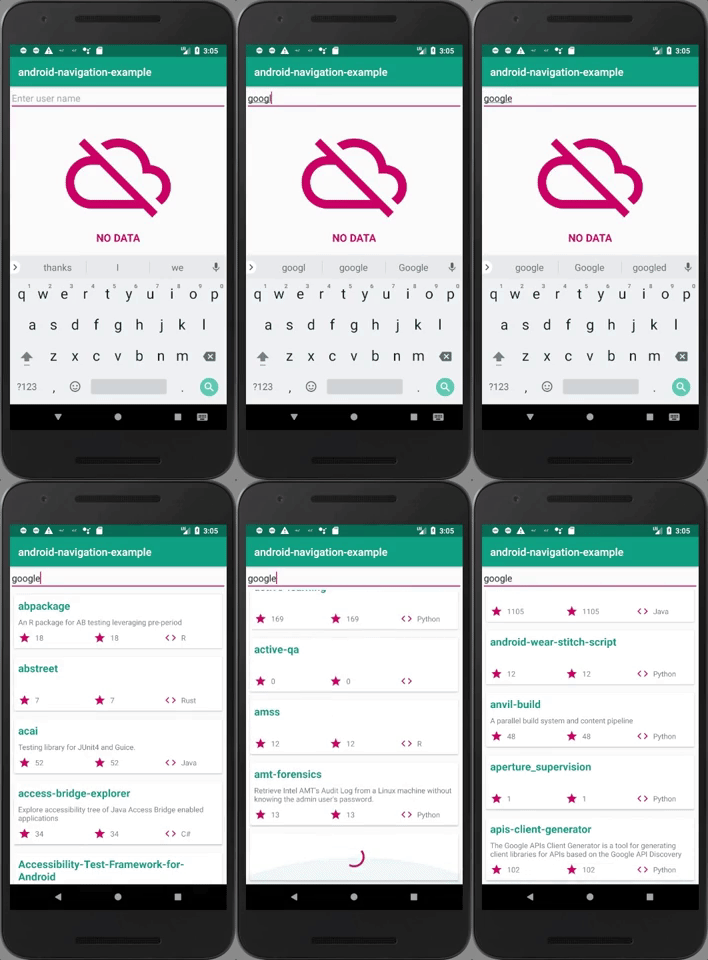
This step by step guide will help you to create a RecyclerView with pagination:
Step 1 - Create new Retrofit API Services that can handle pagination
These endpoints will often have a page and per_page values.
@GET(PREFIX + "{userId}/repos")
    fun getRepos(@Path("userId") userId: String,
                 @Query("page") page: Int,
                 @Query("per_page") perPage : Int
    ): Single<Response<List<ReposDto>>>
You can think of it as the Google Search pages:

page symbolizes the page in which you currently are, and per_page is the number of results that you will see.
Step 2 - Create a DataSource
On the utils.pagination.datasource package, create a new class that extends from https://github.com/Vanethos/Android-Pagination-Example/blob/master/app/src/main/java/com/vanethos/example/utils/pagination/datasource/_base/BaseDataSource.kt.
In this class, you will stipulate how you will fetch new data, continue to fetch data on scroll and how to handle errors from each interaction
class ReposDataSource(var user : String) : BaseDataSource<Repos>() {
    val manager : ReposManager = ReposManager()

    @SuppressLint("CheckResult")
    override fun loadInitialData(params: LoadInitialParams<Int>, callback: LoadInitialCallback<Int, Repos>) {
        // in the initial load, we will start at page 0, and retrieve the number of pages in the params.requestLoadSize
        manager.getListOfRepos(user, 0, params.requestedLoadSize)
                .subscribeOn(Schedulers.io())
                .observeOn(AndroidSchedulers.mainThread())
                .subscribe(
                        { items -> submitInitialData(items, params, callback) },
                        { error -> submitInitialError(error) }
                )
    }

    @SuppressLint("CheckResult")
    override fun loadAditionalData(params: LoadParams<Int>, callback: LoadCallback<Int, Repos>) {
        manager.getListOfRepos(user, params.key, params.requestedLoadSize)
                .subscribeOn(Schedulers.io())
                .observeOn(AndroidSchedulers.mainThread())
                .subscribe(
                        { items -> submitData(items, params, callback) },
                        { error -> submitError(error) }
                )
    }
}
Step 3 - Create a Factory for the DataSource
We then need to tell Android how to create the specified Data Source, to do that we create a new class on the utils.pagination.factory package.
class ReposDataSourceFactory(var loading: OnDataSourceLoading,
                             var user: String?) : DataSource.Factory<Int, Repos>() {
    lateinit var source : ReposDataSource

    override fun create(): DataSource<Int, Repos>? {
        // invalidate the previous data source, if available
        if (::source.isInitialized && source != null) source.invalidate()
        // if we have a user, then create a data source
        if (user != null) {
            source = ReposDataSource(user!!)
            source.onDataSourceLoading = loading
            return source
        }
        return null
    }
}
Step 4 - Create a new Adapter
By extending the BaseDiffAdapter class and creating a custom ViewHolder object we can pass data to our items.
Please note that in the onCreateViewHolder method, we will need to take into account that when the View is of type VIEW_TYPE_LOADING, we will need to inflate the correct view.
override fun onCreateViewHolder(parent: ViewGroup, viewType: Int): RecyclerView.ViewHolder {
        if (viewType == VIEW_TYPE_NORMAL) {
            return MainViewHolder(LayoutInflater.from(parent.context)
                    .inflate(R.layout.item_repo, parent, false)
            )
        } else {
            return LoadingViewHolder(LayoutInflater.from(parent.context)
                    .inflate(R.layout.item_loading, parent, false)
            )
        }
    }
Step 5 - Create a new ViewModel
Your ViewModel must extend BasePaginationViewModel in order to register the DataSource actions.
Then, you will need to create a new DataSourceFactory object in the class initialization block and specify the number of pages needed.
class MainViewModel : BasePaginationViewModel<ReposDataSourceFactory, Repos>() {
    init {
        dataSourceFactory = ReposDataSourceFactory(getListener(), null)
    }

    override fun getPageSize(): Int {
        return 3
    }
}
Step 7 - Register the observables in your Activity Class
After setting up the RecyclerView adapter and LayoutManager, you will need to register BasePaginationViewModel's 4 LiveData observables in order to get the actions from the data source.
        // Toast for API Errors
viewModel.errorToastEvent.observe(this,
        Observer { Toast.makeText(this, getString(R.string.err_search), Toast.LENGTH_LONG) }
)

// Clearing the data of the adapter when doing a new search
viewModel.clearDataEvents.observe(this,
        Observer {
            viewModel.clearDataSource()
            submitItems()
            adapter.notifyDataSetChanged()
        }
)

// Showing an empty view on the screen
viewModel.emptyVisibilityEvents.observe(this,
        Observer { show ->
            if(show != null) {
                var visibility = if (show.peek()) View.VISIBLE else View.GONE
                this.empty_view_imageView.visibility = visibility
            }
        }
)

// Display the recyclerview loading item
viewModel.recyclerViewLoadingEvents.observe(this,
        Observer { show ->
            if(show != null) {
                adapter.loading = show.peek()
            }
        })})
Step 8 - Functions to handle a new DataSource
If, like in our example, we will need to change the data source by retrieving data from another endpoint, we will need to create a new method in the ViewModel to order the DataSourceFactory to create a new DataSource.
ViewModel
fun newSearch(user : String) {
    // set a new value for the dataSource internal variable
    dataSourceFactory.user = user
    clearData()
}
clearData will post a new Event on the LiveData observable
fun clearData() {
        this.clearDataEvents.postValue(Event(Unit))
    }
And our Activity will handle it
// Clearing the data of the adapter when doing a new search
        viewModel.clearDataEvents.observe(this,
                Observer {
                    viewModel.clearDataSource()
                    submitItems()
                    adapter.notifyDataSetChanged()
                }
        )
Step 9 - ???
Step 10 - Profit!
Try expanding on this project, by calling other APIs or implementing Dagger 2
 Vanethos