

 TomSchimansky
CTkSwitch appearance in DarkMode
Code:
import tkinter
import tkinter.messagebox
import customtkinter

customtkinter.set_appearance_mode("Light")  # Modes: "System" (standard), "Dark", "Light"
customtkinter.set_default_color_theme("dark-blue")  # Themes: "blue" (standard), "green", "dark-blue"


class App(customtkinter.CTk):
    def __init__(self):
        super().__init__()


        customtkinter.CTkButton(master=self, height=300).grid(row=0, column=0, sticky='nsew', pady=20, padx=20)
        customtkinter.CTkSwitch(master=self).grid(row=0, column=2, sticky='nsew', pady=20, padx=20)

        self.after(100, lambda: customtkinter.set_appearance_mode("Dark"))


if __name__ == "__main__":
    app = App()
    app.mainloop()
My result under macOS 13.1 and CTk 5.03:
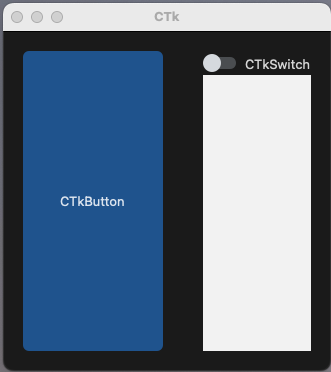


@Snute93 Do not use sticky="nswe" for switch, ig it is a bug. (Use only "new")

Wow, thanks for the fast response! 'new' did work to make the bright rectangle disappear. For now I did apply the same height to Button and Switch. This way the switch is also vertically centered
It's now fixed.
One tip, you should save the widgets you create in variables, otherwise you cannot do anything with them and they can get garbage collected and disappear at some point:
import customtkinter

customtkinter.set_appearance_mode("light")  # Modes: "System" (standard), "Dark", "Light"
customtkinter.set_default_color_theme("dark-blue")  # Themes: "blue" (standard), "green", "dark-blue"


class App(customtkinter.CTk):
    def __init__(self):
        super().__init__()

        self.button = customtkinter.CTkButton(master=self, height=300)
        self.button.grid(row=0, column=0, sticky='nsew', pady=20, padx=20)

        self.switch = customtkinter.CTkSwitch(master=self)
        self.switch.grid(row=0, column=1, sticky='nsew', pady=20, padx=20)

        self.after(100, lambda: customtkinter.set_appearance_mode("dark"))


if __name__ == "__main__":
    app = App()
    app.mainloop()
Thanks for the advise. Actually I just tried to replicate the problem as simple as possible ;)
And most important: Thanks for looking into it and fixing it!