
fuzzy-fs
 fuzzy-fs copied to clipboard
 SleepyBag
a File System Navigator powered by fzf
Fuzzy FS - File Navigator powered by fzf
Installation
- (Recommanded) Install with zplug
zplug "SleepyBag/fuzzy-fs", use:fuzzy-fs
- Or manually:
- Clone this repo into an arbitrary path;
- source file
fuzzy-fsin your.zshrc.
Other zsh plugin managers should work like zplug. If fuzzy-fs doesn't work well with your plugin manager, please feel free to open a new issue.
Dependencies
- zsh
- fzf
Optional
- z (to list recent files, you don't need autojump if you have z)
- autojump (to list recent files, you don't need z if you have autojump)
- exa (to show colorful file list with git information)
- bat (for colored preview)
- fd (for faster and colored find)
Usage
Just run fuzzy-fs in your shell, then you are easy to go.
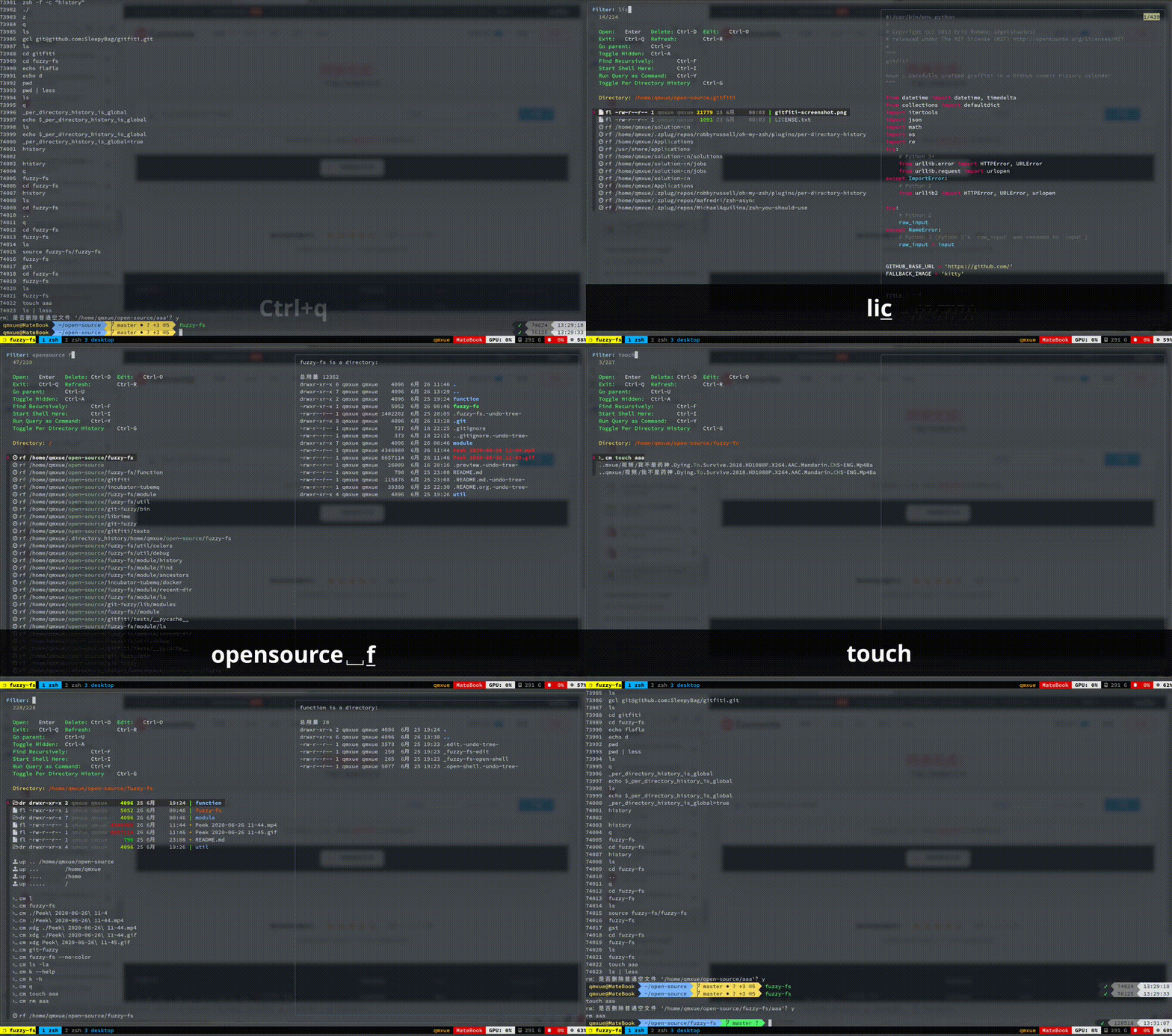
Feature
Find Recursively
Usually, you know which file you are looking for, but you can't recall it's path. So let's hit Ctrl-F to find it recursively:
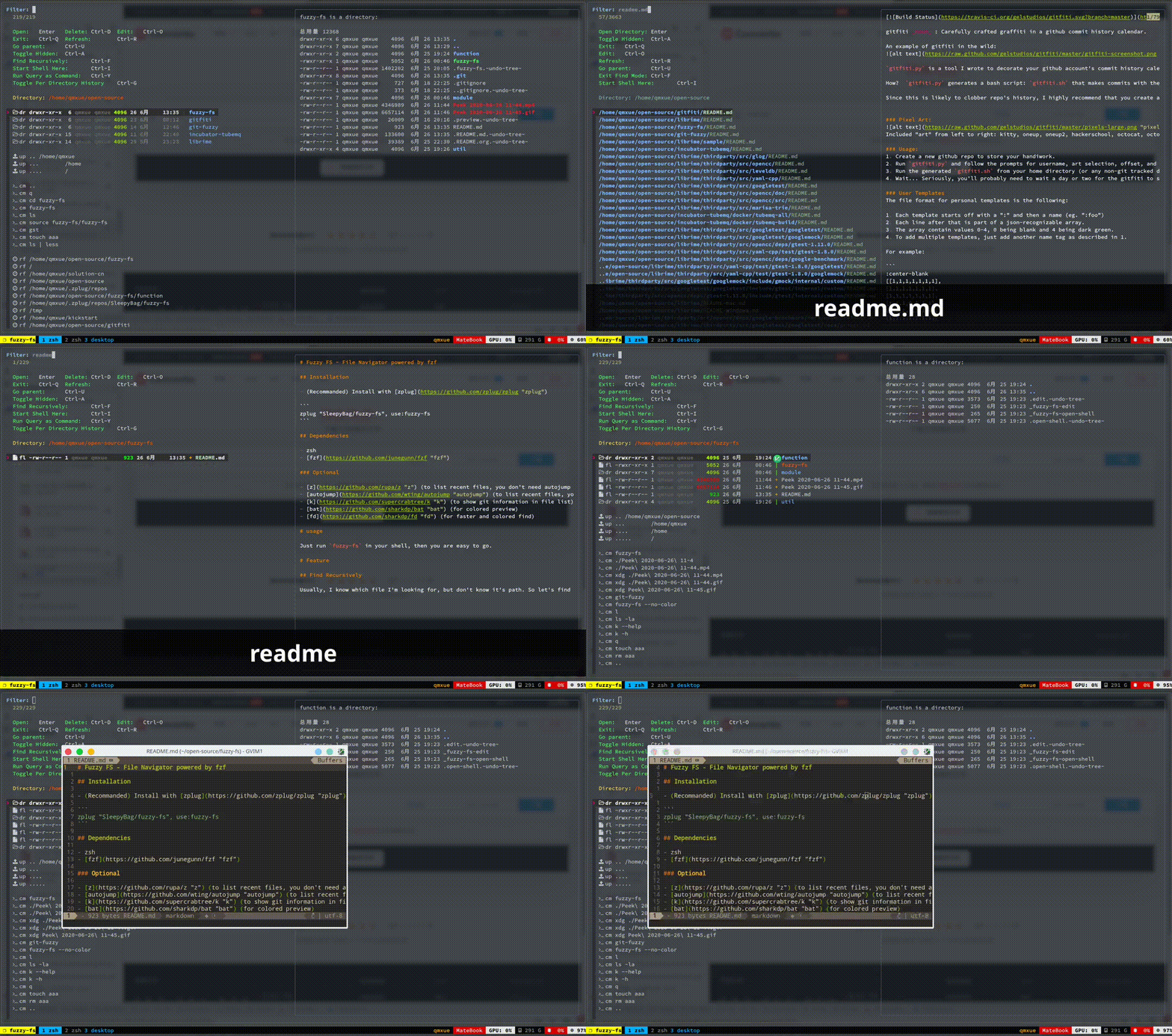
Run Command directly
Touch a file, and remove it, see git status, as easily as what you do in shell. Just hit Ctrl-Y, you can run directly what you insert as a command. All your alias, functions and even command history are available. What's more, if you are using per-directory-history, it is also supported.
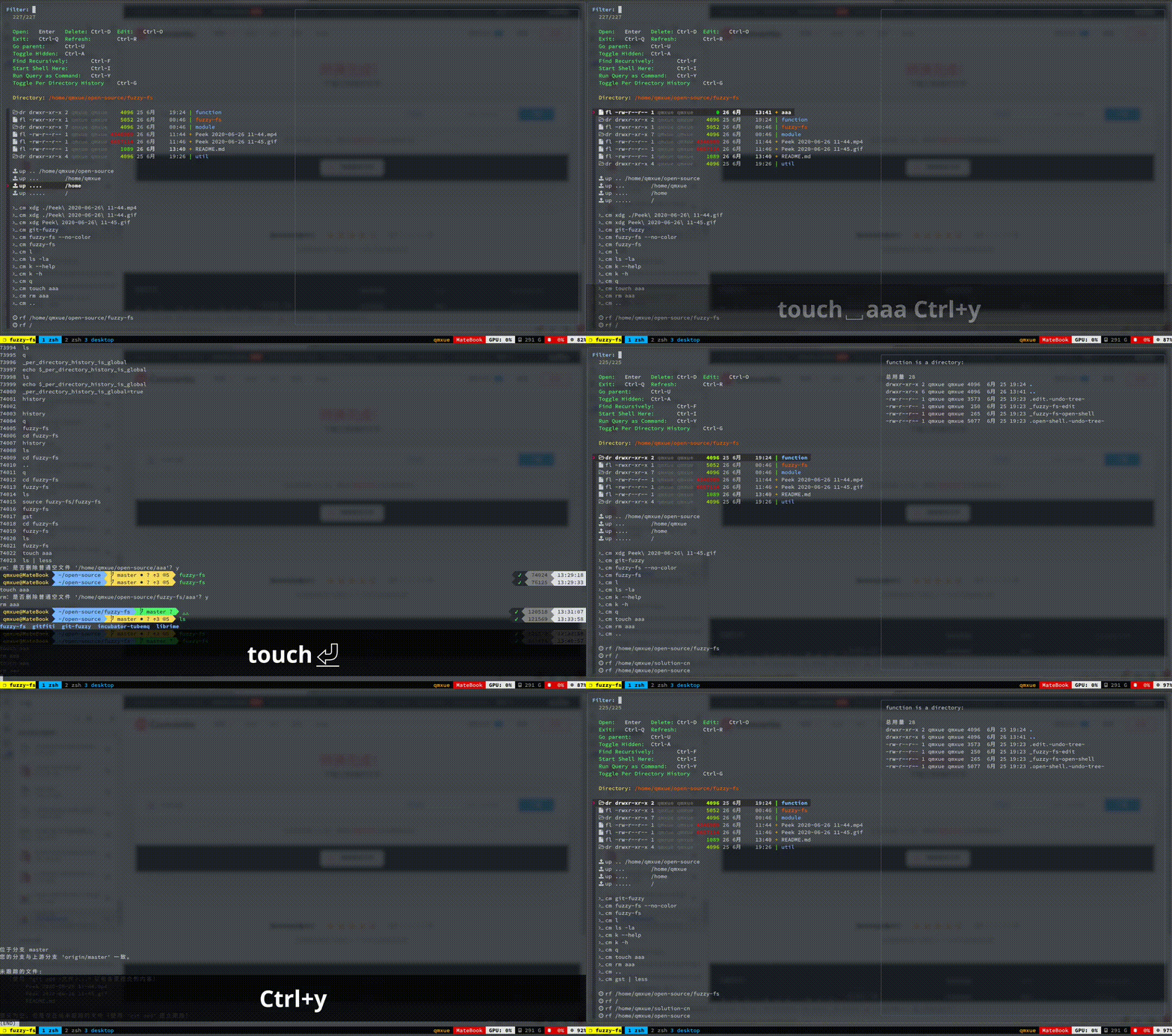
Autojump / z support
Used to jump between specific directories? No problem! As long as you have autojump or z installed, fuzzy-fs will natually show your recent directories.
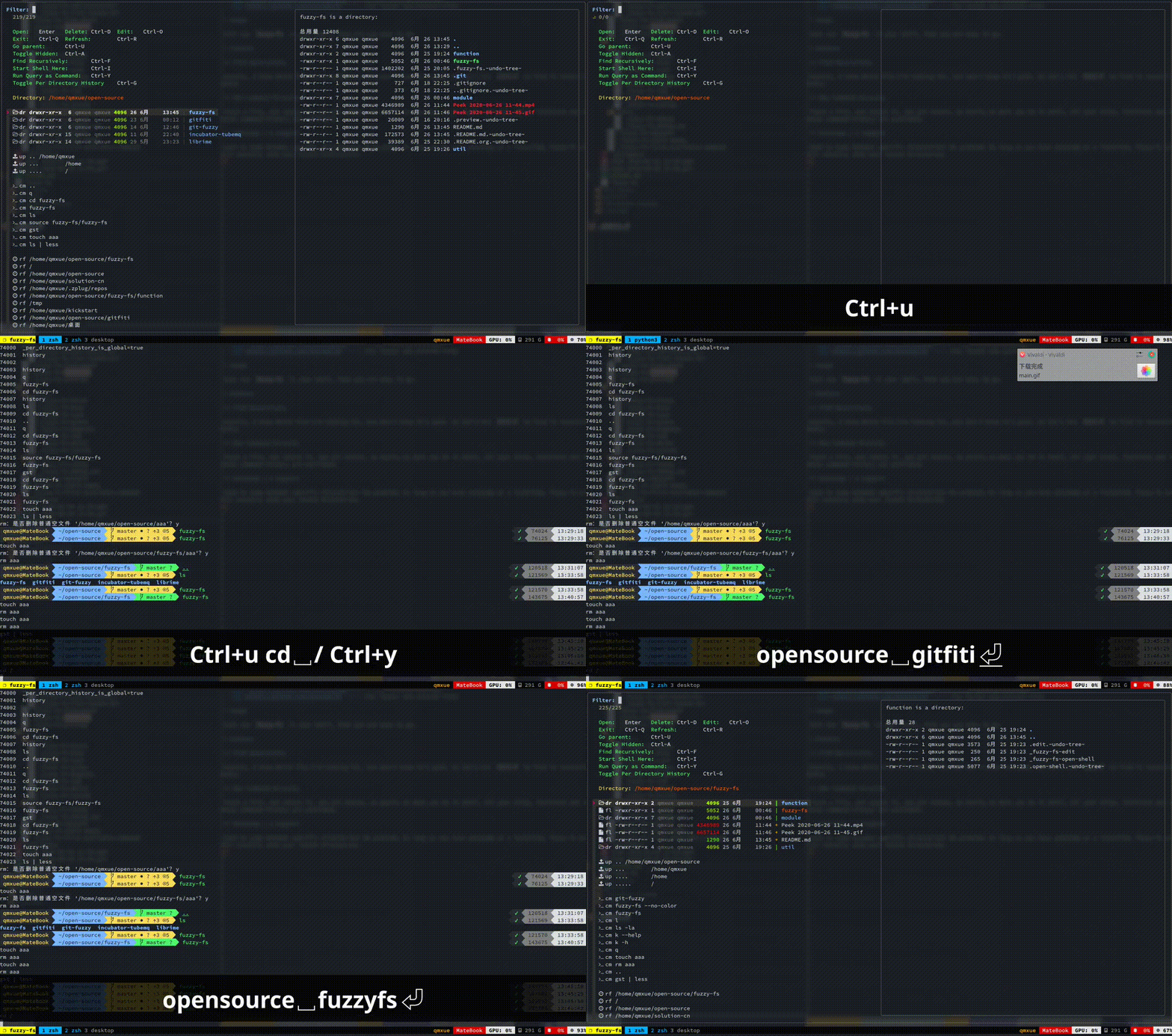
Elegant tmux integration
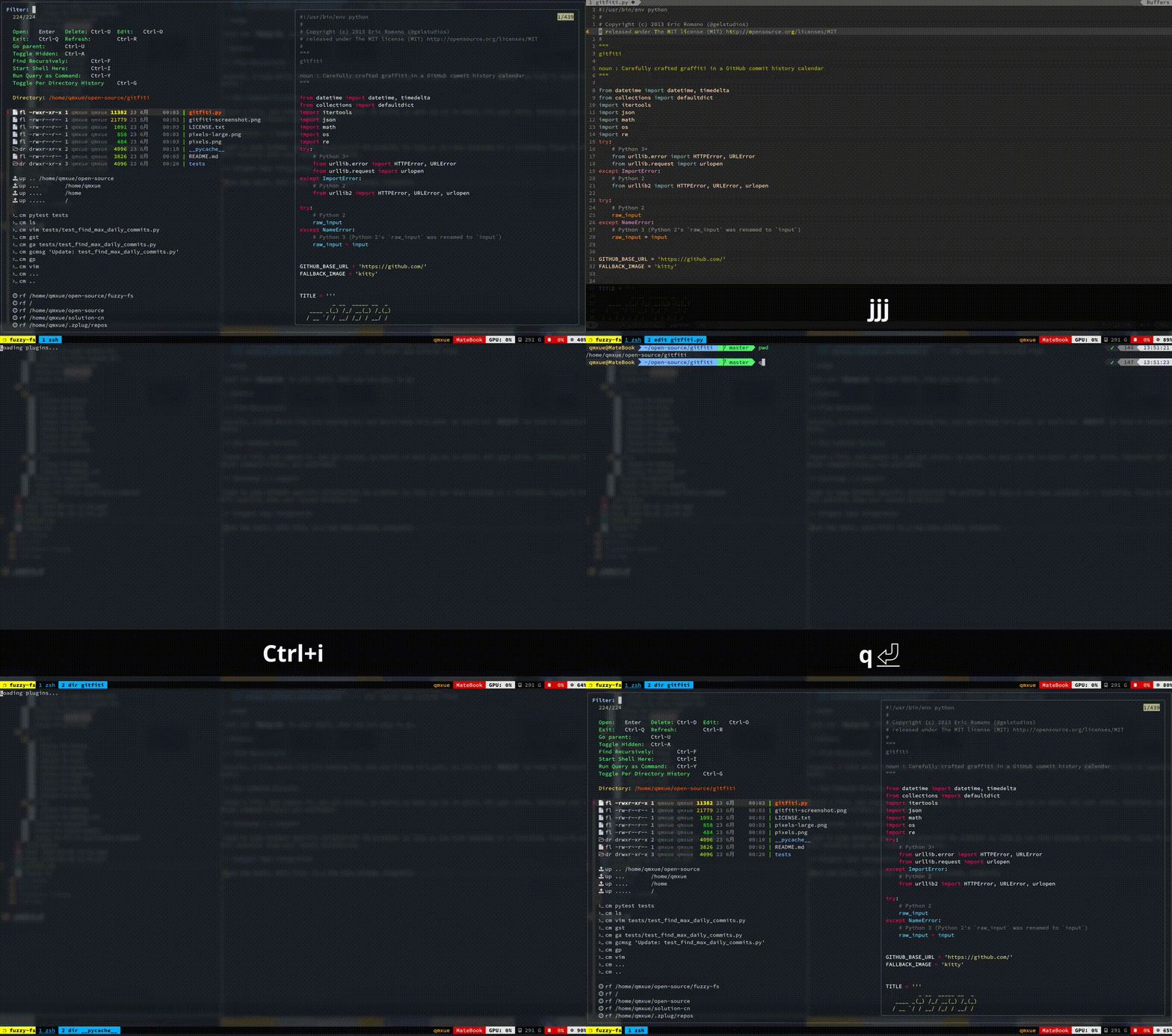
Hit Ctrl-I to open a new shell, Ctrl-O to edit a file. If you are in a tmux session, they will be opened in a new tmux window, elegantly.
If you are not in a tmux session, the new shell will be opened in a new terminal window, which is defined by environment variable $TERMINAL, and how editor acts depends on varialbe $EDITOR.
Configuration
Customizable Commands
Maybe you don't like some commands used in fuzzy-fs. For example, maybe you prefer ls to exa. Here are some customizable commands.
| variable name | meaning | default value | Notes |
|---|---|---|---|
| FUZZY_FS_OPEN_COMMAND | the command to open a file | xdg-open |
|
| FUZZY_FS_LS_COMMAND | the command to list files | exa or ls |
only exa and ls are supported |
| FUZZY_FS_TERMINAL_COMMAND | the command to open a new terminal | konsole --workdir |
read the manual of your terminal emulator to know how to specify a working directory |
Icons
You may find that some icons aren't shown well in your terminal because of font. If you need to use some different icons, you can set the following variables.
| variable name | meaning | default value |
|---|---|---|
| FUZZY_FS_FILE_ICON | icon of files | fl |
| FUZZY_FS_LINK_ICON | icon of links | lk |
| FUZZY_FS_ANCESTOR_ICON | icon of ancestor directories | up |
| FUZZY_FS_DIRECTORY_ICON | icon of directories | dr |
| FUZZY_FS_COMMAND_ICON | icon of history command | cm |
| FUZZY_FS_RECENT_DIR_ICON | icon of hisotry directories | rf |
If you see white blocks in the table. Don't be confused. They are initially icons. These variables can be set as any string but not empty because fuzzy-fs uses icon to determine the action it takes.
Separators
If you want some fancy separator instead of blank lines between fuzzy-fs modules, you can customize the following variables.
| variable name | meaning |
|---|---|
| FUZZY_FS_ANCESTOR_SEPARATOR | separator before ancestor directory module |
| FUZZY_FS_COMMAND_SEPARATOR | separator before history command module |
| FUZZY_FS_RECENT_DIR_SEPARATOR | separator before rencent directory module |
Known Issues
- If there is a link with " -> " in the name of its target file, it cannot be opened. Though this situation is nearly impossible.
Contributing
As you can see, this is a new project. Anyone is welcomed to report a bug, give an idea, request a feature, or start a merge request. Help me to make it better!
 SleepyBag