

 SimplyStaking
Installation wizard - Review 1 (Channels, Nodes, and Repositories)
Story
As a node operator, when I'm done with alerts setup, I want the ability to review my sub-chain configuration, so that any errors can be spotted before the configuration is finalised.
Description
The scope of this ticket is limited to the first section of the page as shown in the image below. Here the node operator is provided with a summary of his sub-chain configuration for channels, nodes and repsoitories.
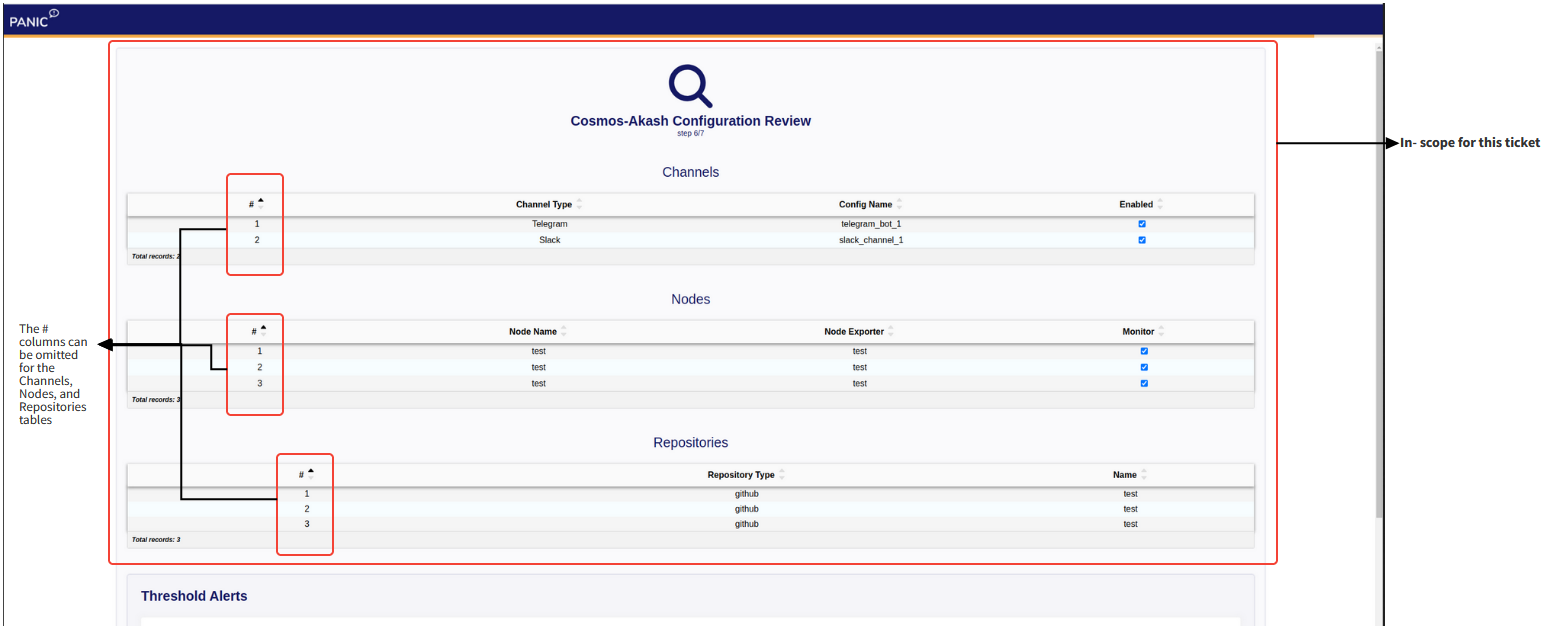
Requirements:
- Page is displayed at /installation/review.
- Display vertically stacked and centred the Review page logo, the text "base-chain name - sub-chain name", and the progress in the setup process as a whole in fraction form (i.e. step 6/7). Note that the sub-chain name would have been previously inputted by the node operator.
- Use an svc-data-table to display the Channels for the sub-chain in question. (see image above).
- The Channels table is to include three columns that identify key channel aspects - Channel Type, Config Name, Enabled.
- The Channel Type shows the alerting channels relevant to the sub-chain in question.
- Config name is the name provided by the node operator during setup (for example, for the Telegram channel this would be the Bot Name).
- By default, the checkboxes under the Enabled column are checked. The node operator can uncheck any of these with the consuquence of disabling the corresponding channel type for the sub-chain in question.
- Use an svc-data-table to display the Nodes for the sub-chain in question. (see image above).
- The Nodes table is to include three columns that identify key node aspects - Node Name, Node Exporter, Monitor.
- Entries under the Node Name column are unique identifiers used for the node on question.
- The Node Exporter column shows the IP address used to monitor node experter data.
- By default, the checkboxes under the Monitor column are enabled. If the node operator unchecks a monitor checkbox, the corresponding node is no longer monitored.
- Use an svc-data-table to display the Repositories for the sub-chain in question. (see image above).
- The Repositories table is to include two columns that identify key repo aspects - Repository Type, Repository Name.
- The Repository Type column contains GutHub and DockerHub entries depending on what was configured by the node operator.
- The Repository Name column contains the path of the repository to be monitored
Blocked by
Not dependent on another ticket to be tackled.
Acceptance Criteria
Scenario: Installation step of 7 - Channels, nodes, and repos review Given: The node operator has been through the Alerts Setup step and clicked on the Next button Then: He is presented with the channels, nodes and repos set up for the said sub-chain And: If the node operator disables a specific channel Then: This channel will not recieve alerts for the sub-chain And: If the node operator disables the monitoring of a node Then: No alerts will be made available for the said node
