
Whatsapp-Lock
 Whatsapp-Lock copied to clipboard
Published
1 month ago
•
 STARK-404
STARK-404
It's a Number Lock tool Or Otp-Lock
Wp-venom
- Updated July
About
- Unlimited Lock(premium)
- Lock Any Country Numbers
- Life Time Access
Description
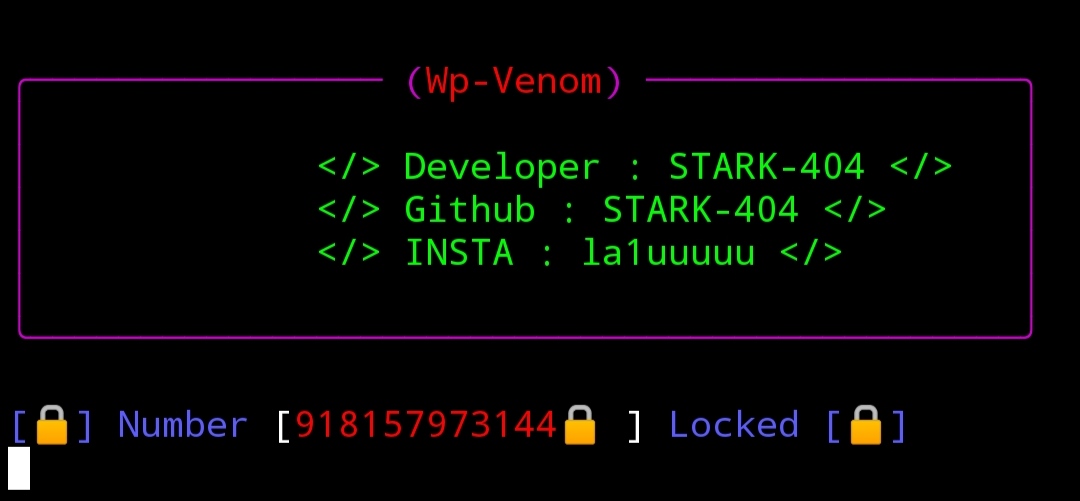
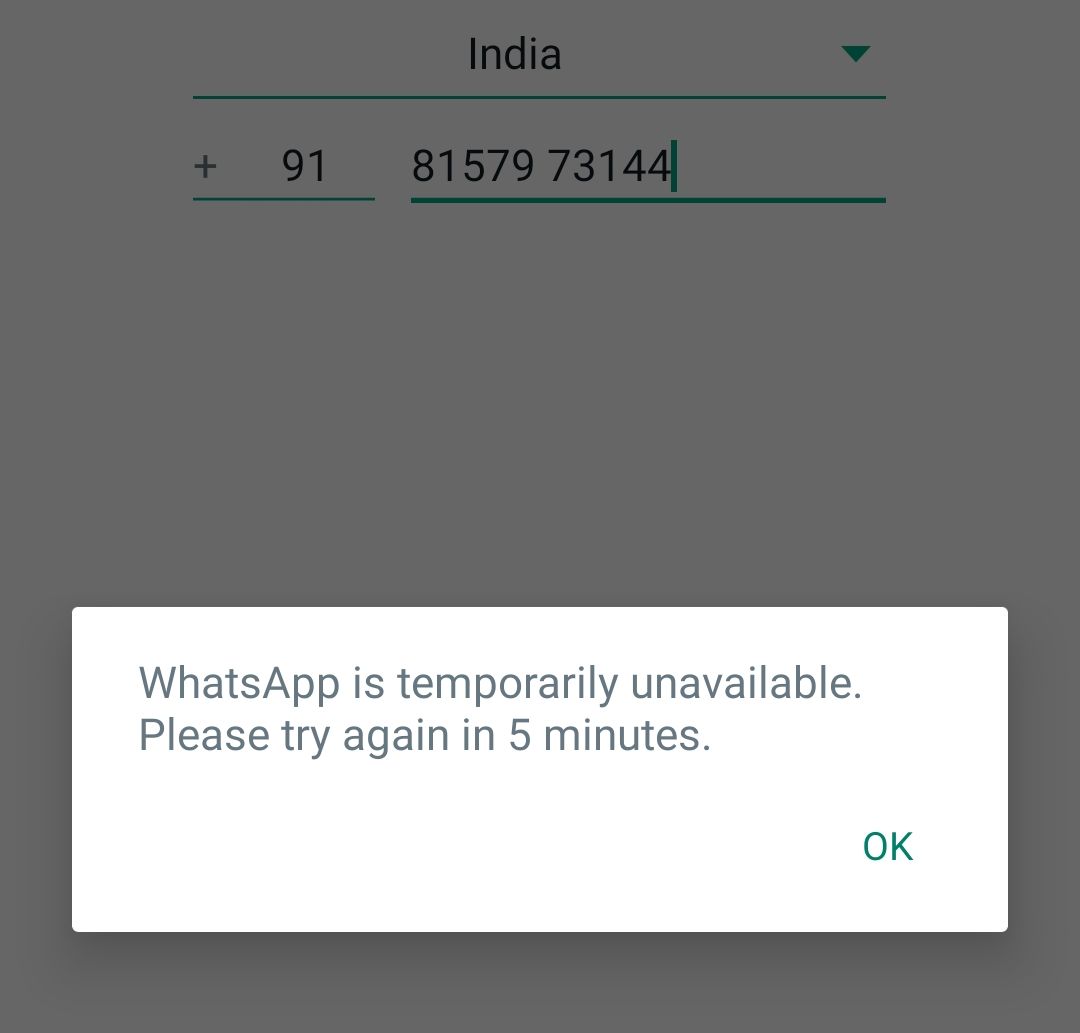
It's a Simple Wp-venom For restrict From WhatsApp login.When You L0ck A number With this Tool They can't Login / They Cant Request For Otp
Tutorial
Installation
Linux(Not Tested)
50% Chance to work
sudo apt update
sudo apt upgrade
sudo apt install git nodejs npm python-pip
git clone https://github.com/STARK-404/Wp-Lock
cd Wp-Lock
pip install -r requirements.txt
python Run.py
Termux
pkg update
pkg upgrade
pkg install git nodejs python
git clone https://github.com/STARK-404/Wp-Lock
cd Wp-Lock
pip install -r requirements.txt
python Run.py
Windows
Install Git:
- Go to the official Git website: https://git-scm.com/
- Download the latest version for Windows.Run the installer.
- Follow the installation steps, leaving the options at their defaults unless you have specific preferences.
- Once installed, open Git Bash to verify the installation by typing git --version and pressing Enter.You should see the installed Git version.
Install Node.js:
- Go to the official Node.js website: https://nodejs.org/
- Download the LTS (Long Term Support) version for Windows.
- Run the installer.
- Follow the installation steps, leaving the options at their defaults unless you have specific preferences.
- Once installed, open Command Prompt or PowerShell and type node -v to check if Node.js is installed. You should see the installed Node.js version.
- Additionally, you can type npm -v to verify that npm (Node Package Manager) is also installed.That's it! You've successfully installed Git and Node.js on your Windows system.
Download Python Installer-:
- Go to the official Python website: https://www.python.org/
- Navigate to the "Downloads" section.
- Download the latest version of Python for Windows. Make sure to choose the version that matches your system architecture (32-bit or 64-bit). It's recommended to download the latest stable version.
Run Python Installer:
- Once the installer is downloaded, double-click on it to run.
- Check the box that says "Add Python x.x to PATH" during installation. This option ensures that Python is added to the system PATH, allowing you to run Python from any command prompt.
- Follow the installation steps, leaving the options at their defaults unless you have specific preferences.
Verify Python Installation:
- After installation, open Command Prompt or PowerShell.
- Type python --version and press Enter to check if Python is installed. You should see the installed Python version.You can also type pip
--versionto verify that pip (Python Package Installer) is installed.
Clone The repo:
- Download the repo zip from
https://github.com/STARK-404/Wp-Lock.git - Unzip the File
- Open Cmd
pip install -r requirements.txt
python Run.py
Get Now!
Reach Me!



Telegram: https://t.me/wpvenom
Donate Whatsapp-Lock
Buyme A coffee! :

About

 STARK-404