
DragonFF
 DragonFF copied to clipboard
 Parik27
Some models on import have strange shading
Some modded vehicles when imported have strange shading when imported.
 Vehicle used: https://gamemodding.com/en/gta-san-andreas/cars/70425-chevrolet-stepvan-30-1985.html
It can get fixed (albeit it still looks a little weird) by going into edit mode, selecting all the edges, and clicking on Mesh > Shading > Smooth Edges.
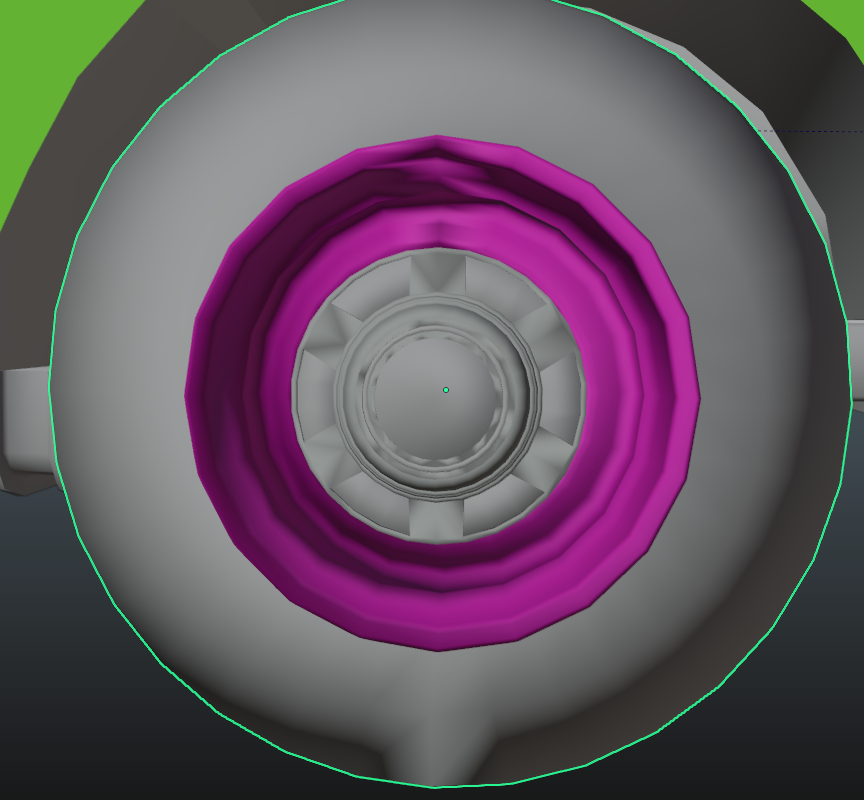

I checked the model and the dff seems to have bad normals in the geometry (problem seems to be with the exporter that exported the dff).
If you wanna see for yourself: If you export the dff (with the new-export DragonFF branch) after removing the custom normals and re-import it, you can see the model imports just fine. KAMS had (or still has) issues with exporting normals properly.[1]
You can reset the custom split normals using this button in the object data properties:

I can add an option to skip importing normals in the future.

It works, but when I press the button the model looks jagged. And if I try to export it Blender freezes.
Ah, Blender was freezing because it was loading exporting. And I managed to make the model not look jagged/flat. Go To Mesh > Shading > Smooth Vertices.