
smarthome-androidthings
 smarthome-androidthings copied to clipboard
 Nilhcem
Home automation with Android Things and the Google Assistant (Actions on Google)
Smart Home sample using Android Things, Firebase, and Cloud functions
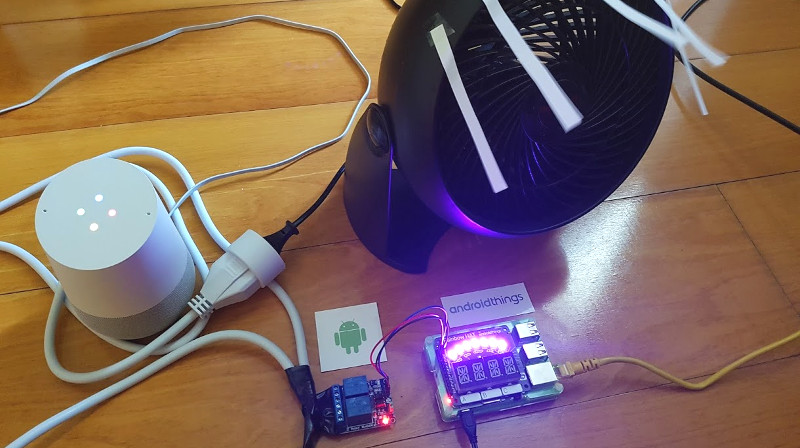
Blog post: http://nilhcem.com/android-things/google-assistant-smart-home
Build
Firebase
- Create a new project on the Firebase console and note the Project ID somewhere (you'll need it soon)
- Add an Android app to this project, with the following package name:
com.nilhcem.smarthome.androidthings - Download the
google-services.jsonfile and save it to theappdirectory - Create a new Firebase Realtime Database, importing the following json file
{
  "fan" : {
    "on" : false
  },
  "lights" : {
    "on" : true,
    "spectrumRGB" : 16510692
  }
}
- Configure database rules to public (don't do that on production)
{
  "rules": {
    ".read": true,
    ".write": true
  }
}
- Go to Firebase's Project Settings > Service Accounts, and click on the "Generate New Private Key" button. Save the generated file in
servers/smart-home-provider-functions/serviceAccountKey.json - Open the
servers/smart-home-provider-functions/index.jsfile use your Firebase Project ID to modify thedatabaseURLvariable - Deploy the Android app to your Android Things device. At that time, modifying the database values from the Firebase console should have an effect on the Android Things device.
Google Cloud Functions
- Enable the Cloud Functions API and install the Google Cloud SDK (quickstart guide)
- Deploy the
ha(home automation) function with the following command
cd servers/smart-home-provider-functions
gcloud beta functions deploy ha --stage-bucket staging.<PROJECT ID>.appspot.com --trigger-http
- This script will deploy the function to Google Cloud and give you the endpoint address. Keep the address somewhere, you'll need it (something like
https://us-central1-<PROJECT ID>.cloudfunctions.net/ha).
Note: if you want to test the functions locally, use the Cloud Functions Emulator
functions-emulator start
cd servers/smart-home-provider-functions
npm install
functions-emulator deploy ha --trigger-http
functions-emulator stop
OAuth2 server
- A fake OAuth2 mock server is provided so you can test Actions on Google easily. Do not use this one on production.
To build and start it, run the following commands:
cd servers/fake-oauth-server-nodejs
npm install
npm start
- At that time, the server will run on
localhost:3000. Download ngrok to expose it to the Internet
ngrok http 3000
- The fake OAuth2 server is now exposed to the url. Copy the url (similar to
https://<NGROK_ID>.ngrok.io). You'll need it later
Actions on Google
- Update the
servers/action.jsonfile and specify the Google Cloud Functions endpoint to theurlvariable - Create an Actions on Google project on the Actions Console using the Actions SDK
- When told to update the app via the
gactionscommand, run the following to use ouraction.jsonfile
cd servers
gactions update --action_package action.json --project <PROJECT_ID>
- Set up account linking
- Grant type: Autorization code
- Client ID:
RKkWfsi0Z9 - Client secret:
eToBzeBT7OwrPQO8mZHsZtLp1qhQbe - Authorization URL:
https://<NGROK_ID>.ngrok.io/oauth - Token URL:
https://<NGROK_ID>.ngrok.io/token
- Save all changes and click on the Test button
Test
- Start the Google Home app on your phone
- Go to the devices settings > Home control > Add device and select the [test] device
- Login (user:
rick, password:oldman) - You will now be able to see the fan and the lights devices
- You can now control those devices from the Google assistant
 Nilhcem