
windows-powershell-docs
 windows-powershell-docs copied to clipboard
 MicrosoftDocs
Options must be added in output
Just now I executed this command Enable-TpmAutoProvisioning in PowerShell with administrator rights on Windows 11 RTM build no 22000.652 Preview , I received the following output
TpmPresent : True TpmReady : True TpmEnabled : True TpmActivated : True TpmOwned : True RestartPending : False ManufacturerId : 1229870147 ManufacturerIdTxt : INTC ManufacturerVersion : 303.12.0.0 ManufacturerVersionFull20 : 303.12.0.0 ManagedAuthLevel : Full OwnerAuth : OwnerClearDisabled : False AutoProvisioning : Enabled LockedOut : False LockoutHealTime : 2 hours LockoutCount : 0 LockoutMax : 32 SelfTest : {}
So some options must be added with explanations

Document Details
⚠ Do not edit this section. It is required for docs.microsoft.com ➟ GitHub issue linking.
- ID: c3bf9264-631b-0a78-e2d1-0f9cee15c1df
- Version Independent ID: 28e794f4-d52b-2c71-c157-1351f4037399
- Content: Enable-TpmAutoProvisioning (TrustedPlatformModule)
- Content Source: docset/winserver2022-ps/trustedplatformmodule/Enable-TpmAutoProvisioning.md
- Product: w10
- Technology: windows
- GitHub Login: @JasonGerend
- Microsoft Alias: jgerend

To make it easier for you to submit feedback on articles on learn.microsoft.com, we're transitioning our feedback system from GitHub Issues to a new experience.
As part of the transition, this GitHub Issue will be moved to a private repository. We're moving Issues to another repository so we can continue working on Issues that were open at the time of the transition. When this Issue is moved, you'll no longer be able to access it.
If you want to provide additional information before this Issue is moved, please update this Issue before December 15th, 2023.
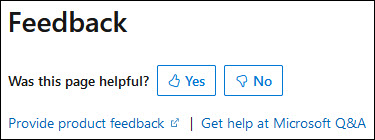
With the new experience, you no longer need to sign in to GitHub to enter and submit your feedback. Instead, you can choose directly on each article's page whether the article was helpful. Then you can then choose one or more reasons for your feedback and optionally provide additional context before you select Submit.
Here's what the new experience looks like.
Note: The new experience is being rolled out across learn.microsoft.com in phases. If you don't see the new experience on an article, please check back later.
First, select whether the article was helpful:
Then, choose at least one reason for your feedback and optionally provide additional details about your feedback:
| Article was helpful | Article was unhelpful |
|---|---|
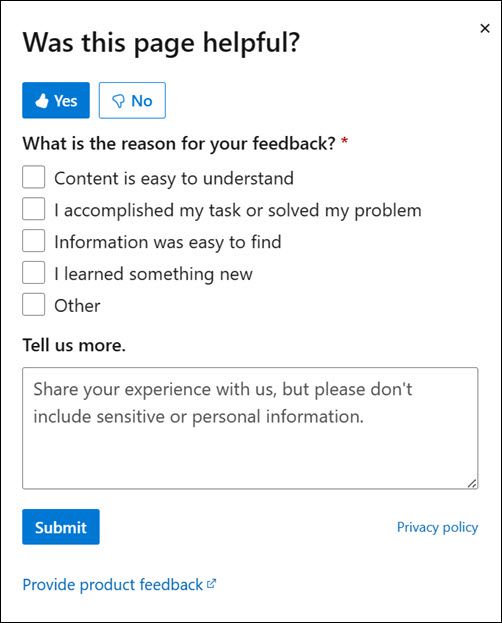 |
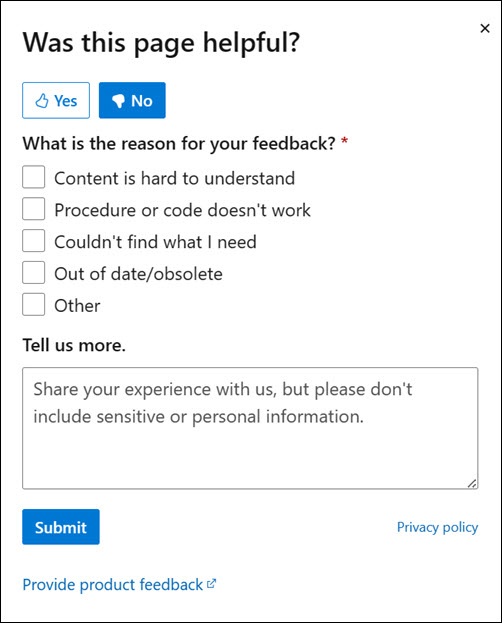 |
Finally, select Submit and you're done!
