
windows-powershell-docs
 windows-powershell-docs copied to clipboard
 MicrosoftDocs
Install-ADServiceAccount not required with gMSA
I notice the article indicates that this command is used for a standalone service account but also to cache a gMSA account. There are no further referenced to gMSA in the article and from my experience the install-adserviceaccount command is not required for gMSA accounts. Can this be verified and updated in the document as I have seen some contradictory blogs out in regards to this command. [Enter feedback here]
Document Details
⚠ Do not edit this section. It is required for docs.microsoft.com ➟ GitHub issue linking.
- ID: a1650140-0681-0614-11f5-f78121417e03
- Version Independent ID: f76cdcf9-1d64-ca27-e9de-bed8f2b3270d
- Content: Install-ADServiceAccount (addsadministration)
- Content Source: docset/windows/addsadministration/Install-ADServiceAccount.md
- Product: w10
- Technology: powershell-windows
- GitHub Login: @andreabarr
- Microsoft Alias: v-anbarr

This functions "installs" the gMSA https://docs.microsoft.com/en-us/windows/win32/api/lmaccess/nf-lmaccess-netaddserviceaccount
Looks like it's only cacheing credentials for gMSAs that would get cached on first use anyway.

From Steve Syfuhs, working with Windows and Authentication at Microsoft:
It does nothing. It’s a literal no-op. A gMSA is not bound to the machine like an MSA. There is no offline anything. It just doesn’t have a password until it can talk to a DC.
Source: https://twitter.com/SteveSyfuhs/status/1707271067293917606

To make it easier for you to submit feedback on articles on learn.microsoft.com, we're transitioning our feedback system from GitHub Issues to a new experience.
As part of the transition, this GitHub Issue will be moved to a private repository. We're moving Issues to another repository so we can continue working on Issues that were open at the time of the transition. When this Issue is moved, you'll no longer be able to access it.
If you want to provide additional information before this Issue is moved, please update this Issue before December 15th, 2023.
With the new experience, you no longer need to sign in to GitHub to enter and submit your feedback. Instead, you can choose directly on each article's page whether the article was helpful. Then you can then choose one or more reasons for your feedback and optionally provide additional context before you select Submit.
Here's what the new experience looks like.
Note: The new experience is being rolled out across learn.microsoft.com in phases. If you don't see the new experience on an article, please check back later.
First, select whether the article was helpful:
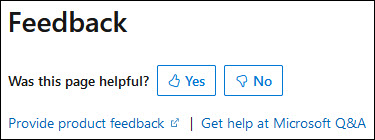
Then, choose at least one reason for your feedback and optionally provide additional details about your feedback:
| Article was helpful | Article was unhelpful |
|---|---|
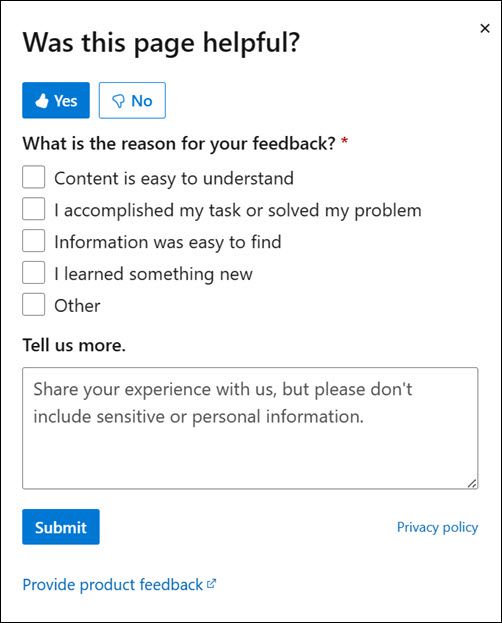 |
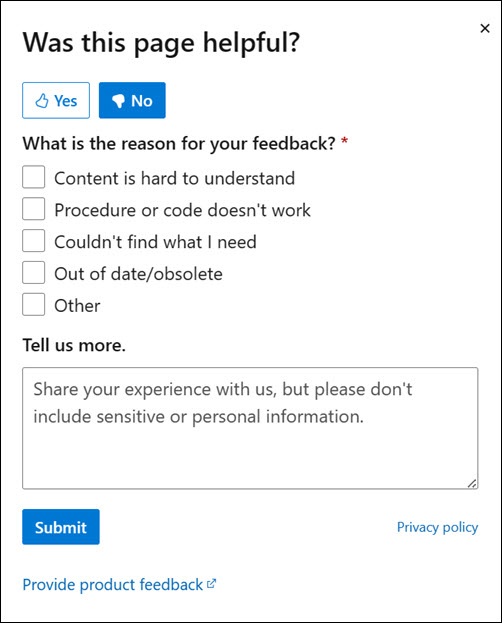 |
Finally, select Submit and you're done!
