
MaterialDesignInXamlToolkit
 MaterialDesignInXamlToolkit copied to clipboard
 MaterialDesignInXAML
Graphic Artifacts when using GroupBox/Card in ViewBox
I have a UserControl with a ViewBox inside. I don't know why but in dark mode, some graphic artifacts appear when I move my mouse over them
https://user-images.githubusercontent.com/54487782/116099068-e36b2380-a6ab-11eb-9093-8e60a94b9d62.mp4
I've tried to fix it with the different solutions listed here : https://github.com/MaterialDesignInXAML/MaterialDesignInXamlToolkit/issues/1097 I've tried :
UseLayoutRounding="True"SnapsToDevicePixels="True"RenderOptions.ProcessRenderMode = System.Windows.Interop.RenderMode.SoftwareOnly
Moreover, I've tried to visualize my ViewBox with Snoop, but Height and Width values seem normal.
In light mode I don't have this problem.
- EDIT - I lowered the brightness of my screen, and I just saw that there are also artifacts in light mode.

This visually looks like it may be similar to #2125.
I have hunch that it is likely related to the ShadowAssist.CacheMode that ends up in many of the adorners.

Thank your for your answer, I'll look into it. I'm using GroupBox with MaterialDesignCardGroupBox style. Maybe it's a little different.
After more investigation we were able to find a work around for the additional borders showing up after mouse over effects, I don't know if this will help with the original issue posted as we aren't seeing that. It might be worth a try though. The fix was to add a
Gridwrapper as a direct descendant of theCardwith the same background set:<!-- Styles --> <Style TargetType="material:Card"> <Setter Property="Background" Value="White" /> </Style> <Style x:Key="CardContent" TargetType="Panel"> <Setter Property="Background" Value="{Binding Background, RelativeSource={RelativeSource Mode=FindAncestor, AncestorType=material:Card}}" /> </Style> <!-- Usage --> <material:Card> <Grid Style="{StaticResource CardContent}"> ... </Grid> </material:Card>
I tried that one. Put a Grid Wrapper with the same Background as the Card. Unfortunately this does not completely bypass the problem.
This is my Code :
<GroupBox Style="{DynamicResource MaterialDesignCardGroupBox}" Header="Colisage">
    <Grid Background="{DynamicResource MaterialDesignCardBackground}">
         ...
    </Grid>
</GroupBox>
This is the Result :
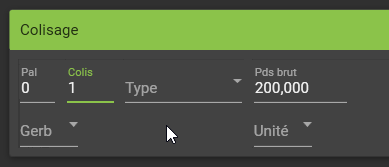
As you can see I no longer have artifacts between controls. But now they follow the edges of the Grid.
Here are the edges of my grid :
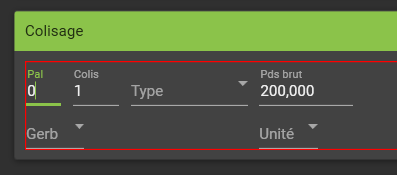
By default, there is padding on the GroupBox. So if we want to stop seeing artifacts, we should remove the padding.
So that’s what I did, I took the padding off the GroupBox.
Here’s what I get :
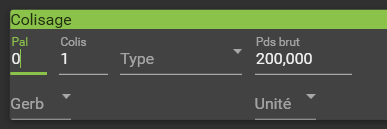
As you can see, we no longer see the artifacts. Unfortunately, the GroupBox does not look the same as before.
To recover the appearance of before here are the changes I made :
- Add some padding on the header
- Add some padding on the GroupBox content. (I used a Border because we can’t add padding on a Grid)
- Add a static color on the header
Here's the final result :
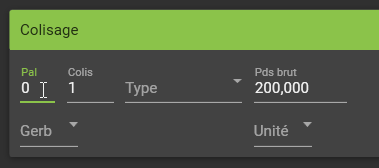
As you can see the artifacts are no longer visible and the appearance is the same as before.
There may still be a few artifacts, for example in comboboxes :
 To fix that, add
 UseLayoutRounding="True" to your user control. This should fix the majority of artifacts in comboboxes.
To conclude, here is the code you should use for your GroupBox (if you want to use CardGroupBox style) :
<GroupBox Style="{DynamicResource MaterialDesignCardGroupBox}" Padding="0">
    <GroupBox.Header>
         <TextBlock Padding="9" Foreground="#DD000000">YourHeader</TextBlock>
     </GroupBox.Header>
     <Border Background="{DynamicResource MaterialDesignCardBackground}" Padding="9">
         <!-- Your content -->
         ...
     </Border>
</GroupBox>
I know it’s a bit redundant, but it’s a temporary solution that works for me.
Don't forget to add UseLayoutRounding="True" to your UserControl if you are using ViewBox.
I have a very similar problem with what you got here. Once put padding around grids in a dark theme, some edgy white lines appear around the grids. Thanks for your info! @Xaalek

I fixed the same problem with cards application-wide by replacing the default template with one that uses the same trick of setting the background on the content of the card. I'm not sure if this change is compatible with every usage of Card, or if it lowers performance in some way, but I couldn't find a case where that fix doesn't work.
<ResourceDictionary xmlns="http://schemas.microsoft.com/winfx/2006/xaml/presentation"
                    xmlns:x="http://schemas.microsoft.com/winfx/2006/xaml"
                    xmlns:material="http://materialdesigninxaml.net/winfx/xaml/themes">

    <!-- NOTE: This template replaces the default template to fix visual artifacts with cards. -->
    <!--       https://github.com/MaterialDesignInXAML/MaterialDesignInXamlToolkit/issues/2308 -->

    <ControlTemplate x:Key="MaterialDesignCardTemplate" TargetType="material:Card">
        <ControlTemplate.Resources>
            <material:ShadowEdgeConverter x:Key="ShadowEdgeConverter" />
        </ControlTemplate.Resources>
        <Grid Background="Transparent">
            <AdornerDecorator CacheMode="{Binding (material:ShadowAssist.CacheMode), RelativeSource={RelativeSource Self}}">
                <AdornerDecorator.OpacityMask>
                    <MultiBinding Converter="{StaticResource ShadowEdgeConverter}">
                        <Binding RelativeSource="{RelativeSource TemplatedParent}" Path="ActualWidth"  />
                        <Binding RelativeSource="{RelativeSource TemplatedParent}" Path="ActualHeight" />
                        <Binding RelativeSource="{RelativeSource TemplatedParent}" Path="(material:ShadowAssist.ShadowDepth)" />
                        <Binding RelativeSource="{RelativeSource TemplatedParent}" Path="(material:ShadowAssist.ShadowEdges)" />
                    </MultiBinding>
                </AdornerDecorator.OpacityMask>
                <Border CornerRadius="{TemplateBinding UniformCornerRadius}"
                        Effect="{Binding (material:ShadowAssist.ShadowDepth),
                                         RelativeSource={RelativeSource TemplatedParent},
                                         Converter={x:Static material:ShadowConverter.Instance}}">
                    <Border x:Name="PART_ClipBorder"
                            Background="{TemplateBinding Background}"
                            Padding="{TemplateBinding Padding}"
                            Clip="{TemplateBinding ContentClip}" />
                </Border>
            </AdornerDecorator>
            <Border Background="{TemplateBinding Background}"
                    Padding="{TemplateBinding Padding}"
                    Clip="{TemplateBinding ContentClip}">
                <ContentPresenter x:Name="ContentPresenter" />
            </Border>
        </Grid>
    </ControlTemplate>

    <Style TargetType="material:Card">
        <Setter Property="Background" Value="{DynamicResource MaterialDesignCardBackground}" />
        <Setter Property="Template" Value="{StaticResource MaterialDesignCardTemplate}" />
        <Setter Property="VerticalAlignment" Value="Top" />
        <Setter Property="Focusable" Value="False" />
        <Setter Property="material:ShadowAssist.ShadowDepth" Value="Depth2" />
    </Style>

</ResourceDictionary>
