
QiskitBlocks
 QiskitBlocks copied to clipboard
 JavaFXpert
Game that teaches quantum computing using Qiskit (http://qiskit.org) in a Minetest (http://minetest.net) block world. Works on Windows, macOS, GNU/Linux, FreeBSD, OpenBSD, DragonFly BSD, and Android....
QiskitBlocks
Teaches quantum computing and Qiskit in a Minetest block world.
- Here are the Quantum Computing Workshop with QiskitBlocks web-based slides.
- Watch a video that gives a gentle introduction to quantum computing using cats and QiskitBlocks
Please choose one of the Installing and running options below and follow the instructions.
Installing and running (the quick and easy way using the Minetest Content Database)
To get started with QiskitBlocks, follow these steps to download and install Minetest on your computer:
-
For Windows users: Download Minetest 5.2 by clicking on the following link. This will initiate the download of the zip file directly to your computer.
-
For Mac users: Download Minetest 5.2 for Mac through the link below. Your download should begin immediately upon clicking.
-
After downloading the zip file, extract its contents to a preferred location on your computer. Then, run the Minetest executable.
-
Click the
Contenttab shown here, then click theBrowse online contentbutton.
-
When on the page shown here, type
QiskitBlocks, click theSearchbutton, and click theInstallbutton beside theQiskitBlocksrow. Click theBack to Main Menubutton when installation has completed.
-
For QiskitBlocks to work correctly, HTTP requests must be allowed for one of its core components. To do this, go to the
Settingsmenu. Click onAll Settings.
-
First enter
HTTP modsinto the search bar and then click theSearchbutton. Select the row containingHTTP modsand click on theEditbutton.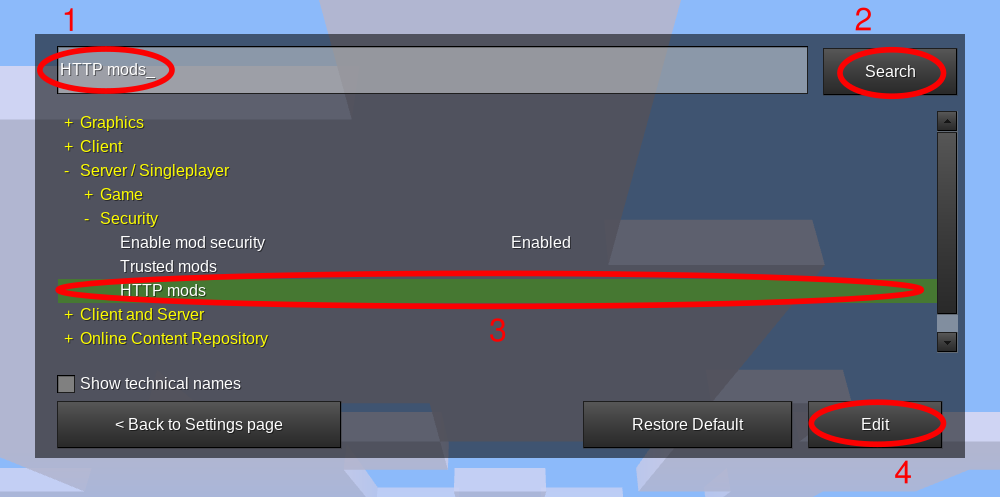
-
Enter
q_commandand click theSavebutton.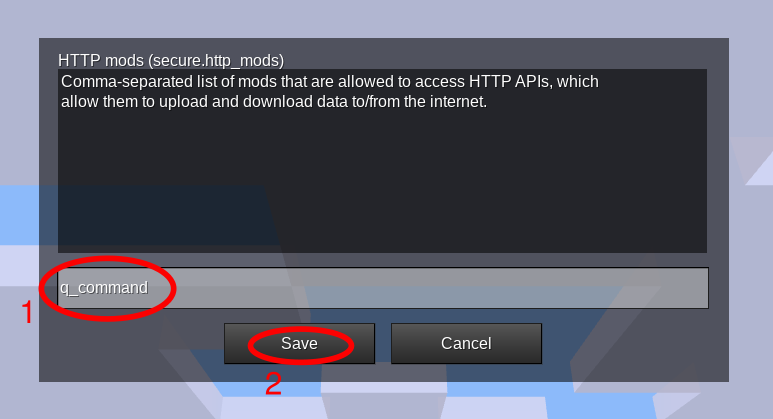
-
Leave the
All Settingsmenu by clicking on theBack to Settings pagebutton.
-
Although Minetest typically uses your computer's default language, you must select a language in Minetest for QiskitBlocks messages to be displayed in your desired language. Currently, QiskitBlocks messages have been translated to Japanese, so please refer to the Selecting a language section below for instructions.
-
Click the
Start Gametab shown here, select the roundQiskitBlocksgame from the lower left, deselect the three checkboxes, and click theNewbutton.
-
From the new world dialog shown here, make up a world name with characters and underscores, enter
0in theSeedfield, selectsinglenodeorflatin theMapgenfield, and click theCreatebutton.
-
Click the
Play Gamebutton, waiting a few seconds while the new world is generated and lighted.
Selecting a language
Due to the great translation work of Kifumi Numata , you may choose for QiskitBlocks messages to be displayed in Japanese (ja). To accomplish this, take the following steps:
-
From the
Settingstab, click theAll Settingsbutton:
-
Click
Client and Serverto expand it, then clicklanguage. Click the edit button, selectjafrom the dropdown list, and click theSavebutton. After clicking the< Back to Settings pagebutton, exit Minetest and run it again so that your language selection takes effect in QiskitBlocks messages:

Explore and learn!
- When you're in the starting room with all of the quantum operation blocks on the wall, use the W, A, S, D keys to walk up to the sign on the right side of the door. Right-click the sign and follow the instructions. Have fun exploring and solving quantum circuit puzzles!
Please reach out to James Weaver on Qiskit Slack (located at qiskit.org) with questions or feedback.


Creating escape rooms in QiskitBlocks
If you'd like to teach a quantum computing concept in the QiskitBlocks game, here are some instructions for creating escape rooms in QiskitBlocks.
Metadata
Owner
 JavaFXpert
Metadata
Game that teaches quantum computing using Qiskit (http://qiskit.org) in a Minetest (http://minetest.net) block world. Works on Windows, macOS, GNU/Linux, FreeBSD, OpenBSD, DragonFly BSD, and Android....