
obsidian-reading-view-enhancer
 obsidian-reading-view-enhancer copied to clipboard
 Galacsh
This is a Obsidian plugin that enhances reading view. Main feature: arrow keys to toggle collapse.
Reading View Enhancer Plugin
The Reading View Enhancer is an Obsidian plugin designed to improve the reading experience in Obsidian's reading view mode. It provides several features aimed at making the reading view more convenient and comfortable.
Features
Overview
- Keyboard block navigation
ArrowDown: Select the next blockArrowUp: Select the previous block
- Keyboard fold/unfold toggling
ArrowLeft/ArrowRight: Toggle fold/unfold- 📌 Collapsible callouts can also be folded/unfolded
- Always-visible collapse indicators
- Keep all collapse indicators visible
- Table overflow prevention
- Make tables scrollable to prevent overflowing
- Scrollable code blocks
- Make code blocks scrollable instead of line-wrapping
Keyboard Block Navigation
⚡️ Settings > Reading View Enhancer > Enable Block Selector
https://user-images.githubusercontent.com/78684419/228733812-26bfa11a-f246-4153-83ea-eed9aae39753.mov
Inspired by Notion's block navigation, this feature allows you to select blocks in the reading view by clicking on them. Selected blocks will be highlighted, and you can navigate between blocks using the arrow keys.
💡 Additionally, there is a Select top block in the view command,
which allows you to assign a hotkey for keyboard control.
If a selected block is too long, the plugin will automatically scroll to display the block's top or bottom, loading adjacent blocks that are not yet in the DOM tree.
ArrowDown: Select the next blockArrowUp: Select the previous blockArrowLeft/ArrowRight: Toggle fold/unfold
❗️ To disable this feature only on mobile, enable the 'Disable Block Selector on Mobile' option in settings.
What is a "Block"?
In this plugin, a "block" refers to an HTML element that can be considered a distinct content unit within a markdown document. Paragraphs, headings, lists, tables, code blocks, quotes, media elements, and callouts are examples of blocks.
Block Color
⚡️ Settings > Reading View Enhancer > Block Color
You can set a custom color for the block highlight effect.
Always-visible Collapse Indicators
⚡️ Settings > Reading View Enhancer > Always on collapse indicator
By default, collapse indicators are invisible until hovered over.
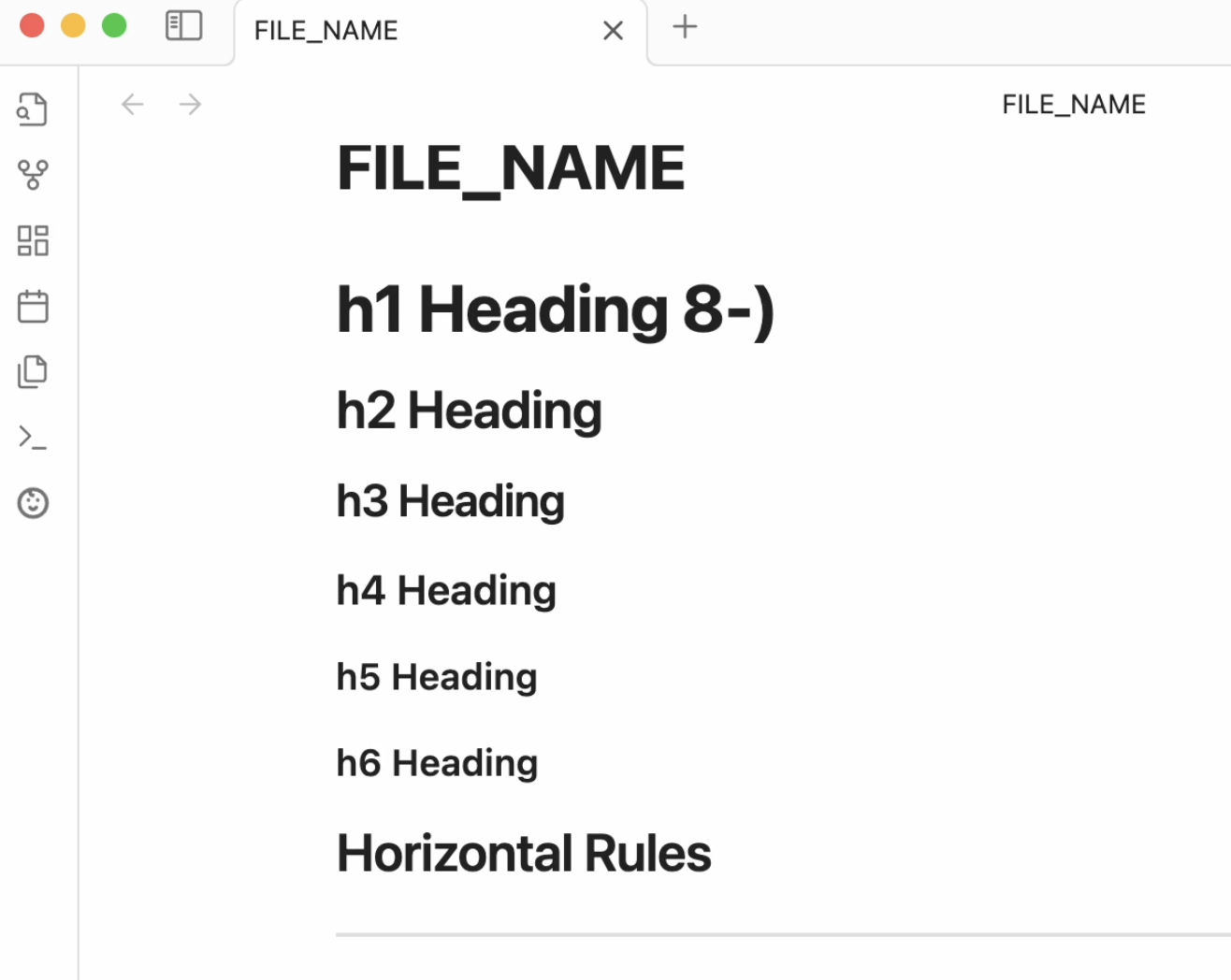
This option,
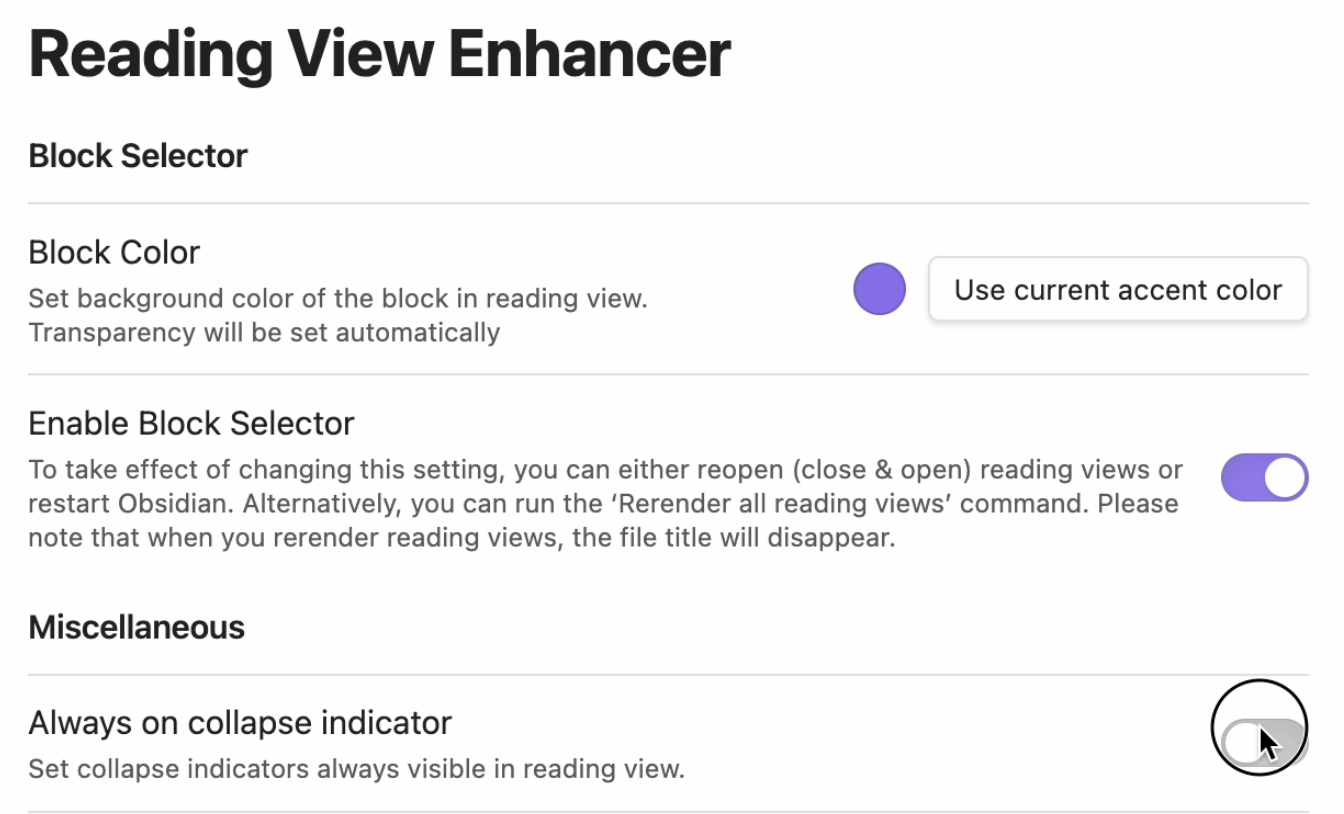
keeps indicators always visible.
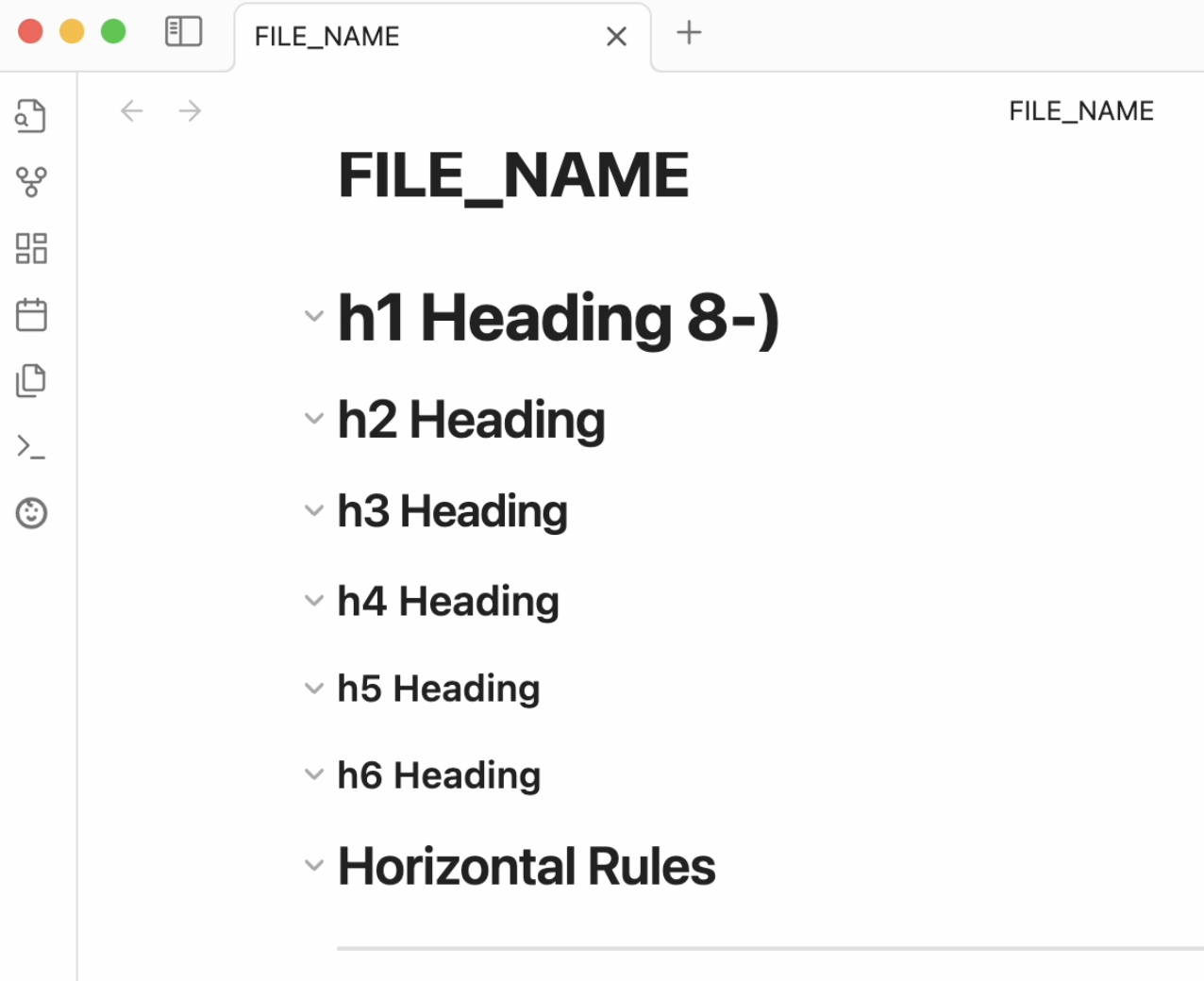
Table Overflow Prevention
⚡️ Settings > Reading View Enhancer > Prevent Table Overflowing
https://user-images.githubusercontent.com/78684419/228734185-aca9e6ee-711e-4929-8e10-a269a43b97f8.mov
Enable horizontally scrollable tables to prevent table overflow.
In Obsidian v1.1.16, tables having a word longer than the viewport's width will create a horizontal scrollbar across the entire view, which can be inconvenient on mobile devices.
Scrollable Code Blocks
⚡️ Settings > Reading View Enhancer > Scrollable Code
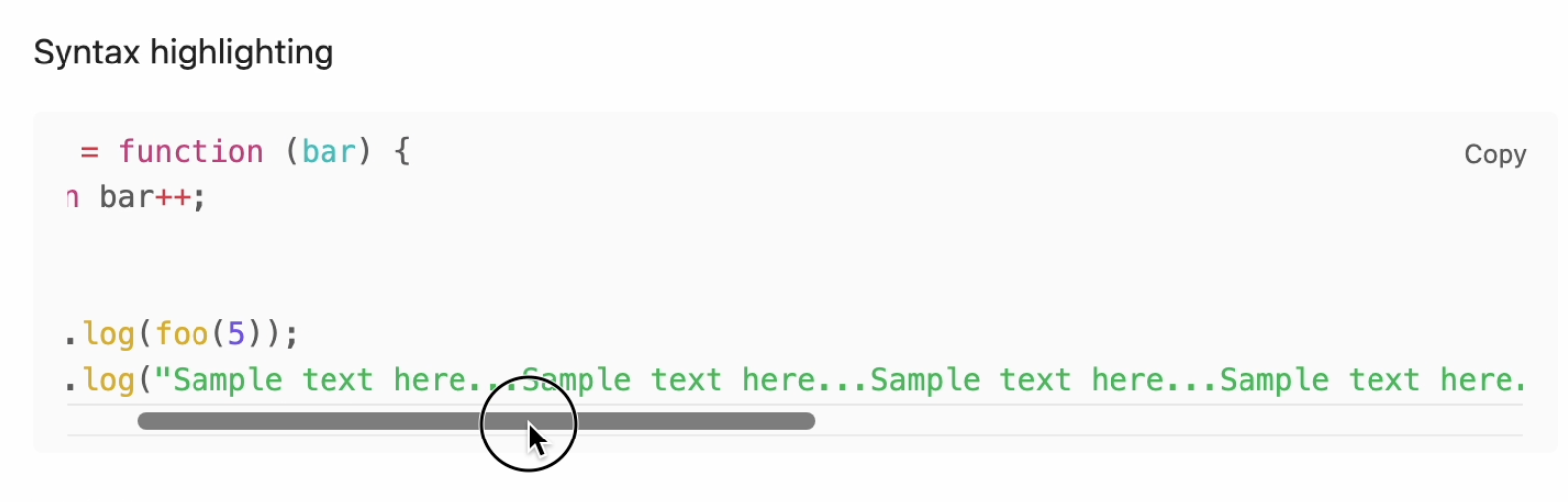
This feature makes code blocks scrollable, rather than using line-wrapping.
By default, codes get line-wrapped when it's too long.
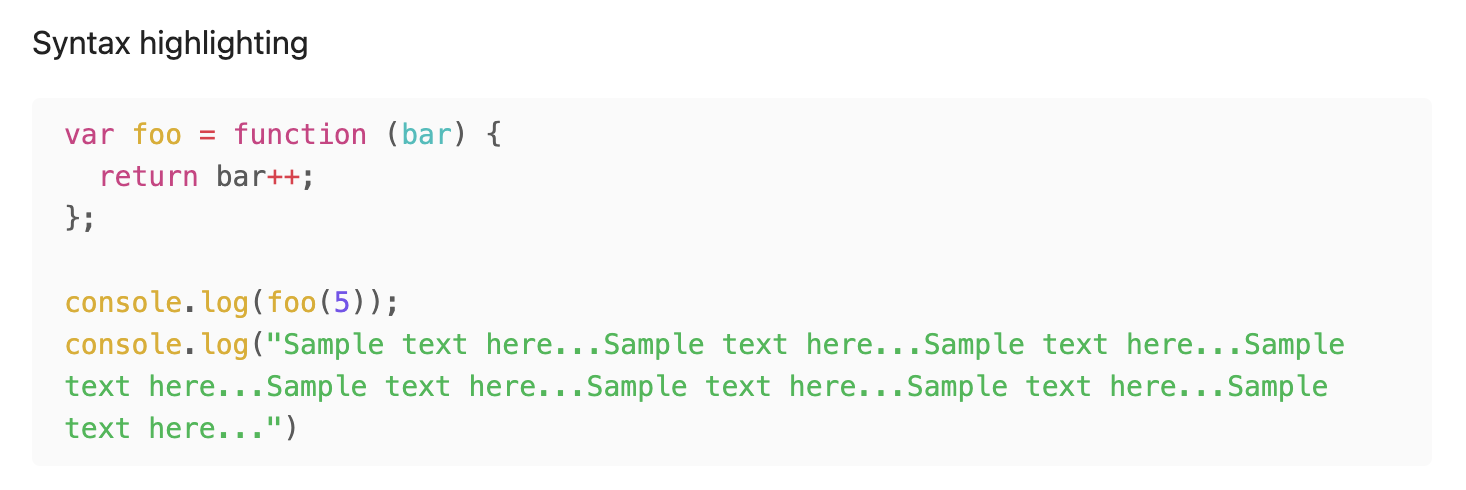
With this option,
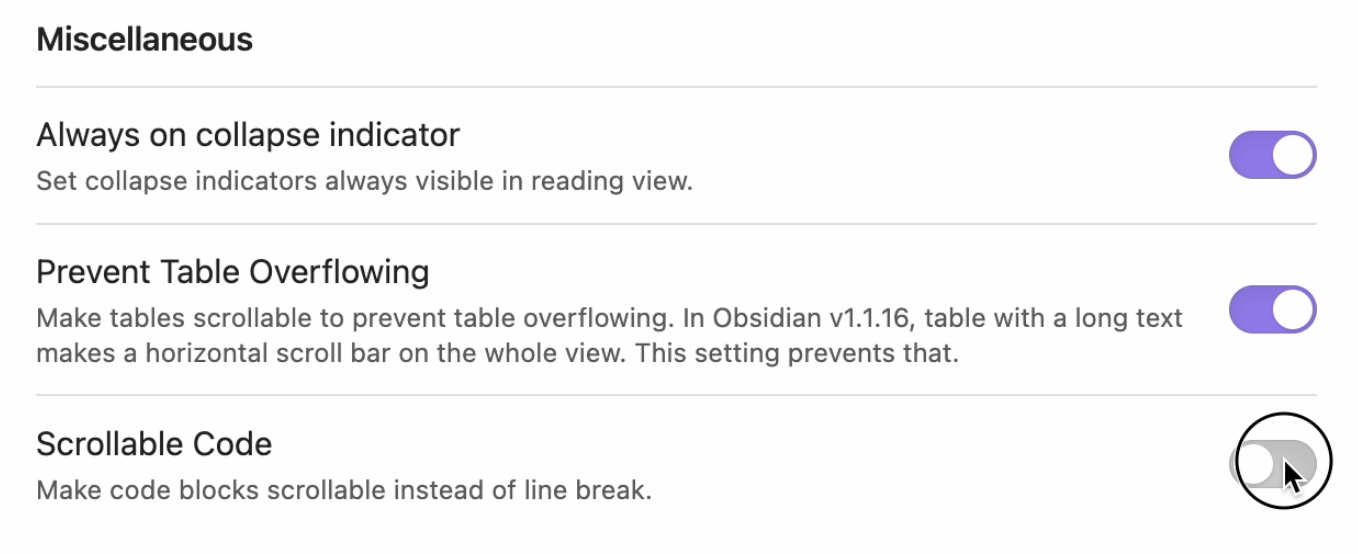
You can make code blocks scrollable instead of line break.
How to install manually?
There might be various ways to install this plugin.
After installation,
- Go to
Settings > Community Plugins > Installed plugins - Refresh the list
- Turn on the switch of "Reading View Enhancer" to enable the plugin
Using Obsidian42-BRAT (Recommended)
By using Obsidian42-BRAT, you could easily install & update this plugin.
- Install Obsidian42-BRAT
- Enable Obsidian42-BRAT
- Go to Obsidian42-BRAT options page
- Beta plugins list >
Add Beta plugin - Paste this
https://github.com/Galacsh/obsidian-reading-view-enhancer - After installation is done, go to
Settings > Community Plugins > Installed plugins - Refresh the list
- Turn on the switch of "Reading View Enhancer" to enable the plugin
Using curl
Before to run the code, make sure to change [VAULT] and [RELEASE_VERSION] into a real value.
# Go to your vault's plugins folder
cd [VAULT]/.obsidian/plugins
# Make a directory
mkdir obsidian-reading-view-enhancer
cd obsidian-reading-view-enhancer
# Download
curl -OL https://github.com/Galacsh/obsidian-reading-view-enhancer/releases/download/[RELEASE_VERSION]/main.js
curl -OL https://github.com/Galacsh/obsidian-reading-view-enhancer/releases/download/[RELEASE_VERSION]/manifest.json
By downloading manually
- Download this files from the latest release
main.jsmanifest.json
- Create a directory(
obsidian-reading-view-enhancer) inside.obsidian/plugins - Move files to your vault's
.obsidian/plugins/obsidian-reading-view-enhancerfolder
 Galacsh