DFHack
DFHack usability overhaul
This issue is for high-level planning for our response to the user feedback we got from the survey (#2217). Users reported that DFHack is useful and loved, but it needs serious improvements in documentation organization, documentation content, accessibility of our documentation from the DF game UI, discoverability of DFHack functionality, and GUI integration of our tools (especially with regards to status and configuration).
There were also requests for specific features (e.g. scripts that fix particular bugs or change the game in specific ways), but I am wary of investing time in those so close (ostensibly) to the DF Steam release. We can start looking into these once we have a better idea of how the DF internals are changing.
However, we can start work on our documentation, usability, and tool discoverability now, since improvements in these areas are very likely to keep their value regardless of DF behavior changes.
Vision for GUI-driven DFHack UX
To be clear, the current DFHack# commandline and init script interface will remain available. This is a valid and useful interface and users who are accustomed to it will not need to change their workflows. However, we need to make a purely GUI-driven interface also viable and enjoyable to use. This is the number one request from our users and we cannot ignore it.
"Purely GUI-driven" means:
- There is no need to manually edit configuration files
- A visual interface exists for displaying status of and configuring DFHack tools
- DFHack help is browsable from within the game interface, and actively displays useful information when you are trying to run commands
Here are the pieces we need:
- A way to invoke tools
- In-game command help (including syntax and examples)
- Tool discovery interface
- DFHack configuration interface
The DFHack Launcher
The first three pieces can be provided by a unified in-game launcher dialog, which:
- allows the user to search for, type, autocomplete, and/or select commands from a list
- provides context-sensitive help
- displays a list of related commands so the user can find tools associated with the command they are currently running
The launcher can be quickly accessed by a simple global hotkey (current suggestion: backtick, just like many first-person 3D games use for their command console) or an on-screen clickable button. Design for the launcher is happening in #2224. A commandline interface for the search and autocomplete functionality will also be provided, potentially integrated into our current "help" builtin command.
The DFHack Configuration Interface
This interface fulfills the promise of being able to quickly and easily configure DFHack without ever editing an init file.
The last item would be provided separate from the launcher since it would need to be accessed directly (though of course it could be invoked from the launcher too). It would show the enabled/disabled status of all DFHack tools that can run in the background and let the user select which ones they want started when they load a game. If a tool has its own configuration UI, it can be accessed from this screen. If a configurable tool has no UI, we can either write one or this screen can provide a simple configuration interface for the tool. The working name for this configuration tool is gui/assistant (or just assistant for the commandline interface) and is being designed in #2213.
The configuration interface could be invoked by name or by a global hotkey (tilde maybe?). If possible, we could insert an element in the DFHack main menu (the one that shows when you hit escape on the main map screen) that invokes the assistant. The assistant would automatically start the tools for the user when a game is loaded, so no init file editing will be required for simple use cases.
Critical user journeys
These are the primary use cases we want to make possible:
- Player starts a new fort and wants to configure DFHack for that fort. When the fort is loaded for the first time, a DFHack configuration screen comes up where the user can load presets that configure a set of DFHack tools and/or manually tweak the DFHack configuration for their new fortress to their liking. Help text can be shown for the currently selected tool with a hotkey. The configuration is saved for the fort so the player doesn't need to redo it every time they load. The player can also configure DFHack to apply a preset without invoking the configuration UI if they so desire. The configuration UI can be brought up at any time during gameplay for further modification.
- Player has a configuration that they want automatically applied to new forts. After configuring DFHack in the
gui/assistantinterface, the player saves the configuration as a profile and selects the profile to be automatically applied to new forts. The player can additionally configure thegui/assistantdialog to not appear when the fort is created. This allows the player to begin playing a fully configured fort without any extra steps. - Player needs to run a common command that they are familiar with. They hit backtick to bring up the launcher. Favorite/recent commands are listed at the top of the autocomplete list. The player hits TAB to select the command or clicks on it with the mouse (or just types it if it's short) and hits ENTER to run.
- Player needs to run a command relevant to the current DF viewscreen, but can't remember the hotkey, or wants to modify the hotkey command before running. They hit backtick to bring up the launcher. Hotkeys that function on the current screen are listed in the help area. The player hits that hotkey and the command run by that hotkey appears in the command edit box. The player edits the command if they like and hits ENTER to run.
- Player needs to do something but isn't sure what to run or how to run it. They hit backtick to bring up the launcher. They type a word relevant to what they want to accomplish (e.g. "dump"). A list of relevant commands appears in the autocomplete list. The user tabs through them (or selects one with the mouse). As they tab through, help text for the selected command is shown in the help area. Help text can be scrolled with the up/down arrow keys or pgup/pgdn. The player refers to the help text as they complete they command and hit ENTER to run. Alternately, they see the hotkey for the command in the help text, escape out of the launcher, and use the hotkey to invoke the command.
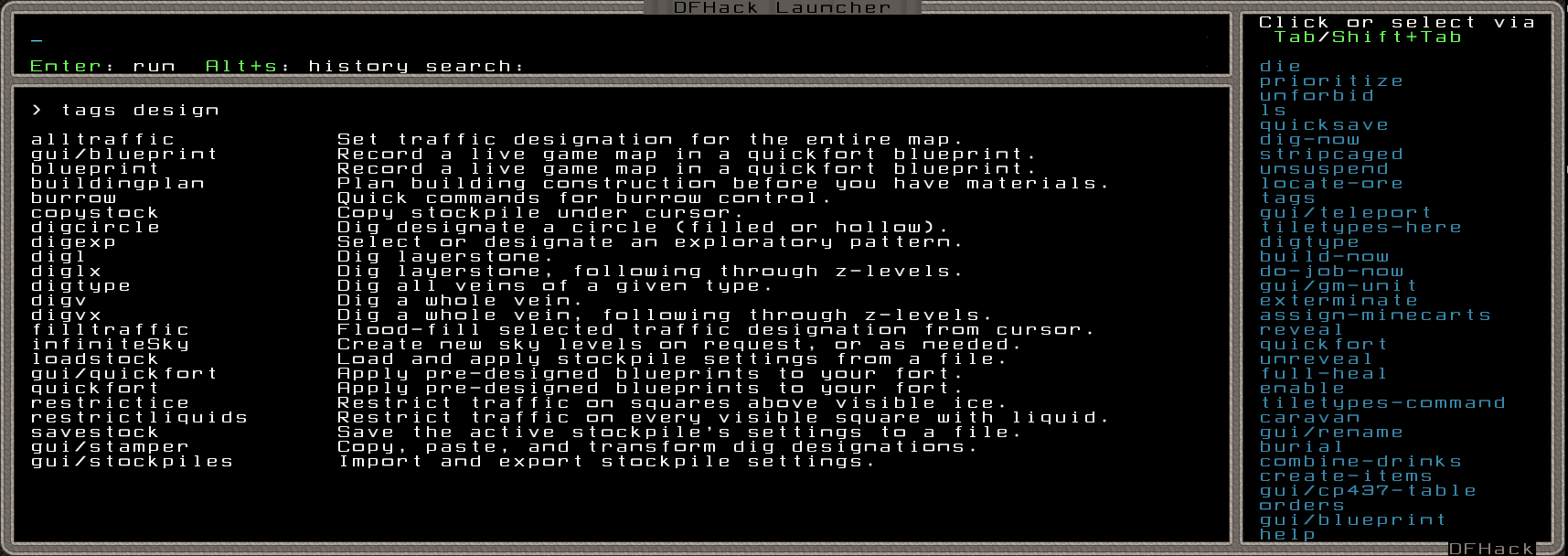
- Player wants to explore DFHack tools. They hit backtick to bring up the launcher. In the help area, they see information on how to browse tags (type "tags" or click on the word "tags" in the help). The tags help appears in the help area (which includes the full list of tags and descriptions of what the tags mean), and specific tags appear in the autocomplete list. The user can TAB through the list of tags or click on one in the help text or in the autocomplete list. When a tag is selected, the list of commands with short descriptions appear in the help area and the commands themselves appear in the autocomplete area. The user can browse as they like, going back to previous topics with a hotkey.
- Player wants to explore DFHack tools related to a familiar tool. They hit backtick to bring up the launcher. They type in the familiar command. In the help text for the command, they see the list of associated tags. They click on the tag and it replaces the text in the command area. The autocomplete list is filled with tools that are related to that tag. The user can TAB through the tools to see their help text and tags.
Documentation additions and standardization
Our documentation needs to be significantly extended and restructured to support the user journeys above. Every command should have at least the following help text sections:
- Brief (1 to 3 sentences) description
- Usage syntax (including parameter descriptions and definitions of valid input values, if applicable)
- Usage examples with an explanation of what each example does
We need to choose a standard format and apply it consistently so the help text is easily parse-able. This standard is being explored in #2226.
Users are calling for more tutorials and walkthroughs as well. We need to make a list of which tools likely need tutorials (some are already planned, e.g. #2216) and verify the list with the community. They will likely go in the guides/ section of our docs and be linked to from the relevant tool docs. These tutorials can be added later, though, and don't need to block completion of this overhaul.
Internal help API
The help search and autocomplete functionality will need a map of command names to (list of tags, brief description, full help text), so it can generate the other required internal data structures. Script help text can already be retrieved through the dfhack.script_help() API, but we currently have no way to programmatically access the full help text for plugins. In addition, we will need an API that can retrieve the brief descriptions and the new tags metadata for scripts and plugins. The plugin command registration API will need to be modified to add tags. We also need to think about how the current plugin documentation in Plugins.rst can be made accessible to the launcher while still being rendered for the online documentation. This is all being explored in #2228.
Script/plugin changes
Tags
Every script and plugin command should gain a list of tags. We need to define the taxonomy for these tags using common and simple words (e.g. "productivity", "auto", "unit", "item", "animal", "design", etc.). We should avoid words like "cheat" since different users have different opinions on what constitutes "cheating" (especially in the context of a single-player game). The tags are not strict categories -- the tags can overlap and a command can have multiple tags. Tags for scripts can appear in the script header as --@tags=list,of,tags and tags for plugin commands can be set in the PluginCommand registration structure. The tag taxonomy is being developed in #2227.
Persistent configuration
The assistant can keep a database of commands used to configure a tool (to implement the "profile" feature), and the assistant can store whether an enable-able tool is enabled, but it should not be responsible for storing the tool's active configuration. That will run into trouble when the configuration is changed outside the assistant. Instead, each tool that does not persistently store its configuration will need to be modified to do so. For example, autobutcher persistently stores its configuration already but autofarm does not. Autofarm will need to be updated.
As we add tools to the assistant, we will need to verify that they persistently store their config, and if not we'll need to modify them so they do.
Startup
We'll reorganize our startup config files as per #2120 and #2166. gui/assistant will be run from the new default dfhack.init file. Users who don't want the assistant to show on new fortress can copy the dfhack.init-default file to dfhack.init and remove the line that starts gui/assistant.
On load, the assistant will read the fort-scoped config that it owns for which tools should be autostarted and will call the commands to enable those tools. Those tools are responsible for reading their own (fort-scoped) persistent config.
Project Plan
Configuration track
- [x] Reorganize init files, move common defaults into
hack/data/init/ - [x] Implement autostart menu for
assistantandgui/assistant, only add tools that support persistent config - [x] Implement
assistant startupfor autostarting plugins and scripts on load - [x] Autostart
gui/assistantpost embark (can be configured to not appear) - [x] Modify remaining automation tools to support persistent config and add them to the assistant's autostart menu
- [ ] Implement saving and loading
assistantprofiles - [x] Write useful default profile(s) to
hack/data/assistant/profiles/ - [x] Implement automatically loading a specified profile on initial start
Launcher track
- [x] implement help search as a commandline script that additionally provides the API that the GUI will use, hard-code data for ~20 commands so we can start developing the GUI while we figure out how to implement tags and reorganize plugin help
- [x] Implement GUI launcher using commandline script API
- [x] Make plugin full help text programmatically accessible
- [x] Make map of command names to metadata and help text available to Lua
- [x] Convert help search script to use real data
- [x] Replace
helpbuiltin with commandline help search script? - [x] Define tags
- [x] Add tags to all plugins
- [x] Add tags to all scripts
Documentation track
- [x] Decide on minimal content and standard formatting for help text
- [x] Enforce content and formatting standards for all plugins
- [x] Enforce content and formatting standards for all scripts
- [ ] Figure out which tools need tutorials
- [ ] Write tutorials for the tools that need them

Draft first Reddit post:
Next steps for DFHack: Easier configuration
You told us what you wanted, and we listened! Based on the survey results (thank you again for your responses!), DFHack users want to:
- configure DFHack from the GUI
- get help while running DFHack commands from the GUI
- see better help text/tutorials for complex DFHack functionality
We're putting together proposals to address each one of those points. Today, let me go over the first one a little: configuring DFHack from the GUI.
To be clear, the current method of configuring DFHack from init files isn't going away. People who prefer to use init files can continue to do so. The idea is just to make it possible to configure everything from the GUI and never have to open a text editor at all.
This is the vision, starting from a fresh, unmodified install of DFHack and a brand new embark:
When the fort is loaded for the first time, a DFHack configuration screen comes up where you can see the status of and enable/disable DFHack tools (e.g. autofarm, autochop, autobutcher, prioritize, UI tweaks, bug fixes... anything that can be "enabled" for some sort of persistent effect). Help text is shown for the currently selected tool so you can see what it does.
The configuration you set in this dialog is persistent for your fort, so you don't need to reapply your settings when you save and reload.. You can also save the configuration as a profile so you can quickly apply it to another fort, and a profile can be automatically applied to new forts without invoking the configuration UI, if you so desire.
The configuration UI can be brought up at any time during gameplay with the tilde (~) hotkey to check status or to make modifications.
I'm glossing over a lot of details, of course, but this is the general idea. What do you think? What is important to you about how a configuration interface like this works? What do you need to be really easy to do?
Reddit post:
DFHack release status report
Hi all, just wanted to give a quick update on current DFHack development. We're dividing the current usability overhaul efforts into three tracks:
- In-game access for command documentation
- Documentation standardization and quality
- In-game configuration for DFHack tools
The upcoming DFHack release will have progress on all three tracks, but will focus on tracks (1) and (2). Specifically, there will be a new in-game command launcher with integrated help, autocomplete, command history, and cross referencing of related DFHack tools. The launcher is fully integrated with the mouse.
It will be accessible by clicking on a "DFHack" button in the lower left corner of the screen or by tapping the backtick key (or equivalent key for your keyboard layout -- the same key used to access the command console for many games (e.g. Skyrim)).
DFHack's help text will also get a significant overhaul as well. Help for every tool will be reviewed and rewritten. Every tool will now have standardized syntax documentation and usage examples. Each tool will also be tagged so that it's easy to find groups of related tools. For example, all tools that help with fortress design will have the design tag. All tools that are useful in adventure mode will have the adventure tag.
So where are we right now?
- The DFHack help system, previously only available online has been modified to be accessible in-game. The
helpandlscommands have been integrated with the unified help database, and scripts can query and display rendered help text (instead of the markup-filled help text they only had access to before). - The GUI command launcher is complete. It autocompletes command names and displays help for the command you are currently running. It uses the new tags to display related commands so you can discover new useful tools directly from the launcher UI. All mouse integration is complete and you can use the launcher with only the mouse if you like (though typing at least a few characters to get a more accurate autocomplete list would make things go faster ; ). Commands you use frequently are suggested for autocomplete first. (n.b. the frequency statistics are seeded by the tool popularity responses from the survey everyone here responded to a while back. Thanks again for responding to that survey!)
- The help text for all plugins and plugin-provided commands has been reviewed, refreshed, and rewritten.
So what's left?
- The overlay that displays the on-screen "DFHack" button and detects mouse clicks on it needs to be written. Intercepting input at this level is not something that has been done before and requires some low-level modifications.
- We have to go through and refresh the help text for all the scripts.
- Although in-game help is ready to go, the online HTML docs still need some work. In particular, we need to write custom code to generate annotated tool indices so tool names can be accompanied by a short description.
When will it be released??
Most of the technical work has been done, but rewriting help is a lot of work. The script help might be easier to rewrite than the plugin help, but there are a lot of scripts to go through (about 200!). The tentative schedule is to get this release of DFHack out in about a month. I'll keep you updated, though! : )
Posted here: https://www.reddit.com/r/dwarffortress/comments/wipl9h/dfhack_release_status_report/?utm_medium=android_app&utm_source=share
Reddit post:
Hi all! The first cycle of DFHack's usability overhaul is just about complete, and we're looking for Beta testers.
Specifically, we're looking for feedback about:
-
The new in-game command launcher with autocomplete, history search, mouse controls, and integrated help (bring up the launcher from any screen with the backtick hotkey)
-
The contents, formatting, and readability of the help text that is displayed in the help area of the launcher
You should be able to do everything you want with DFHack and get all the help you need without having to leave the game to read online docs or type things in the DFHack terminal.
There are, of course, a few caveats. Number one is that mouse controls are fairly basic. You can click on "buttons" and move the text cursor with a mouse click, but scrolling with the mouse wheel, click-and-drag, and copy/pasting with the operating system-provided clipboard are just not possible in dwarf fortress. You scroll the help text in the launcher by left/right clicking to jump by half-pages or by using the Pgup/Pgdn keys. I'm not sure if we can do better than that right now. Maybe the next version of DF will provide a more consistent way to scroll. If it does, DFHack will be sure to integrate with it. (Note that you can map your scroll wheel in DF to simulate the keystrokes that would scroll the text, but this is not the default configuration)
The second caveat is that while we have rewritten hundreds of pages of documentation over the past few months, we haven't updated the devel or modtools script help yet. These scripts are hidden in the launcher by default, so you might not even notice, but if you do investigate those scripts and find some "TODO" notes, that's why.
Please DM me or reply to this post if you're interested in giving feedback!
The steps to install the DFHack pre-release are:
-
Delete the "hack" directory in your Dwarf Fortress folder
-
Download DFHack from https://dfhack.org/builds/ (click on the "build success" icon to get the latest development build)
-
Extract the archive to your Dwarf Fortress folder (see here for detailed installation instructions)
Note that the location of DFHack init files has changed from the root of the Dwarf Fortress folder to dfhack-config/init. If you have made custom changes to your DFHack init files, copy just your changes to dfhack-config/init. If you haven't made any custom changes to DFHack init files, you don't have to do anything.
Here are some things you can try:
- hit backtick (the other symbol on the tilde key) to bring up the in-game DFHack interface. Try to use it as your only way to run DFHack commands.
- start typing a command and then use Tab (or click on a list item) to autocomplete.
- start typing a command that you have run before and hit Alt-S (or click on the "Search" text button) to bring up an entire commandline from your history. Try pressing Alt-S multiple times to cycle through matches in your history if the first one isn't the one you want.
- Read the help text. Scroll down or up by left/right clicking on the help text area. You can also use Pgdn/Pgup or Ctrl-Down/Ctrl-Up for scrolling too.
- After you type a command you're familiar with, look at the autocomplete list to see related commands. Click on one of them and explore something new!
Draft release notes
DFHack 0.47.05-r7
This is the first usability-focused DFHack release. The major new feature is the in-game command launcher with integrated help, autocomplete, command history (including history search), related tools display, and mouse integration.
You can access the new command launcher by clicking on the "[ DFHack Launcher ]" button in the lower left corner of the screen or by tapping the backquote (`) key. If the backquote key isn't convenient or isn't available for your keyboard layout, there is an alternate hotkey of Ctrl-Shift-D.
You can type part of a command to see autocomplete options. Hit Tab or click on an option to autocomplete. To pull a full commandline from your history, hit Alt-S or click on the "history search" button instead. When you type a command, its help text will be displayed in the large panel at the bottom. Hit Enter or click on the 'run" button to run. That's it! More info on the launcher here (which you can also see in-game when you type "gui/launcher" in the command box : )
From the screenshots, you may notice that text areas now have scrollbars. Click on the arrows at the end to scroll by one line, or on the empty area above or below the green part of the bar to scroll by half pages. You can also click on the command text that you are writing to reposition the cursor for editing.
Many thanks to the community members and beta testers who provided feedback on the launcher! Many of the best usability features were suggested by them! In particular, u/ZergTDG, u/Skitlee5, u/Thebuda, and u/tmPreston. You're awesome! Also D.B. Cooper, Quietust, and everyone else on the DFHack discord who gave feedback throughout development.
DFHack help itself has also been overhauled. More than 300 pages of help text has been reformatted and rewritten to make them more informative, easier to read, and easier to understand. Moreover, all DFHack tools are now tagged so that you can find them easier. Try running the new tags command to explore the categories! These tags also control what is in the list of related tools that appears in the right panel of the launcher when you are running a command.
New stuff
Apart from the aforementioned gui/launcher and tags, there's a bunch of great new stuff in this release:
- u/wolfboyft wrote the DFHack modding guide, which will get you up to speed if you'd like to explore how to use DFHack to extend your raws modding.
- run
enable gui/kitchen-infoto add more info to the Kitchen screen, including what each ingredient is good for besides cooking. - Hit "D" on the workorder details screen (where you can, say, set which kind of stone to use for a particular workorder) to get more control over the materials used to fulfill workorder jobs.
- We finally have a good way to dynamically limit the size of the next migration wave with
max-waveand limit growth over time withpop-control(or even enforce a hermit challenge!). - Get notified when creatures that may steal your food, drinks, or items become visible (e.g. keas) with
warn-stealers. - DFHack now comes with a super useful library of manager orders! See them with
orders listand import them into your game withorders import. Tryorders import library/basicto get a great set of orders for basic fort necessities! More info here. - DFHack's implementation of DwarfTherapist (
manipulator-- accessible from the u-l screen) now comes with a library of pre-made professions that you can apply to your dwarves. More info here.
We are also working mouse controls into more of the DFHack tools. For example, you can now move the blueprint preview around by clicking on the map when using gui/quickfort. You can interact with the map with the mouse in similar ways when using gui/quantum and gui/blueprint. Expect more mouse capabilities for DFHack tools in the future!
How to upgrade
A few files have moved around in this release, so if you're upgrading an existing installation, please read this section.
- When upgrading to this release, please remove the
dfhack-config/dwarfmonitor.jsonfile. It will get regenerated the next time you run DF. If you don't regenerate this file, the weather indicator (e.g. "Rain") will overlap with the new DFHack button in the lower left corner. If you have custom modifications to this file that you'd like to keep, please merge them back in once the file has been regenerated. - DFHack init scripts (
dfhack.init,onLoad.init,onMapLoad.init, etc.) have moved intodfhack-config/init/. If you have not made any custom modifications to these files, you don't need to do anything. Default configuration will be generated and used. If you have custom changes, please run DF once to generate the default config files and then move just your custom changes into the corresponding init files. See the docs for details. - The history files for the various interactive DFHack commandline tools have moved into
dfhack-config/. If you want to keep your command histories, please move your existing*.historyfiles intodfhack-config/. Note that the newgui/launcherinterface will make the commands in your olddfhack.historyfile available for searching even if you never get around to moving that file to the new directory.
And, just like every DFHack release, please remove the hack/ directory in your DF game folder before extracting the new version of DFHack into your DF folder. There were several scripts and other files that were removed in this release. If you don't remove the hack/ directory before upgrading, the old, unusable scripts will clutter the autocomplete list in the command launcher.
Screenshots: