

 Catfriend1
USB Drive Error
Description of the issue
Despite granting All Files Access picking a folder to sync in external USB storage produces 2 errors:
mkdir /storage/1234-5678: permission denied
Error on folder "name" (abcde-12345): folder path missing
The part of the app responsible for creating .stfolder is successfully using the SAF-chosen & translated path and creating that folder & text file on the USB drive. But, another part of the app appears to be unable to use that path and the actual sync business fails.
From reading the docs it seems like there should exist somewhere a real file path to the USB drive that syncthing can use with All Files Access, but the SAF picker & translator does not apparently create that path? Maybe the Android 11 file picker gear can be updated to detect USB storage paths ('portable' storage in the documentation) as well as sdcards ('reliable' external storage)?
Reproduction Steps
Create a new folder sync, use SAF to choose a directory on a portable USB drive. Once folder sync setup is completed you will see the errors above in the webgui. Note that removable sdcards that are set up as reliable storage do not produce this error on my Samsung tablet, although I find I cannot write to the sdcard outside of the app's directory. This also confuses me but that's another topic.
Version Information
- App Version: 1.15.1.0
- Syncthing Version: v1.15.1
- Android Version: Android 11
- Device manufacturer: Samsung & Google
- Device model: Galaxy Tab S6 tablet & Pixel 4a

Hi,
thanks for reaching out. I hope someone running Android 11 can help you with this. I haven't got some Android 11 physical device here and on the emulator mainly things worked which lead me to release.

Sorry, I don't know what to do here because I don't have a device to test. :-(
I'll add to the discussion something I found that has me scratching my head: when I use apps like Permission Manager X (F-Droid, not sure which repo) or AppChecker (Play Store) to show all permissions for an app it claims android.permission.MANAGE_EXTERNAL_STORAGE is not granted to Syncthing Fork. Checking the Files by Google app which is preinstalled on my Pixel shows the same permission is granted. And funny enough my one other installed app hoping to use that permission misspelled it haha.
That permission is also labeled as Signature, AppOps rather than Normal or Dangerous or whatever but I have no idea if that matters.
So what's the deal? Is All Files Access blocked by the system? I do get the permission dialog to enable it and yet this permission appears to be not granted.
I just granted all files access during the welcome slides of the app. It did not work for the gplay (store) release because of google s*** but the other releases work well.
I get that dialog as well, but inspecting the app's granted permissions afterwards shows it is not actually granted. I even switched from F-Droid to Play Store to see if there was a difference and there wasn't for me. Am thinking to check with ADB soon. The docs specifically say the root of USB storage should be available with raw paths but permission is denied to those paths and now it looks like the needed permission is not honored. Weird.
I got it working:
You need to get the correct path, and enter it into the webgui.
If you use the file picker it will return, for example, "/storage/C90F-14E4/Pictures" but this will fail. It's not the real path. You need to enter "/mnt/media_rw/C90F-14E4/Pictures" (using your own drive's name and folder path instead of mine). The webgui complained of something but in the end it worked!
I suggest that the file picker be corrected to return /mnt/media_rw and/or update the custom file path tool (the gear) to detect removable storage in a more reliable way. In the meantime you can get the true path using Material Files, which by the way also supports opening folders in the main view.
@locuturus Is your phone rooted and Syncthing running with root enabled? I've looked at the code and there's a
roots.add(new File("/"));
which should present you the contents of "/" including "mnt" and the subfolder "media_rw" so you could use the gear folder picker.
Does that work? Could you please make a screenshot from what the gear folder picker offers to you?
Hi,
Sorry I somehow missed your comment in July. The advanced file picker continues to show nothing under /.
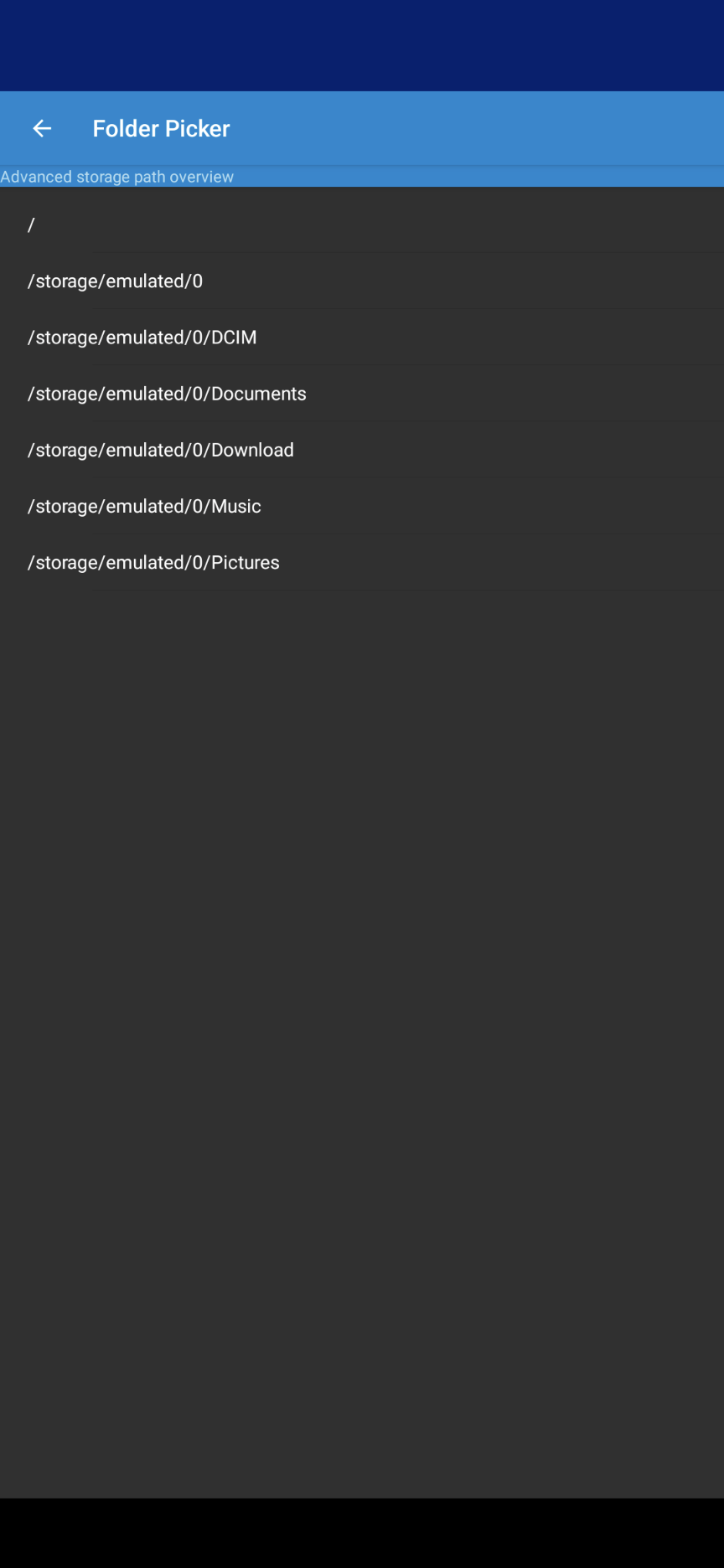
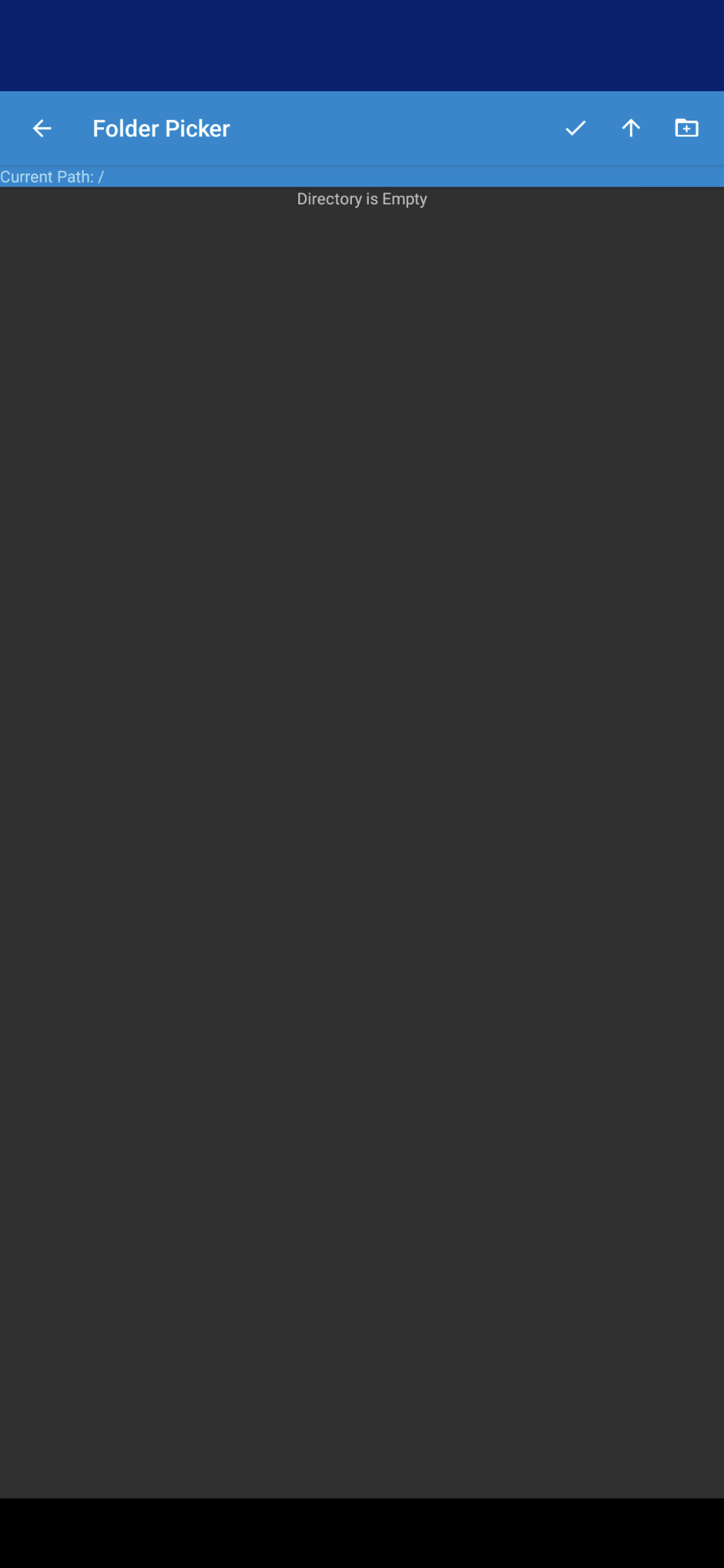
My workaround a few comments above should still function.
App version: 1.20.3.1 Phone: Pixel 4a OS: Android 13 stable
Does this still work? I just got a Pixel 6a and can't use syncthing to write to my usb drive. The above doesn't work for me and I'm not interested in rooting my phone. So is syncthing just not viable anymore to write to an usb drive on Android 13 without root?

Does this still work? I just got a Pixel 6a and can't use syncthing to write to my usb drive. The above doesn't work for me and I'm not interested in rooting my phone. So is syncthing just not viable anymore to write to an usb drive on Android 13 without root?
What steps did you try? I have a Pixel 4a and my solution still works for me.
What steps did you try? I have a Pixel 4a and my solution still works for me.
This one
I got it working:
You need to get the correct path, and enter it into the webgui.
If you use the file picker it will return, for example, "/storage/C90F-14E4/Pictures" but this will fail. It's not the real path. You need to enter "/mnt/media_rw/C90F-14E4/Pictures" (using your own drive's name and folder path instead of mine). The webgui complained of something but in the end it worked!
I suggest that the file picker be corrected to return /mnt/media_rw and/or update the custom file path tool (the gear) to detect removable storage in a more reliable way. In the meantime you can get the true path using Material Files, which by the way also supports opening folders in the main view.
Can you paste the full path? I'm suspecting a typo.
Not sure how you'd be able to tell if there's a typo since the path is unique,
/mnt/media_rw/9A94-1E1E/Music
I tried this already a bunch of times before I even saw this issue thread. Something else is going on here.
Edited had extra media by accident here.
I saw the extra media, got hopeful for a moment haha. That would have been an easy fix. Oh well. How did you get the path? Did you use Material Files?
I saw the extra media, got hopeful for a moment haha. That would have been an easy fix. Oh well. How did you get the path? Did you use Material Files?
Used the native google files app and Cx File Explorer. Same path.
This is going to sound obvious... but are you sure Syncthing has all files access enabled? Without that it cannot access /mnt/media_rw/blah/blah
This is going to sound obvious... but are you sure Syncthing has all files access enabled? Without that it cannot access /mnt/media_rw/blah/blah
Yes, I reinstalled it several times and granted permissions each time as a sanity check
Are you serious?! LOL. I made a bad assumption and assumed it wasn't that because you got past the root directory. I even asked for the full path and still missed it...