AerialScreensaver
Can't stop full screen playback mode on desktop
When going through the installation steps the panel that allows me to choose video formats has an expand button to full screen. This helps the user decide on the video resolution choice for the display in use. However once this starts you have a live desktop and there is no obvious way to turn it off.

Bottom right corner if I remember correctly ? I thought I had a tooltip in there but maybe this can be improved I’ll check when I have a sec.

Thanks. Just got a new Mac and this happened last time I installed the companion. I think I had to reboot - can't find the process in activity monitor. Definitely no icon bottom right that I can see. Video playback has stopped at the end of the video. Opened the Mac to get two screens (I use ultra wide display) and no icons on either screen bottom right.
I think you have to hover there for it to show ? That or there’s something else wrong I’ll try and have a look. You are running catalina or Big Sur ?
Catalina. I think I also tried going back into the setup app and then closing that didn't stop it either. Just re-booted now to clear it.
Is it intended to be like a live desktop - if not then I think the icon should always be visible :-)
Guess I'm a bit confused a bit by what happened to you.
First, in order to get into fullscreen you have to actually press the arrow thing, there's a tooltip that explains this :
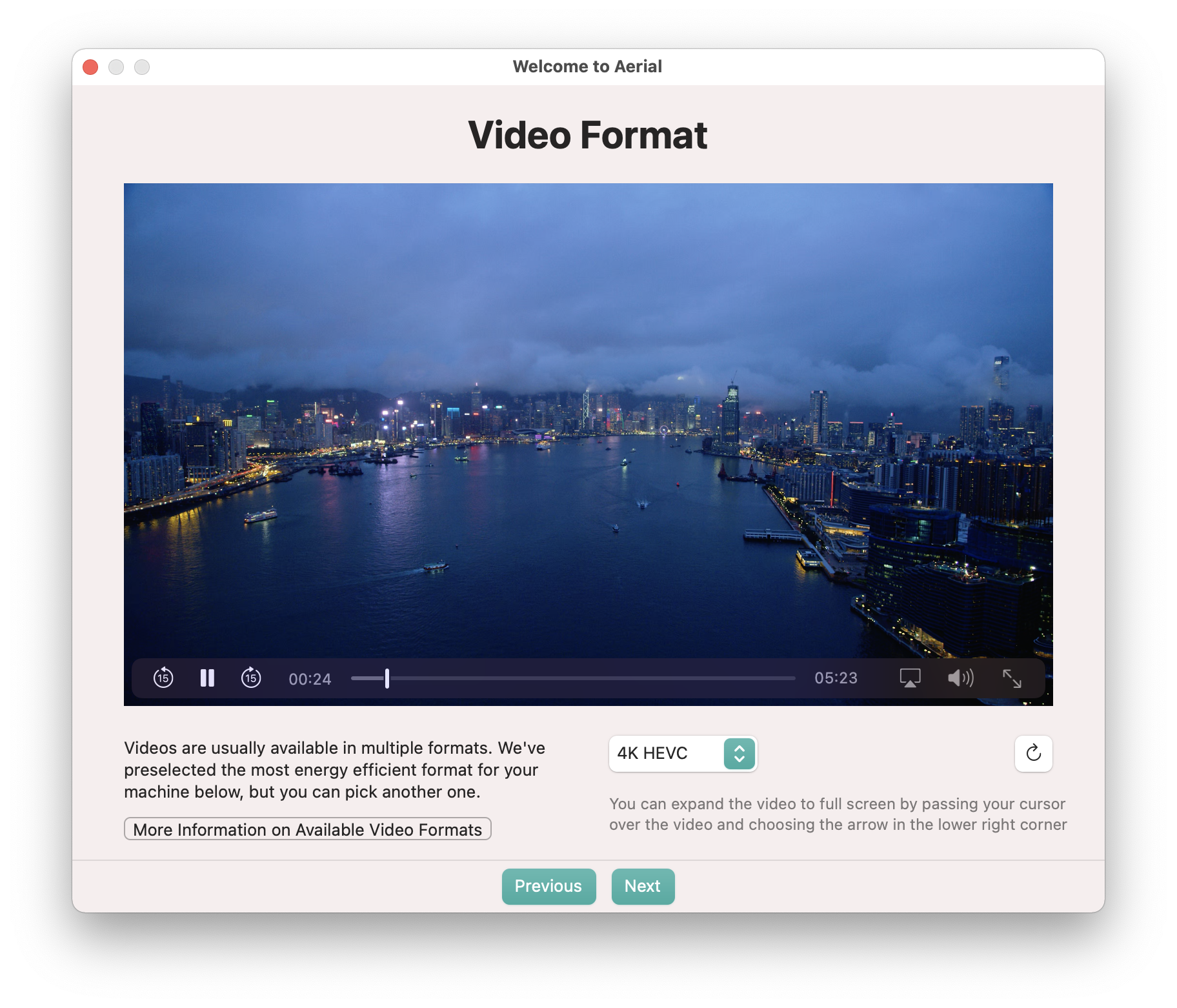
And when the video plays for the first time, the controls are still visible on screen at the bottom :

To Exit you just press the same thing at the bottom that you clicked to enter. Those are the standard controls from Quicktime. What does happen is that if you let the video plays to the end, the controls gets hidden until you move your mouse to the bottom, again that's the default QuickTime way of doing things.
I would assume that's where you got stuck ?
Yes - I pressed the expand button in the first screen shot to see what the videos looked like in fullscreen.
Imagine your second screenshot with the dock superimposed on the left side (I like the dock on the left because I have a ultra-wide display) and no playback controls at all on the bottom just video. The video is playing underneath the dock and no other apps are visible as though the video playback is second in the z-order after the dock. Clicking on apps in the dock brings them up over the video. Clicking or moving the mouse around the bottom of the screen does not make any controls appear.
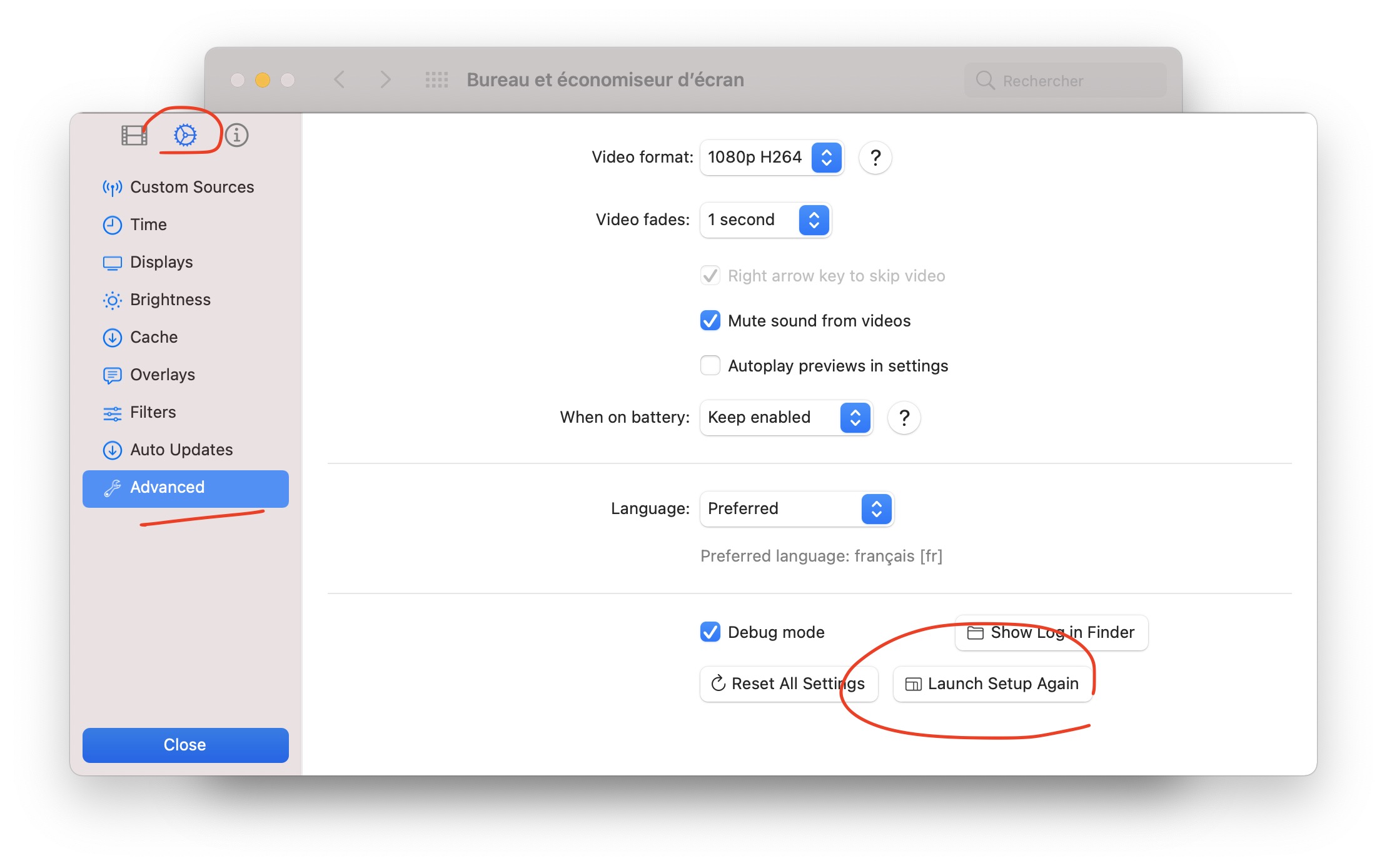
I found the button to relaunch the setup and here it is.

Force quitting the screen saver service stops it. Didn't see that last time. Confirmed no mouse movement at the bottom renders the QT menu bar
Ok this is starting to make a bit more sense to me, sorry I still haven't had enough coffee this morning.
Yes - I pressed the expand button in the first screen shot to see what the videos looked like in fullscreen. Imagine your second screenshot with the dock superimposed on the left side
That's... very not normal
(I like the dock on the left because I have a ultra-wide display)
Mine is left too ;)
and no playback controls at all on the bottom just video. The video is playing underneath the dock and no other apps are visible as though the video playback is second in the z-order after the dock. Clicking on apps in the dock brings them up over the video. Clicking or moving the mouse around the bottom of the screen does not make any controls appear.
Understood, at that point I'm not sure what exactly happened to you but I see why you were stuck. Just to be clear, I do have an always on dock too and when the video goes into fullscreen, it should just to that and you should have not seen the dock.
It looks like as you described in some way it went "live wallpaper" on you (which ironically I can't do in Swift but that's another story).
And it looks like you had lost focus too on top of this.
In general, when you get stuck in something, Cmd+alt+shift+esc will force quit for you.
Just to be sure, did you apply the latest updates for Catalina before installing Aerial ?
Thanks for the screenshot, makes a lot more sense now and I confirm that's very not what you should have experienced, sorry about that.
At that point I'm not sure what causes this, if this is specific to your wide screen setup or not. I'm using the standard quicktime controls and they shouldn't really do that, but that's not very helpful to say. I'm a bit puzzled on this one but I'll try to think about it. thanks for the report!
No I haven't had time to go to 10.15.7 yet as this is a work Mac and I had to get everything moved over and back to work asap. 10.15.6 right now. Thanks for the Cmd+alt+shift+esc will force quit I didn't know that. 👍
Ok I suggest you try again later on with 10.5.7 when you have a second, I've had weird reports of Macs misbehaving "out of the box" with Aerial until the first reboot or until the patch install.
10.5.7 install makes no difference. I managed to find the setting to re-start setup from Aerial Companion and ran it again. I clicked around at the bottom of the screen and got the setup screen to come into focus, which had the video preview missing - all black in the centre of the screen. I then used cmd-alt-shift-esc to kill it.
Hey @banjaxxer !
Sorry about that, looks like there may be something specific to how AVPlayer's (aka QuickTime public API) fullscreen mode works (or doesn't work) on your screen. At that point there's not much I can do to troubleshoot you short of trying to replicate with a minimal sample and send that to Apple.
This may require a couple of back and forth between you and me in the next few days (I may not have time to work on this until this weekend). Would that be ok with you ?
Regarding " which had the video preview missing - all black in the centre of the screen" yep that's how it works, the videos goes full screen and you get a black screen in the ui in the background.
Lastly regarding how to get that screen, it's not in companion, it's in the screensaver proper, see below :