
status.im
 status.im copied to clipboard
 status-im
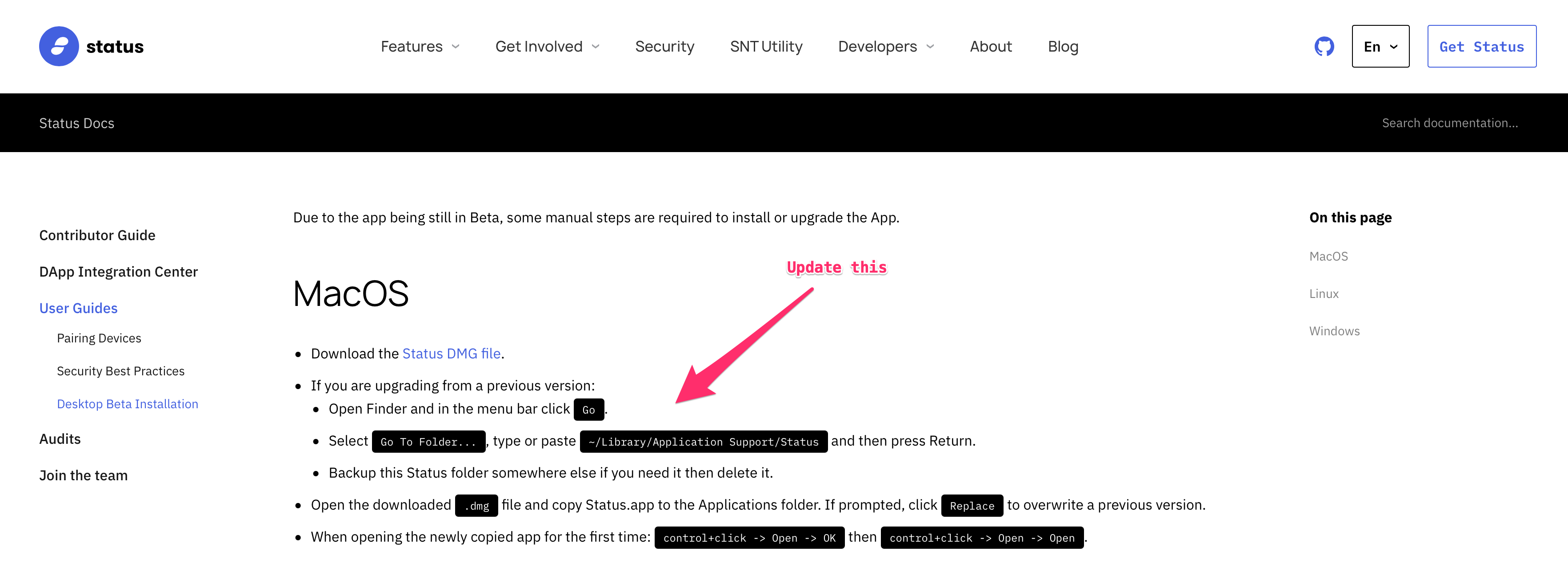
Update Installation Instructions Text
Problem
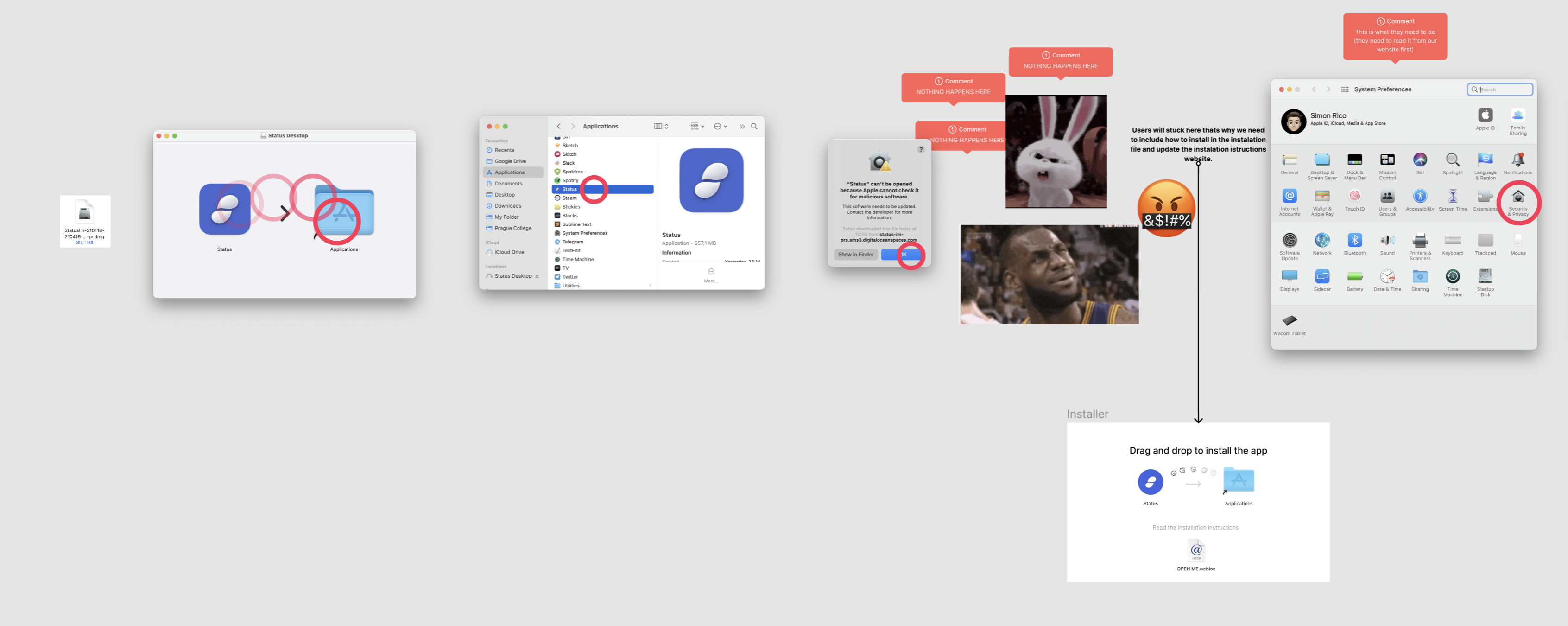
The instructions we provide in the website is not the only way how to enable to open an app on MacOS from the internet. It depends on your OS version, Privacy settings etc.. You might need to do 2 things besides the instruction we have on our web page: A)
- Open System Preferences.
- Go to the Security & Privacy tab.
- Click on Open Anyway
B) (Im not sure if this happens as we are not identified developers)
- Open System Preferences.
- Go to the Security & Privacy tab.
- Click on the lock and enter your password so you can make changes.
- Change the setting for 'Allow apps downloaded from' from 'App Store' to 'App Store and identified developers'.
I documented the whole flow in Figma if you are interested: https://www.figma.com/file/BTS422M9AkvWjfRrXED3WC/%F0%9F%91%8B-Onboarding%E2%8E%9CDesktop?node-id=1331%3A8829
Solution
Update Instructions Web page to cover at least A)
We will be navigating user from the installation file to the web page so it will be great If we can update it.

Resources
There is a nice article giving instructions on this here: https://www.macworld.co.uk/how-to/mac-app-unidentified-developer-3669596/

@simonricoo do you think it works to add a note after the last bullet for MacOS?
- Download the Status DMG file.
- If you are upgrading from a previous version:
- Open Finder and in the menu bar click Go.
- Select Go To Folder..., type or paste ~/Library/Application Support/Status and then press Return.
- Backup this Status folder somewhere else if you need it then delete it.
- Open the downloaded .dmg file and copy Status.app to the Applications folder. If prompted, click Replace to overwrite a previous version.
- When opening the newly copied app for the first time: control+click -> Open -> OK then control+click -> Open -> Open.
If you are prompted with the screen below. In Privacy and Security, make sure Allow apps downloaded from is set to App Store and identified developers. See also this article

Let's check on Desktop UI call what the Status is of notarization. That'll determine what instructions are required and for how long.

I think its not enough, its not covering the use case of A) When you need to click "Open Anyway" in Privacy & Security.
Proposed text to add as a last bullet after the last bullet point.
If your are prompted with a warning pop-up. Go to System Preferences → Privacy and Security and make sure make sure Allow apps downloaded from is set to App Store and identified developers, you might also need to click on Open Anyway
Actually I think this will be sufficient to write instead what we have now.

A couple of thoughts:
I'm not sure if this happens as we are not identified developers
We are identified developers and we are signing with the correct kind of Apple-issued certificate. If that wasn't the case, it wouldn't be possible to bypass Apple's mechanism that prevents the app from opening by default.
What we're not doing, yet, is "notarizing" the builds for macOS. Once we have build notarization in place, this problem should go away entirely (I hope!)
Actually I think this will be sufficient to write instead what we have now.
In my experience that's not the case, though I may have misunderstood what you proposed in the screenshot. I understood it to mean that a user only needs to jump through the extra hoops when installing for the first time.
I'm on Catalina (10.15) and don't have an install of newer macOS to check. On Catalina, at least with my setup, and it works the same on 10.13 (I have an older macbook that's stuck on that version), for every new download of Status.dmg, after copying Status.app to the Applications folder, I have to open it (double-click or right click) and click the OK button. Then I have to right-click, click Open in the menu, then click the Open button. If I don't do those exact post-copy steps every time (on 10.15 and 10.13), I can't run the app at all.
I had forgotten about changing the setting in System Preferences -> Security & Privacy -> General from "App Store" to "App Store and identified developers" because I did it so long ago. My apologies for overlooking it; we do need to include that step in the instructions.
I've never seen an "Open Anyway" button or setting, can you clarify where you see that and what version of macOS you are running?

I've never seen an "Open Anyway" button or setting, can you clarify where you see that and what version of macOS you are running?
Okay, I see an example in the article you linked:
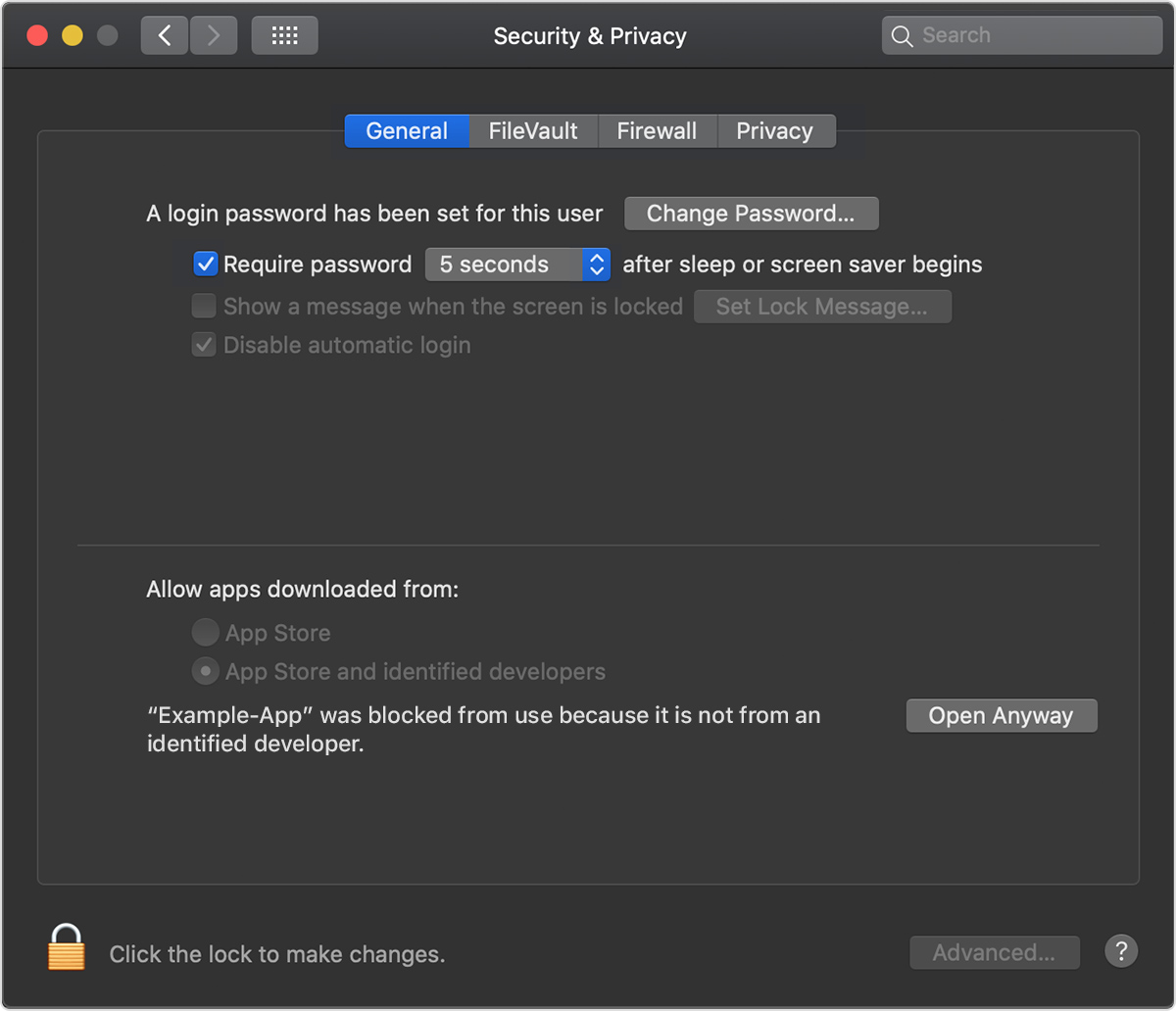
However, that's something I have never experienced myself, so maybe it's a behavior of a newer version of macOS, I'm not really sure.