
system-monitor-alfred-workflow
 system-monitor-alfred-workflow copied to clipboard
 singhprd
System Monitor - An Alfred 3 Workflow. Take a glance at system performance. List/Kill Top Processes by Memory, Cpu or IO Usage.
System Monitor : An Alfred 3 Workflow.
Take a glance at system performance. List/Kill Top Processes by Memory, Cpu or IO Usage.
Forked from Zhao Cai as Alfred 2 Top Workflow at https://github.com/zhaocai/alfred2-top-workflow
💾 Download
-
- List/Kill Top Processes by Memory/CPU/IO Usage

-
- Get a glance of system status including internal battery, fan speed, CPU/GPU Temperature, bluetooth battery, disk capacity, etc.

Usage
0. Show Help
Just type -?, -h, or --help after the keyword to show help.

1. Top Processes
A. Keywords:
1.) top: Show a mixed processes list based on top cpu/memory usage.
1. top -m, top --memory to show processes ranked by memory usage
2. top -c, top --cpu, to show processes ranked by cpu usage
3. top -i, top --io, to show processes ranked by io usage with callback from top io trace collector.
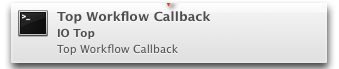
Top IO requires [DTrace][Dtrace] and it would take a while to finish. The new callback design is to run the job in he background and post a notification (OSX 10.8+) using notification center. Click on the notification to show the result in alfred.
Modifier Key
none: The default action is to list files opened by process IDcontrol: Kill the selected processcommand: kill forcefully (kill -9)alt: Nice (lower) the selected process's cpu priorityshift: Search web for process information
2.) kill: Filter process to kill.
Modifier Key
none: The default action is to kill by process IDcommand: kill forcefully (kill -9)
3.) lsof: List files opened by process id
Modifier Key
none: The default action is to reveal file in Finder
B. Filter by Query
1.) Type process name to filter

2.) To search for process state, use :idle, :sleep, :stopped, :zombie, :uninterruptible, :runnable, etc.

2. Glance an Eye on your system
A. Keywords:
glance: Show system information including internal battery, bluetooth battery, disk capacity, etc.

B. Change Display Order
-
Activate
Alfred Preferences→Advanced→Top Result Keyword Latching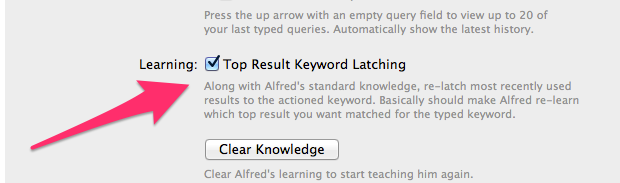
-
Hit
Enterfor the feedback item you wish to show up on the top.
Installation
Two ways are provided:
-
You can download the latest release from here and import into to Alfred. This method is suitable for regular users.
-
You can
git cloneorforkthis repository and userake installandrake uninstallto install. Checkrake -Tfor available tasks. This method create a symlink to the alfred workflow directory: "~/Library/Application Support/Alfred 2/Alfred.alfredpreferences/workflows". This method is suitable for developers.
 singhprd