
Snippets
 Snippets copied to clipboard
 MiniDiscordThemes
CSS snippets for Discord.
Snippets

CSS snippets for use by Discord client mod users and theme developers.
Catalogue
Working snippets

| Snippet | Preview |
|---|---|
| Alt Text Improvements | 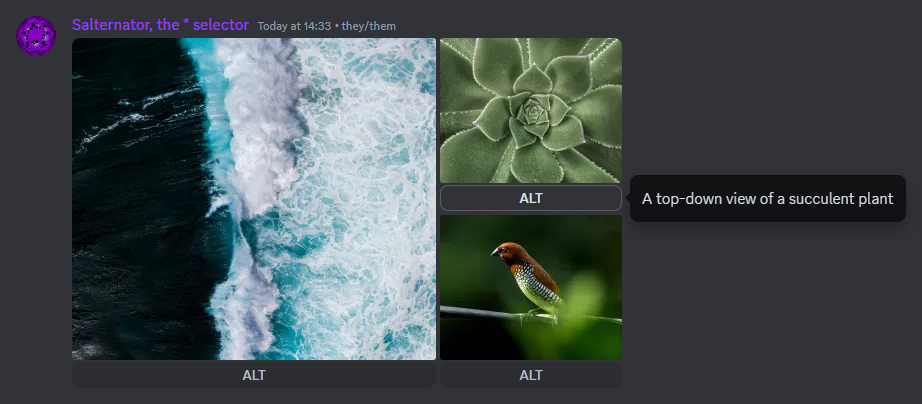 |
| Avatar Decoration Checkmark | 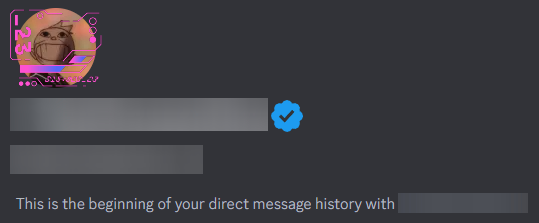 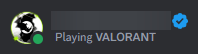 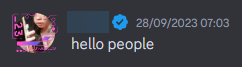  |
| Billboard | 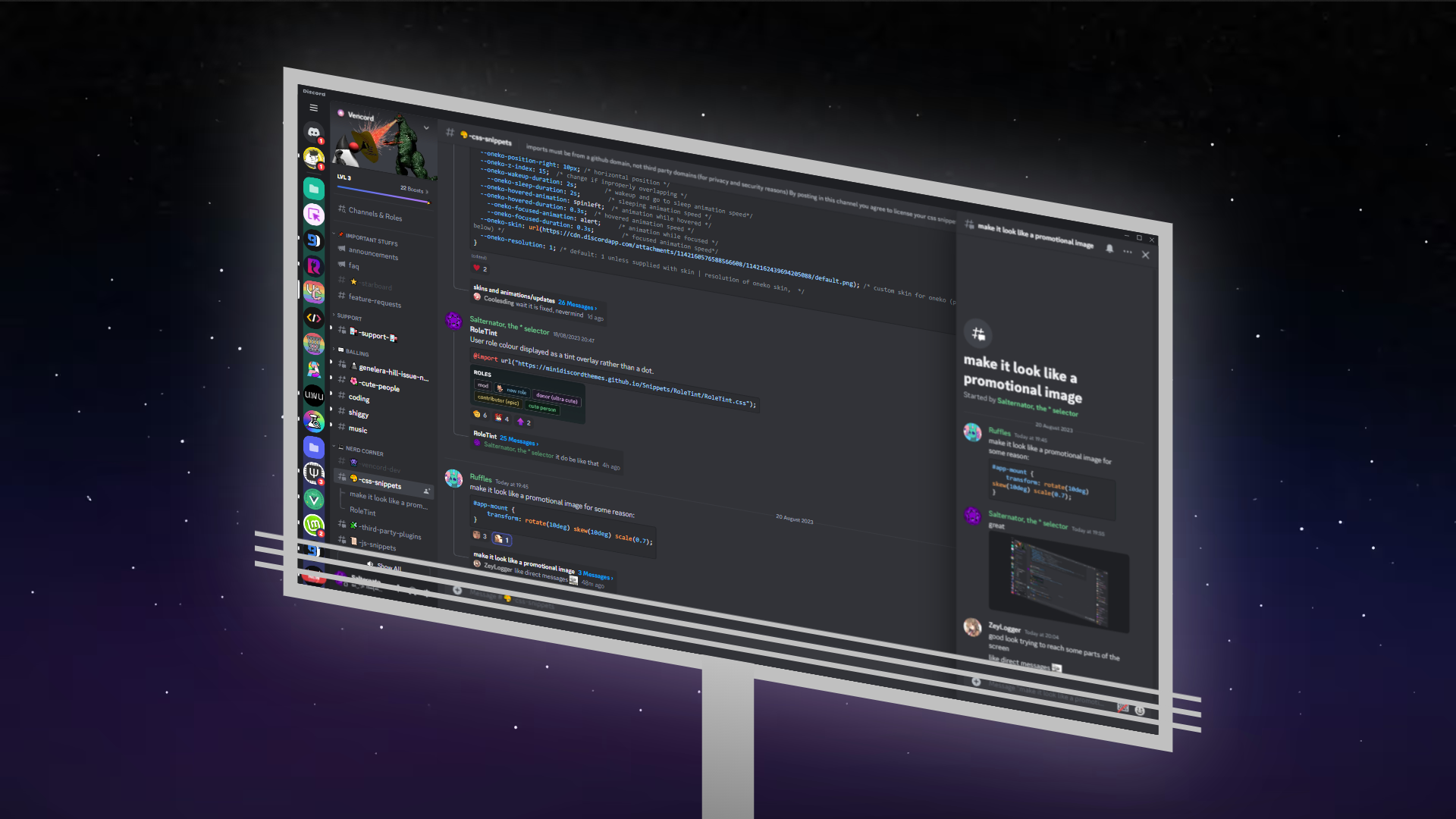 |
| Channel List Width | 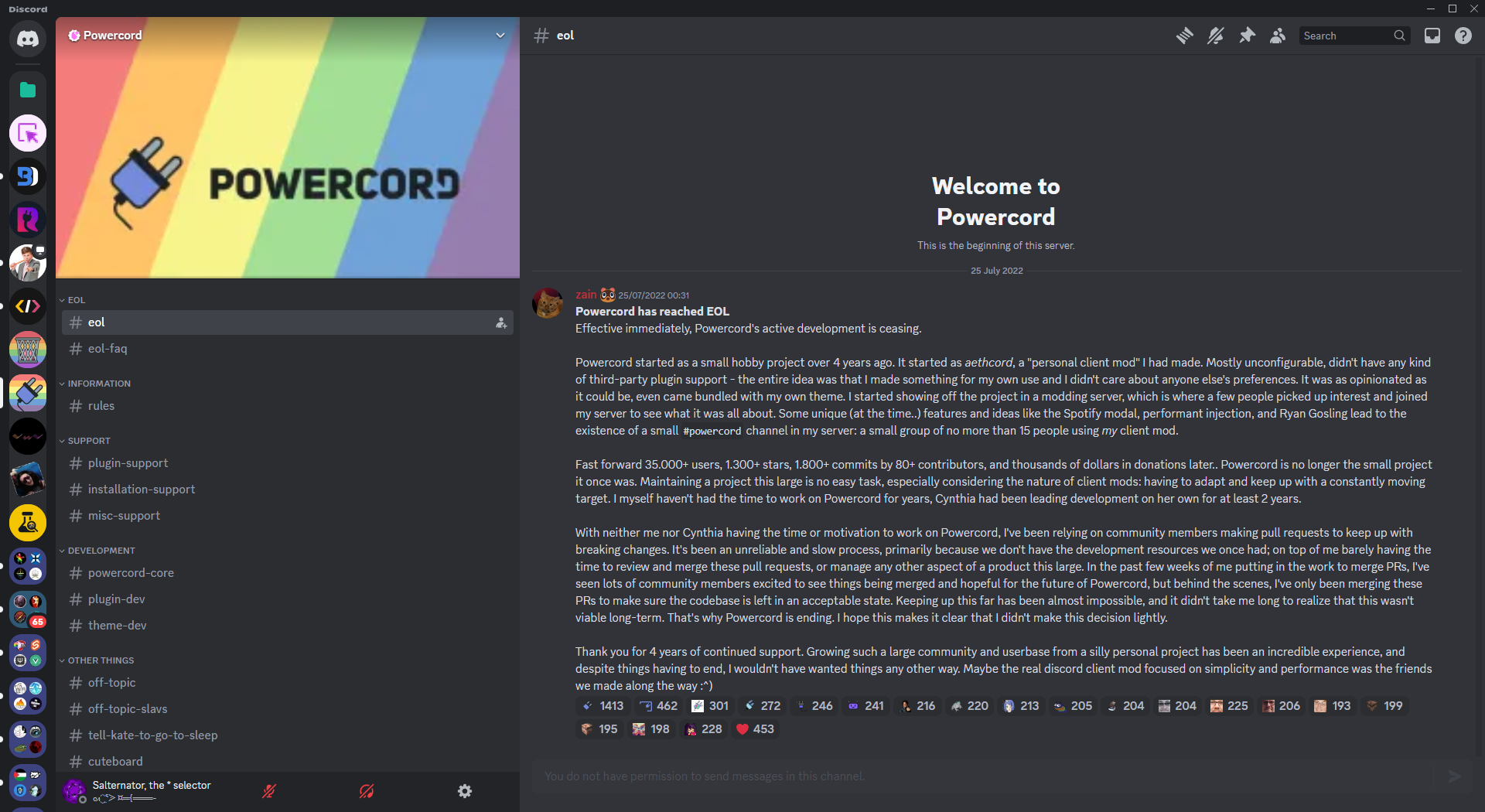 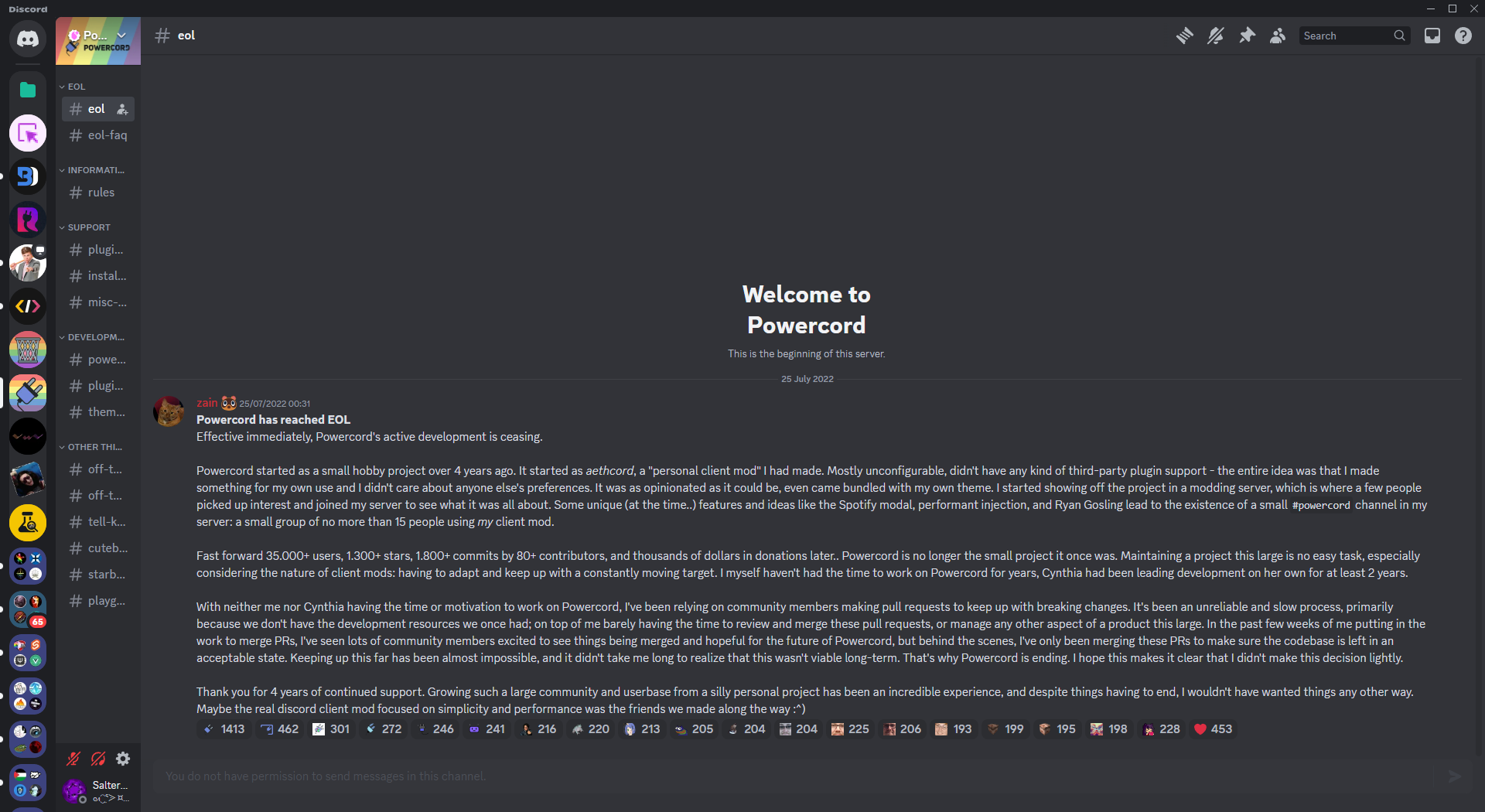 |
| Efficient Settings |  |
| Image Link | 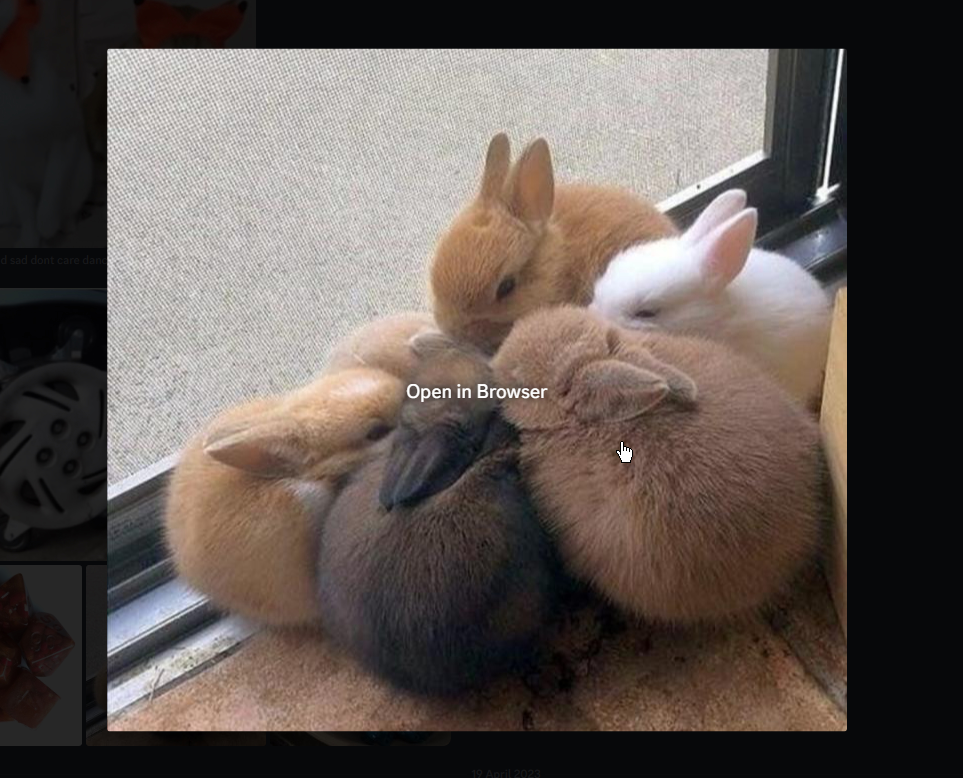 |
| Message Bar Grey Emoji | 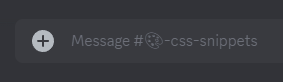 |
| Minimal Auth Apps | 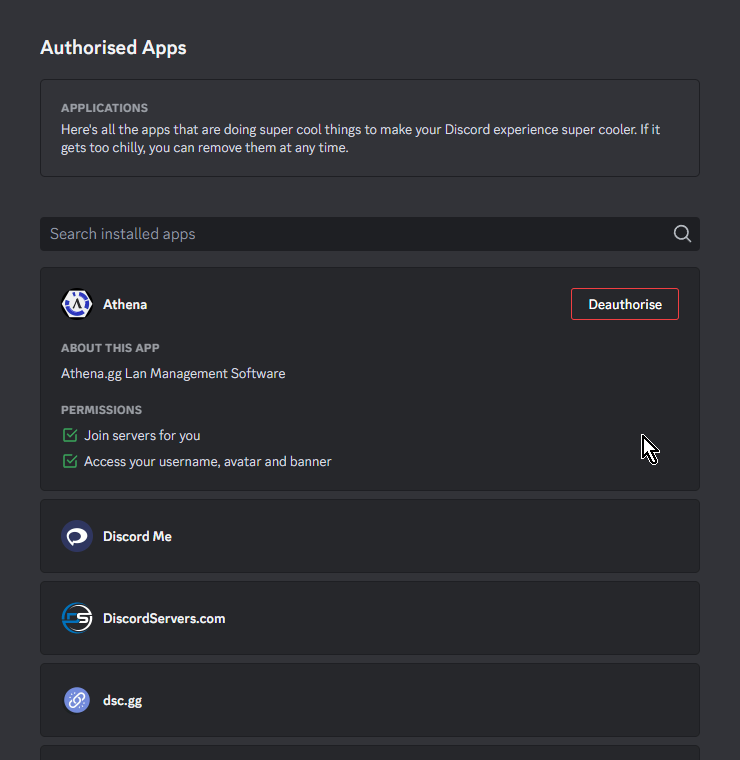 |
| Mode Indicator |  |
| Mod Title | 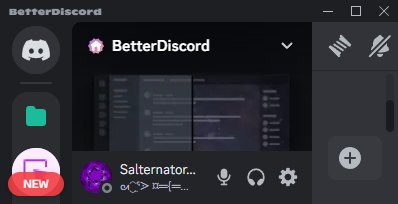  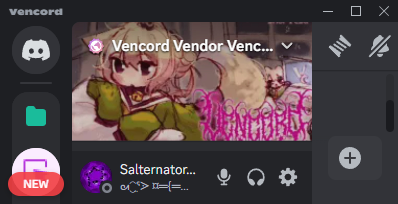 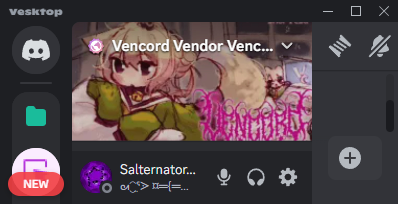 |
| Pill VC | 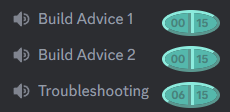 |
| Role Tint | 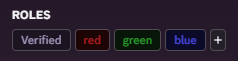 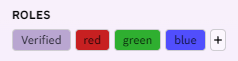 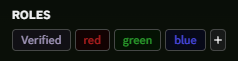 |
| Settings As Overlay | 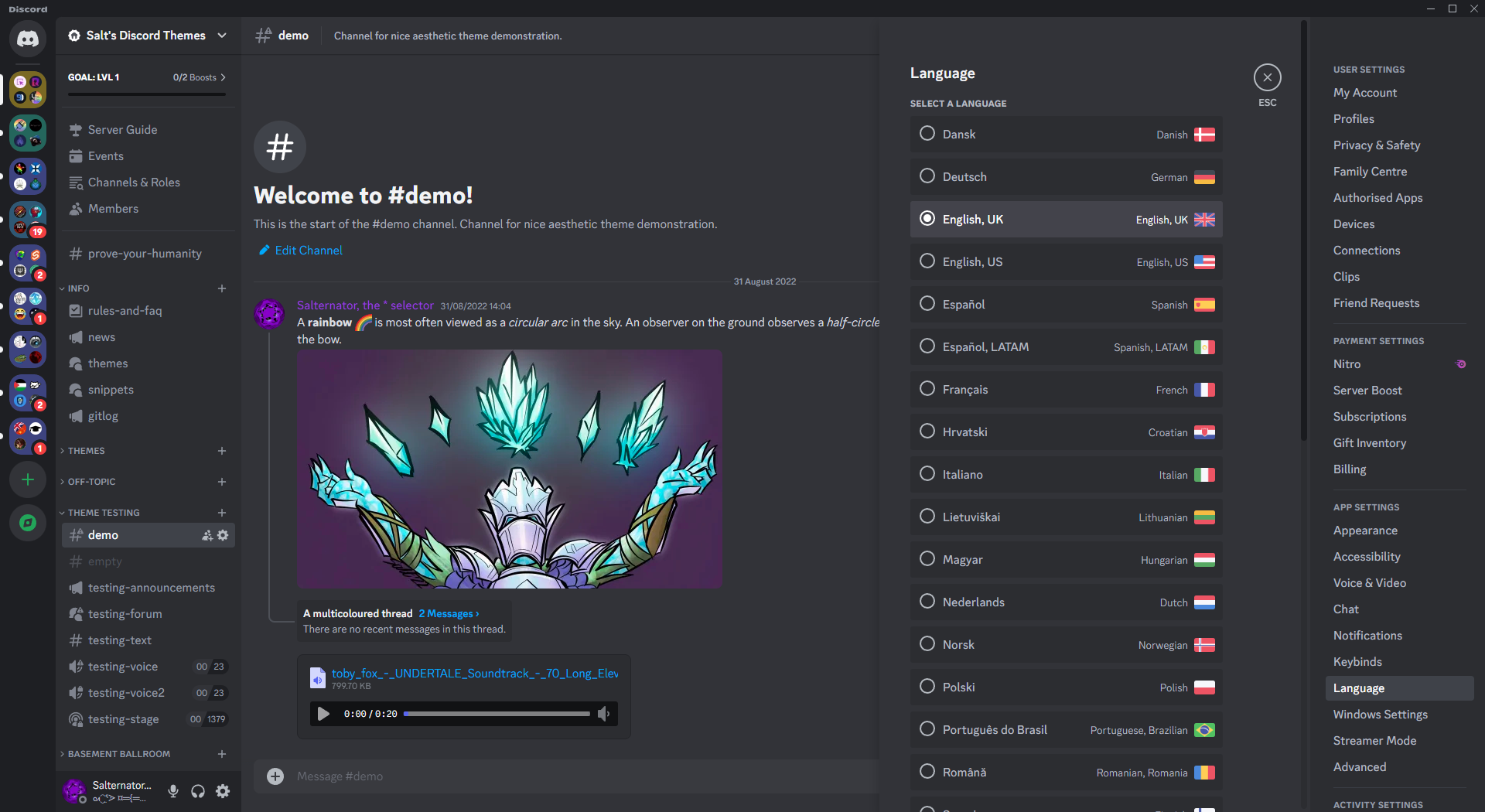 |
| Show Original Link |  |
| Split Message Bars |  |
| Unread Shake | 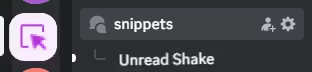 |
Moved snippets

- Minimal Addon Cards → MiniDiscordThemes/MinimalAddonCards
Discontinued snippets

- Hide AKA
Usage
See each snippet's README for the import, Replugged install link, Vencord online theme link, and customisation options.
BetterDiscord
- Open
Settings>BetterDiscord>Custom CSS. - Add the
@importto the top of your Custom CSS file. - Add any
:rootcustomisation options to the end of your Custom CSS file.
Replugged
Automatic theme
- Click the Replugged install link.
- Open
Settings>Replugged>Quick CSS. - Add any
:rootcustomisation options to the end of your Quick CSS file.
Manual theme
- Download the
.asarfrom latest release. - Place the
.asarin your Replugged themes folder.Settings>Replugged>Themes>Open Themes Folder
- Click
Load Missing Themesand toggle on the theme card. - Open
Settings>Replugged>Quick CSS. - Add any
:rootcustomisation options to the end of your Quick CSS file.
Quick CSS
- Open
Settings>Replugged>Quick CSS. - Add the
@importto the top of your Quick CSS file. - Add any
:rootcustomisation options to the end of your Quick CSS file.
Vencord / Vesktop
Online theme
- Add the Vencord online theme link to your Online Themes.
Settings>Vencord>Themes>Online Themes
Enable Custom CSSinSettings>Vencord>Vencord.- Click
Open QuickCSS File. - Add any
:rootcustomisation options to the end of your QuickCSS file.
QuickCSS
Enable Custom CSSinSettings>Vencord>Vencord.- Click
Open QuickCSS File. - Add the
@importto the top of your QuickCSS file. - Add any
:rootcustomisation options to the end of your QuickCSS file.
Contributing
See CONTRIBUTING.md.
License
MIT License
- TL;DR;NAL: Do whatever you want with these snippets, just include the original license.
Credits
Avatar Decoration Checkmark
Questions or suggestions?
- Post an issue on GitHub.
- Post in
#theme-supporton my support server.
 MiniDiscordThemes