NeoVim Config For Front-end Developer
Archived. Please go https://github.com/Innei/dotfiles
Forked from theniceboy/nvim
Support Language:
- JavaScript (include Vue, JSX, TypeScript, etc.)
- Golang
- HTML
- CSS
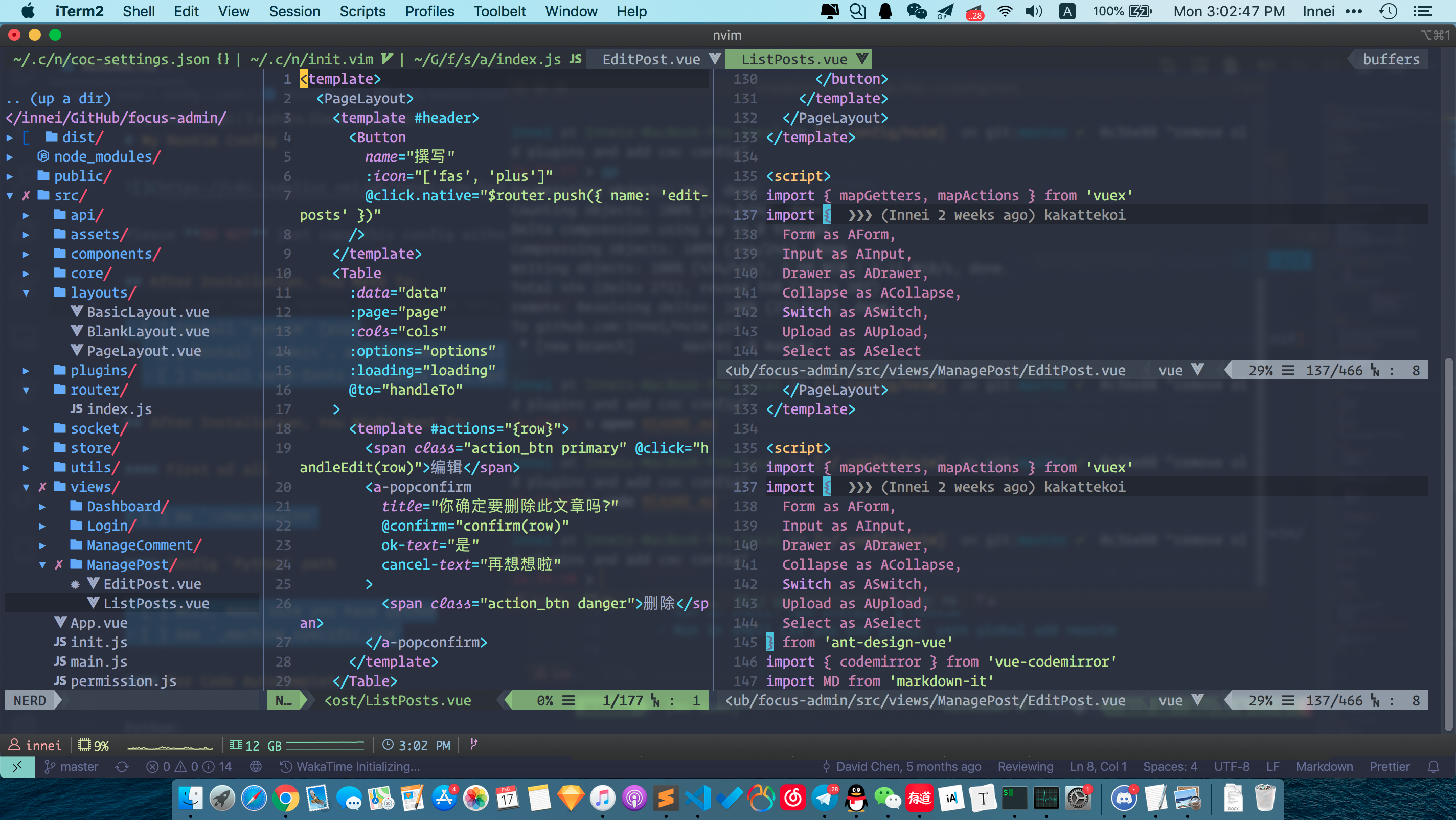
Please DO NOT just copy this config without really looking at it! Please, at least, read this README file!
After Installation, You Need To:
- [ ] Install
pynvim (pip)
- [ ] Install
nodejs, and do npm install -g neovim
- [ ] Install nerd-fonts (actually it's optional but it looks real good, recommended
Operator Mono which patched font on (Fonts)[https://github.com/Innei/zshrc/tree/master/fonts])
After Installation, You Might Want To:
First of all
Config Python path
- [ ] Well, make sure you have python
- [ ] See
_machine_specific.vim
For Code AutoComplete - coc
Python:
- [ ] Do
pip3 install flake8 (for linting)
For Taglist:
- [ ] Install
ctags for function/class/variable list
And also...
- [ ] Install
figlet for inputing text ASCII art
- [ ] Install
xclip for system clipboard access (Linux and xorg only)
- [ ] Install ag tool (For mac user do:
brew install ag)
Keyboard Shortcuts
1 Basic Editor Features
1.1 The Most Basics
Q : quit current vim window, equals to command :q
S : save the current file, equals to command :w
<Ctrl> <s> : save all tabs file, equals to command :wa
; : exec a vim command, equals to key :
1.2 Remapped Cursor Movement
| Shortcut |
Action |
↑ |
Cursor up a terminal line |
↓ |
Cursor down a terminal line |
← |
Cursor left |
→ |
Cursor right |
Ctrl u |
Move the view port up 5 lines without moving the cursor |
Ctrl e |
Move the view port down 5 lines without moving the cursor |
W |
Move cursor five words forward |
B |
Move cursor five words forward |
, |
Back to prev edited position |
. |
Forward to next edited position |
<M-d> |
Select current under cursor word |
\ \ |
Go next word which equal with current cursor under word |
\ * |
Same as above, but go forward |
0 |
Equal to ^ |
) |
Equal to $ |
1.3 Remapped Insert Mode Keys
| Shortcut |
Action |
j j |
Map to ESC |
j k |
Map to undo |
Meta d |
Select current (next) under cursor word |
Meta D |
Select prev some word which like under cursor word |
Meta Down |
Swap current line and next line |
Meta Up |
Swap current line and before line |
1.4 Remap Visual Mode Keys
| Shortcut |
Action |
Shift Left |
Select to previous word |
Shift Right |
Select to next word |
Meta Up |
Move selection up |
Meta Down |
Move selection down |
, |
Select to the end of line (without $) |
. |
Select to the beginning of line |
1.5 Remapped Text Manipulating Commands in Normal Mode
| Shortcut |
Action |
u |
undo |
r |
redo |
< |
Un-indent |
> |
Indent |
= |
Increase the number under cursor by 1 |
- |
Decrease the number under cursor by 1 |
X |
replace a letter into another. Equal to r |
1.6 Other Useful Normal Mode Remapping
| Shortcut |
Action |
F5 |
Compile/Run the current file |
y |
Copy selected text to system clipboard |
z = |
Show spell suggestions |
SPACE s c |
Toggle spell suggestion mode |
SPACE d w |
Find adjacent duplicated word |
SPACE t t |
Convert every 4 Spaces to a tab |
SPACE - |
Previous quick-fix position |
SPACE + |
Next quick-fix position |
2 Window Management
2.1 Creating Window Through Split Screen
| Shortcut |
Action |
s ↑ |
Create a new horizontal split screen and place it above the current window |
s ↓ |
Create a new horizontal split screen and place it below the current window |
s ← |
Create a new vertical split screen and place it left to the current window |
s → |
Create a new vertical split screen and place it right to the current window |
s v |
Set the two splits to be vertical |
s h |
Set the two splits to be horizontal |
s r v |
Rotate splits and arrange splits vertically |
s r h |
Rotate splits and arrange splits horizontally |
2.2 Moving the Cursor Between Different Windows
| Shortcut |
Action |
SPACE + w |
Move cursor to the next window |
SPACE + ↑ |
Move cursor one window up |
SPACE + ↓ |
Move cursor one window down |
SPACE + ← |
Move cursor one window left |
SPACE + → |
Move cursor one window right |
2.3 Resizing Different Windows
Use the Shift + arrow keys to resize the current window.
2.4 Closing Windows And Buffer
| Shortcut |
Action |
Q |
Close the current buffer |
SPACE q |
Close the window below the current window. (The current window will be closed if there is no window below) |
Ctrl + q |
Exit all windows |
3 Tab Management
| Shortcut |
Action |
t / |
Create a new tab |
t , |
Go one tab left |
t . |
Go One tab right |
t m , |
Move tab left |
t m . |
Move tab right |
t b |
Go next tab |
4 Buffer Management
| Shortcut |
Action |
Ctrl \ |
Toggle prev buffer |
Ctrl ] |
Toggle next buffer |
g b |
Toggle next buffer |
5 Terminal Keyboard Shortcuts
| Shortcut |
Action |
SPACE . |
Create a new split with a terminal below the current window |
Ctrl n |
Escape from terminal input mode |
6 Vim Object Action
pairs: [ ] ( ) { } etc.
| Shortcuts |
Action |
c i + pairs |
Remove section and re-edit section in next section in pairs |
c I + pairs |
Same as above, but ignore surrounding space |
v i + pairs |
Select section which in pairs |
v I + pairs |
Same as above, but ignore surrounding space |
More useful object actions. Like
c + b (change this block content under the cursor) ({} ())c + q (change this quote content under the cursor) ("" '')
Other: See targets.vim
Plugins
CoC (AutoCompletion)
CoC is a modern completion, which had most vscode feature. It's all configs wrote in coc-setting.json
| Shortcut |
Action |
Space y |
Get yank history list |
gd |
Go to definition |
gr |
List references |
gi |
List implementation |
gy |
Go to type definition |
Space r n |
Rename a variable |
| Shortcut |
Action |
tt |
Open coc-explorer |
ts |
Translate word which under the cursor |
\d |
Open dictatory |
rnvimr
| Shortcuts |
Action |
R |
Open Ranger |
Git Action
| Shortcut |
Action |
g h |
Show git hunk at current line |
g - |
Go to previous git hunk |
g + |
Go to next git hunk |
g f |
Fold everything except hunks |
g u |
Undo git hunk under cursor |
g s |
Stage this git hunk |
<Space> gg |
Open git stash and commit |
<Space> gp |
Do git push |
Auto Pairs
| Shortcut |
Action |
<Meta> <e> |
Fast wrap the word or a pairs |
<Meta> <p> |
Toggle auto pairs mode |
vim-table-mode
| Shortcut |
Action |
SPACE t m |
Toggle table mode |
SPACE t r |
Realign table |
See :help table-mode.txt for more.
Vista.vim
| Shortcut |
Action |
T |
toggle function and variable list |
Ctrl t |
open function/class/variable finder |
Fuzzy find
| Shortcut |
Action |
Ctrl f |
Active FZF (ag) |
Undotree
| Shortcut |
Action |
Shift + l (Capital of L) |
Open Undotree |
Shift + K |
History go up |
Shift + J |
History go down |
Vim Bookmarks
| Shortcut |
Action |
ma |
Add mark at current line |
m. |
Move to next mark |
m, |
Move to prev mark |
mc |
Clear mark |
mC |
Clear All mark |
ml |
List all marks |
mSPACE |
Jump to the next mark in buffer |
For more commands, see here
vim-multiple-cursors
| Shortcut |
Action |
Ctrl+d |
Select next word (multiple cursors) |
Ctrl+p |
Select previous word |
Ctrl+x |
Skip word |
Esc |
Quit mutiple cursors |
vim-surround
To add surround (string -> "string"):
```
string
```

press: `kw'`:

```
'string'
```

To change surround

```
'string'
```

press: `ks'"`:

```
"string"
```

To add surround in Visual Mode

Select session then press `S` + `your want to add letter`
far.vim - find and replace
| Shortcut |
Action |
SPACE f |
Find in the current file (required ag) |
SPACE f r |
Find and replace |
vim-workspace
| Shortcut |
Action |
ss |
Save this session as a workspace like vscode. |
srm |
Remove all session. |
vim-fileheader
Press `F4` to add file-header this file.
fzf-gitignore
Press `Space` `g` `i` to create a `.gitignore` file
GV - commit browser
| Shortcut |
Action |
g v |
Open commit browser |
q |
Quit GV window |
AutoFormat
Press `\` `f` to format code
Goyo - Work without distraction
Press `g` `y` to toggle Goyo. (For markdown)
nerdcommenter - Quick comment
| Shortcut |
Action |
SPACE + / |
toggle comment lines. |
Custom Snippets
Markdown
| Shortcut |
What it creates |
,n |
--- |
,b |
Bold text |
,s |
~~sliced~~ text |
,i |
italic text |
,d |
code block |
,c |
big block of code |
,m |
- [ ] check mark |
,p |
picture |
,a |
link |
,1 |
# H1 |
,2 |
## H2 |
,3 |
### H3 |
,4 |
#### H4 |
,l |
-------- |
,f to go to the next <++> (placeholder)
,w to go to the next <++> (placeholder) and then press Enter for you
Other Languages
See Ultisnips folder.
Other Weird Stuff
Press tx and enter your text
tx Hello<Enter>
_   _      _ _
| | | | ___| | | ___
| |_| |/ _ \ | |/ _ \
  |  _  |  __/ | | (_) |
  |_| |_|\___|_|_|\___/
  ```

 nvim copied to clipboard
 Innei
Innei
 Innei
Innei