
krita-ai-diffusion
 krita-ai-diffusion copied to clipboard
 Acly
Acly
[Upscaling/HighRez] Visible lines between chunks while resizing or working with High Resolution
Hi guys,
I am using the latest Krita AI 1.22. Arch Linux, Nvidia 2070 Super MaxQ 8GB. Model used: Cinematic Photo (XL)
I noticed that while resizing images or even rendering large images the chunks become visible. I adjusted the Levels to highlight the chunks. Is this a limitation or a feature which we need to deal with it separately?
Let me know what you think and if you have the same.
I also note that when resizing images to 8K. It feels like as if the chunks are not aligned, and the image is shifted in disproportion:
Update 2: I noticed, that after upscaling, and then refining, the lines gets fixed. It feels like this is the issue with default upscaler (Default x4_NMKD-Superscale-SP_178000_G)
How to reproduce: Create an image of 1920x1080, upscale it to 4K, the chunk overlap wil appear.
This is the image after refining:

Upscaling divides the image in tiles. Usually it's not noticeable (there is some overlap and blending). Can you provide the original (not upscaled) image for testing? And which settings?
Ways to avoid:
- Lower strength
- Use the "Unblur" option
- Don't tick the "refine" option and do a manual refine - as you noticed this will not use tiles and avoid the issue, but it's much slower and requires more VRAM. It will become impossible at some point beyond 4k.

I cant provide the original as it was not generated from nothing, but was generated high level refining 80% and painting.
But what i can provide is the way to reproduce similar result:
Step 1: Set resolution as: 1920x1080
Step 2: Select Model: Cimenatic Photo (XL)
Step 3:
Set Prompt as: Dark evening, no clouds, sun above hoziron
Set Seed as Seed: 19376019
Set Strength as: 100%
Generate
Normal Levels:
Highlighted Levels:
Step 4: Once picture is applied, Got to Upscale using Default x4_NMKD-Superscale-SP_178000_G Scale: 4.00x Select: Refine Upscaled Image Select: Strength 30% Keep: Unblur Medium Toggle: Use Prompt I see the same issue even without use prompt option.
From the first look it looks good, but not so on IPS panel monitor:
When adjusting Levels:
Keep attention to the gradient on the right side.
In some cases the chunks are more visible, sometimes not at all. But with IPS panel monitor, it is very visible. I just have a belief that the chunks somehow overlap. I will do more tests later on, to see when it is the most visible, as we need a perfect reproducible steps with the most clear.
Again if I refine this image, the lines will disappear.
Another reproducible steps.
Step 1: Set resolution as: 768x768
Step 2: Select Model: Cinematic Photo (XL)
Step 3: Set Prompt as: sky gradient only Set Fixed Seed as Seed: 456817537 Set Strength as: 100% Generate
Step 4: Got to Upscale using Default x4_NMKD-Superscale-SP_178000_G
Select: Refine Upscaled Image Select: Strength 50% Keep: Unblur Medium Toggle Prompt Guidance: off Click Upscale
Scale: 4.00x
Levels Highlight:
Levels Highlight to whites and zoom in:
Why does the edge has a border?:
Scale: 3.00x
Levels Highlight:
Scale: 2.00x
Levels Highlight:
The bigger the scale the more chunks are visible. For some reason 2.00x doesn't produce chunks, while 4.00x, not only has very visible chunks, but also produces strange borders on the edge. As if, there is some image offset issue.
The bigger the scale the more chunks are visible.
Yes the tile size is around 1024 (for SDXL).
To be clear, dividing the image into tiles is how the algorithm works, and seams being detectable to some extent not unexpected. In most cases it is not noticeable.
The main reason it's visible in these images is that they're plain gradients. This is an issue for SD, because it has trouble keeping the brightness level (it's kind of a built-in bug that these models converge to an average brightness of 0.5). You can see similar effects when trying to inpaint these kinds of gradients. It's probably not fixable, but should improve with newer model architectures.
It would probably help if there was a larger overlap between tiles. But I'm a bit hesitant to increase it in general, since it's usually good enough, and it will cost performance.
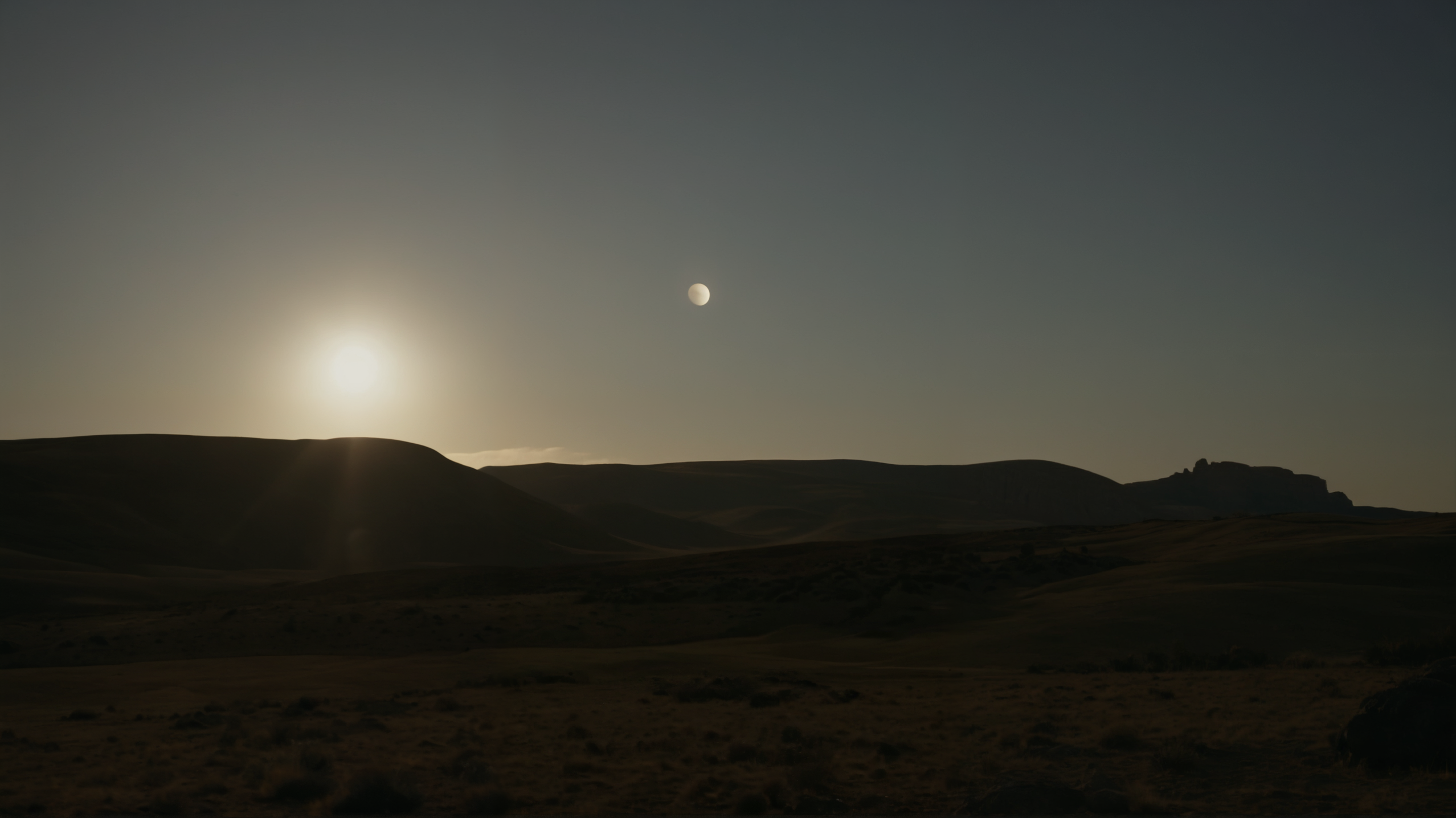
Regular Tile Overlap (48) at 50% strength - Tiles are visible
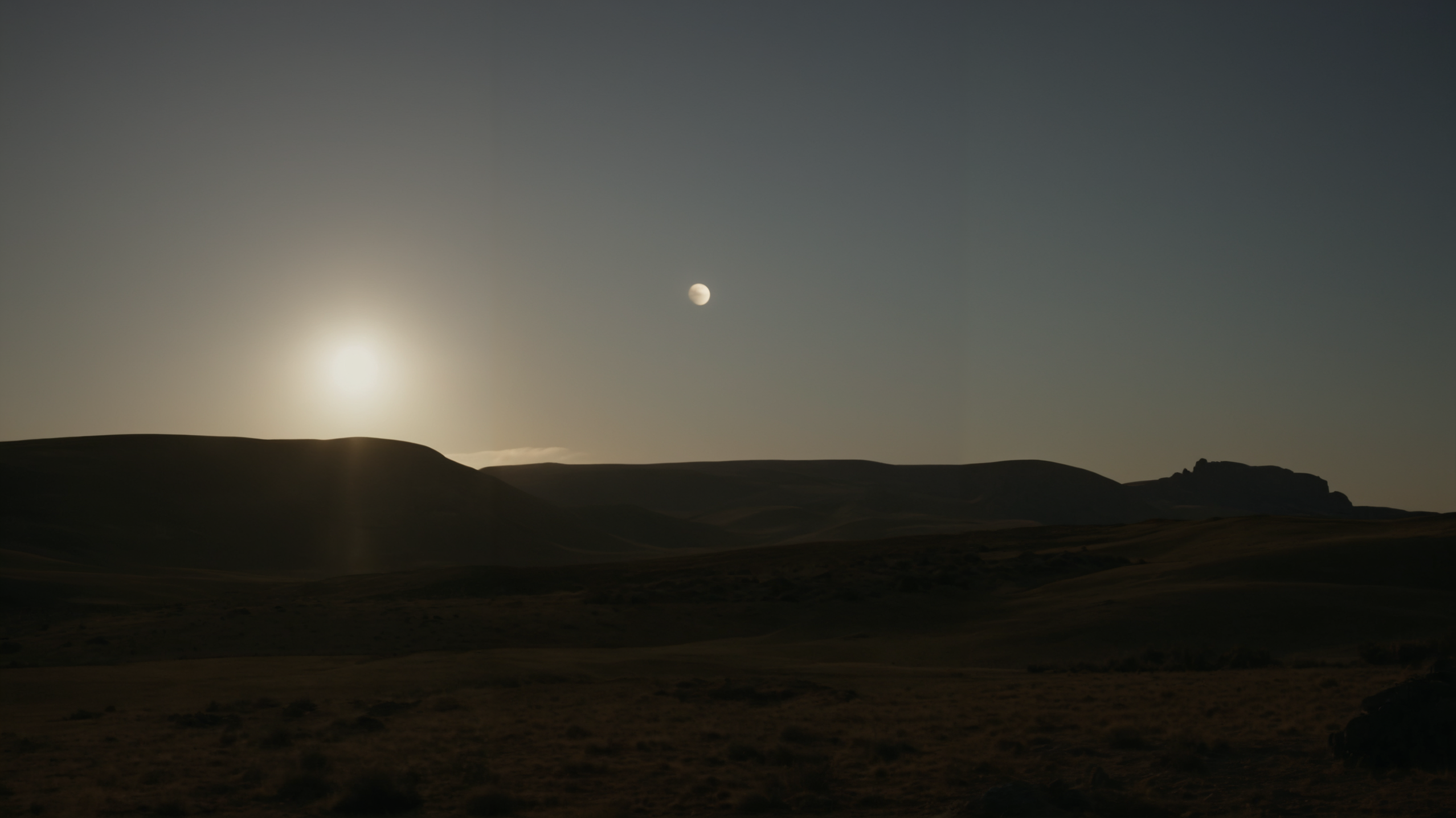
Large Tile Overlap (96) at 50% strength - Tiles no longer noticeable (on my monitor)
As if, there is some image offset issue.
I don't see that. The two images I generated line up perfectly with the original you posted, it should be easy to spot at the contours of the mountains.
Among your images there are some where the entire image appears shifted by 1px, but this might be down to odd resolutions that have to be resacled. Not sure if those are original resolution (GitHub may resize them?). But try to stay with resolutions that are divisible by 8 if you want to avoid rescaling.
I'm not trying to hijack your post, but my upscales aren't adding any detail. I'm going to say that I notice the same issue here in these images as well. Before I reinstalled everything last week, the upscaler would add details and improve the image overall - even at 30% there would be minor details that would pop more. Now, the image only seems to get brighter with no other change. I have stopped using the upscaler and now have to do a slower upscale in comfy with flux.
